Create app registrations
This unit demonstrates registering an application in Microsoft Entra ID using a single-page application (SPA). To register a single-page application in the Microsoft identity platform, complete the following steps. The process is straightforward and requires only a few pieces of information.
Note
This example uses a single-page application, but the core registration process is similar for other application types (web apps, mobile apps, etc.). The main differences are in the platform-specific configuration steps.
Create the app registration
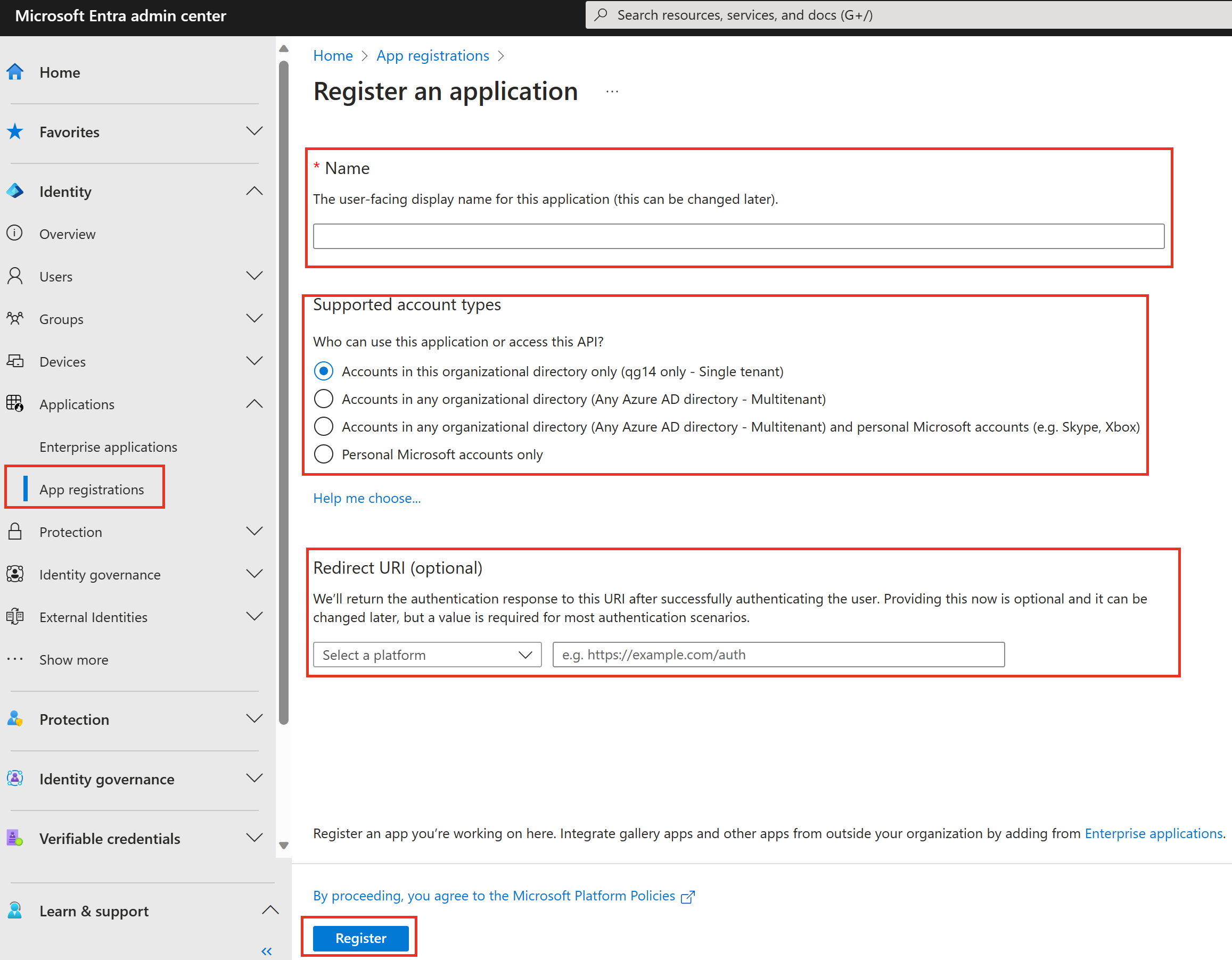 Steps are based on the Microsoft Entra admin center:
- Sign in to the Microsoft Entra admin center with appropriate permissions (at least Application Developer role).
- Under the Identity menu, expand the Applications menu.
- Select App registrations, then New registration.
- Enter a Name for your application. Users of your app might see this name, and you can change it later.
- Choose the Supported account types for the application. For most single-tenant applications, select "Accounts in this organizational directory only." Do NOT enter a Redirect URI at this stage.
- Select Register to create the app registration.
Important
Record the Application (client) ID and Directory (tenant) ID from the Overview page, as you'll need these values to configure your application code.
Configure the Single-Page Application Platform
Follow these steps to add a redirect URI for an app that uses MSAL.js 2.0 or later. MSAL.js 2.0+ supports the authorization code flow with Proof Key for Code Exchange (PKCE) and Cross-Origin Resource Sharing (CORS), which provides enhanced security compared to the legacy implicit grant flow.
- In the Microsoft Entra admin center, select the app registration you created in the previous step.
- Under Manage, select Authentication.
- Select + Add a platform.
- Under Web applications, select the Single-page application tile.
- Under Redirect URIs, enter a redirect URI (for example,
http://localhost:3000/for local development). - Do NOT select either checkbox under Implicit grant and hybrid flows - legacy patterns no longer recommended.
- Select Save to finish adding the redirect URI.
Note
Security Note: The Single-page application (SPA) platform configuration automatically enables the authorization code flow with PKCE. PKCE is more secure than the legacy implicit grant flow. Modern SPAs should use this approach.
Registration Complete
The registration of your single-page application (SPA) is complete. You configured a redirect URI to which the client is redirected, and any security tokens are sent. By configuring your redirect URI using the Single-page application tile in the Add a platform pane, your application registration is configured to support the authorization code flow with PKCE and CORS.
Next Steps:
- Configure API permissions if your app needs to access Microsoft Graph or other APIs
- Add certificates or client secrets if your app type requires them (not needed for SPAs using authorization code flow)
- Test your configuration with your application code
Note
Best Practice: New app registrations are hidden from users by default. When you're ready for users to see the app on their My Apps page, you can enable it through Enterprise apps then Properties and set Visible to users? value to Yes.