Configure app authentication
The settings for each application type, including redirect URIs, are configured in Platform configurations in the Microsoft Entra admin center. Some platforms, like Web and Single-page applications, require you to manually specify a redirect URI. For other platforms, like mobile and desktop, you can select from redirect URIs generated for you when you configure their other settings.
Important
Platform-specific configuration ensures that your application uses the appropriate authentication flow and security settings for each target environment.
To configure application settings based on the platform or device you're targeting, follow these steps:
Open the Microsoft Entra admin center, then under Applications, select App registrations.
Select your application.
Under Manage, select Authentication.
Under Platform configurations, select Add a platform.
Under Configure platforms, select the tile for your application type (platform) to configure its settings.
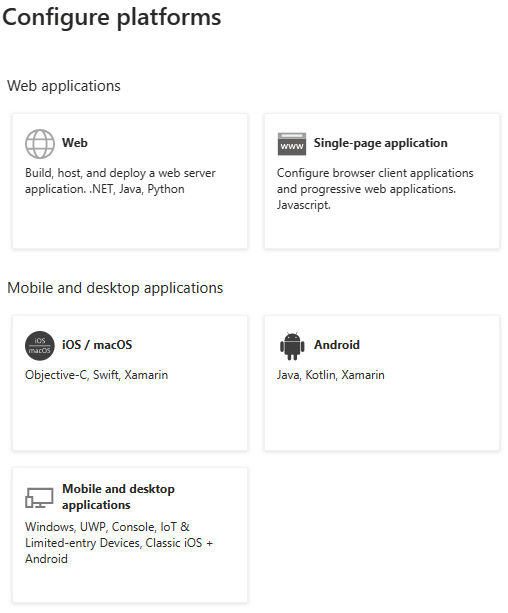
Platform Configuration settings Web Enter a Redirect URI for your server-side web application. This URI is where the Microsoft identity platform redirects users and sends security tokens after authentication. You can also configure front-channel sign out URLs and token settings. Single-page application Enter a Redirect URI for your client-side JavaScript application (Angular, React, Vue.js, or Blazor WebAssembly). Uses authorization code flow with Proof Key for Code Exchange (PKCE) for enhanced security. You can also configure front-channel sign out URLs. iOS / macOS Enter the app Bundle ID. Find it in Build Settings or in Xcode in Info.plist. A redirect URI is automatically generated for you. Android Enter the app Package name (found in AndroidManifest.xml) and generate the Signature hash. A redirect URI is automatically generated for you. Mobile and desktop applications Select from suggested Redirect URIs or specify Custom redirect URIs. For desktop apps with embedded browser: https://login.microsoftonline.com/common/oauth2/nativeclient. For desktop apps with system browser:http://localhost. Choose based on your authentication library requirements.Select Configure to complete the platform configuration.
Note
Security Note: Each platform type has specific security requirements. Single-page applications automatically use authorization code flow with PKCE, while web applications can use various flows depending on your configuration.
Redirect URI
A redirect URI (also called reply URL) is the location where the authorization server sends the user once the app has successfully authorized and granted an authorization code or access token. The authorization server sends the code or token to the redirect URI, so it's important you register the correct location as part of the app registration process.
Critical Security Requirements: The Microsoft Entra application model specifies these restrictions for redirect URIs:
- HTTPS requirement: Redirect URIs must begin with the scheme
https. There are exceptions for localhost redirect URIs during development. - Case sensitivity: Redirect URIs are case-sensitive and must match the case of the URL path of your running application.
- Trailing slash handling:
- Redirect URIs not configured with a path segment are returned with a trailing slash (
/) in the response - Redirect URIs that contain a path segment aren't appended with a trailing slash in the response
- Redirect URIs not configured with a path segment are returned with a trailing slash (
- Special characters: Redirect URIs don't support these special characters:
! $ ' ( ) , ;
Note
Best Practice: Always test your redirect URIs in a development environment before deploying to production to ensure proper token handling and security.