Configure API permissions
The Microsoft identity platform implements the OAuth 2.0 authorization protocol. OAuth 2.0 is a method through which an external app can access web-hosted resources on behalf of a user. Any web-hosted resource that integrates with the Microsoft identity platform has a resource identifier, or Application ID URI. The same is true for any external resources integrated with the Microsoft identity platform.
Any of these resources can also define a set of permissions (also called scopes) that can be used to divide the functionality of that resource into smaller chunks. As an example, Microsoft Graph has permissions to do the following tasks (among others):
- Read a user's calendar
- Write to a user's calendar
- Send mail as a user
Security Benefits: Because of these types of permission definitions, the resource has fine-grained control over its data and how API functionality is exposed. A external app can request these permissions from users and administrators, who must approve the request before the app can access data or act on a user's behalf. When a resource's functionality is chunked into small permission sets, external apps can be built to request only the permissions that they need to perform their function.
Principle of Least Privilege: Users and administrators can know exactly what data the app can access, and administrators can be more confident that the app isn't behaving with malicious intent. Developers should always request least privilege, asking for only the permissions they need for their applications to function.
Configure API permissions
Configure delegated permissions to Microsoft Graph to enable your client application to perform operations on behalf of the logged-in user, for example reading their email or modifying their profile. By default, users of your client app are asked when they sign in to consent to the delegated permissions configured for it.
Important
Delegated permissions operate on behalf of the signed-in user, meaning the app can only access data that the user themselves could access. This provides an additional security layer beyond just the app's permissions.
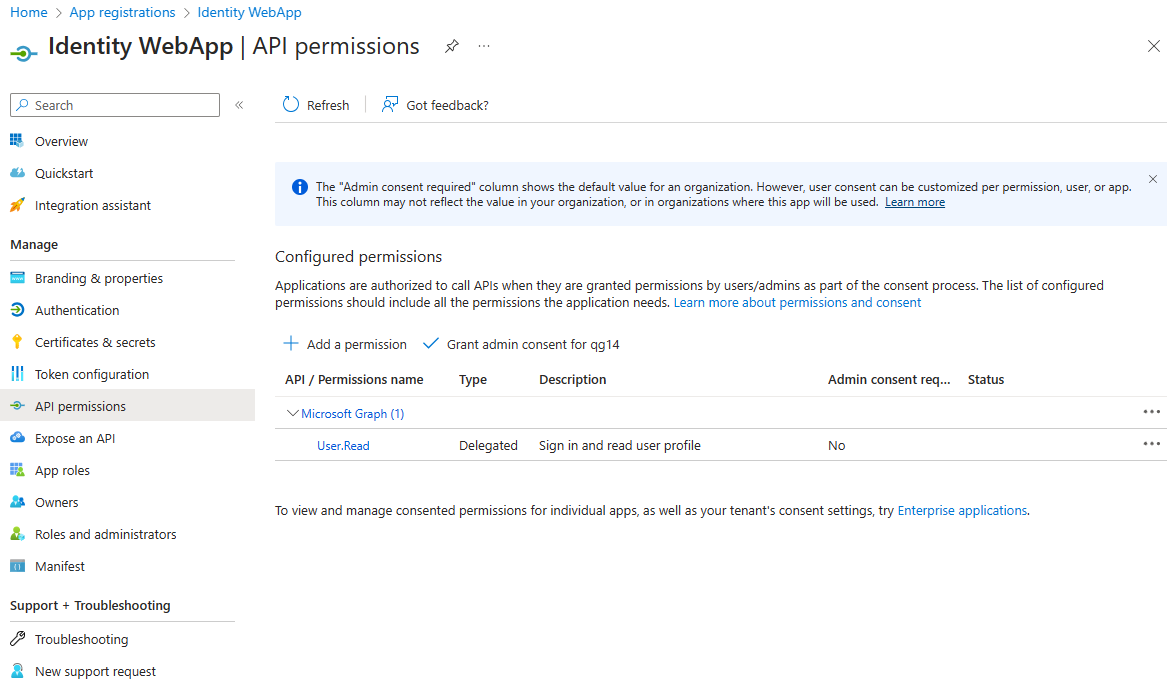
Sign in to the Microsoft Entra admin center.
Select Applications then App registrations, and then select your client application.
Select API permissions then Add a permission > Microsoft Graph.
Select Delegated permissions. Microsoft Graph exposes many permissions, with the most commonly used shown at the top of the list.
Under Select permissions, select the following permissions:
Permission Description Use Case email View users' email address Display user's email in app UI offline_access Maintain access to data you gave it access to Enable refresh tokens for long-term access openid Sign users in Basic authentication (required for sign-in) profile View users' basic profile Display user's name and basic profile info Select Add permissions to complete the process.
Note
These are the basic OpenID Connect scopes commonly requested by most applications. You may need additional permissions based on your specific application requirements.
Admin Consent: As an administrator, you can grant consent on behalf of all users in your organization, eliminating the need for individual user consent. Admin concent is useful for organizational applications where admin approval is preferred or required by policy.