Create app roles
App roles are a powerful feature you can and should configure when performing an app registration. An app role is a custom claim that can be applied to users, groups, or applications. The claim appears in the token generated when a user authenticates for an app. The app role data in the token can then be used in the application for authorization purposes.
Key Benefits:
- Alternative to Group Claims: App roles provide an alternative to using groups for authorization, which helps avoid group overage issues and doesn't require Microsoft Entra ID P1 licensing
- Fine-grained Authorization: Enables precise control over what users can do within your application
- Simplified Code: Your application can check for specific role claims instead of mapping groups to permissions
To take advantage of this feature, you define app roles that allow users and groups as member types. As shown in the following screen, select Users/Groups for Allowed member types when creating app roles.
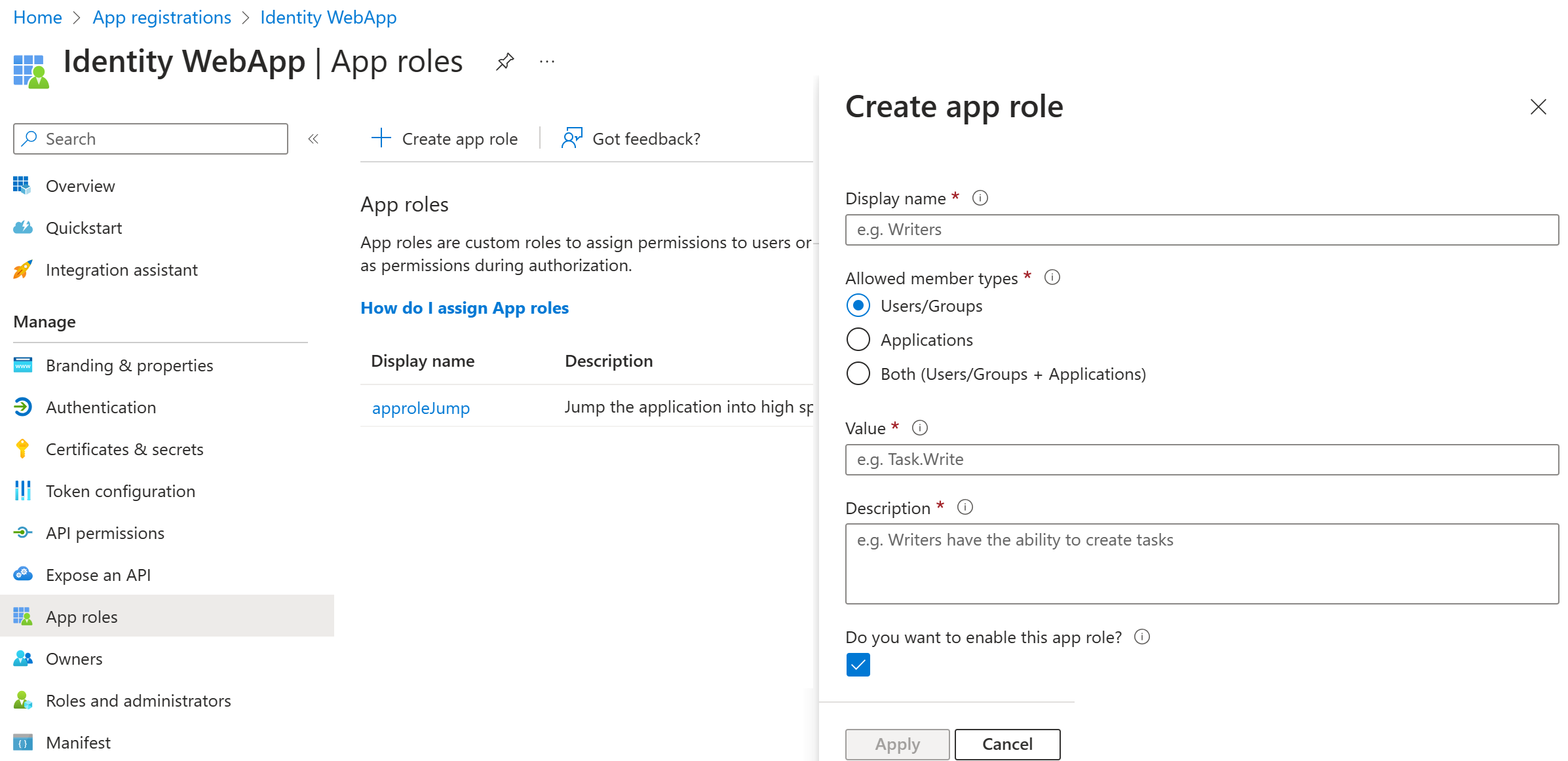
How App Roles Appear in Tokens
After the application admin creates app roles in your app's registration, IT administrators can assign users and groups to these roles. Your app receives a roles claim in tokens (ID tokens for applications, access tokens for APIs) containing all the signed-in user's assigned roles, as shown in the following token sample:
"iss": "https://login.microsoftonline.com/833ced3d-cb2e-41de-92f1-29e2af035ddc/v2.0",
"iat": 1670826509, "nbf": 1670826509, "exp": 1670830409,
"name": "Kyle Marsh",
"oid": "aaaaaaaa-0000-1111-2222-bbbbbbbbbbbb",
"preferred_username": "kylemar@idfordevs.dev",
"roles": [
"Approver",
"Reviewer"
],
"sub": "dx-4lf-0loB3c3uVrULnZ2VTLuRRWYff0q7-QlIfYU4",
"tid": "bbbbcccc-1111-dddd-2222-eeee3333ffff",
Best Practices for App Roles
Always Define a Baseline User Role: When you create app roles that allow users and groups as members, always define a baseline user role with no elevated authorization permissions. When an Enterprise App configuration requires assignment, only users with direct assignment to an application or membership in a group assigned to the app can use the app.
Assignment Requirements: When a user or group is assigned to the app, one of the defined app roles must be part of the assignment. If your app has elevated roles (such as "admin") for the app, then all users and groups would automatically be assigned the admin role, which violates the principle of least privilege.
Recommended Approach: When you define a base role (such as "user" or "reader"), users and groups assigned to the app can be assigned this base user role, ensuring appropriate access levels.
Advantages of Using App Roles
Avoiding Group Overage Claims: In addition to avoiding group overage claims, app roles provide several advantages over traditional group-based authorization.
Simplified Authorization Logic: Another key advantage isn't needing to map between groups or names and their meaning in your application. For example, your code can simply look for the "admin" role claim. The alternative of iterating through groups in the group claims and determining which group IDs should be granted admin functionality.
Better Security and Maintainability:
- Clear Intent: Role names like "admin," "editor," and "viewer" are more descriptive than group GUIDs
- Reduced Complexity: No need to maintain group ID mappings in your application code
- Better Portability: App roles can be easily replicated across different environments