Use single sign-on (SSO) for DirectQuery sources
When your data model has DirectQuery tables and their data source supports SSO, the data source can enforce data permissions. This way, the database enforces RLS, and Power BI datasets and reports honor the data source security.
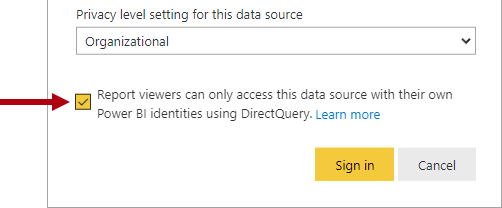
Consider that Tailspin Traders has an Azure SQL Database for their sales operations that resides in the same tenant as Power BI. The database enforces RLS to control access to rows in various database tables. You can create a DirectQuery model that connects to this database without roles and publish it to the Power BI service. When you set the data source credentials in the Power BI service, you enable SSO. When report consumers open Power BI reports, Power BI passes their identity to the data source. The data source then enforces RLS based on the identity of the report consumer.
Note
Calculated tables and calculated columns that reference a DirectQuery table from a data source with SSO authentication aren’t supported in the Power BI service.
Important
The Test as role feature covered in the previous unit doesn't work for DirectQuery models with SSO enabled. To verify that data permissions are applied correctly, sign in as an actual user assigned to the Viewer role and open the report directly.