Note
Access to this page requires authorization. You can try signing in or changing directories.
Access to this page requires authorization. You can try changing directories.
We're excited to announce the availability of the Visual Studio 2026 May update. This release marks the beginning of a new era for Visual Studio with deep platform integration of AI, stronger fundamentals, and improved performance.
Download Visual Studio 2026 Insiders to enjoy these new features and improvements.
Features
Released on May 12, 2026.
IDE
Edit theme colors 📣
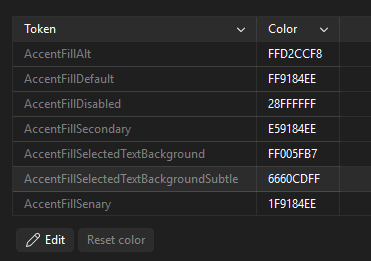
You can now easily edit the theme colors to personalize your Visual Studio experience. Change the colors of the editor, tool windows, and more to match your preferences.
Visual Studio now includes a new Theme colors options page that lets you customize any Fluent color token directly in the IDE - no extension required. Your customizations are saved per theme, so each theme keeps its own set of tweaks.
What you can do
- Tweak any Fluent token on the fly - accent colors, hover states, shell chrome, and more. Search for the token you want and pick a new color.
- Per-color reset - revert an individual token without wiping all your other customizations.
- Customize on top of any theme - your overrides layer on top of the theme you've selected.
- New tokens for shell and tab/window header separation - lets you give the shell and tab headers different colors (handy if you want a more retro look).
How to get there
Use the new Edit theme colors menu command, or open the Environment → Visual Experience → Theme colors page in settings.
📣 See feature ticket to share your feedback and continue the conversation.
Productivity
Color emojis
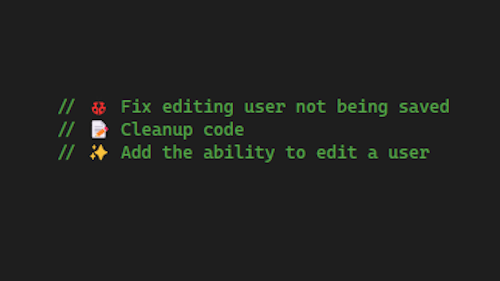
Visual Studio now displays emojis in full color throughout the IDE, making your code comments, markdown files, and chat conversations more expressive.
Visual Studio now renders emojis in full color across the entire IDE. Whether you're documenting code with helpful visual cues or collaborating in chat, emojis now appear with their full color and detail instead of monochrome outlines.
Where you'll see color emojis
You can use color emojis in:
- Code comments - Add visual markers to TODO items, warnings, or section headers
- Markdown files - Preview and edit markdown documents with rich emoji support
- GitHub Copilot Chat - See colorful emojis in chat responses and your questions
- Output windows - Build output and logs now display emojis in color
- Solution Explorer - Emojis in file names and project items are now rendered in color
Why it matters
Color emojis make it easier to scan code and quickly identify important sections. A red ❌ in a comment stands out more than a gray outline, and a green ✅ provides clearer visual feedback. This small change improves readability, especially in large codebases where visual markers help you navigate quickly.
The rendering uses modern font technologies to display emojis consistently across different Windows versions, so what you see matches what your teammates see.
GitHub Copilot
Trust validation for MCP servers
Detects any changes to MCP server configurations and assets, and prompts for re-approval before running.
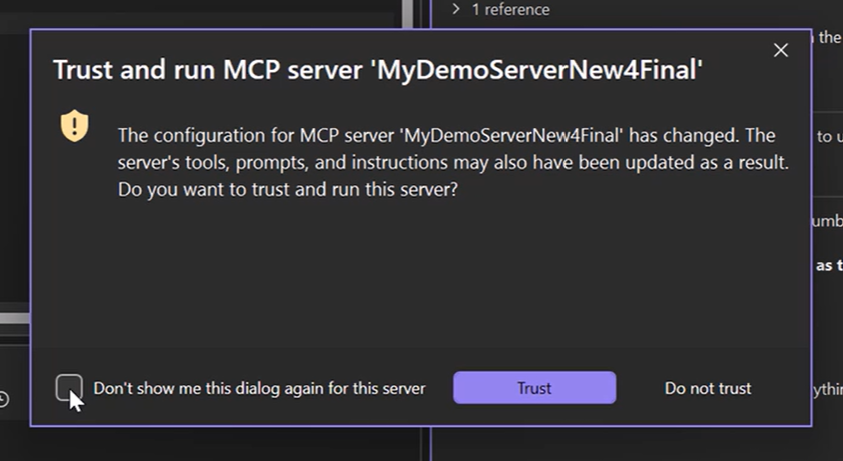
MCP servers extend Copilot's capabilities, but keeping them secure matters. Visual Studio now includes trust validation for MCP servers, a security layer that detects when a server's configuration or assets have changed since you last approved them and prompts you to re-approve before proceeding.
How it works
Trust is validated at two points during server startup:
- Configuration trust - Before the server process starts, the current server configuration is compared against a previously trusted baseline. If the configuration has changed, you are prompted via a trust dialog.
- Asset trust - After the server starts and its assets (tools, prompts, resources, instructions) are loaded, their fingerprint is compared to the last-trusted fingerprint. If assets have changed, the trust dialog shows what diverged between the old and new versions.
Trust decisions
When prompted, you can:
- Accept the changes - trusts once and updates the baseline for future comparisons.
- Always trust - you will never be prompted again for this server.
- Reject the changes - aborts the server startup and leaves it in a trust-rejected state. Trust is re-validated on the next activation attempt.
Servers you are connecting to for the first time are implicitly trusted on first activation, no dialog is shown. The current configuration and asset fingerprints are saved as the initial baseline for future change detection.
Trust validation is also automatically skipped when the server is built-in, the MCP registry policy is set to RegistryOnly (meaning it's pre-approved by organizational policy), you previously chose "always trust" for that server, or you turn off this feature.
This feature is enabled by default. You can manage it at Tools → Options → GitHub → Copilot → Copilot Chat → Show trust dialog before running tools from an updated MCP server.
Git tooling
Add PRs to Copilot Chat
Attach pull request context directly to Copilot Chat.
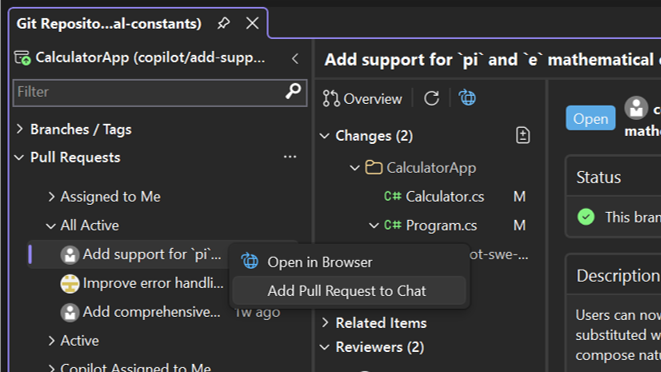
Copilot Chat already knows about your commits and changes, and now you can bring pull requests into the conversation as well.
Right-click a pull request in the Git Repository window and select Add to Copilot Chat to attach its context, including the PR description, changed files, and comments. You can also reference a pull request directly in the chat input by typing
#and a pull request ID.For example, ask Copilot to "summarize this pull request" to get a quick overview without reading through every file.
Make sure Tools → Options → Preview Features → View pull requests for a Git repository is enabled.
Pull request updates: vote, complete, and more 📣
See whether a pull request is ready and act on it, all from Visual Studio.
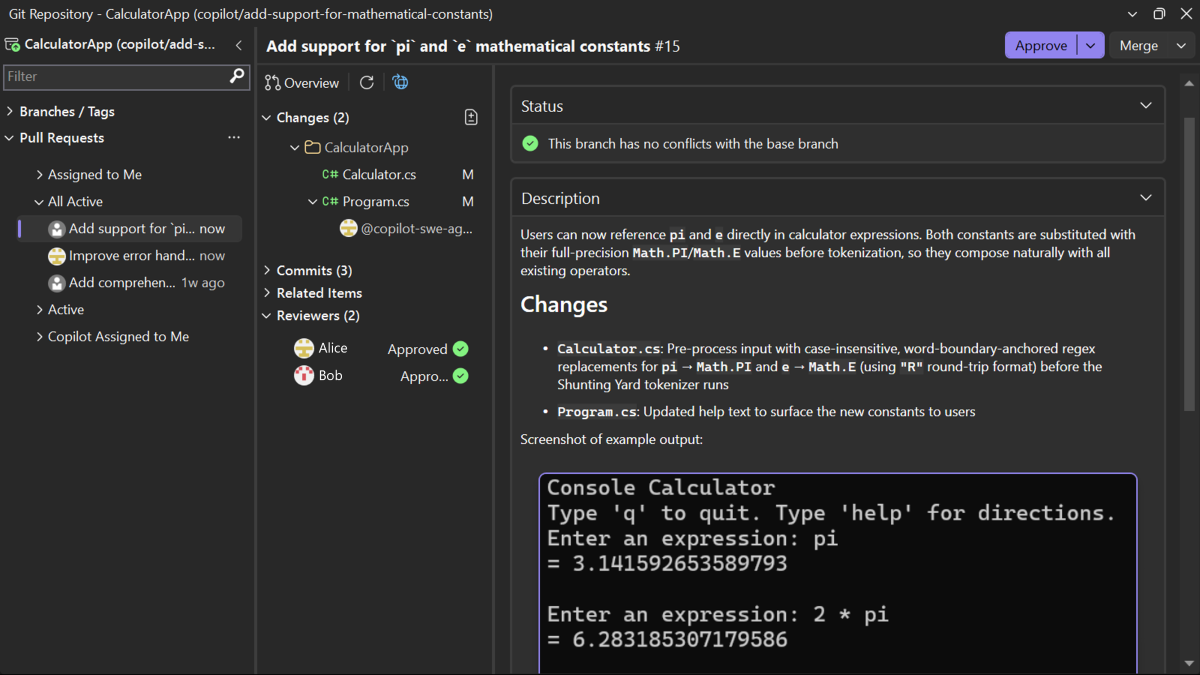
You can now open a pull request in Visual Studio, understand whether it's ready, and act on it, all in one place. These updates work with both GitHub and Azure DevOps repositories.
- Pull request voting and completion directly from the embedded PR view. Approve, reject, and complete or merge pull requests when they're ready.
- Status checks, merge conflicts, and required approvals show in the overview, so you know exactly where a pull request stands.
- Commit details in the PR view let you review changes commit by commit, so you can follow the progression of work in a pull request.
- Draft PR labels show you which PRs are still works in progress.
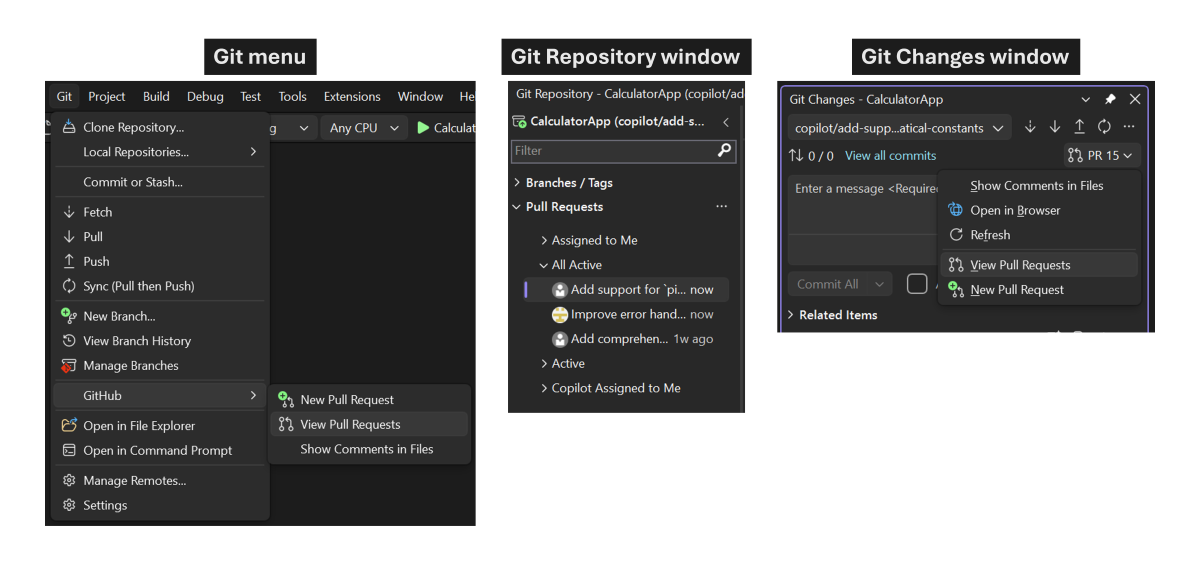
- PR list sorted by last updated time by default, and new entry points in Git Changes and the top-level menu make pull requests easier to get to.
- Comments per file in the Changes list make it clear where discussions are happening.
- Improved comment rendering with support for inline images and select HTML tags, for a more consistent experience with the web.
To try these out, view pull requests from the Git menu, the Git Repository window, or the Git Changes window.
We're continuing to build out the pull request experience, with upcoming features such as the timeline of events on your PR and the ability to check out open PRs. To see what's coming next or share feedback, visit the Developer Community suggestion.
📣 See feature ticket to share your feedback and continue the conversation.
C++
NuGet PackageReference Support for C++ Projects 📣
C++ .vcxproj projects now have experimental support for NuGet PackageReference, both for in the command-line and the Visual Studio IDE.
NuGet PackageReference is now supported for Visual Studio C++ projects (.vcxproj). This feature is currently experimental and off by default.
To enable this feature in C++ projects, set the
EnableNativePackageReferenceSupportproperty totruein your project's Globals property group or in a Directory.Build.props file. You can then addPackageReferencedependencies as you would for your .NET projects.PackageReference allows you to reference NuGet packages directly in your project file, and have them automatically restored and included in your build. This is a more modern way to manage dependencies compared to the older packages.config approach. To learn more about PackageReference, see the NuGet documentation on PackageReference and Migrate from packages.config to PackageReference.
This feature builds on the existing support we added for C++/CLI projects targeting modern .NET versions.
Scope and compatibility:
- Supported: Native C++ projects (.vcxproj) and C++/CLI projects targeting .NET Core or .NET 5+.
- Not supported: C++/CLI projects targeting .NET Framework. For those projects, you can continue to use the older packages.config approach for NuGet dependencies.
- Not supported: C++ projects that reference C++/CLI projects or C# projects. We are investigating support for this scenario in a future update. In the meantime, you can use one of these workarounds to get PackageReference working:
- Setting
<ReferenceOutputAssembly>false</ReferenceOutputAssembly>and<SkipGetTargetFrameworkProperties>true</SkipGetTargetFrameworkProperties>on the<ProjectReference>item will allow NuGet to ignore it and not cause restore and build issues.- Set
AssetTargetFallbackto include frameworks compatible with the referenced C# project. For example:<PropertyGroup> <AssetTargetFallback>net472;net10.0</AssetTargetFallback> </PropertyGroup>.📣 See feature ticket to share your feedback and continue the conversation.
From our entire team, thank you for choosing Visual Studio! For the latest updates, resources, and news, check out the Visual Studio Hub and stay in touch.
Happy coding!
The Visual Studio team
Note
This update may include new Microsoft or third-party software that is licensed separately, as set out in the 3rd Party Notices or in its accompanying license.