Note
Access to this page requires authorization. You can try signing in or changing directories.
Access to this page requires authorization. You can try changing directories.
Conditional Access policies for agent identities let you control how AI agents access corporate resources. As your organization deploys more agents, you need policies that target the right agents, evaluate the right signals, and enforce the right controls.
This article walks through each section of the Conditional Access policy builder for agents:
- Selecting which agents the policy applies to
- Choosing target resources
- Configuring conditions
- Setting access controls.
Each section builds on the previous one to form a complete policy.
Prerequisites
- A Microsoft Entra ID P1 or P2 license
- Agent 365 license will soon be required
- Conditional Access Administrator to create and manage Conditional Access policies
- At least one agent identity registered in your tenant
Create a Conditional Access policy for agent identities
Policies that target agent identities introduce unique assignment options, conditions, and control limitations that differ from user-targeted policies.
To create a new Conditional Access policy for agent identities:
- Sign in to the Microsoft Entra admin center as at least a Conditional Access Administrator.
- Browse to Entra ID > Conditional Access > Policies.
- Select New policy.
- Give your policy a name. Create a meaningful standard for the names of your policies.
Assignments
The first agent-specific configuration is selecting which agents the policy applies to.
- Under Assignments, select Users, agents (Preview) or workload identities.
- Under What does this policy apply to, select Agents.
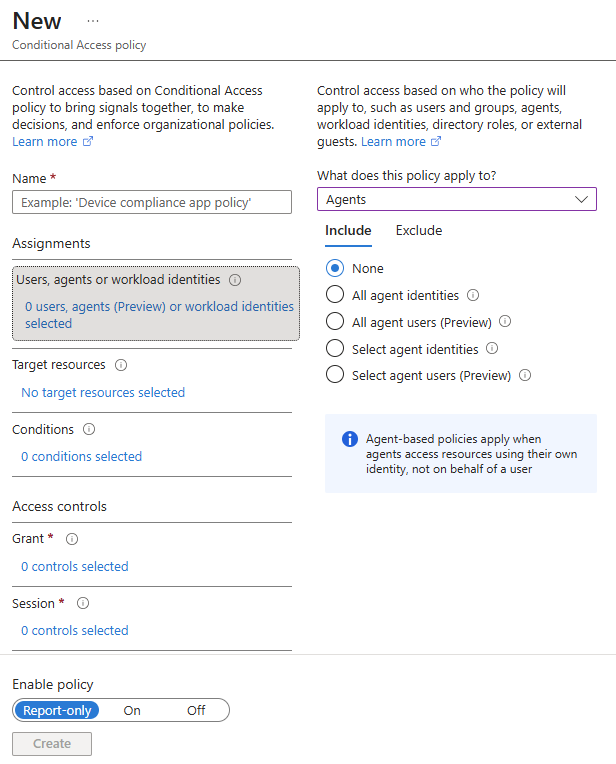
- Select the agent identity option for your scenario:
- All agent identities: Applies the policy to every agent identity in your tenant.
- All agent users (Preview): Applies the policy to every agent's user account in your tenant.
- Select agent identities: Choose individual agents or select agents based on custom security attributes.
- Select agent users (Preview): Choose individual agents' user accounts or select agents' user accounts based on custom security attributes.
Considerations for selecting agent assignments
Keep in mind the following important details when selecting agent assignments:
- Policies targeting all users don't include agent's user accounts.
- The agent users option targets agents' user accounts. This option is currently in Preview.
- Agent-based policies apply when agents access resources using their own identity, not on behalf of a user.
- Targeting a blueprint automatically covers all agent identities derived from it, including ones added in the future. For more information about targeting agent identity blueprints, see Conditional Access for agent identities: Agent identity blueprints.
Target resources
Target resources define which resources the policy protects when agents attempt to access them.
- Under Target resources, select the resources you want to protect.
- Under Include, select one of the following:
- All agent resources: Applies the policy when agents access any agent-specific resource.
- All resources (formerly 'All cloud apps'): Applies the policy when agents access any resource protected by Microsoft Entra ID.
- Select resources: Choose specific resources the agent needs to access.
Network
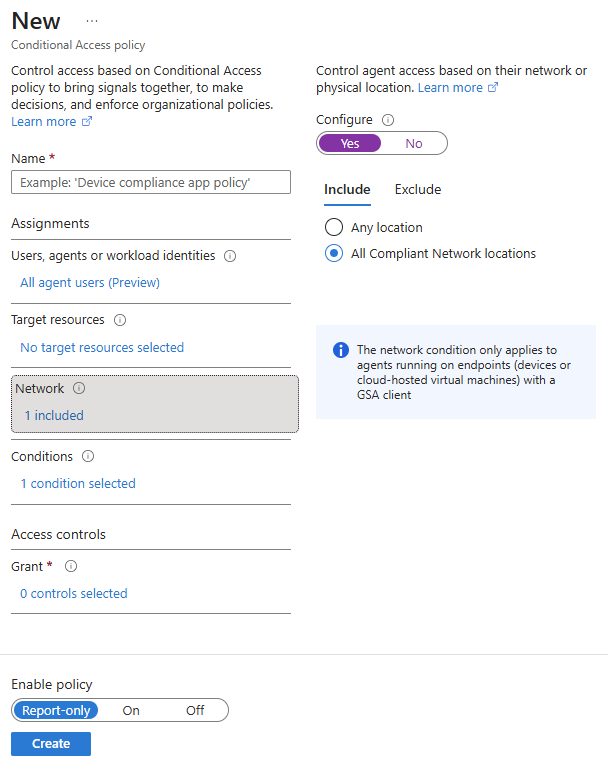
The network settings control agent access based on where they run, such as cloud-hosted virtual machines or endpoints with a Global Secure Access client. This option is only available when the policy targets All agent users (Preview) and Select agent users (Preview).
Compliant network works for agents' user accounts on endpoints because the hosted environment can have a Global Secure Access client installed. The Global Secure Access client provides the network location signal that Conditional Access evaluates. Agents running in cloud infrastructure without a Global Secure Access client can't provide this signal.
- Under Network, set Configure to Yes to enable the network location options.
- Under Include, select one of the following:
- Any location: The policy applies regardless of where the agent runs.
- All Compliant Network locations: The policy applies only to agents connecting from compliant network locations.
Conditions
Conditions are the signals that Conditional Access evaluates when deciding whether to apply a policy. The available conditions depend on whether the policy targets agent identities, agents' user accounts, or users in OBO flows.
Not all agents run the same way. Some agents run directly from the cloud similar to SaaS applications (for example, Copilot Studio hosted agents) with no associated device. Others run on managed endpoints. This distinction determines which Conditional Access controls can be enforced. For more information about agents, see What is Windows 365 for Agents?.
Device compliance and compliant network controls depend on signals that only an endpoint can provide. A Cloud PC enrolled in Microsoft Intune can prove its compliance. An agent running directly from the cloud like a managed service has no device to check, so a policy requiring device compliance would block it with no path to remediation.
Admins with access to ID Protection can evaluate agent risk as part of a Conditional Access policy. Agent risk shows the likelihood that an agent is compromised. For more information, see ID Protection for agents.
Conditions for agent identities
When an agent identity is targeted in a policy (either all agent identities or individually selected agent identities), the only condition available is Agent risk (Preview). For more information, see ID Protection for agents.
- Under Conditions set Configure to Yes
- Select the agent risk levels (high, medium, low) needed for the policy to be enforced.
Conditions for agents' user accounts
When you target agents' user accounts in Conditional Access, the following conditions are available. These conditions don't apply to agent identities or agent identity blueprints. For the full condition reference, see Conditional Access: Conditions.
- Agent risk (Preview): Evaluate whether the agent is likely compromised and enforce risk-based access decisions.
- Agent execution environments (Preview): Scope policies to agent's user account sessions initiated from endpoints.
- Device platforms: Restrict agents to specific operating systems. Only applies to agents running on endpoints.
- Filter for devices: Restrict agents to specific admin-approved devices. Only applies to agents running on endpoints.
- Network: Enforce compliant network locations. Only applies to agents on endpoints with a Global Secure Access client.
Keep in mind the following important details when selecting conditions for agents' user accounts:
- The 'Device platforms' and 'Filter for devices' conditions require device information and only apply to agents running on endpoints, including local devices and cloud-hosted virtual machines.
- Because the 'agent user' options are in preview, these conditions should also be considered as preview capabilities.
- The 'Network' condition is only available for agents running on endpoints with a Global Secure Access client.
Agent execution environments
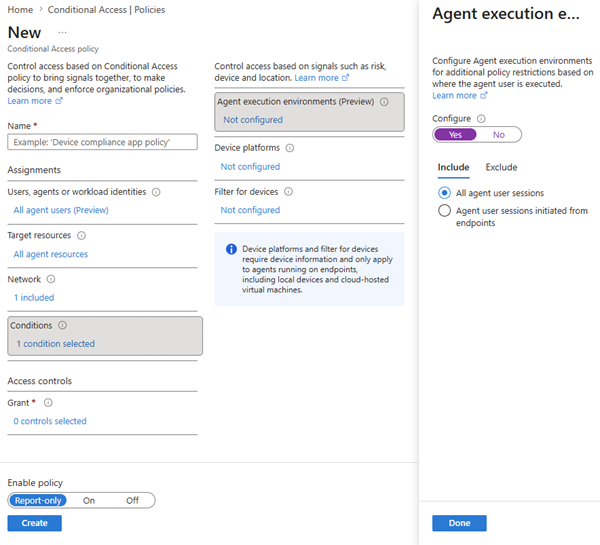
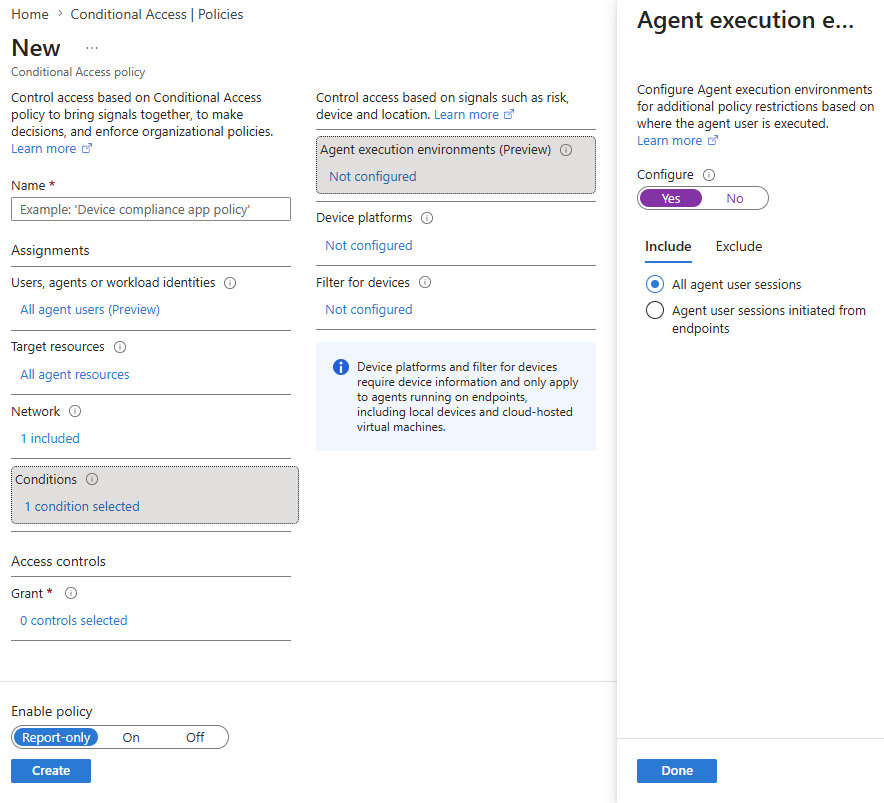
Configure restrictions based on where the agent user is executed. The Agent execution environments (Preview) condition provides a way for administrators to scope a policy to only apply when the agent's user account session is initiated from an endpoint. When a policy uses this condition, agents that are not running on a device are excluded from evaluation, preventing unintended blocking.
- Under Conditions, set Configure to Yes to enable the agent execution environments.
- Under Include select the execution environments that apply to your agents:
- All agent user sessions
- Agent user sessions initiated from endpoints
Device platforms
Apply the policy to selected device platforms.
- Under Device platforms, set Configure to Yes to enable device platform selection.
- Under Include select the device platforms that apply to your agents:
- Any device
- Select device platforms: Android, iOS, Windows Phone, Windows, macOS, Linux
Filter for devices
Configure a filter to apply the policy to specific devices.
- Under Filter for devices, set Configure to Yes to enable device filtering.
- Select whether to Include filtered devices in policy or Exclude filtered devices from policy.
- Use the rule builder or rule syntax text box to create or edit the filter rule.
Access controls
Access controls determine what happens when conditions are met. For more information, see How to Configure Grant Controls.
Controls for agent identities
- Block access: The only available option for agent identities, because there's no interactive remediation possible.
Controls for agent users
- Block access: Deny the agent user account access to resources.
- Grant access with:
- Require device to be marked as compliant: Requires agents to run on Intune-managed compliant devices, such as Windows 365 Cloud PCs for Agents. For more information, seeWhat is Windows 365 for Agents?.
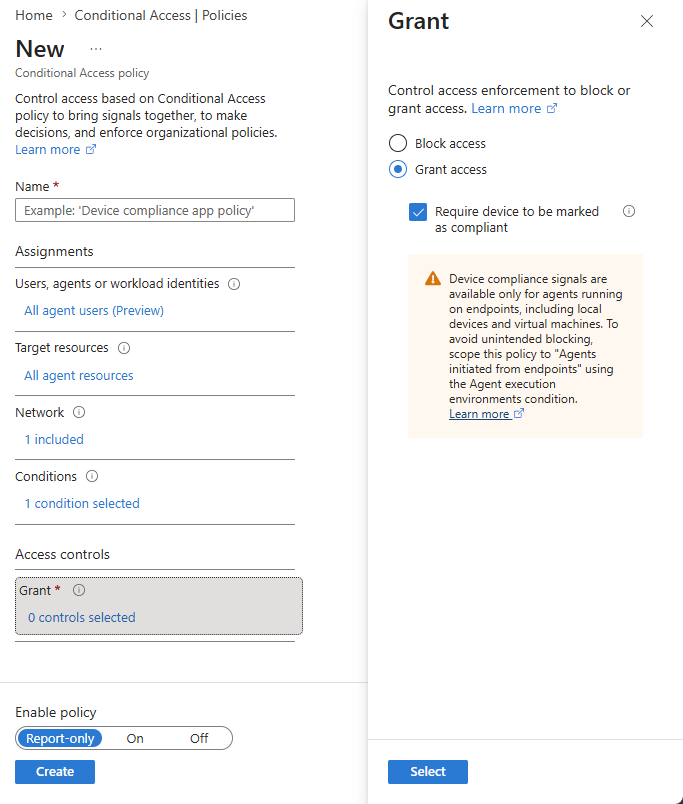
- Require device to be marked as compliant: Requires agents to run on Intune-managed compliant devices, such as Windows 365 Cloud PCs for Agents. For more information, seeWhat is Windows 365 for Agents?.
Important
Agents running directly in cloud infrastructure may not provide device compliance signals. To avoid unintended blocking, apply device compliance policies only to agents running on endpoints using the Agent execution environments condition.