Note
Access to this page requires authorization. You can try signing in or changing directories.
Access to this page requires authorization. You can try changing directories.
FIDO2 security keys are device-bound passkeys stored on a physical authenticator. The private key never leaves the security key, which provides strong protection against remote phishing attacks. Security keys come in a variety of form factors (USB, NFC, Bluetooth) and are recommended for highly regulated industries or users with elevated privileges.
For more information about the availability of passkey (FIDO2) authentication across native apps, web browsers, and operating systems, see Support for FIDO2 authentication with Microsoft Entra ID.
Sign in with a security key
Open your browser and go to the resource you're trying to access, such as Office.
You can enter your username and select Next to sign in. If you most recently used a passkey to sign in, you're automatically prompted to sign in with a passkey.
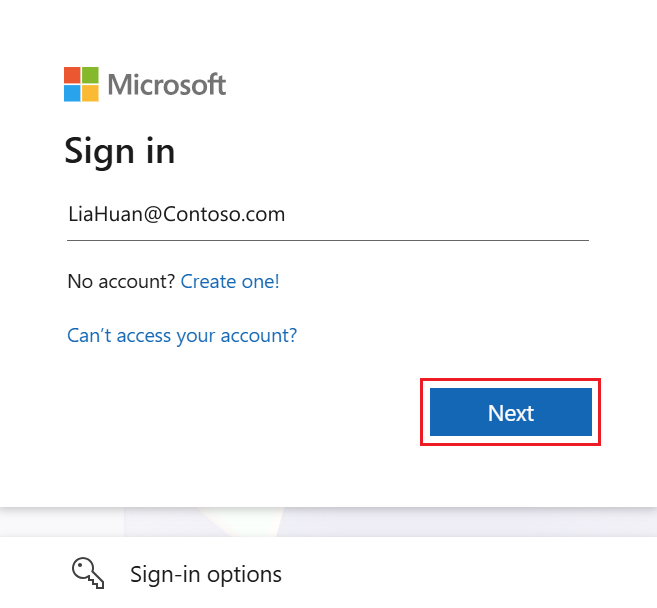
Or select Sign-in options > Face, fingerprint, PIN, or security key to sign in without a username.
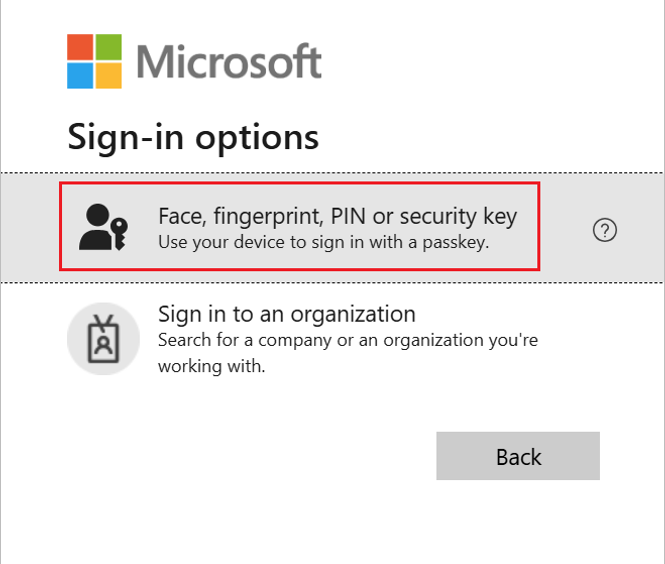
Select Security key.
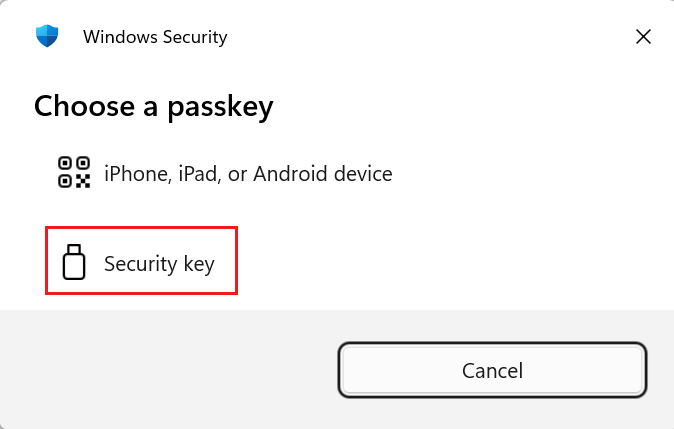
Your device opens a security window. Insert your FIDO2 security key if it's a USB key, or bring it near the reader if it's an NFC key.
To verify your identity, scan your fingerprint or enter your PIN when prompted by the operating system or browser dialog.
You're signed in with your work or school account.
Known issues
Orphaned passkey
An orphaned passkey occurs when a passkey remains on a security key but is no longer registered with Microsoft Entra ID. This typically happens if the passkey was deleted from a user's Security info or removed due to policy changes, but the local credential wasn't cleaned up.
If you're blocked from sign-in by an orphaned passkey:
- Remove the orphaned passkey from the security key by using the security key's management tool.
- Re-register a new passkey after cleanup.