Note
Access to this page requires authorization. You can try signing in or changing directories.
Access to this page requires authorization. You can try changing directories.
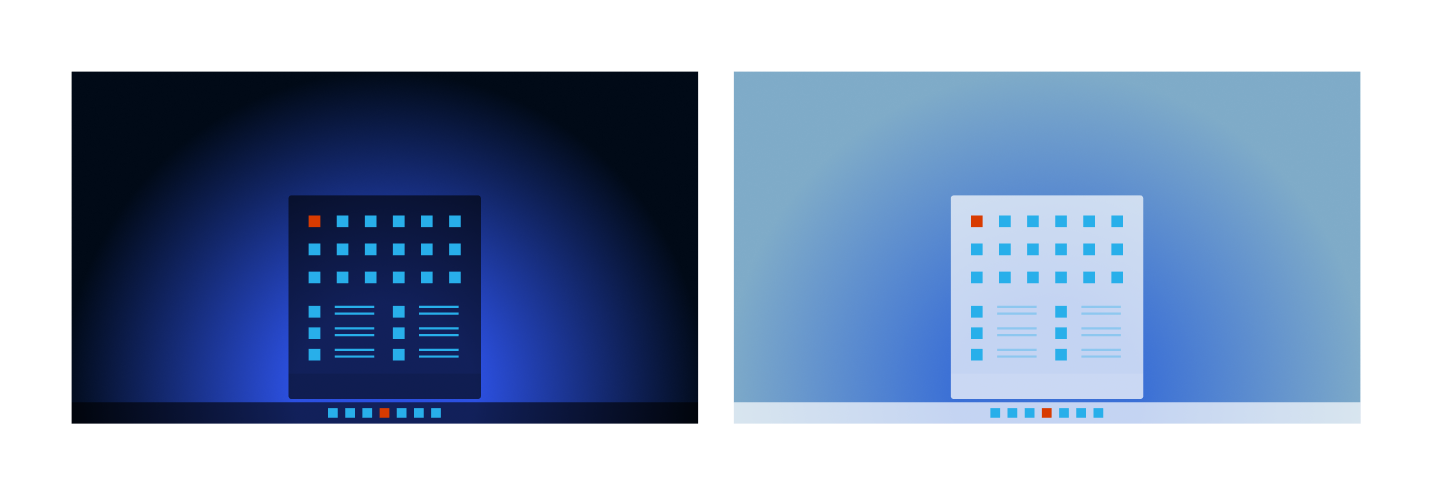
Once you've designed your app's icon, you need to create the icon files themselves. Because Windows supports multiple themes, display resolutions, and scale factors, you should provide multiple versions of your icon to make sure it looks great on every device, at any size.
Icon sizes (WPF, UWP, WinUI)
Windows will display your app icon at a variety of sizes depending on where your icon is being displayed and the user's display scale settings. The following table lists all the possible sizes that Windows may use to display your icon.
Icon sizes (Win32)
Windows ICO files have been around for a long time. There are standard sizes that are used which is a subset of the full set above.
Icon scaling
When Windows displays your app's icon, it will look for an exact size match first. If there is no exact match it will look for the next size above and scale down. Including more icon sizes with your app means Windows will more often have a pixel-perfect match, and reduce the amount of scaling applied to scaled icons.
| Windows 11 scale factor | 100% | 125% | 150% | 200% | 250% | 300% | 400% |
|---|---|---|---|---|---|---|---|
| Context menu, title bar, system tray | 16px | 20px | 24px | 32px | 40px | 48px | 64px |
| Taskbar, search results, Start all apps list | 24px | 30px | 36px | 48px | 60px | 72px | 96px |
| Start pins | 32px | 40px | 48px | 64px | 80px | 96px | 256px |
Note
Apps should have, at the bare minimum: 16x16, 24x24, 32x32, 48x48, and 256x256. This covers the most common icon sizes, and by providing a 256px icon, ensures Windows should only ever scale your icon down, never up.
How icon sizes relate to the MSIX manifest
If you've looked at your app's MSIX (or AppX) manifest, you may have noticed entries such as Square44x44Logo and Square150x150Logo. These are base sizes, not the only sizes your app needs. Windows uses display scale factors to determine the actual pixel dimensions it requests at runtime. The manifest points to a base image filename (for example, Square44x44Logo.png), and you provide pre-scaled variants using qualifiers (for example, Square44x44Logo.scale-200.png). Windows then picks the best match for the user's display settings.
The following table shows how each manifest entry maps to actual pixel sizes at each scale factor:
| Manifest entry | Base size | 100% | 125% | 150% | 200% | 250% | 300% | 400% |
|---|---|---|---|---|---|---|---|---|
| Square44x44Logo | 44 px | 44 px | 55 px | 66 px | 88 px | 110 px | 132 px | 176 px |
| Square150x150Logo | 150 px | 150 px | 188 px | 225 px | 300 px | 375 px | 450 px | 600 px |
| Wide310x150Logo | 310×150 px | 310×150 px | 388×188 px | 465×225 px | 620×300 px | 775×375 px | 930×450 px | 1240×600 px |
| Square310x310Logo | 310 px | 310 px | 388 px | 465 px | 620 px | 775 px | 930 px | 1240 px |
| Square71x71Logo | 71 px | 71 px | 89 px | 107 px | 142 px | 178 px | 213 px | 284 px |
| StoreLogo | 50 px | 50 px | 63 px | 75 px | 100 px | 125 px | 150 px | 200 px |
The app-list icon also supports target-size variants (listed in the App icon section below), which Windows uses for taskbar icons, context menus, and other UI elements where the icon is displayed without tile padding. Target-size assets are specified in exact pixel dimensions (16, 24, 32, 48, 256, and others) rather than scale factors.
Tip
You don't need to create every possible size. At minimum, provide assets at 100%, 200%, and 400% scale for the Square44x44Logo and Square150x150Logo entries, plus the target-size variants listed in the App icon section. Windows chooses the closest available asset for intermediate scale factors (125%, 150%, 250%, and 300%).
For the full manifest schema, see VisualElements.
Transparent backgrounds
Icons look best with a transparent background. If your app's branding requires your icon be plated on a background, that's okay too. However, you'll have to re-implement some theming functionality that transparent icons get for free. For example, you might provide a version of your app's icon plated on a two different backgrounds, one better suited to a light theme and the other to a dark theme.
Complete list of icons and variations
Windows utilizes different icon assets in different UI contexts. The usage has changed a little between Windows 10 & Windows 11.
The lists below define the specific filenames Windows expects to contain each corresponding icon.
App icon
In Windows 10 and 11, the AppList icon is your app's primary icon. It will be used in several places, including the Taskbar, Start pins, the all app list, and the search results list. Windows 11 selects an appropriate icon for the all apps list based on the current scale factor, but Windows 10 uses specific, explicitly defined icons if you provide them.
Separate files for all three theme variations (default, light theme, dark theme) are required, even if the icon is the same. If you do not provide these files, your icon will appear on a system icon plate to ensure a minimum contrast ratio.
App List Target Size (Required)
- AppList.targetsize-16.png
- AppList.targetsize-20.png
- AppList.targetsize-24.png
- AppList.targetsize-30.png
- AppList.targetsize-32.png
- AppList.targetsize-36.png
- AppList.targetsize-40.png
- AppList.targetsize-48.png
- AppList.targetsize-60.png
- AppList.targetsize-64.png
- AppList.targetsize-72.png
- AppList.targetsize-80.png
- AppList.targetsize-96.png
- AppList.targetsize-256.png
Dark theme (Required)
- AppList.targetsize-16_altform-unplated.png
- AppList.targetsize-20_altform-unplated.png
- AppList.targetsize-24_altform-unplated.png
- AppList.targetsize-30_altform-unplated.png
- AppList.targetsize-32_altform-unplated.png
- AppList.targetsize-36_altform-unplated.png
- AppList.targetsize-40_altform-unplated.png
- AppList.targetsize-48_altform-unplated.png
- AppList.targetsize-60_altform-unplated.png
- AppList.targetsize-64_altform-unplated.png
- AppList.targetsize-72_altform-unplated.png
- AppList.targetsize-80_altform-unplated.png
- AppList.targetsize-96_altform-unplated.png
- AppList.targetsize-256_altform-unplated.png
Light theme (Required)
- AppList.targetsize-16_altform-lightunplated.png
- AppList.targetsize-20_altform-lightunplated.png
- AppList.targetsize-24_altform-lightunplated.png
- AppList.targetsize-30_altform-lightunplated.png
- AppList.targetsize-32_altform-lightunplated.png
- AppList.targetsize-36_altform-lightunplated.png
- AppList.targetsize-40_altform-lightunplated.png
- AppList.targetsize-48_altform-lightunplated.png
- AppList.targetsize-60_altform-lightunplated.png
- AppList.targetsize-64_altform-lightunplated.png
- AppList.targetsize-72_altform-lightunplated.png
- AppList.targetsize-80_altform-lightunplated.png
- AppList.targetsize-96_altform-lightunplated.png
- AppList.targetsize-256_altform-lightunplated.png
App List Scale (Windows 10) (Optional)
- AppList.scale-100.png
- AppList.scale-125.png
- AppList.scale-150.png
- AppList.scale-200.png
- AppList.scale-400.png
Light theme (Windows 10) (Optional)
- AppList.scale-100_altform-colorful_theme-light.png
- AppList.scale-125_altform-colorful_theme-light.png
- AppList.scale-150_altform-colorful_theme-light.png
- AppList.scale-200_altform-colorful_theme-light.png
- AppList.scale-400_altform-colorful_theme-light.png
Note
If you do not include the targetsize-*-altform-unplated assets above your icon will scale to a smaller size and will get an undesirable backplate behind the icon on Taskbar and Start.
Tiles
Windows 10 supports four tile sizes: small, medium, wide, and large.
Default / dark theme (partially required)
- SmallTile.scale-100.png
- SmallTile.scale-125.png
- SmallTile.scale-150.png
- SmallTile.scale-200.png
- SmallTile.scale-400.png
- MedTile.scale-100.png
- MedTile.scale-125.png
- MedTile.scale-150.png
- MedTile.scale-200.png
- MedTile.scale-400.png
- WideTile.scale-100.png
- WideTile.scale-125.png
- WideTile.scale-150.png
- WideTile.scale-200.png
- WideTile.scale-400.png
- LargeTile.scale-100.png
- LargeTile.scale-125.png
- LargeTile.scale-150.png
- LargeTile.scale-200.png
- LargeTile.scale-400.png
Light theme (optional)
- SmallTile.scale-100_altform-colorful_theme-light.png
- SmallTile.scale-125_altform-colorful_theme-light.png
- SmallTile.scale-150_altform-colorful_theme-light.png
- SmallTile.scale-200_altform-colorful_theme-light.png
- SmallTile.scale-400_altform-colorful_theme-light.png
- MedTile.scale-100_altform-colorful_theme-light.png
- MedTile.scale-125_altform-colorful_theme-light.png
- MedTile.scale-150_altform-colorful_theme-light.png
- MedTile.scale-200_altform-colorful_theme-light.png
- MedTile.scale-400_altform-colorful_theme-light.png
- WideTile.scale-100_altform-colorful_theme-light.png
- WideTile.scale-125_altform-colorful_theme-light.png
- WideTile.scale-150_altform-colorful_theme-light.png
- WideTile.scale-200_altform-colorful_theme-light.png
- WideTile.scale-400_altform-colorful_theme-light.png
- LargeTile.scale-100_altform-colorful_theme-light.png
- LargeTile.scale-125_altform-colorful_theme-light.png
- LargeTile.scale-150_altform-colorful_theme-light.png
- LargeTile.scale-200_altform-colorful_theme-light.png
- LargeTile.scale-400_altform-colorful_theme-light.png
Note
Windows 11 does not use the tile assets, but currently at minimum the Medium tile assets at 100% are required to publish to the Microsoft Store. If your app is Windows 10 & 11 compatible it is suggested that you include as many tile assets as possible.
Splash screen
Splash screens can also be Light and Dark theme aware like the App icon assets.
Default
- SplashScreen.scale-100.png
- SplashScreen.scale-125.png
- SplashScreen.scale-150.png
- SplashScreen.scale-200.png
- SplashScreen.scale-400.png
Dark theme (Optional)
- SplashScreen.scale-100_altform-colorful_theme-dark.png
- SplashScreen.scale-125_altform-colorful_theme-dark.png
- SplashScreen.scale-150_altform-colorful_theme-dark.png
- SplashScreen.scale-200_altform-colorful_theme-dark.png
- SplashScreen.scale-400_altform-colorful_theme-dark.png
Light theme (Optional)
- SplashScreen.scale-100_altform-colorful_theme-light.png
- SplashScreen.scale-125_altform-colorful_theme-light.png
- SplashScreen.scale-150_altform-colorful_theme-light.png
- SplashScreen.scale-200_altform-colorful_theme-light.png
- SplashScreen.scale-400_altform-colorful_theme-light.png
Badge logo
Badge icons are used on the Windows 10 lock screen and for most apps are not required.
Windows 10 (optional)
- BadgeLogo.scale-100.png
- BadgeLogo.scale-125.png
- BadgeLogo.scale-150.png
- BadgeLogo.scale-200.png
- BadgeLogo.scale-400.png
Package logo (Microsoft Store logo)
These assets are required to publish to the Microsoft Store.
Default / Dark theme (required)
- StoreLogo.scale-100.png
- StoreLogo.scale-125.png
- StoreLogo.scale-150.png
- StoreLogo.scale-200.png
- StoreLogo.scale-400.png
Light theme (optional)
- StoreLogo.scale-100_altform-colorful_theme-light.png
- StoreLogo.scale-125_altform-colorful_theme-light.png
- StoreLogo.scale-150_altform-colorful_theme-light.png
- StoreLogo.scale-200_altform-colorful_theme-light.png
- StoreLogo.scale-400_altform-colorful_theme-light.png
Collaborate with us on GitHub
The source for this content can be found on GitHub, where you can also create and review issues and pull requests. For more information, see our contributor guide.

Windows developer