Note
Access to this page requires authorization. You can try signing in or changing directories.
Access to this page requires authorization. You can try changing directories.
To share a driver with one of your partners, create a hardware submission and follow the steps in this article.
Note
Drivers can only be shared by the organization that originally created them. An organization that receives a shared driver cannot share it again.
Share a driver
Search the hardware submission that contains the driver you want to share.
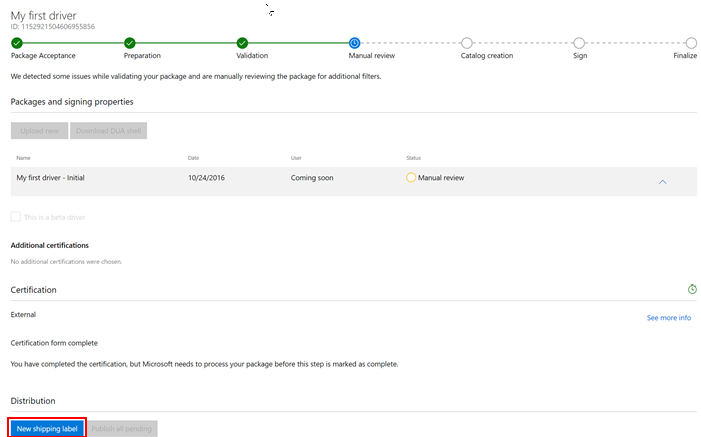
Go to the Distribution section of the hardware submission and select New shipping label.
On the shipping label page, go to the Details section and enter a name for the shipping label in the Shipping label name field. This name is private and isn't visible to your partner. The name allows you to organize and search for your shipping labels.
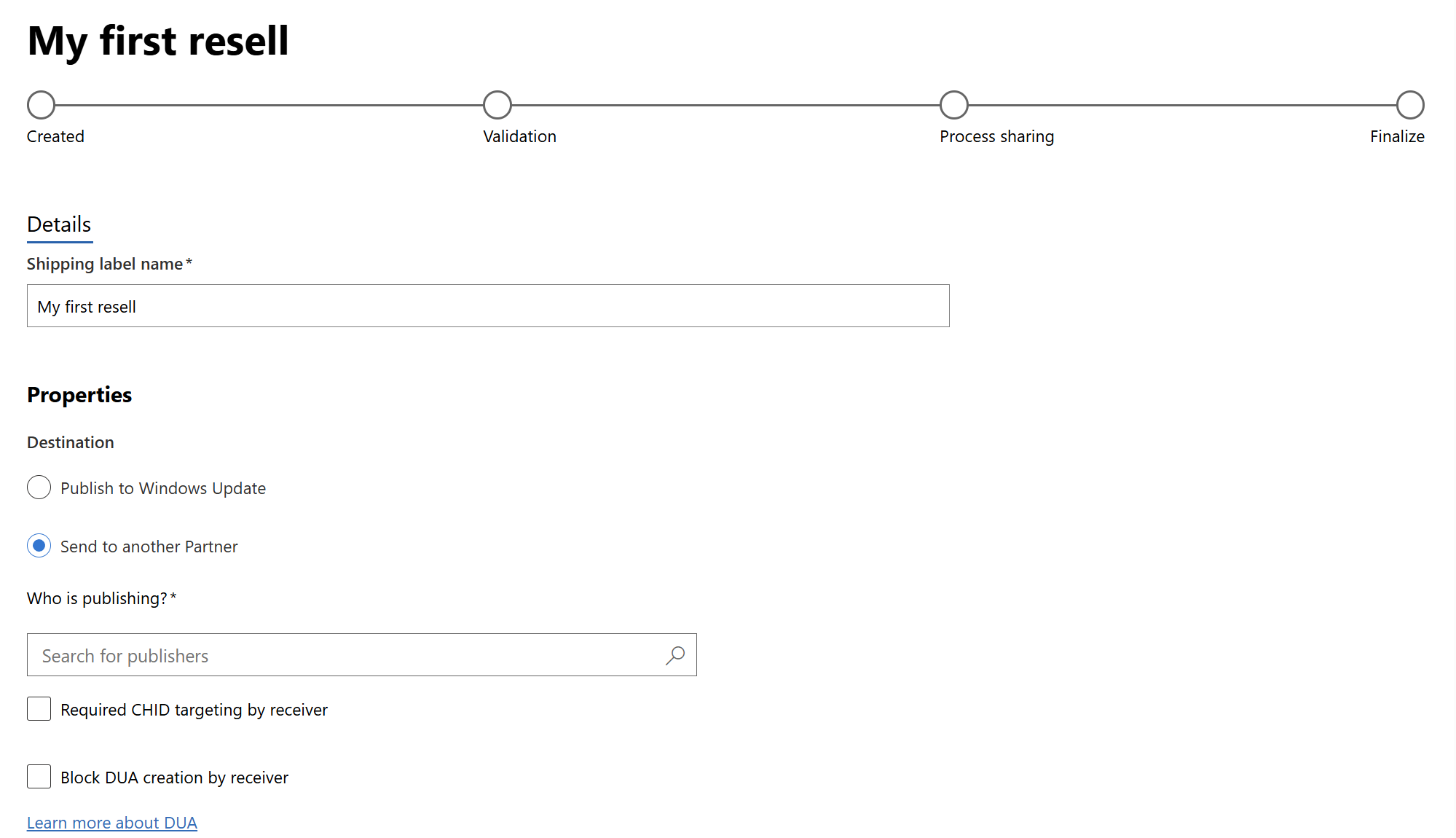
In the Properties section, complete the following information:
Field Description Destination Select Send to another Partner to share your driver with a partner. If you want to create a shipping label for Windows Update, see Publish a driver to Windows Update. Who is publishing? Search for the company name of your partner, and select it. Required CHID targeting by receiver This option forces your partner to apply Computer Hardware IDs (CHIDs) to any publication requests they create based on your driver. This option allows you to protect your users when a Hardware ID might be shared among many partner companies. Block DUA creation by receiver When enabled, the receiving partner will not be able to create Driver Update Acceptance (DUA) submissions from this shared content. The receiver can still publish the shared driver to Windows Update as-is. This option is off by default. Note
- The "Block DUA creation by receiver" option prevents the receiving partner from downloading the DUA shell or creating derived (DUA) submissions on the shared content.
- The setting applies per sharing shipping label. If you share the same submission to multiple partners, you can configure different DUA policies for each.
- This setting can be changed at any time, even after the shipping label has been shared and published. The change takes effect immediately.
- Enabling the block on a shipping label does not affect DUA submissions the receiver has already created — it only prevents future DUA creation.
In the Targeting section, select the driver package that you want to share.
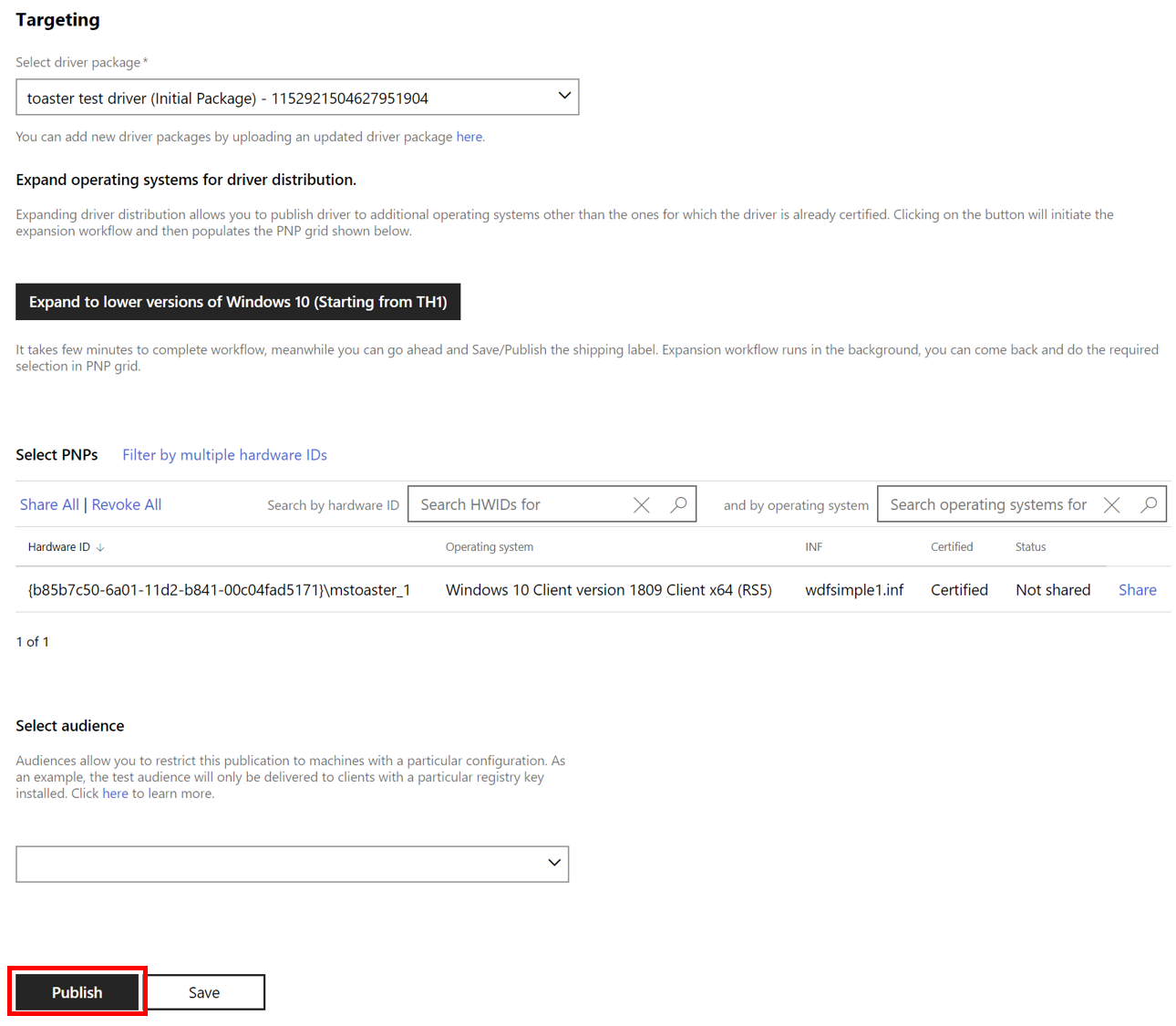
After you select your driver package, the Select PNPs grid becomes available. You can search for a specific hardware ID or operating system by using the search box above the list of hardware IDs. Your partner is limited to the hardware ID values you share for any publications they create.
- To target all listed hardware IDs, select Share All.
- To target specific hardware IDs, find each desired hardware ID and select Share.
- If you targeted all hardware IDs and want to remove them, select Revoke All.
- To remove targeting for specific hardware IDs, find each hardware ID and select Revoke.
Select Publish at the bottom to finalize the sharing of the driver. If you don't want to publish the shipping label right now, you can select Save. You can publish the shipping label later by either opening the shipping label and selecting Publish, or you can select Publish all pending from the hardware submission page. Selecting Publish all pending publishes all unpublished shipping labels.
Revoke a hardware ID
Revoking a hardware ID from a shared shipping label does the following steps.
Deprecates the existing Submission ID on the receiver's end.
A new Private Product ID and Submission ID with the adjusted hardware IDs is shared with your partner. This new entity has the same Shared Product ID. If you selected Revoke All, all hardware IDs are removed.
When your partner tries to create a NEW shipping label for Windows Update, their list of available hardware IDs reflect your changes, and only lists those hardware IDs shared by you. In the Revoke All case, their hardware ID grid would be empty.
Note
If your partner has already published their shared shipping labels to Windows Update, revoking a hardware ID does not remove their existing item from the Windows Update Catalog. It remains published until that partner expires it.
Existing shipping labels created by your partner are only allowed to expire content on a deprecated shipping label.
The signed driver and DUA Shell packages from a deprecated shipping label can still be downloaded by your partner.
If the 'Block DUA creation by receiver' option is enabled on the sharing shipping label, the DUA shell will not be available for download regardless of deprecation status.
Sharing and revoking a hardware ID does not modify your original INF.