Hi RogDogNY,
Welcome to Microsoft Community.
We're sorry to hear that you're experiencing unusual touchpad behavior on your device.
We understand your frustration. It prevents you from completing your work or entertainment experience smoothly.
Just some things to share with you before dealing with the problem together.
- We (members of the Answers community) are not developers or direct maintainers of any service or product, we are just regular support staff. We try to provide support based on our limited experience and available information, and limited test equipment.
- You may notice that the information we provide is sometimes complex and “All-in-One”, because we need to eliminate unnecessary interferences as much as possible to narrow down the scope of the problem analysis.
When a problem occurs with a device, restoring the device to a relatively early state to minimize the impact of potential software environment changes is always the preferred option.
To open System Restore, Use the keyboard shortcut Windows +R, type rstrui.exe and press Enter.
- In the Restore system files and settings box, select Next
- Select the restore point that you want to use in the list of results. If you don’t see the restore point that you want to use, select the Show more restore points check box to see more restore points.
- Optionally, select Scan for affected programs.
- Once you find the proper restore point, select Next > Finish.
- After the restore point is applied, Windows restarts automatically.
To uninstall an update,
- In the Settings app on your Windows device, select Windows Update> Update history> Uninstall updates.
- On the list that appears, select update you want to remove, and then select Uninstall.
- **Note:**Some updates cannot be uninstalled.
SFC is essential for diagnosing and fixing issues caused by damaged Windows system files, which can lead to crashes, performance problems, or unexpected errors. By scanning the integrity of these files and automatically replacing faulty ones, SFC probably helps restore system stability.
Steps to Use System File Checker
- Press Win or Win + S, type Command Prompt, right-click it, and choose Run as administrator.
- Enter and execute the following commands (please enter one after the other)
- You can copy a single command using a shortcut key and right mouse click in the Command Prompt window to quickly paste the copied command. If a single copy fails, you can repeat the copy operation.
|
DISM /Online /Cleanup-Image /ScanHealth <br><br><br><br> DISM /Online /Cleanup-Image /CheckHealth <br><br><br><br> DISM /Online /Cleanup-image /RestoreHealth <br><br><br><br> SFC /scannow |
- Please note the space before each "/"), and then press Enter. (**Note:**Every step may take a few minutes to start and complete.)
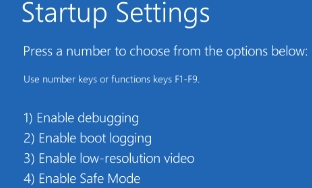
Safe Mode starts Windows with a minimal set of drivers and services, making it easier to identify problems caused by third-party software or settings changes.
- When you restart your PC, press and hold the Shiftkey while you select Power> Restart.
- The device will boot into Windows Recovery Environment.
- Once in Windows RE, select Troubleshoot> Advanced options> Startup Settings> Restart.
- Select Restart, once the device reboots, in the Startup Settings screen pick one of the available options, or press Enter to boot Windows normally.
A local account provides an independent user environment on your device. Observing under a different user profile helps to understand if the problem is specific to a corrupted user profile. Using Command Prompt ensures you can bypass user interface issues. To create a new local account via Command Prompt:
- Press Win or Win + S, type Command Prompt, right-click it, and choose Run as administrator.
- Execute the command to create a new account, replace <Username> with the desired username, and <Password> with the desired password.
|
net user "<Username>" "<Password>" /add |
- Execute the command to promote the account to admin level, replace <Username> with the desired username.
|
net localgroup Administrators "<Username>" /add |
For some hardwares, the driver may contain several different types and versions of files.
In some cases, you can try to check and switch drivers. To check if the computer has different types of drivers listed.
- Press Win + X and select Device Manager from the menu, or type "Device Manager" in the search bar and select it from the results.
- In Device Manager, locate the category that includes the device you want to update or check, and expand it by clicking the arrow next to it.
- Right-click on the device you want to update or check and select Update driver.
- In the Update Drivers window, select Browse my computer for drivers.
- Next, choose Let me pick from a list of available drivers on my computer.
- You will see a list of compatible drivers for your device.
- If you see multiple options, you might choose the most recent or appropriate one for your needs, and click Next.
- Then follow the instructions to install it.
The power state policy may unexpectedly cause incomplete driver initialization, resulting in strange problems.
In the system, fast startup is an option that may be related to the power state.
If you want to disable the S4 state(fast startup) in Windows 10, follow these steps.
- In search box, type powercfg.cpl and press Enter.
- Select the Choose what the power buttons do link.
- (Optionally) Click Change settings that are currently unavailable.
- Clear the Turn on fast startup (recommended) check box.
- Select Save Settings.
Another option related to the power behavior of the hardware is Modern Standby.
In some of the earlier threads, anomalous behavior of the touchpad or changes in settings may have been affected by specific registry entries.
| Disclaimer: Generally, modifying registry subkeys or work group is intended for advanced users, administrators, and IT Professionals. It can help fix some problems, however, serious problems might occur if you modify the registry incorrectly. Therefore, make sure that you follow these steps carefully. For further protection, back up the registry before you modify it. Then, you can restore the registry if a problem occurs. For more information about how to back up and restore the registry, clickHow to back up and restore the registry in Windows - Microsoft Supportto view the article. |
If I misunderstand your situation, feel free to correct me and share the information.Best Regards,Kyo.Y - MSFT | Microsoft Community Technical Support
' cx='32' cy='32' r='32' /%3E%3Ctext x='50%25' y='55%25' dominant-baseline='middle' text-anchor='middle' fill='%23FFF' %3EA%3C/text%3E%3C/svg%3E)
