Note
Access to this page requires authorization. You can try signing in or changing directories.
Access to this page requires authorization. You can try changing directories.
Note
The content ideas copilot is currently available worldwide in the following languages:
- cs: Czech
- da: Danish
- de: German
- el: Greek
- en: English
- es: Spanish
- fi: Finnish
- fr: French
- it: Italian
- ja: Japanese
- ko: Korean
- nb: Norwegian Bokmål
- nl: Dutch
- pl: Polish
- pt-br: Brazilian Portuguese
- ru: Russian
- sv: Swedish
- th: Thai
- tr: Turkish
- zh-Hans: Simplified Chinese
Tip
Learn about using Copilot to create inspiring email content ideas in our latest blog: Make email creation fun and more efficient with AI-powered content ideas in Dynamics 365 Customer Insights - Journeys.
Content ideas Copilot is an AI-assisted feature in Dynamics 365 Customer Insights - Journeys that generates email draft ideas from your key points. This article explains how content ideas Copilot works and how to use it when creating emails.
What is the content ideas copilot?
The content ideas copilot acts like a brainstorming partner while you write an email. You provide a short list of initial thoughts (key points) and select a tone of voice, and Copilot generates longer content suggestions that you can build on. You can add these suggestions to your draft, use them as inspiration for a new draft, or go in a different direction altogether.
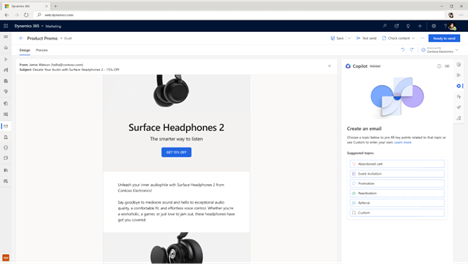
Enable the content ideas copilot
Note
In the North America (NAM) region, the content ideas copilot and other Copilot features are enabled by default and visible in the email editor toolbox. In other regions, you need to turn them on in the app settings.
Turn on or off the content ideas copilot feature switch
- Go to Settings > Overview > Feature switches.
- Enable or disable the Global Opt-in consent toggle.
- Enable or disable the Copilot data movement across geographies toggle.
How to use Copilot to generate content ideas
Select the Copilot button in the email editor toolbox or above the text on the canvas to open the Copilot pane.
If your email contains at least 10 words, Copilot uses your email content to fill in recommended key points for new ideas. You can then refine them. If your email is empty or contains fewer than 10 words, choose Topic of your email from the list of suggested topics or select Custom.
- If you select one of the suggested topics, Copilot automatically fills in sample key points for you, which you can modify according to your needs.
- If you select a custom topic, add up to five key points that you want to get across in your email (a minimum of three words per key point is recommended). You can also use premade examples (select the See examples link and then Use this example for a selected set of key points).
Select the Tone of voice.
Select Get ideas.
Copilot generates a set of text suggestions. Generating content can take up to 15 seconds, depending on usage.
Browse the generated ideas using the scrollbar in the content ideas pane.
Select Get more ideas to generate more ideas for the same key points.
Note
Content ideas are suggestions. Review and edit generated suggestions so your final copy is accurate and appropriate.
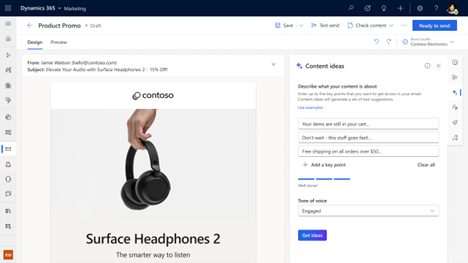
Generate ideas using your organization's emails
You can provide personalized context to the content ideas copilot feature. The content ideas copilot analyzes your organization's existing ready-to-send or live marketing emails (minimum 20), along with a wide range of internet sources, to increase the relevance of generated ideas. The analysis is a one-time process that can take up to a few hours.
To begin the Copilot analysis:
Select the Copilot button in the email editor toolbox to display the content ideas pane.
If there are enough ready-to-send/live marketing emails in your organization to start the analysis process (minimum 20) and you have read permission to access all the emails, select the Enable button.
A pop-up window lets you know it's ready to analyze your emails. This one-time process can take up to a few hours. Select Enable to proceed.
Note
You can start the analysis process only if you have read permission for all the emails in your organization.
After the existing email analysis is complete, you'll be able to generate ideas using your organization's emails.
To generate ideas, add up to five key points in the content ideas pane. Select the Generate ideas using your organization's emails checkbox, and then select Get ideas.
How does the Copilot technology work?
The content ideas copilot assistant is built on a machine learning model called GPT-3.5. Trained on a vast number of text samples from the internet, GPT-3.5 generates new text in English that looks and sounds similar to text that was written by a human. Copilot uses GPT-3.5 as a foundation, then considers your organization's recent (English) ready-to-send emails and the key messaging points that you share for each new email draft. Copilot masks any personal data in generated ideas and shows only the results that are long enough and unique enough to be useful.
What data does Copilot collect?
If you grant permission, Copilot automatically reviews your organization's recent English ready-to-send emails without human review. The only time a human reviews generated ideas is if you report them to Microsoft by using the quick feedback survey built into the content ideas feature.
What if I'm not satisfied with the generated content?
Copilot uses the key points you add to generate suggestions for your email. Make sure to provide good key points that touch on the top themes you want to get across to your audience. Include two to five key points. Use a group of words or a full sentence for each key point.
If you aren't satisfied with the generated ideas, try one or more of the following:
- Continue browsing through generated ideas to make sure you've reviewed all of them.
- Get more ideas based on the already provided key points.
- Rephrase or add more key points to get new ideas.
Copilot generates original content, but it isn't always factual. In addition, because the underlying technology behind content ideas uses AI trained on a wide range of internet sources, some text suggestions might include questionable or inappropriate content. Review and edit generated suggestions so your final copy is accurate and appropriate.
Important
If you encounter inappropriate content being generated, report it to Microsoft using this feedback form: Report abuse. It will help improve the functionality moving forward.
Microsoft may disable the content ideas feature for selected customers if abuse of the functionality is detected.