Note
Access to this page requires authorization. You can try signing in or changing directories.
Access to this page requires authorization. You can try changing directories.
You can have multiple schedule board tabs configured for your business needs. As the owner of a schedule board tab, you can share the tab.
Share a schedule board tab
By default, a new schedule board tab is visible only to the user who creates it and users with higher access levels such as org administrators. Use the schedule board tab settings to share a tab.
On the schedule board, select the vertical ellipsis ⋮ next to a schedule board tab name and select Board settings.
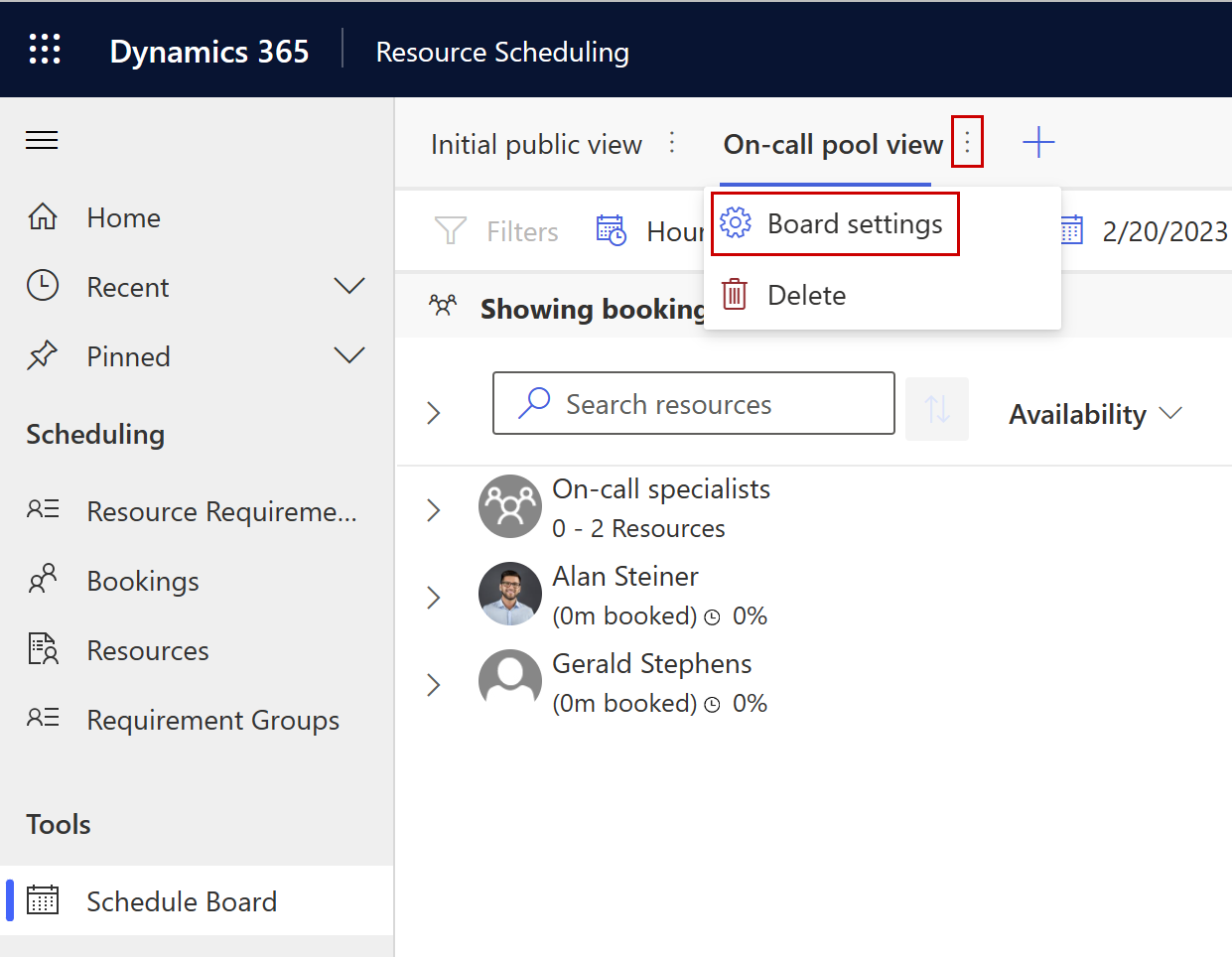
Under Shared With select one of the sharing options.
- Everyone exposes the tab to all users who can access the schedule board.
- Just Me restricts the tab to you only.
- Specific People shares the tab with other users that you choose. When this option is selected, a share drop-down menu appears with easy access to email and/or copy a link to the tab. Choose Manage access in this menu to open a panel where you can directly manage the tab's permissions for each desired user.
Note
Managing schedule board access for teams by creating custom security roles and editing permissions isn't supported. Instead, share with individual users.
Understand schedule board access control
Schedule board visibility depends on a combination of security role privileges and per-tab sharing settings:
| Access level | How it's configured | Who can see the tab |
|---|---|---|
| Organization-wide access | The user's security role includes the Schedule Board Setting privilege with at least User-level read access. The default out-of-the-box scheduling roles include this privilege. | All users with the privilege see tabs set to Everyone. |
| Tab-level sharing | The tab's Shared With setting is Specific People, and the user is added via Manage access. | Only the users you explicitly share with. |
| Personal tabs | The tab's Shared With setting is Just Me. | Only the user who created the tab. |
Users with higher privileges to Schedule Board Setting records (for example, org-level read access) can see all tabs, even if the tab isn't shared with them directly.
Verify a user's access
If a user can see a schedule board tab they shouldn't access, or can't see a tab they should, check:
- Their security role — In the Power Platform admin center, go to Environments > select your environment > Settings > Users + permissions > Security roles. Open the user's role and verify the Schedule Board Setting privilege level under the Custom Entities tab.
- The tab's sharing setting — Open the schedule board, select the vertical ellipsis ⋮ next to the tab name, and choose Board settings. Under Shared With, confirm whether it's set to Everyone, Specific People, or Just Me.
- Team memberships — If the tab is shared with a team, all members of that team have access. Review team membership in the Power Platform admin center under Users + permissions > Teams.