Note
Access to this page requires authorization. You can try signing in or changing directories.
Access to this page requires authorization. You can try changing directories.
A well-organized product catalog streamlines your sales process, reduces errors, and ensures consistent pricing across your organization. By setting up units, pricing, discounts, and product classifications, your sellers can quickly add products to opportunities and orders—saving time and improving accuracy. For example, if you sell software licenses by user seats with volume discounts, a configured catalog lets your sellers instantly apply the correct pricing for any quantity without manual calculations.
Overview
A product catalog is a collection of products and their pricing information. To set up pricing, you need to:
- Define the units in which you sell your products
- Set the amount to charge for each unit
- Configure discounts based on volume purchased
Note
Product families are only available in the Sales Hub app.
Your product catalog also supports product taxonomy, which lets you create a rich classification of products. This ensures that your customers receive the most appropriate and complete solution.
Set up your product catalog in sequence
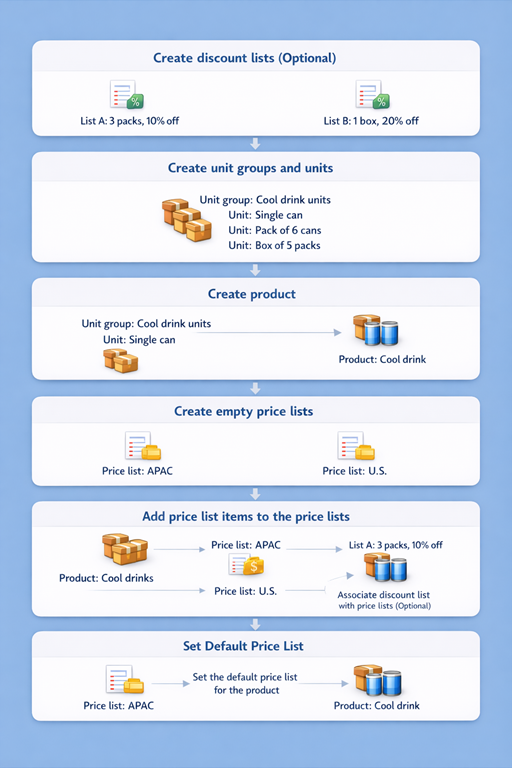
Because units, discounts, and prices are connected to each other, you must create each component in the following order:
| Step | What you do | Learn more |
|---|---|---|
| 1. | Create discount lists so you can offer your products and services at different prices based on quantity purchased. | Set up a discount list |
| 2. | Define the measurements or quantities your products are available in. | Create a unit group and add units to that group |
| 3. | Create products for the items you sell. You can create a standalone product or a product inside a family. Each product links to a unit group and default unit. You can also create a standalone bundle or a bundle inside a product family. | Create a product family |
| 4. | Define the pricing for your products. | Create price lists and price list items to define pricing of products |
| 5. | Add price list items to define the price per unit of a product. Add each new product to one or more price lists as price list items. You can do this from the product form or the price list form. | Create a product family or Create price lists and price list items to define pricing of products |
| 6. | Select one of the price lists where you added the product as the default price list. The system uses the default price list for calculations when the associated price list in the opportunity or order doesn't contain a price definition for the product. | Manage products |