Note
Access to this page requires authorization. You can try signing in or changing directories.
Access to this page requires authorization. You can try changing directories.
In this tutorial, you use an Azure DevOps pipeline that leverages the Bulk import item definition api to deploy items from a Git folder. The Git folder contains item definitions from a dev workspace that is connected to Git, and the pipeline deploys them to a test workspace that isn't connected to Git.
Prerequisites
- Azure DevOps Azure Project and repository + permissions to configure Azure DevOps pipeline and create variable groups.
- Fabric workspace name:
bulk-tutorial-test- target workspace for the deployment - Service Principal (SPN) - An Entra ID (Azure AD) App Registration with a client secret, need to have the client id, client secret, and tenant id.
- The service principal has Contributor permission for
bulk-tutorial-testFabric workspace - Fabric Admin Setting for Service Principal - A Fabric Admin must enable "Service principals can use Fabric APIs" in the Fabric Admin Portal under Tenant Settings
💡 Tip: To enable Service Principal access in Fabric, a Fabric Admin must enable "Service principals can use Fabric APIs" in the Fabric Admin Portal under Tenant Settings.
Background
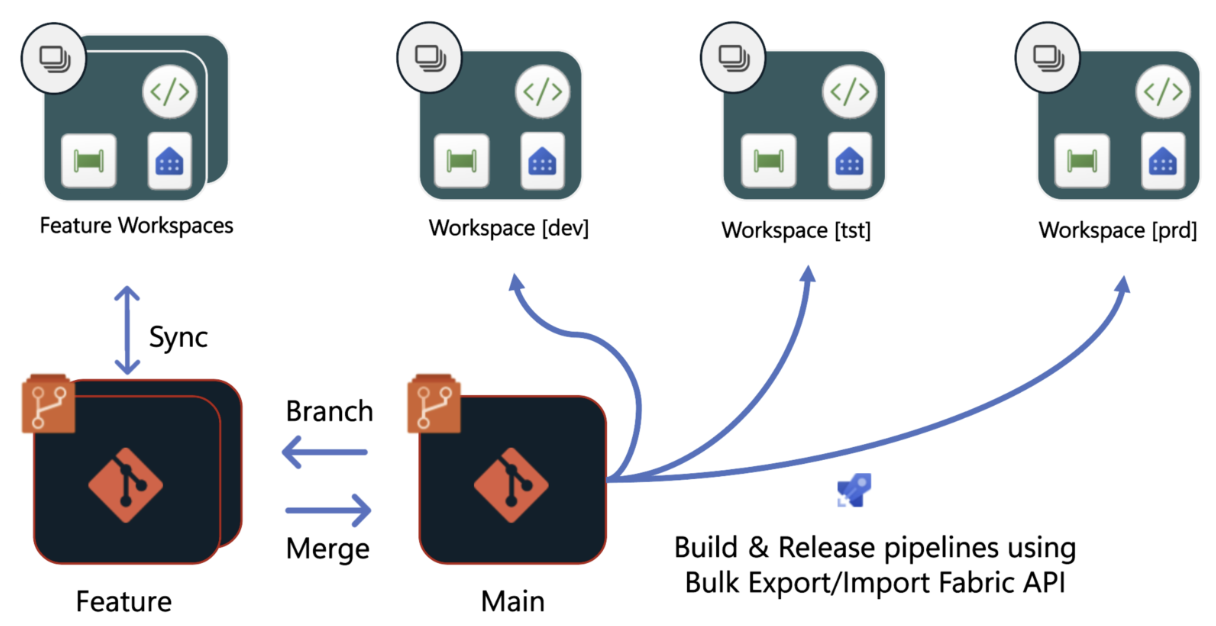
In Git‑based deployment using a build environment, deployments across Fabric workspaces come from a central Git repository. Treat Fabric item definitions as code and promote them through a structured release flow. All environments - Dev, Test, and Prod - align to the same main branch, while each stage is deployed independently by using dedicated build and release pipelines.
Pipelines typically begin by exporting Fabric item definitions from a development workspace using Fabric Git Integration. These definitions can then be validated in a build environment through automated checks, pull request reviews, and policy enforcement before promotion. (Not covered in this tutorial).
During deployment, the pipeline invokes the Bulk Import API to promote approved item definitions into the target workspace. The API supports both creating new items and updating existing ones in place, while relying on Fabric's built‑in dependency handling to ensure items are deployed in the correct order. This enables consistent, repeatable deployments into test and production environments without manual intervention.
Step 1. Prepare a sample repo
- Download the zip file bulk-api-demo-zip to your local machine
- The sample zip contains:
- Azure DevOps pipeline file (
deploy-using-bulk-api.yml) - Sample workspace with few Fabric items definitions files (
bulk-tutorial-dev)
- Azure DevOps pipeline file (
- Clone your Azure DevOps repository to your local machine, and unzip the file to this folder.
- Push the new content to Azure DevOps repository
Step 2. Run Azure DevOps pipeline
2.1 Variable Group: bulkapi-group
This variable group stores the service principal details that the Azure Pipeline authenticates with.
Steps to Create
- Navigate to Pipelines → Library in your ADO project.
- Select + Variable group.
- Name it:
bulkapi-group - Add the following variables:
| Variable Name | Description |
|---|---|
AZURE_TENANT_ID |
Service Principal - Tenant ID |
AZURE_CLIENT_ID |
Service Principal - Client ID |
AZURE_CLIENT_SECRET |
Service Principal - Client Secret (Mark as secret) |
2.2 Azure DevOps Pipeline setup
Create a pipeline in Azure DevOps that references the deploy-using-bulk-api.yml YAML file in your repo.
Steps
- Navigate to Pipelines → Pipelines → New pipeline.
- Choose Azure Repos Git and select your repository.
- Choose Existing Azure Pipelines YAML file.
- Change the pool according to existing agent pool, for example to use Microsoft-Hosted agent (Linux based) use:
vmImage: ubuntu-latest - Run
- After pipeline completion, the
bulk-tutorial-testFabric workspace contains the deployed items.
Tip
The first time the pipeline runs, ADO might prompt you to authorize access to the variable groups and environments. An ADO admin can pre-authorize these under Pipeline → Settings.
Tip
This pipeline demonstrates deployment to a test environment. The production deployment can follow a similar flow, with an approval gate added after successful validation in the test environment.
3. Code deep dive: ADO Pipeline YAML
File: deploy-using-bulk-api.yml — located in the Azure DevOps repository.
The pipeline consists of three steps, each performing a distinct operation. Below is each step with annotations.
3.1 Pipeline trigger and configuration
Define when the pipeline runs and configure the agent pool and variables.
trigger:
  branches:
    include:
    - main

pool:
  vmImage: ubuntu-latest

variables:
  - group: bulkapi-group
  - name: test_workspace_to_deploy
    value: "bulk-tutorial-test"
| Setting | Purpose |
|---|---|
trigger |
Run pipeline on every push to main branch |
pool |
Use a Microsoft-hosted Ubuntu agent |
variables.group |
Reference the bulkapi-group variable group containing SPN credentials |
test_workspace_to_deploy |
Target workspace display name |
3.2 Step 1 — Authenticate with Fabric API
Acquire a bearer token from Microsoft Entra ID using service principal credentials.
stages:
  - stage: Deploy_Test
    jobs:
      - job: Deploy
        displayName: 'Deploy using Bulk-API'
        steps:
        - checkout: self
        - script: |
            TOKEN=$(curl -s -X POST \
              "https://login.microsoftonline.com/$(AZURE_TENANT_ID)/oauth2/v2.0/token" \
              -H "Content-Type: application/x-www-form-urlencoded" \
              -d "client_id=$(AZURE_CLIENT_ID)&client_secret=$(AZURE_CLIENT_SECRET)&scope=https://api.fabric.microsoft.com/.default&grant_type=client_credentials" \
              | jq -r '.access_token')
            echo "##vso[task.setvariable variable=FABRIC_TOKEN;issecret=true]$TOKEN"
          displayName: 'Get Fabric API token'
Input: SPN credentials from variable group (AZURE_TENANT_ID, AZURE_CLIENT_ID, AZURE_CLIENT_SECRET)
Output: FABRIC_TOKEN — a bearer token stored as a secret pipeline variable, used by subsequent steps.
API called: POST https://login.microsoftonline.com/{tenantId}/oauth2/v2.0/token
3.3 Step 2 — Build payload and call Bulk Import API
This step performs three operations: resolve the workspace ID, build the request payload from local files, and call the Bulk Import API.
3.3.1 Resolve workspace ID
Look up the target workspace ID by display name using the Fabric REST API.
WORKSPACE_ID=$(curl -s -H "Authorization: Bearer $(FABRIC_TOKEN)" \
  "https://api.fabric.microsoft.com/v1/workspaces" \
  | jq -r '.value[] | select(.displayName=="'"$(test_workspace_to_deploy)"'") | .id')

if [ -z "$WORKSPACE_ID" ] || [ "$WORKSPACE_ID" = "null" ]; then
  echo "##vso[task.logissue type=error]Workspace '$(test_workspace_to_deploy)' not found"
  exit 1
fi
echo "Workspace ID: $WORKSPACE_ID"
Input: FABRIC_TOKEN, test_workspace_to_deploy (workspace name)
Output: WORKSPACE_ID — the GUID of the target workspace
API called: GET https://api.fabric.microsoft.com/v1/workspaces
3.3.2 Build base64-encoded request body
Iterate through each file in the source folder, encode contents in Base64, and assemble the JSON request body.
BASE_DIR="$(Build.SourcesDirectory)/bulk-tutorial-dev"

PARTS_JSON="[]"
while IFS= read -r -d '' FILE; do
  REL_PATH="/${FILE#$BASE_DIR/}"
  PAYLOAD=$(base64 -w 0 "$FILE" 2>/dev/null || base64 "$FILE")
  PARTS_JSON=$(echo "$PARTS_JSON" | jq \
    --arg path "$REL_PATH" \
    --arg payload "$PAYLOAD" \
    '. + [{path: $path, payload: $payload, payloadType: "InlineBase64"}]')
done < <(find "$BASE_DIR" -type f -print0)

REQUEST_BODY=$(jq -n \
  --argjson parts "$PARTS_JSON" \
  '{
    definitionParts: $parts,
    options: {
      allowPairingByName: false
    }
  }')

echo "Request body built with $(echo "$PARTS_JSON" | jq length) parts"
Input: Local files in bulk-tutorial-dev folder
Output: REQUEST_BODY — JSON payload containing all item definition parts, base64-encoded
Key option: allowPairingByName: false — items are matched by logical ID (from .platform files), not by display name.
3.3.3 Call the Bulk Import API
Send the payload to the Bulk Import API and capture the operation ID for polling.
API_URL="https://api.fabric.microsoft.com/v1/workspaces/$WORKSPACE_ID/items/bulkImportDefinitions?beta=true"
echo "Calling Bulk Import Item definition API: $API_URL"

HEADER_FILE=$(mktemp)
RESPONSE=$(curl -s -w "\n%{http_code}" -X POST \
  "$API_URL" \
  -H "Authorization: Bearer $(FABRIC_TOKEN)" \
  -H "Content-Type: application/json" \
  -D "$HEADER_FILE" \
  -d "$REQUEST_BODY")

HTTP_CODE=$(echo "$RESPONSE" | tail -1)
BODY=$(echo "$RESPONSE" | sed '$d')

echo "HTTP Status: $HTTP_CODE"
echo "$BODY" | jq . 2>/dev/null || echo "$BODY"

OPERATION_ID=$(grep -i '^x-ms-operation-id:' "$HEADER_FILE" | awk '{print $2}' | tr -d '\r\n ')
echo "Operation ID: $OPERATION_ID"
rm -f "$HEADER_FILE"

echo "##vso[task.setvariable variable=OPERATION_ID]$OPERATION_ID"

if [ "$HTTP_CODE" -ge 400 ]; then
  echo "##vso[task.logissue type=error]Bulk import failed with HTTP $HTTP_CODE"
  exit 1
fi
Input: FABRIC_TOKEN, WORKSPACE_ID, REQUEST_BODY
Output: OPERATION_ID — the long-running operation identifier, stored as a pipeline variable
API called: POST https://api.fabric.microsoft.com/v1/workspaces/{workspaceId}/items/bulkImportDefinitions?beta=true
Response handling:
200 OK— deployment completed synchronously (result in body)202 Accepted— deployment is asynchronous; poll using theOPERATION_ID4xx— deployment failed; error details in response body
3.4 Step 3 — Poll for deployment completion
Poll the long-running operation endpoint until the deployment completes and the result is available.
        - script: |
            echo "Polling operation: $(OPERATION_ID)"

            while true; do
              RESULT=$(curl -s -H "Authorization: Bearer $(FABRIC_TOKEN)" \
                "https://api.fabric.microsoft.com/v1/operations/$(OPERATION_ID)/result")

              HAS_DETAILS=$(echo "$RESULT" | jq \
                'has("importItemDefinitionsDetails") and (.importItemDefinitionsDetails != null)')

              if [ "$HAS_DETAILS" = "true" ]; then
                echo "Operation complete. Result:"
                echo "$RESULT" | jq .
                break
              fi

              echo "Operation not yet completed. Waiting 10 seconds..."
              sleep 10
            done
          displayName: 'Poll LRO until complete'
Input: FABRIC_TOKEN, OPERATION_ID
Output: Deployment result JSON containing per-item status
API called: GET https://api.fabric.microsoft.com/v1/operations/{operationId}/result
Result structure: The response contains importItemDefinitionsDetails — an array with per-item results:
{
  "importItemDefinitionsDetails": [
    {
      "itemId": "c4dd0eac-...",
      "itemDisplayName": "MyReport",
      "itemType": "Report",
      "itemLogicalId": "88436e65-...",
      "operationType": "Create",
      "operationStatus": "Succeeded"
    }
  ]
}
| Field | Description |
|---|---|
itemId |
The workspace item ID (GUID) of the deployed item |
itemDisplayName |
The display name of the item |
itemType |
The Fabric item type (for example, Report, SemanticModel, Notebook) |
itemLogicalId |
The logical ID from the .platform file |
operationType |
Create for new items, Update for existing items |
operationStatus |
Succeeded or Failed |
4. Summary
This tutorial demonstrated how to use the Bulk Import Item Definition API as a deployment mechanism. It showed how to deploy items from a dev workspace connected to a Git repository by extracting the repository content, transforming it into the required API input, and deploying it to a test Fabric workspace that isn't connected to Git.
API operations used
| Step | API | Purpose |
|---|---|---|
| Authenticate | POST login.microsoftonline.com/.../oauth2/v2.0/token |
Acquire bearer token using SPN credentials |
| Resolve workspace | GET api.fabric.microsoft.com/v1/workspaces |
Look up workspace ID by display name |
| Deploy items | POST api.fabric.microsoft.com/v1/workspaces/{id}/items/bulkImportDefinitions |
Import all item definitions in a single call |
| Poll result | GET api.fabric.microsoft.com/v1/operations/{id}/result |
Wait for async deployment to complete |