Note
Access to this page requires authorization. You can try signing in or changing directories.
Access to this page requires authorization. You can try changing directories.
Real-Time Intelligence in Microsoft Fabric offers a sample data gallery containing data in various formats and sizes for you to practice loading data and writing queries. Each dataset in the Real-Time Intelligence Sample Gallery is loaded into your workspace as a table in a new KQL database. Along with the database, an attached KQL queryset is created, containing sample queries unique to the dataset you selected.
This article shows you how to load sample data and run queries in Real-Time Intelligence.
Prerequisites
Get data
Tip
To use the sample gallery to create an end-to-end real-time solution that shows how to stream, analyze, and visualize real-time data in a real-world context, see End-to-end sample.
Select Workloads from the left navigation bar and then Real-Time Intelligence.
On the Real-Time Intelligence homepage, on the Explore Eventhouse samples tile, choose Select.
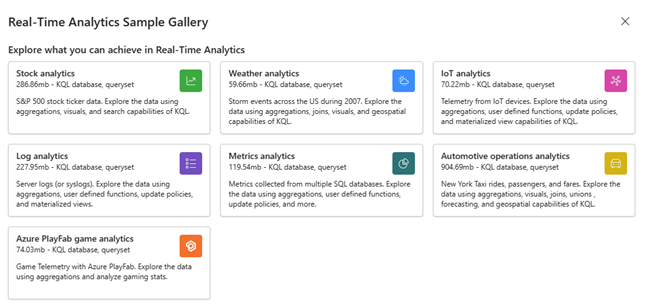
From the Real-Time Intelligence Sample Gallery window, select a sample scenario tile to load into your workspace. After you select a tile, the data is loaded as a table in the KQL database, and a KQL queryset with sample queries unique to the dataset is automatically generated.
Note
You can also load data from the Real-Time Intelligence Sample Gallery as a table in an existing KQL database. Doing so loads the sample semantic model without creating a KQL queryset with sample queries.
To load sample datasets without the sample queries, open an existing KQL database and select Get data > Sample.
Run queries
A query is a read-only request to process data and return results. You state the request in plain text, using a data-flow model that's easy to read, author, and automate. Queries always run in the context of a particular table or database. At a minimum, a query consists of a source data reference and one or more query operators applied in sequence, indicated visually by the use of a pipe character (|) to delimit operators.
For more information on the Kusto Query Language, see Kusto Query Language (KQL) Overview.
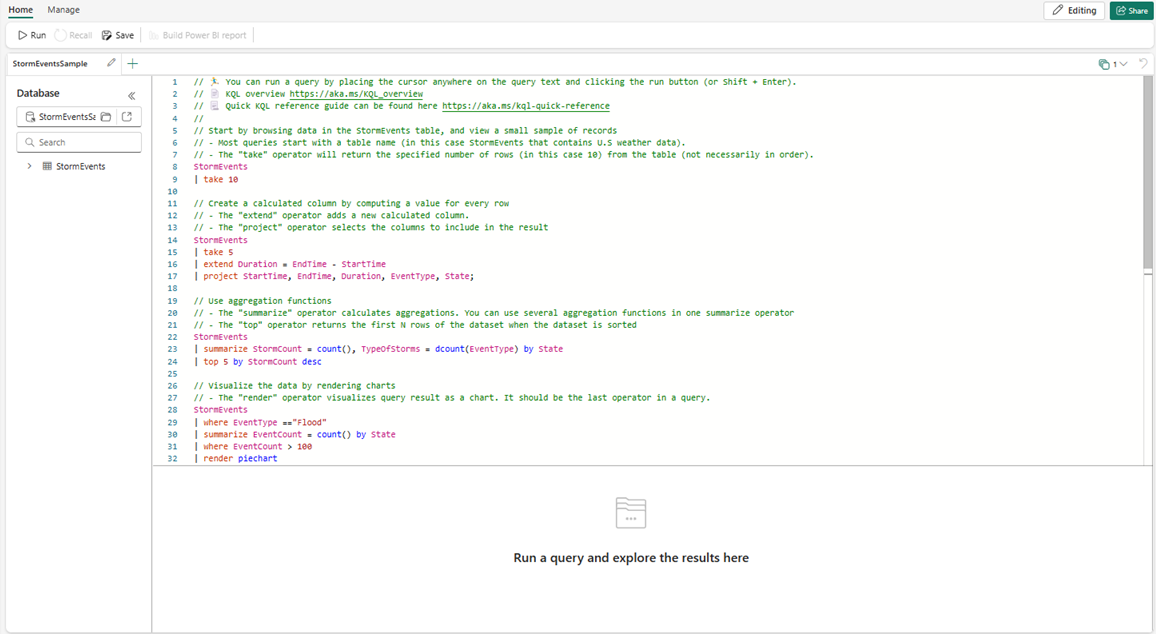
In the query editor window, place your cursor anywhere on the query text.
Select Run, or press Shift+Enter to run the query.
Review the results in the query results pane below the query editor. Notice the green check indicating the query completed successfully, and the time used to compute the query results.
Before you run any query or command, read the comments above it—they include important information.
Tip
Select Recall at the top of the query window to show the result set from the first query without having to rerun the query. Often during analysis, you run multiple queries, and Recall allows you to retrieve the results of previous queries.
Clean up resources
To clean up these items, go to the workspace where you created them.
In your workspace, hover over the KQL database or KQL queryset you want to delete, and then select More (...) > Delete.
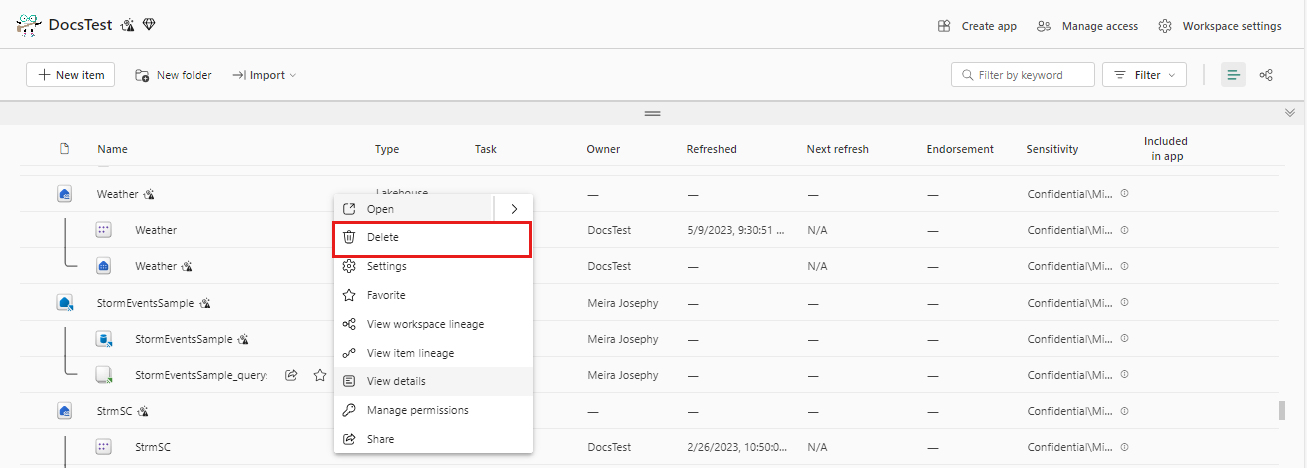
Select Delete. You can't recover deleted items.