Configure authentication for Azure Kubernetes Service
As you deploy and maintain clusters in Azure Kubernetes Service (AKS), you implement ways to manage access to resources and services. Without these controls:
- Accounts could have access to unnecessary resources and services.
- Tracking credentials used to make changes can be difficult.
Use Microsoft Entra ID
Best practice guidance: Deploy AKS clusters with Microsoft Entra integration. Using Microsoft Entra ID centralizes the identity management layer. Any change in user account or group status is automatically updated in access to the AKS cluster. Scope users or groups to the minimum permissions amount using Roles, ClusterRoles, or Bindings.
Your Kubernetes cluster developers and application owners need access to different resources. Kubernetes lacks an identity management solution for you to control the resources with which users can interact. Instead, you can integrate your cluster with an existing identity solution like Microsoft Entra ID, an enterprise-ready identity management solution.
With Microsoft Entra integrated clusters in AKS, you create Roles or ClusterRoles defining access permissions to resources. You then bind the roles to users or groups from Microsoft Entra ID.
Microsoft Entra integration and how you control access to resources can be seen in the following diagram:
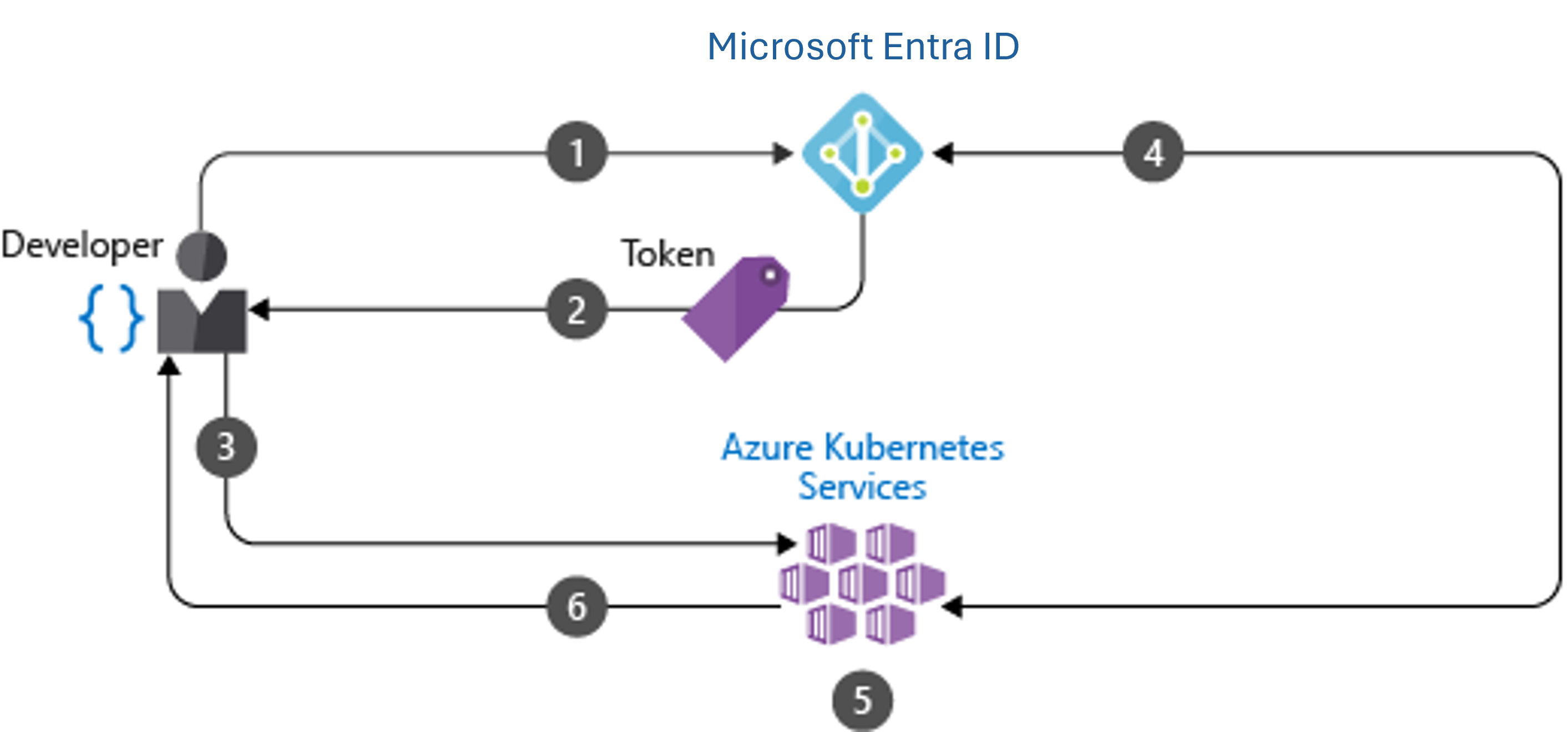
Developer authenticates with Microsoft Entra ID.
The Microsoft Entra token issuance endpoint issues the access token.
The developer performs an action using the Microsoft Entra token, such as
kubectl create pod.Kubernetes validates the token with Microsoft Entra ID and fetches the developer's group memberships.
Kubernetes RBAC and cluster policies are applied.
The developer's request is successful based on previous validation of Microsoft Entra group membership and Kubernetes RBAC and policies.
Use Kubernetes role-based access control (Kubernetes RBAC)
Best practice guidance: Define user or group permissions to cluster resources with Kubernetes RBAC. Create roles and bindings that assign the least number of permissions required. Integrate with Microsoft Entra ID to automatically update any user status or group membership change and keep access to cluster resources current.
In Kubernetes, you provide granular access control to cluster resources. You define permissions at the cluster level, or to specific namespaces. You determine what resources can be managed and with what permissions. You then apply these roles to users or groups with a binding.
When developer1@contoso.com is authenticated against the AKS cluster, they have full permissions to resources in the finance-app namespace. In this way, you logically separate and control access to resources. Use Kubernetes RBAC with Microsoft Entra ID-integration.
Use Azure RBAC
Best practice guidance: Use Azure RBAC to define the minimum required user and group permissions to AKS resources in one or more subscriptions.
There are two levels of access needed to fully operate an AKS cluster:
- Access the AKS resource on your Azure subscription. This access level allows you to:
- Control scaling or upgrading your cluster using the AKS APIs
- Pull your kubeconfig.
- Access to the Kubernetes API. This access level controlled by:
- Kubernetes RBAC (traditionally) or
- By integrating Azure RBAC with AKS for Kubernetes authorization.
Use workload identity
Best practice guidance: Use workload identity with OIDC federation for pod authentication to Azure resources. Don't use fixed credentials within pods or container images, as they are at risk of exposure or abuse.
To access other Azure resources, like Azure Cosmos DB, Key Vault, or Blob storage, pods need authentication credentials. You could define authentication credentials with the container image or inject them as a Kubernetes secret. Either way, you would need to manually create and assign them. Usually, these credentials are reused across pods and aren't regularly rotated.
With workload identity for Azure resources, you automatically request access to services through Microsoft Entra ID using OpenID Connect (OIDC) federation. Workload identity is the recommended authentication method for AKS workloads.
How workload identity works:
Workload identity uses Kubernetes service accounts and OIDC federation to provide tokens to pods without requiring secrets or managed identity components on nodes:
Federation setup: You establish a federated identity credential that creates a trust relationship between Microsoft Entra ID and the Kubernetes service account.
Token projection: AKS projects a signed service account token into the pod, which includes claims about the Kubernetes service account.
Token exchange: The Azure Identity SDK in your application exchanges the Kubernetes service account token for a Microsoft Entra access token using OIDC.
Resource access: The application uses the Microsoft Entra access token to authenticate to Azure resources.
Key benefits of workload identity:
- No secrets required: Eliminates the need to store credentials or manage secrets in your cluster.
- Credential rotation: Tokens are rotated automatically and refreshed by the platform.
- Fine-grained access control: Each service account can be mapped to a specific managed identity with only required permissions.
- Standards-based: Uses industry-standard OIDC protocol for federation.
- No node-level components: Unlike pod-managed identity, doesn't require DaemonSets or intercept calls to Azure Instance Metadata Service.
In the following example, a developer creates a pod that uses workload identity to request access to Azure SQL Database:
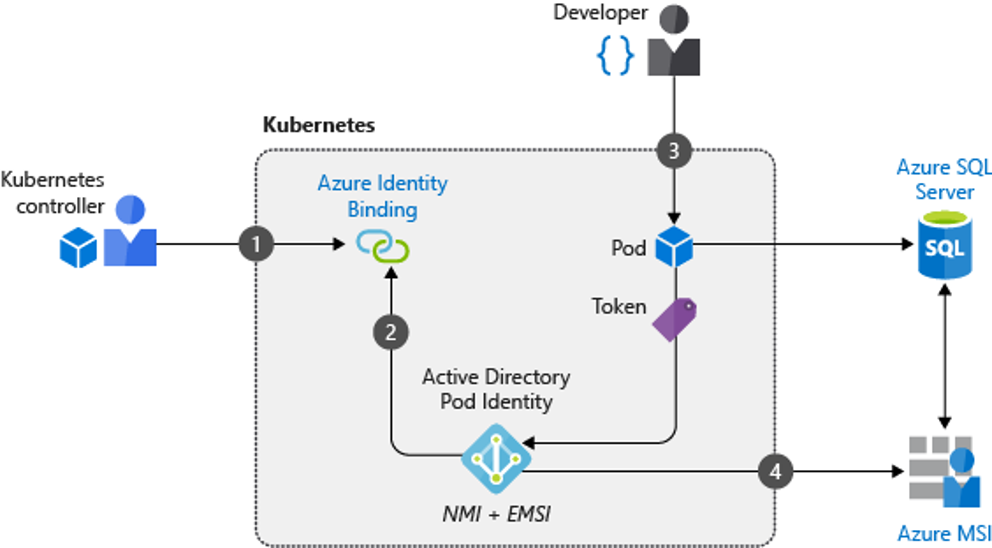
- Cluster operator creates a Kubernetes service account and establishes a federated identity credential linking it to a user-assigned managed identity.
- The mutating admission webhook automatically injects the necessary environment variables and token volume into pods using the service account.
- A developer deploys a pod that references the Kubernetes service account.
- The pod receives the projected service account token, exchanges it for a Microsoft Entra access token via OIDC, and uses it to access Azure SQL Database.