Explore secure score
Overview of secure score
Microsoft Defender for Cloud has two main goals:
- Understand your current security situation
- Efficiently and effectively improve your security
The central feature in Defender for Cloud that enables you to achieve those goals is the secure score.
Defender for Cloud continually assesses your cross-cloud resources for security issues. It then aggregates all the findings into a single score so that you can tell, at a glance, your current security situation: the higher the score, the lower the identified risk level.
Note
The secure score described in this unit is the classic secure score available in the Azure portal. A newer risk-based Cloud Secure Score is available in the Defender portal, which factors in asset risk and criticality for more accurate prioritization.
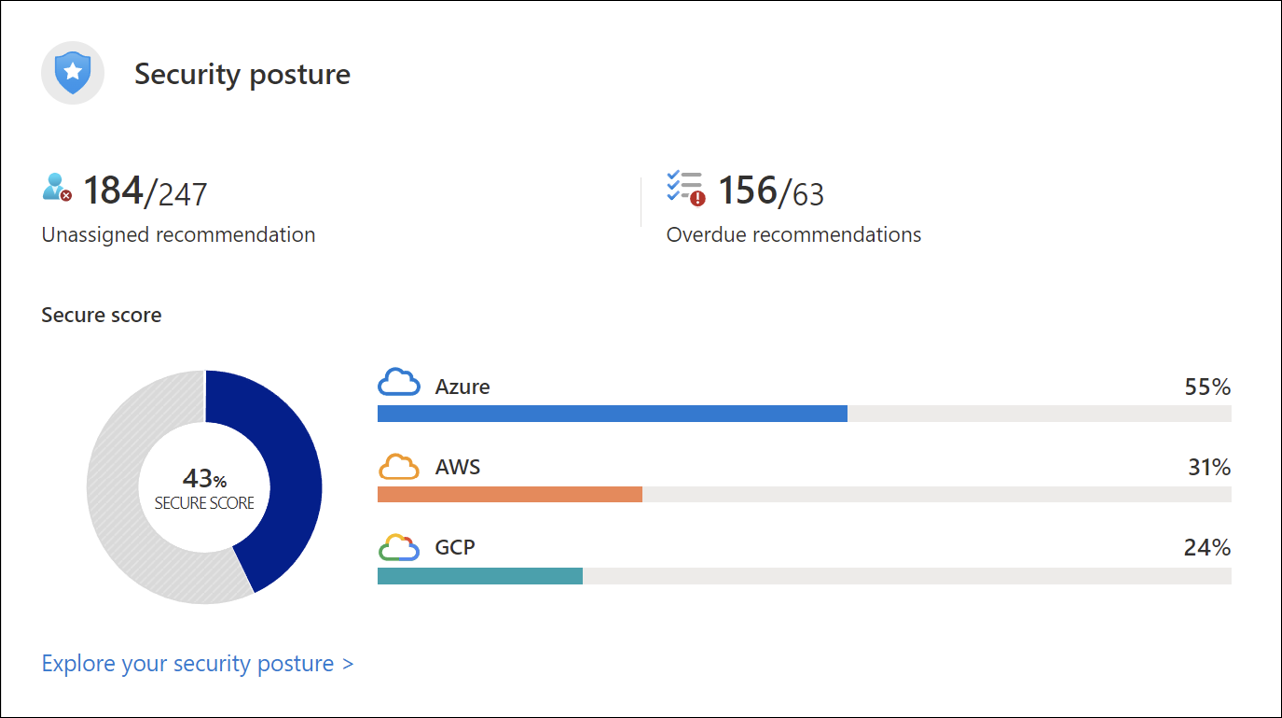
In the Azure portal pages, the secure score is shown as a percentage value, and the underlying values are also clearly presented:
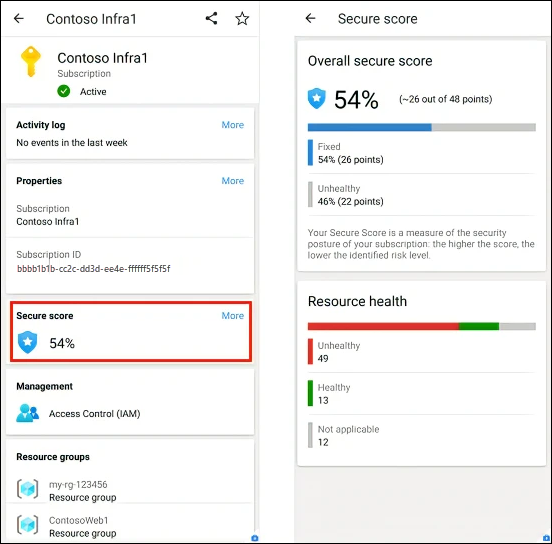
In the Azure mobile app, the secure score is shown as a percentage value, and you can tap the secure score to see the details that explain the score:
To increase your security, review Defender for Cloud's recommendations page and remediate the recommendation by implementing the remediation instructions for each issue. Recommendations are grouped into security controls. Each control is a logical group of related security recommendations and reflects your vulnerable attack surfaces. Your score only improves when you remediate all of the recommendations for a single resource within a control. To see how well your organization is securing each individual attack surface, review the scores for each security control.
How your secure score is calculated
To get all the possible points for security control, all of your resources must comply with all of the security recommendations within the security control. For example, Defender for Cloud has multiple recommendations regarding how to secure your management ports. You need to remediate them all to make a difference to your secure score.
Example scores for a control
In this example:
Remediate vulnerabilities security control - This control group has multiple recommendations related to discovering and resolving known vulnerabilities.
Max score - The maximum number of points you can gain by completing all recommendations within a control. The maximum score for a control indicates the relative significance of that control and is fixed for every environment. Use the max score values to triage the issues to work on first.
Current score - The current score for this control.
Current score = Score per resource X Number of healthy resources
Each control contributes towards the total score. In this example, the control is contributing 2.00 points to the current total secure score.
Potential score increase - The remaining points available to you are within your control. If you remediate all the recommendations in this control, your score increases by 9%.
Potential score increase = Score per resource X Number of unhealthy resources
Insights - Gives you extra details for each recommendation, such as:
-
 Preview recommendation - This recommendation won't affect your secure score until general availability (GA).
 -
 Fix - From within the recommendation details page, you can use 'Fix' to resolve this issue.
 -
 Enforce - From within the recommendation details page, you can automatically deploy a policy to fix this issue whenever someone creates a noncompliant resource.
 -
 Deny - From within the recommendation details page, you can prevent new resources from being created with this issue.
-
Which recommendations are included in the secure score calculations?
- Only built-in recommendations change the secure score.
- Recommendations flagged as Preview aren't included in the calculations of your secure score. They should still be remediated wherever possible so that when the preview period ends, they contribute towards your score.
- Preview recommendations are marked with:
Improve your secure score
To improve your secure score, remediate security recommendations from your recommendations list. You can remediate each recommendation manually for each resource or use the Fix option (when available) to resolve an issue on multiple resources quickly.
You can also configure the Enforce and Deny options on the relevant recommendations. Customizing these options improves your score and make sure your users don't create resources that lower your score.
Frequently asked questions (FAQ) Secure score
If I address only three out of four recommendations in security control, will my secure score change?
No. It won't change until you remediate all of the recommendations for a single resource. To get the maximum score for a control, you must remediate all recommendations for all resources.
If a recommendation isn't applicable to me, and I disable it in the policy, will my security control be fulfilled and my secure score updated?
Yes. We recommend disabling recommendations when they're inapplicable in your environment.
If a security control offers me zero points toward my secure score, should I ignore it?
In some cases, you see a control max score greater than zero, but the value is zero. When the incremental score for fixing resources is negligible, it's rounded to zero. Don't ignore these recommendations because they still bring security improvements. The only exception is the "Additional Best Practice" control. Remediating these recommendations has no change on your score, but it enhances your overall security.