Note
Access to this page requires authorization. You can try signing in or changing directories.
Access to this page requires authorization. You can try changing directories.
The Lakehouse query explorer is an integrated query editor embedded directly inside the Fabric Lakehouse explorer. You can write and run Spark SQL queries against your lakehouse data without leaving the explorer. You don't need to switch to the SQL analytics endpoint or create a notebook for quick data exploration.
The query explorer uses Apache Spark as the execution engine by leveraging the Lakehouse Livy Endpoint. You get the same SQL dialect as Spark notebooks, support for read and write operations, and the ability to query large datasets efficiently.
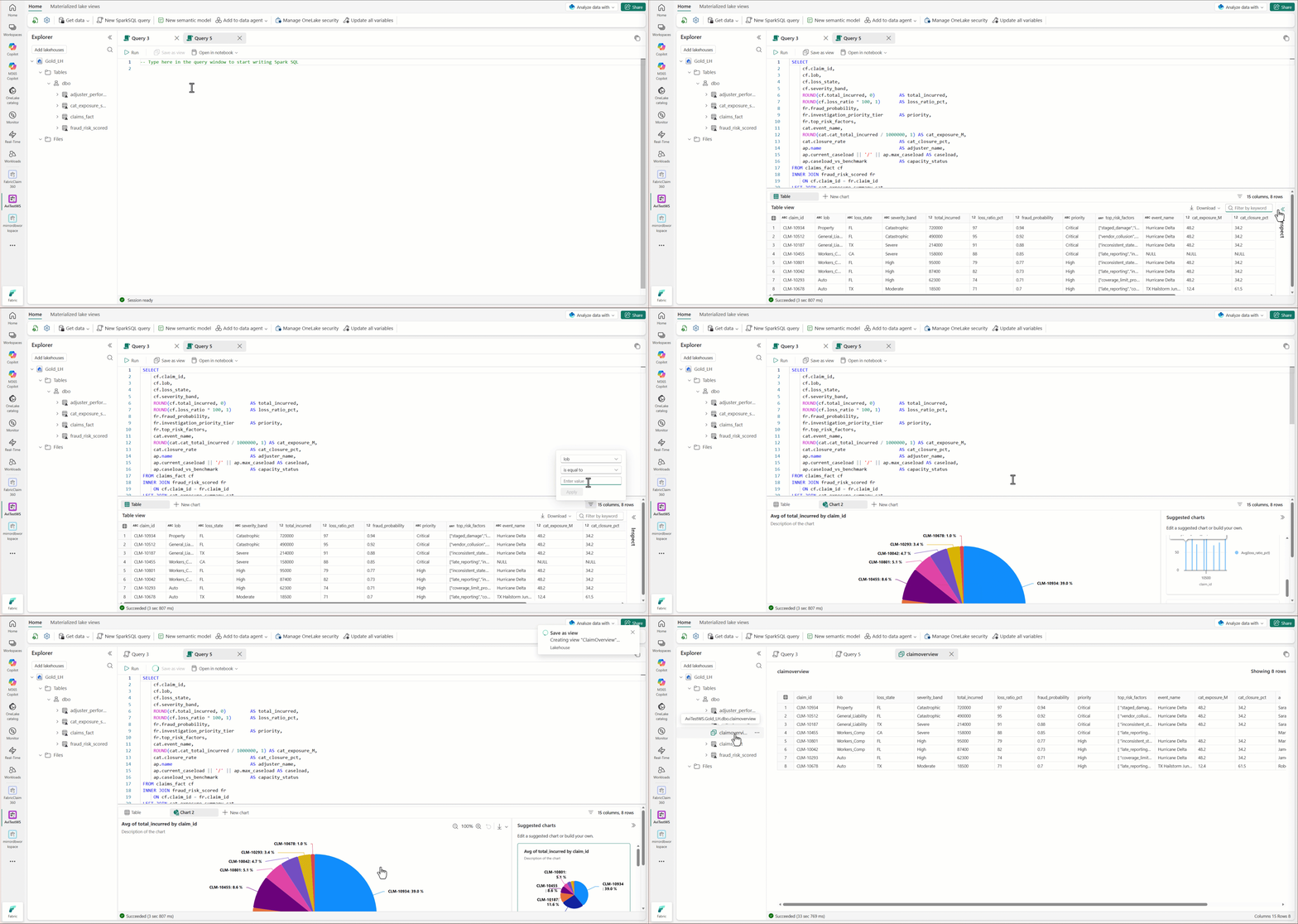
Open the query explorer
You can open the query explorer from the Lakehouse explorer in the following ways:
- Top navigation menu — Select New SparkSQL Query from the top navigation menu. A blank query tab opens inline within the Lakehouse explorer.
- Left navigation menu — Right-click any table, view, or shortcut in the explorer tree and select New SparkSQL Query. A query tab opens with a prepopulated
SELECT * FROM <table> LIMIT 100statement.
The explorer tree remains visible on the left when the query explorer is open, so you can reference schemas and tables while writing queries.
Query editor features
The query editor provides a productive authoring experience for Spark SQL:
- IntelliSense — Autocomplete for table names, column names, schemas, and SQL functions. After typing
FROM, IntelliSense suggests available lakehouses, schemas, and tables. Column suggestions appear when a table is referenced in the query. Hover over a table name to see its columns in a popout. - Syntax highlighting — Color-coded SQL keywords, identifiers, and literals.
- Format — Select Format in the toolbar to auto-indent and structure your SQL.
- Run and Cancel — Select Run to execute the query, or Cancel to stop a running query.
- Line numbers and code folding — Collapse long query sections for easier navigation.
Dynamic tabs
You can open multiple query tabs simultaneously and switch between them instantly. Each tab maintains its own query text, execution state, and results independently.
To open a new tab, select New SparkSQL Query from the ribbon or context menu. To close a tab, select the X on the tab. Closing one tab doesn't affect others.
Dynamic tabs are useful when you need to explore different aspects of your data at the same time. For example, one tab for orders, one for customers, and one for regional breakdowns.
Note
Tabs aren't persistent across sessions. If you close or navigate away from the lakehouse, you lose all open tabs and their query content.
Run queries
When you select Run from the query window toolbar, the query explorer connects to a lightweight Spark session that uses the lakehouse Livy endpoint and is optimized for a fast startup.
The status bar at the bottom of the query explorer shows the current session state:
| Status | Meaning |
|---|---|
| Not Connected | No Spark session is active. |
| Starting Session | A new Spark session is initializing (cold start only). |
| Executing Query | Your query is running. |
| Session Ready | The session is active and ready for the next query. |
On subsequent queries (warm start), execution begins immediately without the "Starting Session" step.
Supported SQL statements
The query explorer supports all Spark SQL statements, including:
- SELECT — Query and explore data across schemas and lakehouses.
- DML — INSERT, UPDATE, DELETE, and MERGE for data modifications.
- DDL — CREATE VIEW, CREATE TABLE, ALTER, and DROP for schema management.
- Utility statements — DESCRIBE, SHOW TABLES, SHOW SCHEMAS, and other metadata queries.
Note
The query explorer doesn't support creating materialized views. If the query explorer detects materialized view syntax, a dialog prompts you to use a notebook instead.
Cross-schema and cross-lakehouse querying
You can query tables across different schemas in the same lakehouse, across multiple lakehouses in the same workspace, and even across lakehouses in different workspaces - all from a single query tab.
- Cross-schema — Reference tables by using
schema_name.table_namesyntax (for example,SELECT * FROM sales.orders JOIN marketing.campaigns ON ...). - Cross-lakehouse — Use the fully qualified path
workspace_name.lakehouse_name.schema_name.table_nameto query tables in other lakehouses.
Tip
Add the referenced lakehouse to the explorer pane (by using Add lakehouse) to enable IntelliSense suggestions for cross-lakehouse queries. Queries execute successfully even without adding the reference, but you don't get auto-complete support.
Results
Query results appear in a grid below the editor. The results grid provides:
- Column sort — Select a column header to sort ascending or descending.
- Search and filter — Filter results inline to find specific values.
- Row count indicator — Shows the number of rows returned. Results are capped at 1,000 rows by default. A clear indicator appears when results are truncated.
- Copy — Select cells and copy with Ctrl+C. Paste into Excel or other tools.
- Export — Download results in CSV, JSON, or XML format.
- Inline charts — Create bar, line, pie, and other chart types directly from the result set. Charts update when you change the chart type or underlying data. No visualization code is needed.
Create views
You can create views directly from the query explorer to persist useful queries as reusable assets. Views automatically appear in the Lakehouse explorer tree alongside tables.
There are two ways to create a view:
SQL statement — Write and run a
CREATE VIEWstatement in the editor. For more information about Spark views, see Spark views in lakehouse.CREATE VIEW my_view AS SELECT customer_id, SUM(amount) AS total FROM sales.orders GROUP BY customer_idSave as View — After running a SELECT query, select Save as View in the toolbar. Provide a name for the view in the dialog.
Note
You need write access to the lakehouse to create views. If you don't have write permissions, view creation returns a permission error.
Limitations
- Spark SQL only — The query explorer supports Spark SQL. PySpark, Scala, and R aren't supported. For multi-language support, use a notebook.
- No query saving — Queries aren't persisted across sessions. To preserve a useful query, save it as a view.
- No query history — Previous queries aren't stored. Query saving and history are planned for a future release.
- No materialized view creation — Materialized view (MLV) creation isn't supported. Use a notebook to create materialized views.
- No real-time collaboration — The query explorer doesn't support live co-authoring.
- No query scheduling — For scheduled query execution, use pipelines or notebooks.