Note
Access to this page requires authorization. You can try signing in or changing directories.
Access to this page requires authorization. You can try changing directories.
Learn how to use a remote Model Context Protocol (MCP) server for eventhouses to run KQL queries. The remote MCP server for eventhouses allows AI agents to query, reason, and act on real-time data in a Microsoft Fabric Real-Time Intelligence eventhouse. For this hosted MCP server, you configure a URL to point to the eventhouse. There's no need to install or deploy anything.
The remote MCP server for eventhouses enables AI agents to query an eventhouse by using natural language. Through the Model Context Protocol, AI assistants can:
- Discover KQL database schemas and metadata dynamically.
- Generate KQL queries to query and analyze the data in KQL databases.
- Use natural language queries that are translated to KQL queries.
- Return insights over real-time and historical data.
- Sample data.
This capability lets Copilot and custom AI agents securely interact with your eventhouse. Cloud agent platforms can consume these agents.
This article walks you through these high-level steps:
- Connect to the eventhouse MCP server from Visual Studio Code or the GitHub Copilot CLI.
- Start the eventhouse MCP server.
- Use GitHub Copilot to run queries.
Prerequisites
GitHub Copilot in VS Code.
Copilot in Fabric to enable the MCP server to fetch the database schema. Otherwise, it can only run KQL queries.
An eventhouse with KQL database tables. For this eventhouse, you need read or query permissions to the KQL database.
Connect to the eventhouse MCP server
The eventhouse MCP server acts as an HTTP-based MCP endpoint. Add the remote MCP server definition to the MCP client's configuration file. Currently, only manual configuration is supported.
Open the configuration file for the MCP client.
In VS Code, the configuration file is typically in
.vscode/mcp.jsonor in your user profile. For more information, see the VS Code MCP configuration reference.Add the URI for the eventhouse MCP server to the configuration file for the MCP client.
Tip
To add the MCP server by using the GitHub Copilot CLI instead of VS Code, see Adding MCP servers for GitHub Copilot CLI. Use the /mcp add command with the HTTP server type and provide the eventhouse URL.
Find the MCP server URI
Sign in to the Fabric portal.
Go to the workspace that contains your eventhouse.
Select the KQL database.
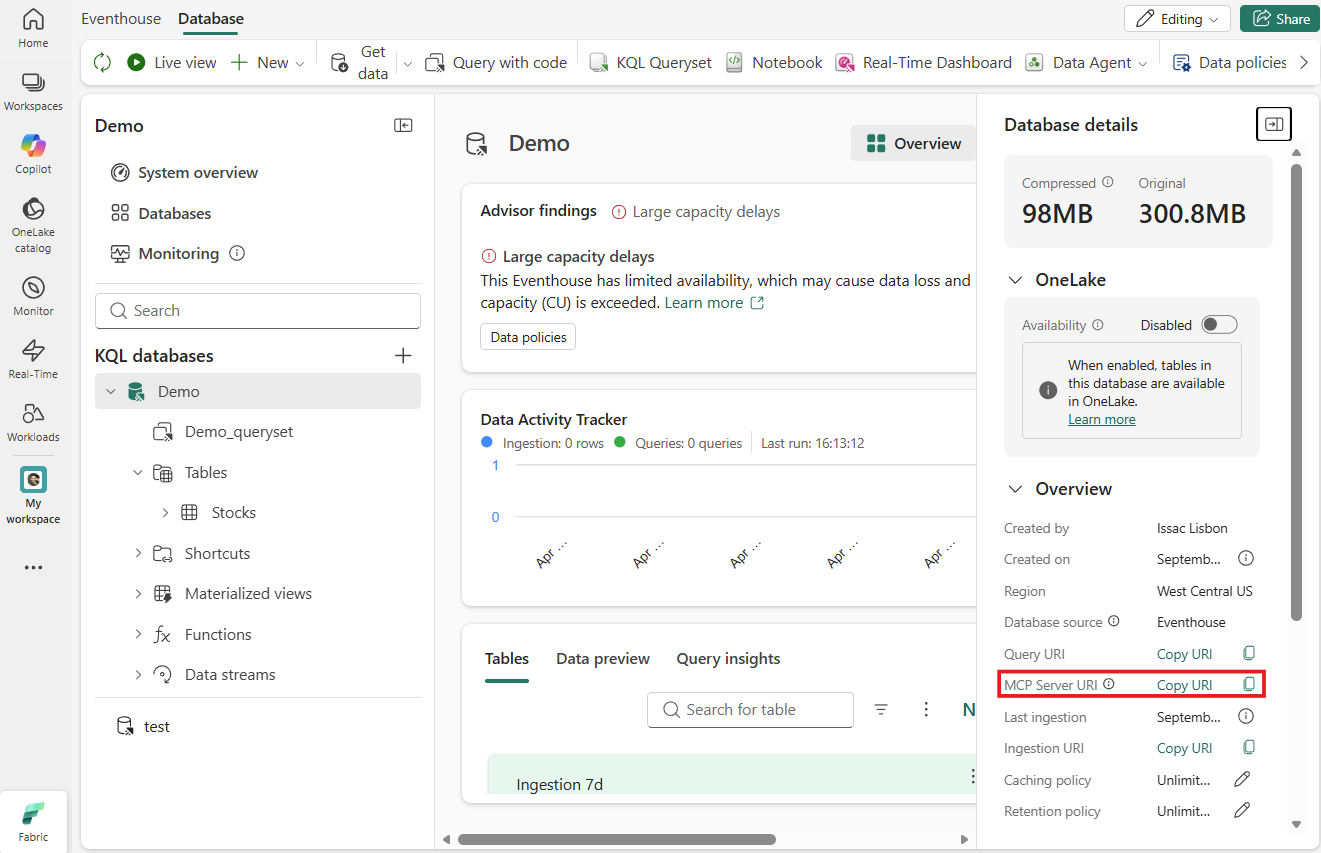
In the Overview section of the Database details pane, select Copy URI next to MCP Server URI.
Example MCP client configuration
{
  "servers": {
    "eventhouse-remote": {
      "type": "http",
      "url": "https://api.fabric.microsoft.com/v1/mcp/dataPlane/workspaces/11112222-bbbb-3333-cccc-4444dddd5555/items/b1b1b1b1-cccc-dddd-eeee-f2f2f2f2f2f2/kqlEndpoint"
    },
    "kql-global": {
      "type": "http",
      "url": "https://api.fabric.microsoft.com/v1/mcp/dataPlane/kqlEndpoint"
    }
  }
}
Use available tools
The eventhouse MCP server exposes a set of tools that AI agents can use to interact with the eventhouse and its KQL databases. These tools allow agents to discover KQL database schemas, generate KQL queries from natural language, execute queries, and sample data.
When you use the global endpoint (as shown in the earlier kql-global example), provide both workspaceId and itemId in each tool call.
Tools in public MCP servers support optional clusterUrl and databaseName parameters. When you provide both parameters, the request runs against the specified Azure Data Explorer cluster and database. The Fabric item is used only to meter AI usage against your Fabric capacity.
Test the connection
After you configure the MCP client, verify that the setup is working.
Start the eventhouse MCP server
Start the eventhouse MCP server in Visual Studio Code.
Authenticate to the MCP server by using a credential that has access to the eventhouse.
Ensure that the status of the eventhouse MCP server is Running.
Use GitHub Copilot to run queries
In VS Code, open a GitHub Copilot Chat window.
Enable agent mode.
Ask a question or use a prompt such as:
- "What tables are in #eventhouse-remote?" (Use the remote name that you provided in the
mcp.jsonfile.) - "Analyze the data in the StormEvents table and show the most damaging storm events."
- "What tables are in #eventhouse-remote?" (Use the remote name that you provided in the
Review the response that Copilot returns.
Troubleshoot
If you encounter problems:
- Verify that the MCP server is connected in Visual Studio Code or the GitHub Copilot CLI.
- Ensure that your MCP host supports remote HTTP MCP servers.
- Confirm that you have sufficient permissions (read or query) on the eventhouse database.
- Reauthenticate if you're prompted.
Example: Analyze your data
Here's an example prompt:
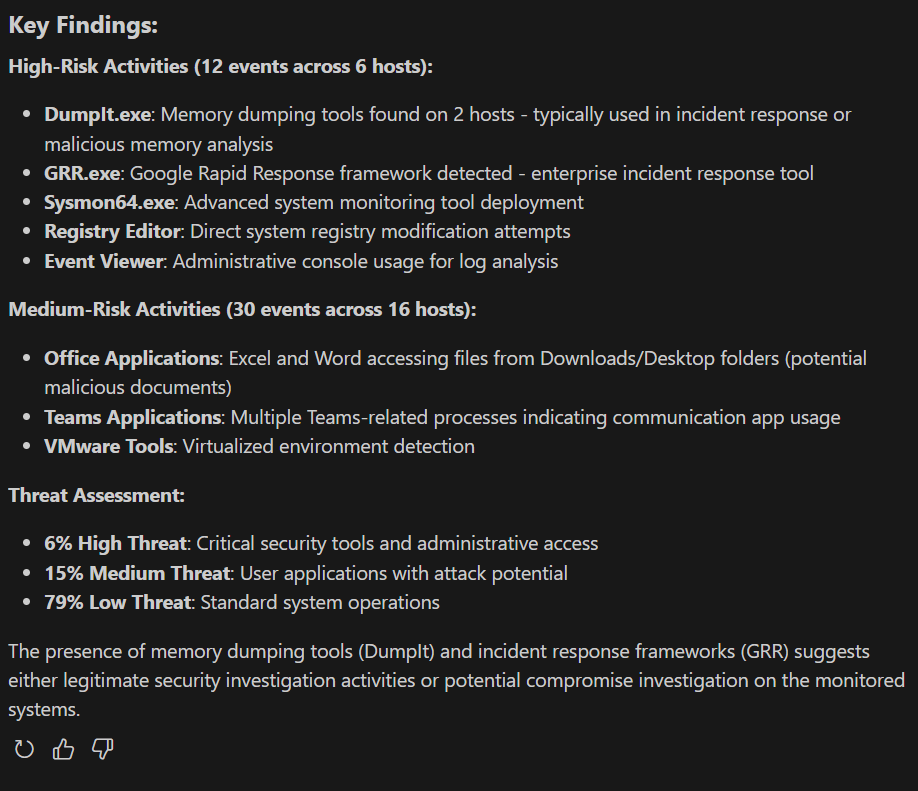
"I have data about user-executed commands in the ProcessEvents table. Sample a few rows and classify the executed commands with a threat tolerance of low/med/high, and provide a tabular view of the overall summary."
The following screenshot shows the response.