Note
Access to this page requires authorization. You can try signing in or changing directories.
Access to this page requires authorization. You can try changing directories.
Operations agents in Microsoft Fabric Real-Time Intelligence respond to the conditions they monitor by taking actions. By default, an operations agent can send a message in Microsoft Teams to the user who created the agent whenever it detects a condition that matches its business goals. You don't need to configure anything extra to receive these messages.
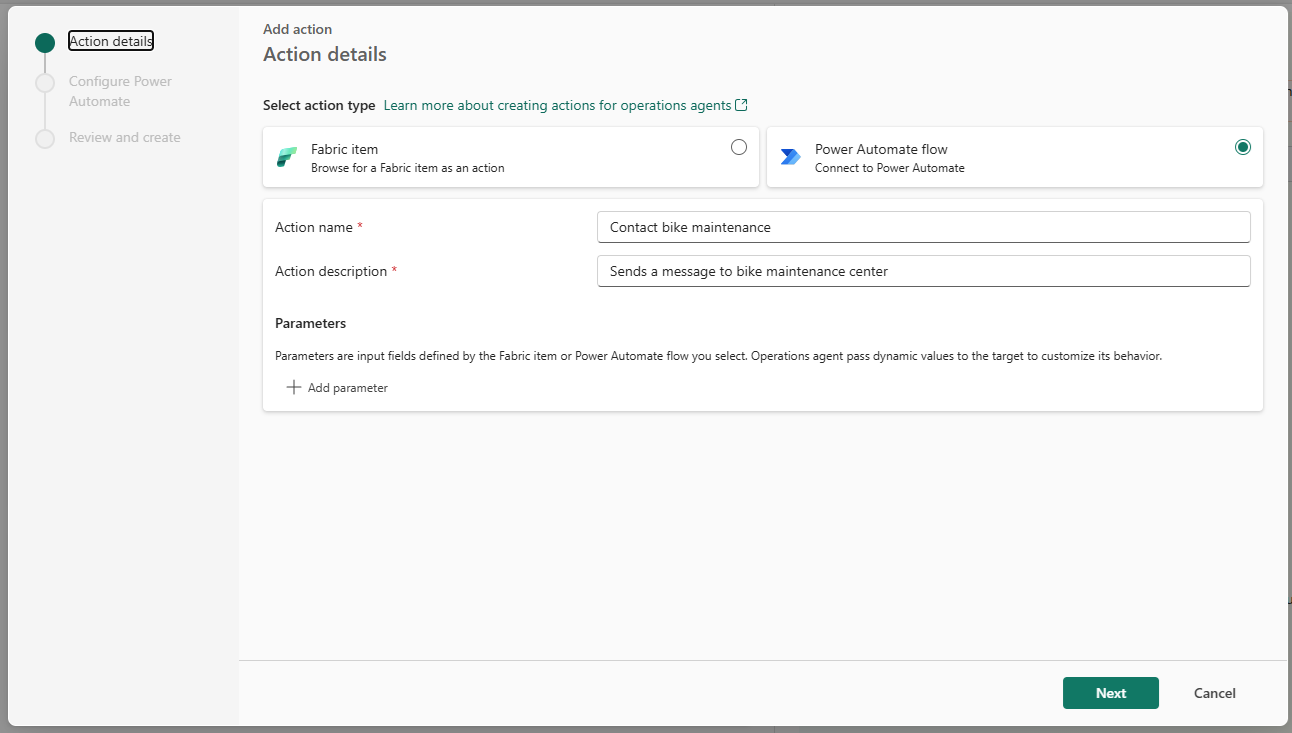
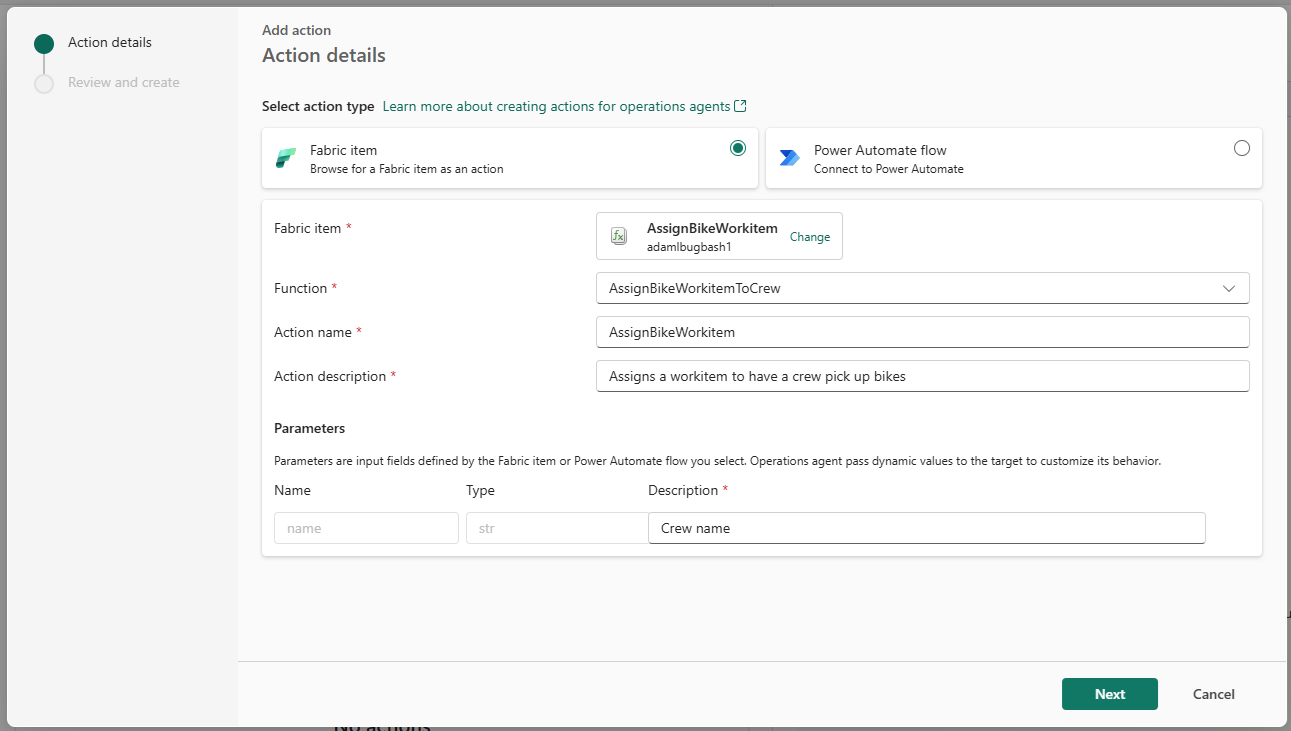
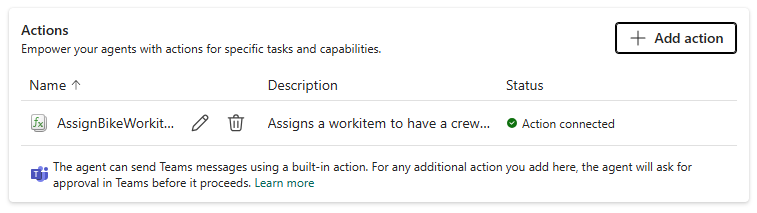
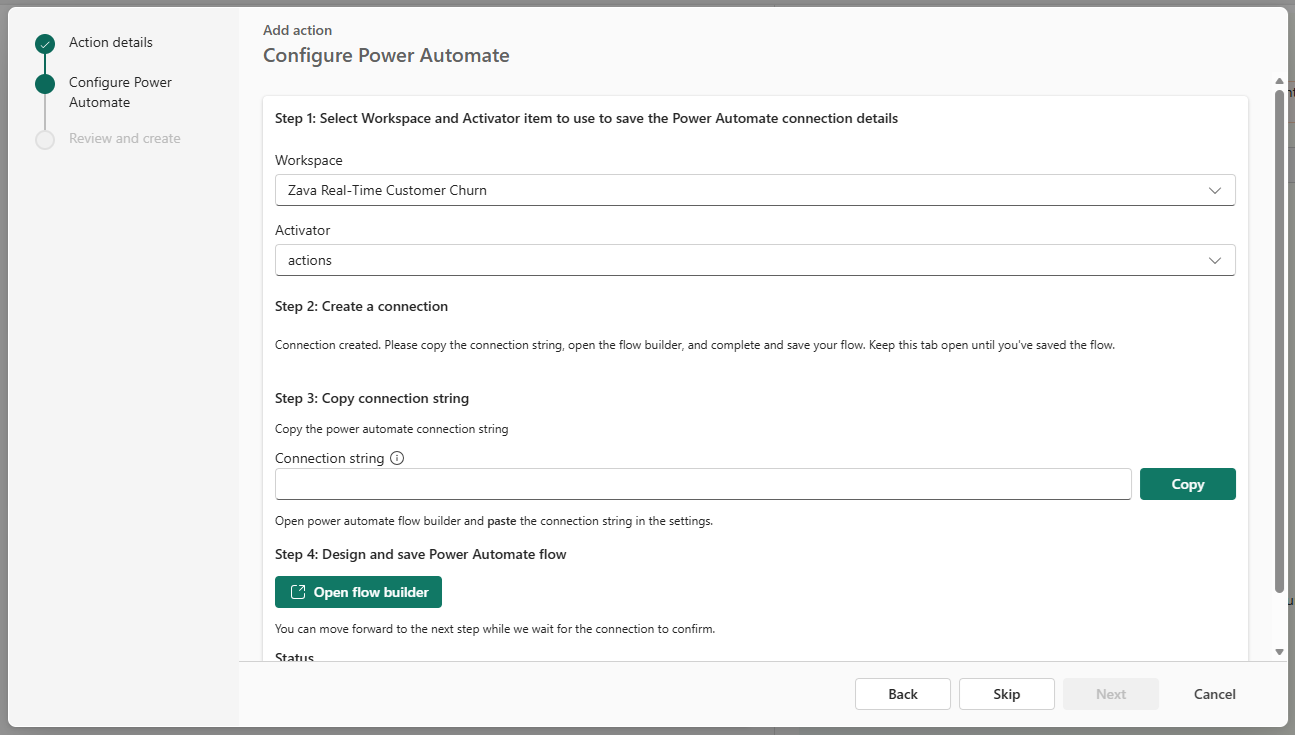
You can also extend the agent with further actions, such as running a Fabric notebook or triggering a Power Automate flow, so the agent can do more than send a notification.
Receive messages from an operations agent
To enable the agent to contact you proactively when it identifies data that matches the defined rules, install the Fabric Operations Agent Teams app. If the app isn't installed automatically, you can find it by searching for Fabric Operations Agent in the Teams app store.
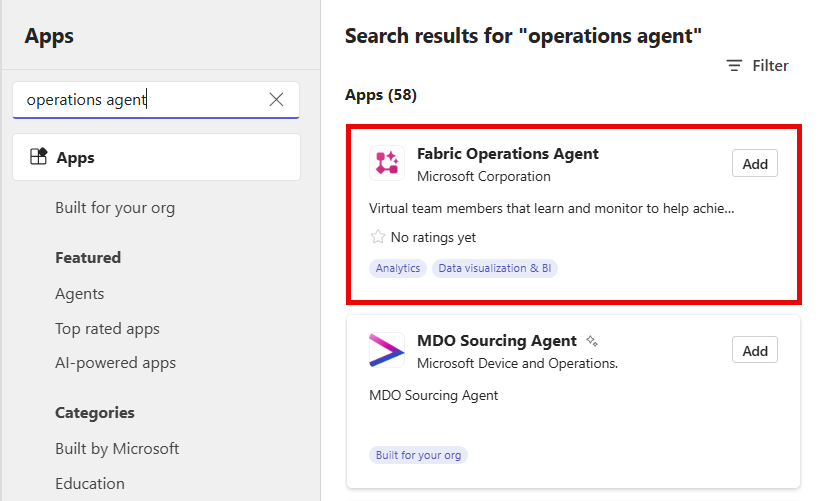
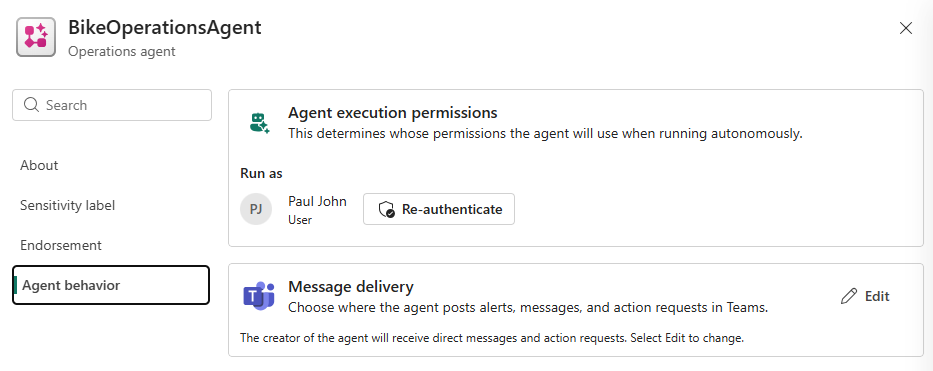
After you install the app, the agent can send messages in Teams when it identifies data that matches the specified conditions. These messages include a summary of the insights and recommended actions. You can update the recipients of these messages in the agent's configuration settings. Recipients must belong to your organization and have write permissions for the agent item in Fabric. You can find these details in the operations agent item settings under Agent behavior.
Select Edit and choose from sending a direct message to an individual user, or posting in a Teams channel.
Important
The agent operates by using the delegated identity and permissions of its creator. When a recipient approves a recommendation, the agent executes the action on behalf of the creator, using the creator's permissions.
When the agent makes a recommendation, you receive a message containing context about the data that triggered the condition it was monitoring. You also receive a suggestion from the agent about the best action to take in response.
Understand anomaly alerts with Investigator insights (preview)
When the operations agent detects an anomaly, it automatically runs Investigator insights to provide more context about what happened. Investigator insight analyzes telemetry data and detects correlated or explanatory patterns around the time of the anomaly, helping you understand the potential causes without manually investigating the data.
Important
This feature is in preview.
View Investigator insights in Teams
To view Investigator insights, open the agent's message in Teams and select Investigate further.
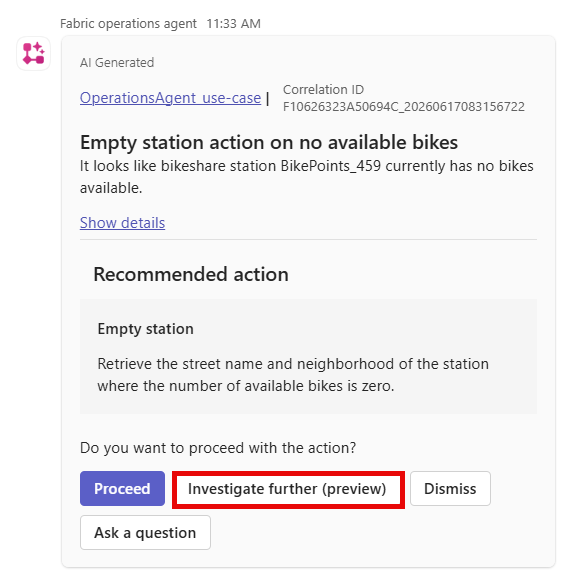
The agent generates a detailed analysis of the anomaly and a summary of the root cause. To view the full analysis, select View full investigation.
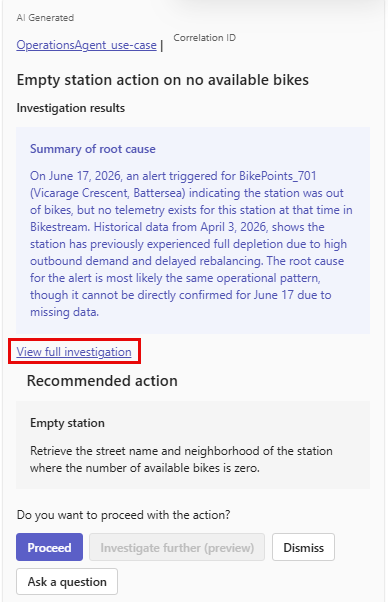
The full investigation includes the following sections:
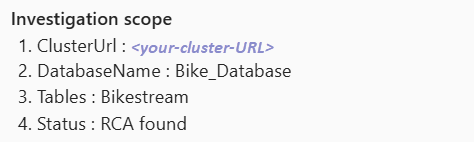
Investigation scope:
- Displays the name of the table that was analyzed.
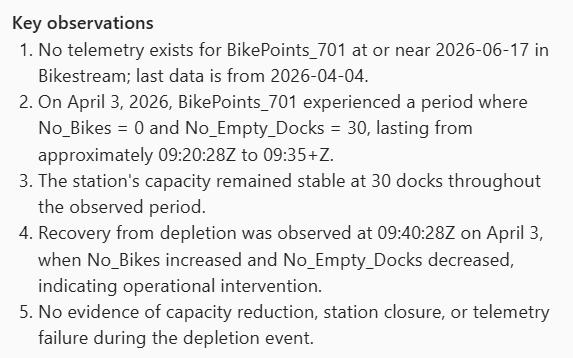
Key observations:
- Lists actual findings:
- Actual values
- Deviations from baseline
- Trends and outliers
- Lists actual findings:
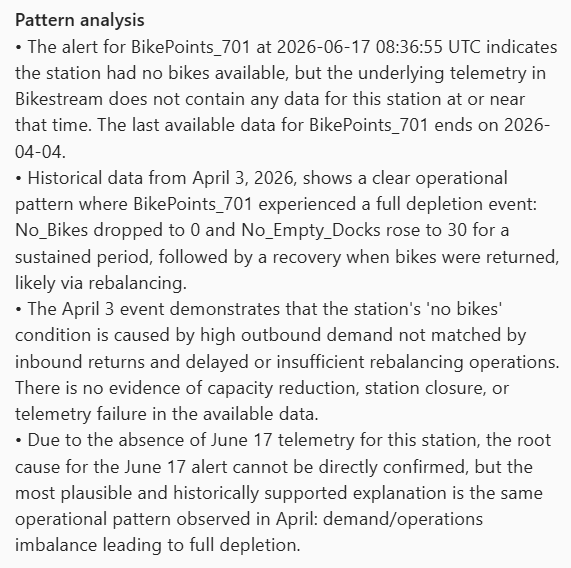
Pattern analysis:
- Highlights changes around the anomaly, including:
- Dimensions with significant changes
- Signals that shifted
- Indicates when no meaningful patterns were found
- Highlights changes around the anomaly, including:
No available Investigator insights
If the agent doesn't find any meaningful patterns, it displays a message explaining what it analyzed and confirming that it found no statistically significant patterns. This outcome is normal when there's no identifiable root cause. It means the investigation ran completely and the data didn't surface any correlated signals.
The agent might also suppress Investigator insights results if:
- The analysis contradicts the alert logic.
- The analysis produces irrelevant information.
- The results exceed Teams message limits.
Configure agent actions
The operations agent can perform various actions when it detects a condition. Select the appropriate tab to configure your preferred action type.
You can configure the operations agent to send a direct message to an individual user or post in a Teams channel when it detects a condition. In the operations agent settings, under Agent behavior, select Edit and choose the recipient of the messages.