Platform metrics measure the performance of different aspects of your Azure resources. Diagnostic settings are used to collect and export platform metrics from all Azure resources that support them. Data collection rules (DCRs) can also be used to collect and export platform metrics from supported Azure resources. This article describes how to use DCRs to export metrics.
Note
While you can use DCRs and diagnostic settings at the same time, you should disable any diagnostic settings for metrics when using DCRs to avoid duplicate data collection.
Using DCRs to export metrics provides the following advantages over diagnostic settings:
- DCR configuration enables exporting metrics with dimensions.
- DCR configuration enables filtering based on metric name so you can export only the metrics that you need.
- DCRs are more flexible and scalable compared to diagnostic settings.
- End to end latency for DCRs is within 3 minutes, while diagnostic settings export latency is 6-10 minutes.
Export destinations
Metrics can be exported to the following destinations.
| Destination type |
Details |
| Log Analytics workspaces |
Exporting to Log Analytics workspaces can be across regions. The Log Analytics workspace and the DCR must be in the same region but resources that are being monitored can be in any region. Metrics sent to a log analytics workspace are stored in the AzureMetricsV2 table. |
| Azure storage accounts |
The storage account, the DCR, and the resources being monitored must all be in the same region. |
| Event Hubs |
The Event Hubs, the DCR, and the resources being monitored must all be in the same region. |
Note
Latency for exporting metrics is approximately 3 minutes. Allow up to 15 minutes for metrics to begin to appear in the destination after the initial setup.
Limitations
DCRs for metrics export have the following limitations:
- Only one destination type can be specified per DCR. To send to multiple destinations, create multiple DCRs.
- A maximum of 5 DCRs can be associated with a single Azure resource.
- Metrics export with DCR doesn't support the export of hourly grain metrics.
Supported resources and regions
The following resources currently support metrics export using data collection rules:
| Resource type |
Stream specification |
| Virtual Machine scale sets |
Microsoft.compute/virtualmachinescalesets |
| Virtual machines |
Microsoft.compute/virtualmachines |
| Redis cache |
Microsoft.cache/redis |
| IOT hubs |
Microsoft.devices/iothubs |
| Key vaults |
Microsoft.keyvault/vaults |
| Storage accounts |
Microsoft.storage/storageaccounts
Microsoft.storage/Storageaccounts/blobservices
Microsoft.storage/storageaccounts/fileservices
Microsoft.storage/storageaccounts/queueservices
Microsoft.storage/storageaccounts/tableservices |
| SQL Server |
Microsoft.sql/servers
Microsoft.sql/servers/databases |
| Operational Insights |
Microsoft.operationalinsights/workspaces |
| Data protection |
Microsoft.dataprotection/backupvaults |
| Azure Kubernetes Service |
Microsoft.ContainerService/managedClusters |
Supported regions
You can create a DCR for metrics export in any region, but the resources that you want to export metrics from must be in one of the following regions:
- Australia East
- Central US
- CentralUsEuap
- South Central US
- East US
- East US 2
- Eastus2Euap
- West US
- West US 2
- North Europe
- West Europe
- UK South
Create a data collection rule (DCR) for metrics export
This article describes how to create a data collection rule (DCR) for metrics export using the Azure portal, Azure CLI, PowerShell, API, or ARM templates.
Important
To send Platform Telemetry data to Storage Accounts or Event Hubs, the resource, data collection rule, and the destination Storage Account or the Event Hubs must all be in the same region.
Create a data collection rule using the Azure portal
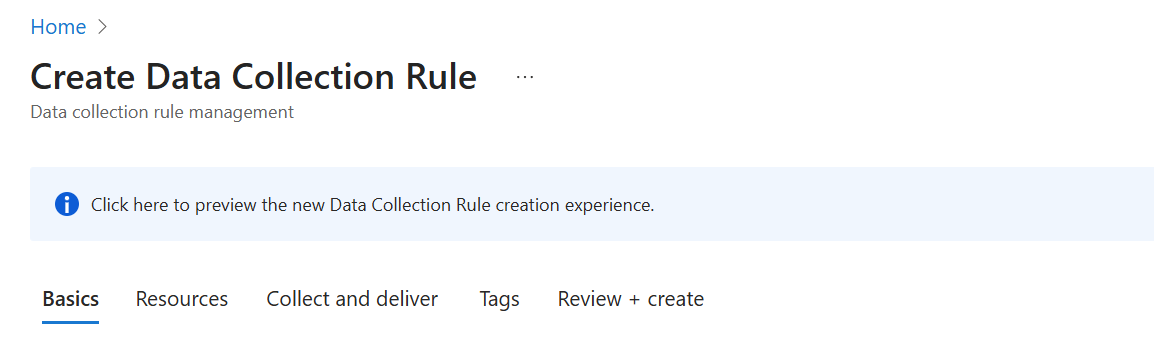
On the Monitor menu in the Azure portal, select Data Collection Rules and then Create.
Select the link on the top of the page to use the new DCR creation experience.
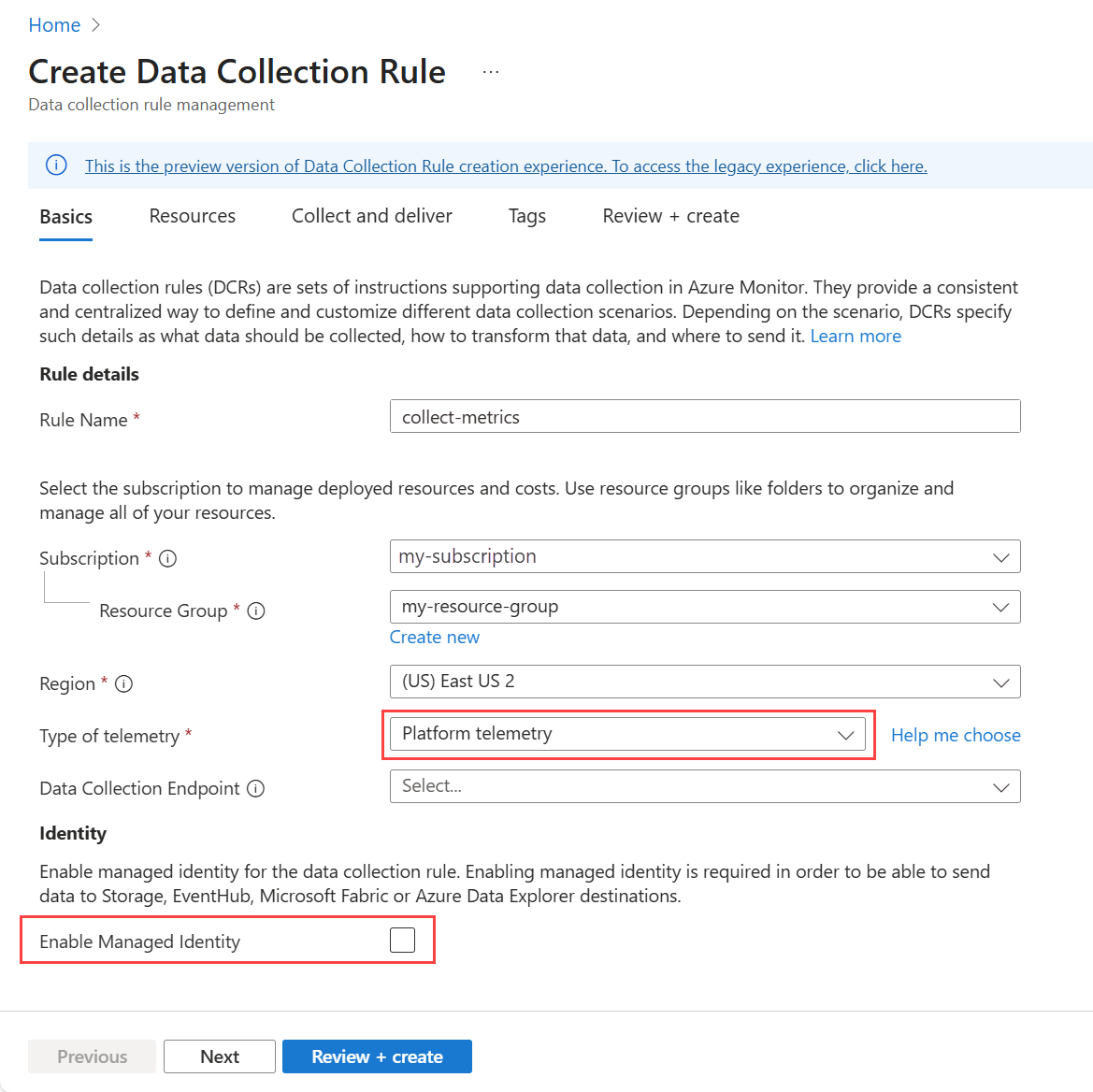
On the Create Data Collection Rule page, enter a rule name, select a Subscription, Resource group, and Region for the DCR.
Select PlatformTelemetry for the Type of telemetry and Enable Managed Identity if you want to send metrics to a Storage Account or Event Hubs.
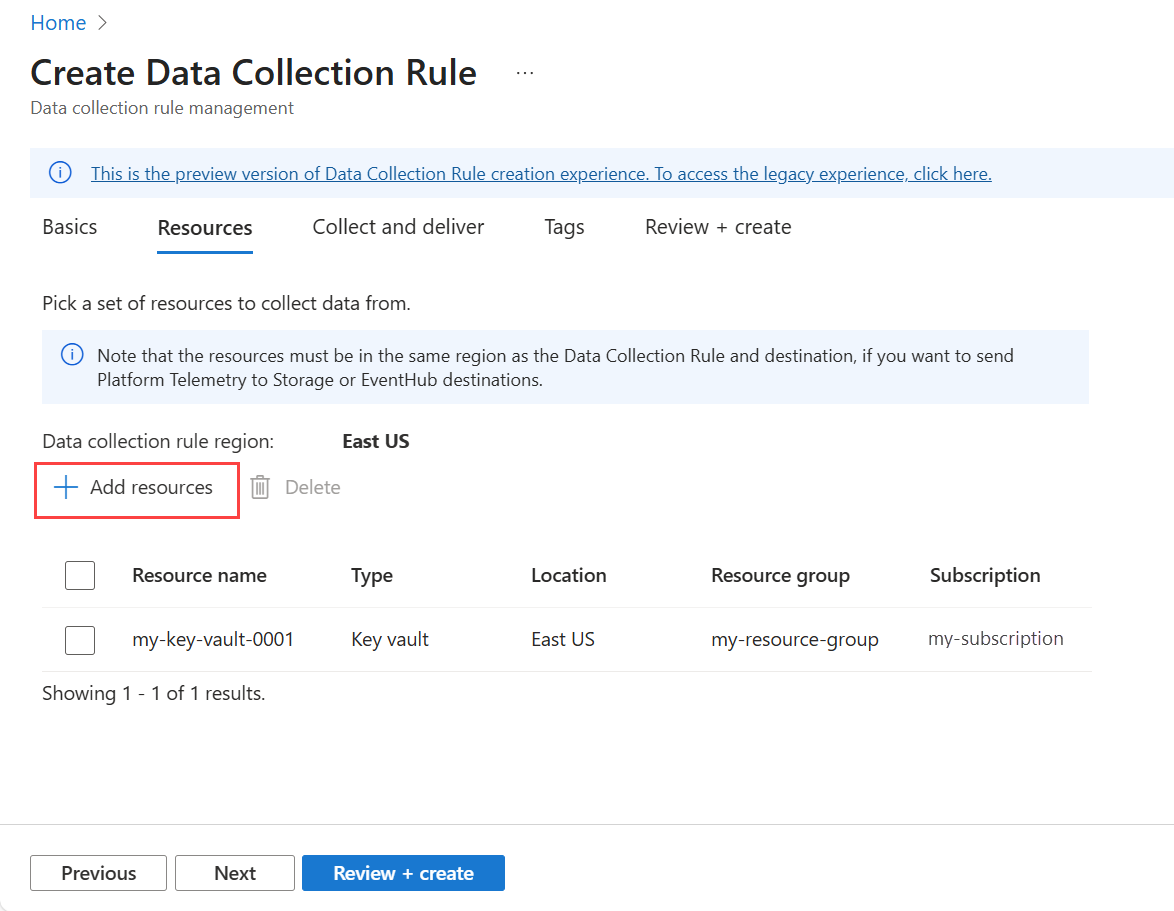
On the Resources page, select Add resources to add the resources you want to collect metrics from.
Select Next to move to the Collect and deliver tab.
Select Add new datasource.
The resource type of the resource specified in the previous step is automatically selected. Add more resource types if you want to use this rule to collect metrics from multiple resource types in the future. Select the Actions for a resource type if you want to remove some of the metrics collected for it. By default, all available metrics for the resource are collected.
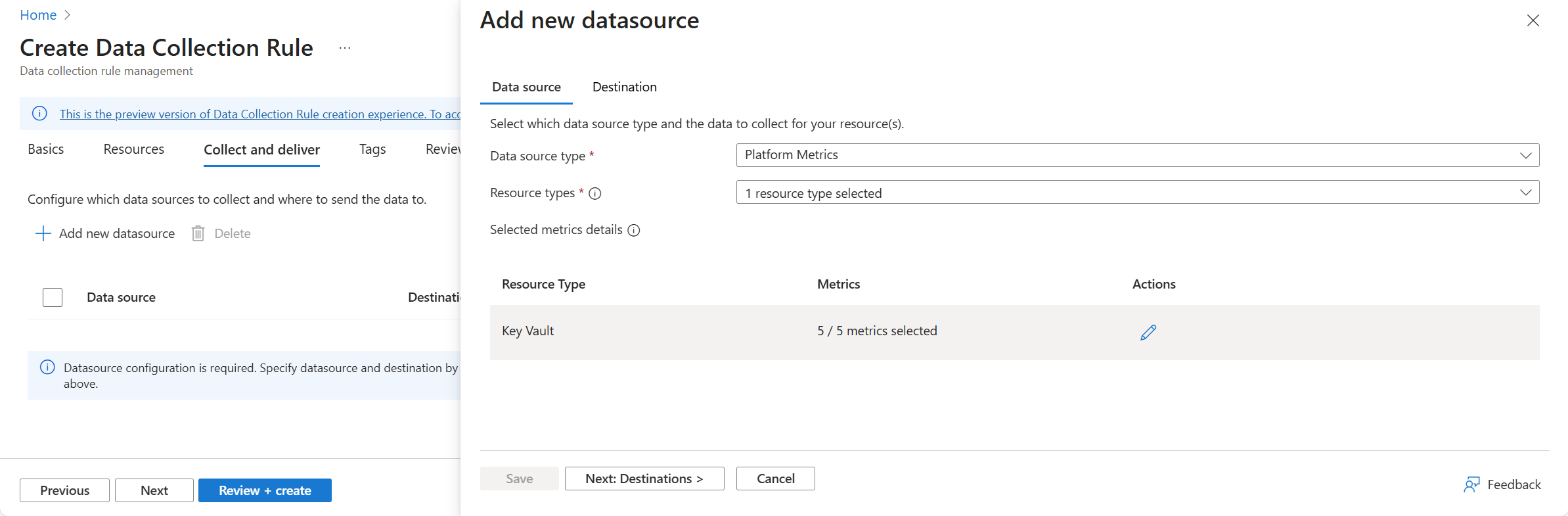
Select Next Destinations to move to the Destinations tab.
Select Add destination and then the Destination type that you want to add. The required fields change based on the destination type you select.
Note
To send metrics to a Storage Account or Event Hubs, the resource generating the metrics, the DCR, and the Storage Account or Event Hub, must all be in the same region. To send metrics to a Log Analytics workspace, the DCR must be in the same region as the Log Analytics workspace. The resource generating the metrics can be in any region.
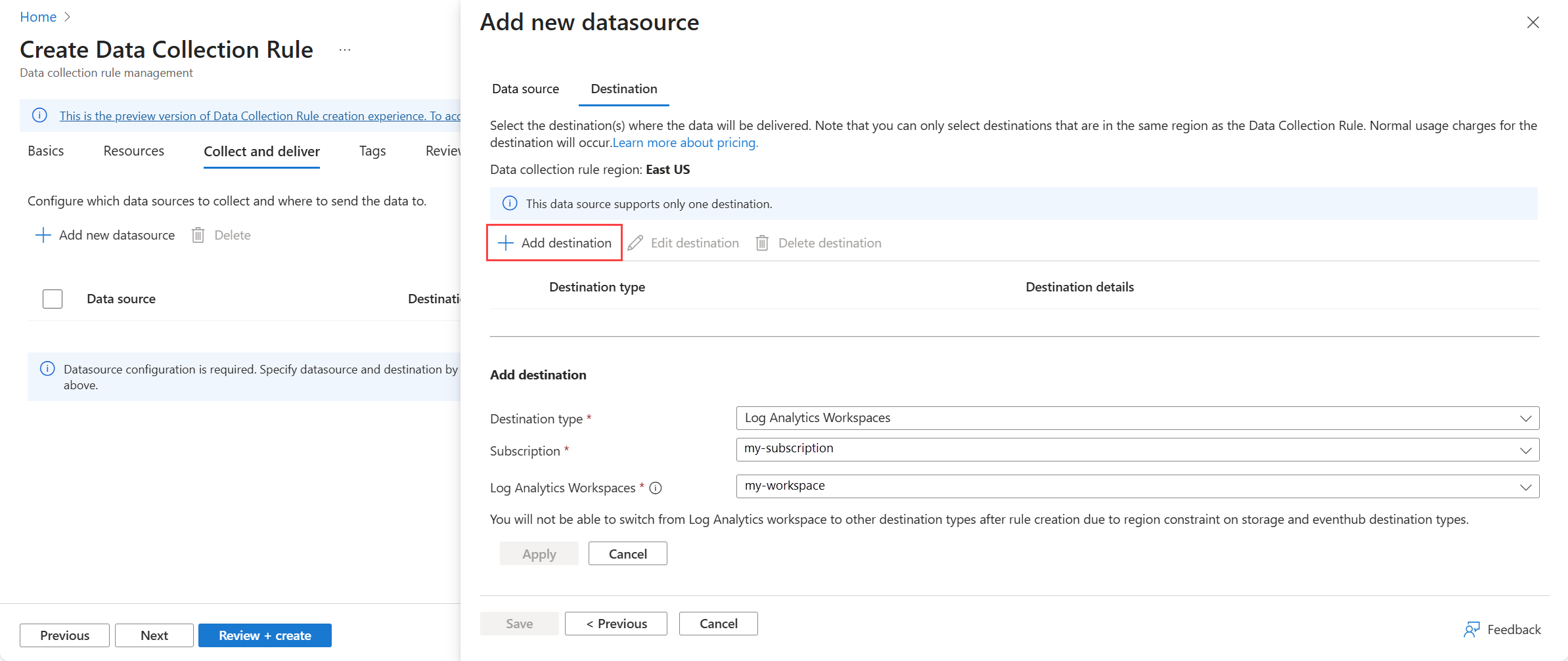
Select Save , then select Review + create.
Create a data collection rule using Azure CLI
Create a JSON file containing the collection rule specification. For more information, see Data collection rule (DCR) structure for metrics export. For sample JSON files, see Sample Metrics Export JSON objects.
Important
The rule file has the same format as used for PowerShell and the REST API, however the file must not contain identity, the location, or kind. These parameters are specified in the az monitor data-collection rule create command.
The following Azure CLI example uses the az monitor data-collection rule create command.
subscriptionId="aaaa0a0a-bb1b-cc2c-dd3d-eeeeee4e4e4e"
resourceGroupName="myResourceGroup"
dataCollectionRuleName="myDataCollectionRule"
location="eastus"
ruleFile="./cli-dcr.json"

az account set --subscription "$subscriptionId"

az monitor data-collection rule create \
  --name "$dataCollectionRuleName" \
  --resource-group "$resourceGroupName" \
  --location "$location" \
  --kind PlatformTelemetry \
  --identity "{type:'SystemAssigned'}" \
  --rule-file "$ruleFile"
Note
Azure CLI commands use the Azure Resource Manager endpoint from the current CLI context, so management.azure.com doesn't need to be specified in the command syntax.
For storage account and Event Hubs destinations, you must enable managed identity for the DCR using --identity "{type:'SystemAssigned'}". Identity isn't required for Log Analytics workspaces.
Copy the id and the principalId of the DCR from the following output to use in assigning the role to create an association between the DCR and a resource.
Output:
"id": "/subscriptions/aaaa0a0a-bb1b-cc2c-dd3d-eeeeee4e4e4e/resourceGroups/myResourceGroup/providers/Microsoft.Insights/dataCollectionRules/myDataCollectionRule",
"identity": {
  "principalId": "eeeeeeee-ffff-aaaa-5555-666666666666",
  "tenantId": "aaaabbbb-0000-cccc-1111-dddd2222eeee",
  "type": "systemAssigned"
},
Grant write permissions to the managed identity
The managed identity used by the DCR must have write permissions to the destination when the destination is a Storage Account or Event Hubs. To grant permissions for the rule's managed identity, assign the appropriate role to the entity.
The following table shows the roles required for each destination type:
| Destination type |
Role |
| Log Analytics workspace |
not required |
| Azure storage account |
Storage Blob Data Contributor |
| Event Hubs |
Azure Event Hubs Data Sender |
For more information on assigning roles, see Assign Azure roles to a managed identity.
To assign a role to a managed identity using CLI, use az role assignment create. For more information, see Role Assignments - Create.
Assign the appropriate role to the managed identity of the DCR. The following example assigns the Storage Blob Data Contributor role to the managed identity of the DCR for a storage account.
The following Azure CLI example uses the az role assignment create command.
subscriptionId="aaaa0a0a-bb1b-cc2c-dd3d-eeeeee4e4e4e"
resourceGroupName="myResourceGroup"
storageAccountName="myStorageAccount"
principalId="eeeeeeee-ffff-aaaa-5555-666666666666"
roleDefinitionName="Storage Blob Data Contributor"
scope="/subscriptions/$subscriptionId/resourceGroups/$resourceGroupName/providers/Microsoft.Storage/storageAccounts/$storageAccountName"

az account set --subscription "$subscriptionId"

az role assignment create \
  --assignee "$principalId" \
  --role "$roleDefinitionName" \
  --scope "$scope"
Create a data collection rule association
After you create the data collection rule, create a data collection rule association (DCRA) to associate the rule with the resource to be monitored. For more information, see Data Collection Rule Associations - Create.
The following example uses the az monitor data-collection rule association command group to create an association between a data collection rule and a Key Vault.
subscriptionId="aaaa0a0a-bb1b-cc2c-dd3d-eeeeee4e4e4e"
resourceGroupName="myResourceGroup"
associationName="myAssociation"
dataCollectionRuleName="myDataCollectionRule"
keyVaultName="myKeyVault"
dataCollectionRuleId="/subscriptions/$subscriptionId/resourceGroups/$resourceGroupName/providers/Microsoft.Insights/dataCollectionRules/$dataCollectionRuleName"
resourceUri="/subscriptions/$subscriptionId/resourceGroups/$resourceGroupName/providers/Microsoft.KeyVault/vaults/$keyVaultName"

az account set --subscription "$subscriptionId"

az monitor data-collection rule association create \
  --name "$associationName" \
  --rule-id "$dataCollectionRuleId" \
  --resource "$resourceUri"
Create a data collection rule using PowerShell
Create a JSON file containing the collection rule specification. For more information, see Data collection rule (DCR) structure for metrics export. For sample JSON files, see Sample Metrics Export JSON objects.
The following PowerShell example uses the New-AzDataCollectionRule cmdlet.
$subscriptionId = "aaaa0a0a-bb1b-cc2c-dd3d-eeeeee4e4e4e"
$resourceGroupName = "myResourceGroup"
$dataCollectionRuleName = "myDataCollectionRule"
$jsonFilePath = ".\dcr-storage-account.json"

Set-AzContext -Subscription $subscriptionId

$dataCollectionRuleParams = @{
    Name              = $dataCollectionRuleName
    ResourceGroupName = $resourceGroupName
    JsonFilePath      = $jsonFilePath
}

New-AzDataCollectionRule @dataCollectionRuleParams
Copy the id and the IdentityPrincipalId of the DCR from the following output to use in assigning the role to create an association between the DCR and a resource.
Output:
Id                                        : /subscriptions/aaaa0a0a-bb1b-cc2c-dd3d-eeeeee4e4e4e/resourceGroups/myResourceGroup/providers/Microsoft.Insights/dataCollectionRules/myDataCollectionRule
IdentityPrincipalId                       : eeeeeeee-ffff-aaaa-5555-666666666666
IdentityTenantId                          : aaaabbbb-0000-cccc-1111-dddd2222eeee
IdentityType                              : systemAssigned
IdentityUserAssignedIdentity              : {
                                            }
Grant write permissions to the managed identity
The managed identity used by the DCR must have write permissions to the destination when the destination is a Storage Account or Event Hubs.
To grant permissions for the rule's managed identity, assign the appropriate role to the entity.
The following table shows the roles required for each destination type:
| Destination type |
Role |
| Log Analytics workspace |
not required |
| Azure storage account |
Storage Blob Data Contributor |
| Event Hubs |
Azure Event Hubs Data Sender |
For more information, see Assign Azure roles to a managed identity.
Assign the appropriate role to the managed identity of the DCR using New-AzRoleAssignment. The following example assigns the Azure Event Hubs Data Sender role to the managed identity of the DCR at the subscription level.
The following PowerShell example uses the New-AzRoleAssignment cmdlet.
$objectId = "eeeeeeee-ffff-aaaa-5555-666666666666"
$roleDefinitionName = "Azure Event Hubs Data Sender"
$subscriptionId = "aaaa0a0a-bb1b-cc2c-dd3d-eeeeee4e4e4e"
$scope = "/subscriptions/$subscriptionId"

Set-AzContext -Subscription $subscriptionId

$roleAssignmentParams = @{
    ObjectId           = $objectId
    RoleDefinitionName = $roleDefinitionName
    Scope              = $scope
}

New-AzRoleAssignment @roleAssignmentParams
Create a data collection rule association
After you create the data collection rule, create a data collection rule association (DCRA) to associate the rule with the resource to be monitored. Use New-AzDataCollectionRuleAssociation to create an association between a data collection rule and a resource. For more information, see New-AzDataCollectionRuleAssociation.
The following PowerShell example uses the New-AzDataCollectionRuleAssociation cmdlet to create an association between a data collection rule and a Key Vault.
$subscriptionId = "aaaa0a0a-bb1b-cc2c-dd3d-eeeeee4e4e4e"
$resourceGroupName = "myResourceGroup"
$associationName = "myDataCollectionRuleAssociation"
$keyVaultName = "myKeyVault"
$dataCollectionRuleName = "myDataCollectionRule"
$resourceUri = "/subscriptions/$subscriptionId/resourceGroups/$resourceGroupName/providers/Microsoft.KeyVault/vaults/$keyVaultName"
$dataCollectionRuleId = "/subscriptions/$subscriptionId/resourceGroups/$resourceGroupName/providers/Microsoft.Insights/dataCollectionRules/$dataCollectionRuleName"

Set-AzContext -Subscription $subscriptionId

$dataCollectionRuleAssociationParams = @{
    AssociationName      = $associationName
    ResourceUri          = $resourceUri
    DataCollectionRuleId = $dataCollectionRuleId
}

New-AzDataCollectionRuleAssociation @dataCollectionRuleAssociationParams
Creating a data collection rule for metrics requires the following steps:
- Create the data collection rule.
- Grant permissions for the rule's managed identity to write to the destination.
- Create a data collection rule association.
Create the data collection rule
To create a DCR using the REST API, you must make an authenticated request using a bearer token. For more information on authenticating with Azure Monitor, see Authenticate Azure Monitor requests.
Use the following endpoint to create a data collection rule for metrics using the REST API. For more information, see Data Collection Rules - Create.
PUT https://management.azure.com/subscriptions/{subscriptionId}/resourceGroups/{resourceGroupName}/providers/Microsoft.Insights/dataCollectionRules/{dataCollectionRuleName}?api-version={apiVersion}
Authorization: Bearer {accessToken}
Content-Type: application/json
The payload is a JSON object that defines a collection rule. The payload is sent in the body of the request. For more information on the JSON structure, see Data collection rule (DCR) structure for metrics export. For sample DCR JSON objects, see Sample Metrics Export JSON objects.
Grant write permissions to the managed identity
The managed identity used by the DCR must have write permissions to the destination when the destination is a Storage Account or Event Hubs. To grant permissions for the rule's managed identity, assign the appropriate role to the entity.
The following table shows the roles required for each destination type:
| Destination type |
Role |
| Log Analytics workspace |
not required |
| Azure storage account |
Storage Blob Data Contributor |
| Event Hubs |
Azure Event Hubs Data Sender |
For more information, see Assign Azure roles to a managed identity.
To assign a role to a managed identity using REST, see Role Assignments - Create.
Create a data collection rule association
After you create the data collection rule, create a data collection rule association (DCRA) to associate the rule with the resource to be monitored. For more information, see Data Collection Rule Associations - Create
To create a DCRA using the REST API, use the following endpoint and payload:
PUT https://management.azure.com/subscriptions/{subscriptionId}/resourcegroups/{resourceGroupName}/providers/Microsoft.Compute/virtualMachines/{virtualMachineName}/providers/Microsoft.Insights/dataCollectionRuleAssociations/{associationName}?api-version={apiVersion}
Authorization: Bearer {accessToken}
Content-Type: application/json

{
  "properties": {
    "description": "Association of platform telemetry DCR with VM myVirtualMachine",
    "dataCollectionRuleId": "/subscriptions/<subscriptionId>/resourceGroups/<resourceGroupName>/providers/Microsoft.Insights/dataCollectionRules/<dataCollectionRuleName>"
  }
}
Create a data collection rule using Bicep templates
Use the following template to create a DCR. For more information, see Microsoft.Insights dataCollectionRules.
@description('Specifies the name of the Data Collection Rule to create.')
param dataCollectionRuleName string

@description('Specifies the Log Analytics workspace.')
param workspaceId string

@description('Specifies the location in which to create the Data Collection Rule.')
param location string

resource dataCollectionRule 'Microsoft.Insights/dataCollectionRules@2024-03-11' = {
  name: dataCollectionRuleName
  kind: 'PlatformTelemetry'
  identity: {
    type: 'UserAssigned' | 'SystemAssigned'
    userAssignedIdentities: {
      type: 'string'
    }
  }
  location: location
  properties: {
    dataSources: {
      platformTelemetry: [
        {
          streams: [
            '<resourceType>:<metricName> | Metrics-Group-All'
          ]
          name: 'myPlatformTelemetryDataSource'
        }
      ]
    }
    destinations: {
      logAnalytics: [
        {
          workspaceResourceId: workspaceId
          name: 'myDestination'
        }
      ]
    }
    dataFlows: [
      {
        streams: [
          '<resourceType>:<metricName> | Metrics-Group-All'
        ]
        destinations: [
          'myDestination'
        ]
      }
    ]
  }
}
Parameters file
using './<template-name>.bicep'

param dataCollectionRuleName = 'myDataCollectionRule'

param workspaceId = '/subscriptions/aaaa0a0a-bb1b-cc2c-dd3d-eeeeee4e4e4e/resourceGroups/myResourceGroup/providers/microsoft.operationalinsights/workspaces/myWorkspace'

param location = 'eastus'
Sample DCR template
@description('Specifies the name of the Data Collection Rule to create.')
param dataCollectionRuleName string

@description('Specifies the Log Analytics workspace.')
param workspaceId string

@description('Specifies the location in which to create the Data Collection Rule.')
param location string

resource dataCollectionRule 'Microsoft.Insights/dataCollectionRules@2024-03-11' = {
  name: dataCollectionRuleName
  location: location
  kind: 'PlatformTelemetry'
  identity: {
    type: 'SystemAssigned'
  }
  properties: {
    dataSources: {
      platformTelemetry: [
        {
          streams: [
            'Microsoft.Compute/virtualMachines:Metrics-Group-All'
            'Microsoft.Compute/virtualMachineScaleSets:Metrics-Group-All'
            'Microsoft.Cache/redis:Metrics-Group-All'
            'Microsoft.keyvault/vaults:Metrics-Group-All'
          ]
          name: 'myPlatformTelemetryDataSource'
        }
      ]
    }
    destinations: {
      logAnalytics: [
        {
          workspaceResourceId: workspaceId
          name: 'myDestination'
        }
      ]
    }
    dataFlows: [
      {
        streams: [
          'Microsoft.Compute/virtualMachines:Metrics-Group-All'
          'Microsoft.Compute/virtualMachineScaleSets:Metrics-Group-All'
          'Microsoft.Cache/redis:Metrics-Group-All'
          'Microsoft.keyvault/vaults:Metrics-Group-All'
        ]
        destinations: [
          'myDestination'
        ]
      }
    ]
  }
}
Create a data collection rule using ARM templates
Use the following template to create a DCR. For more information, see Microsoft.Insights dataCollectionRules.
{
  "$schema": "https://schema.management.azure.com/schemas/2019-04-01/deploymentTemplate.json#",
  "contentVersion": "1.0.0.0",
  "parameters": {
    "dataCollectionRuleName": {
      "type": "string",
      "metadata": {
        "description": "Specifies the name of the Data Collection Rule to create."
      }
    },
    "workspaceId": {
      "type": "string",
      "metadata": {
        "description": "Specifies the Log Analytics workspace."
      }
    },
    "location": {
      "type": "string",
      "metadata": {
        "description": "Specifies the location in which to create the Data Collection Rule."
      }
    }
  },
  "resources": [
    {
      "type": "Microsoft.Insights/dataCollectionRules",
      "name": "[parameters('dataCollectionRuleName')]",
      "kind": "PlatformTelemetry",
      "identity": {
        "type": "UserAssigned" | "SystemAssigned",
        "userAssignedIdentities": {
          "type": "string"
        }
      },
      "location": "[parameters('location')]",
      "apiVersion": "2024-03-11",
      "properties": {
        "dataSources": {
          "platformTelemetry": [
            {
              "streams": [
                "<resourceType>:<metricName> | Metrics-Group-All"
              ],
              "name": "myPlatformTelemetryDataSource"
            }
          ]
        },
        "destinations": {
          "logAnalytics": [
            {
              "workspaceResourceId": "[parameters('workspaceId')]",
              "name": "myDestination"
            }
          ]
        },
        "dataFlows": [
          {
            "streams": [
              "<resourceType>:<metricName> | Metrics-Group-All"
            ],
            "destinations": [
              "myDestination"
            ]
          }
        ]
      }
    }
  ]
}
Parameters file
{
  "$schema": "https://schema.management.azure.com/schemas/2015-01-01/deploymentParameters.json#",
  "contentVersion": "1.0.0.0",
  "parameters": {
    "dataCollectionRuleName": {
      "value": "myDataCollectionRule"
    },
    "workspaceId": {
      "value": "/subscriptions/aaaa0a0a-bb1b-cc2c-dd3d-eeeeee4e4e4e/resourceGroups/myResourceGroup/providers/microsoft.operationalinsights/workspaces/myWorkspace"
    },
    "location": {
      "value": "eastus"
    }
  }
}
Sample DCR template
{
  "$schema": "https://schema.management.azure.com/schemas/2019-04-01/deploymentTemplate.json#",
  "contentVersion": "1.0.0.0",
  "resources": [
    {
      "type": "Microsoft.Insights/dataCollectionRules",
      "apiVersion": "2024-03-11",
      "name": "[parameters('dataCollectionRuleName')]",
      "location": "[parameters('location')]",
      "kind": "PlatformTelemetry",
      "identity": {
        "type": "SystemAssigned"
      },
      "properties": {
        "dataSources": {
          "platformTelemetry": [
            {
              "streams": [
                "Microsoft.Compute/virtualMachines:Metrics-Group-All",
                "Microsoft.Compute/virtualMachineScaleSets:Metrics-Group-All",
                "Microsoft.Cache/redis:Metrics-Group-All",
                "Microsoft.keyvault/vaults:Metrics-Group-All"
              ],
              "name": "myPlatformTelemetryDataSource"
            }
          ]
        },
        "destinations": {
          "logAnalytics": [
            {
              "workspaceResourceId": "[parameters('workspaceId')]",
              "name": "myDestination"
            }
          ]
        },
        "dataFlows": [
          {
            "streams": [
              "Microsoft.Compute/virtualMachines:Metrics-Group-All",
              "Microsoft.Compute/virtualMachineScaleSets:Metrics-Group-All",
              "Microsoft.Cache/redis:Metrics-Group-All",
              "Microsoft.keyvault/vaults:Metrics-Group-All"
            ],
            "destinations": [
              "myDestination"
            ]
          }
        ]
      }
    }
  ]
}
| Variable |
Example value |
Purpose |
| host |
management.azure.com |
Implicit ARM endpoint |
| subscriptionId |
aaaa0a0a-bb1b-cc2c-dd3d-eeeeee4e4e4e |
User input |
| resourceGroupName |
myResourceGroup |
User input |
| dataCollectionRuleName |
myDataCollectionRule |
User input |
| associationName |
myAssociation |
User input |
| location |
eastus |
User input |
| workspaceName |
myWorkspace |
User input |
| keyVaultName |
myKeyVault |
User input |
| storageAccountName |
myStorageAccount |
User input |
| monitoredResourceName |
myKeyVault |
User input |
| apiVersion |
2024-03-11 |
Reference |
After creating the DCR, allow up to 30 minutes for the first platform metrics data to appear in the Log Analytics Workspace. Once data starts flowing, the latency for a platform metric time series flowing to a Log Analytics workspace, Storage Account, or Event Hubs is approximately 3 minutes, depending on the resource type.
Exported data
The following examples show the data exported to each destination.
Log analytics workspaces
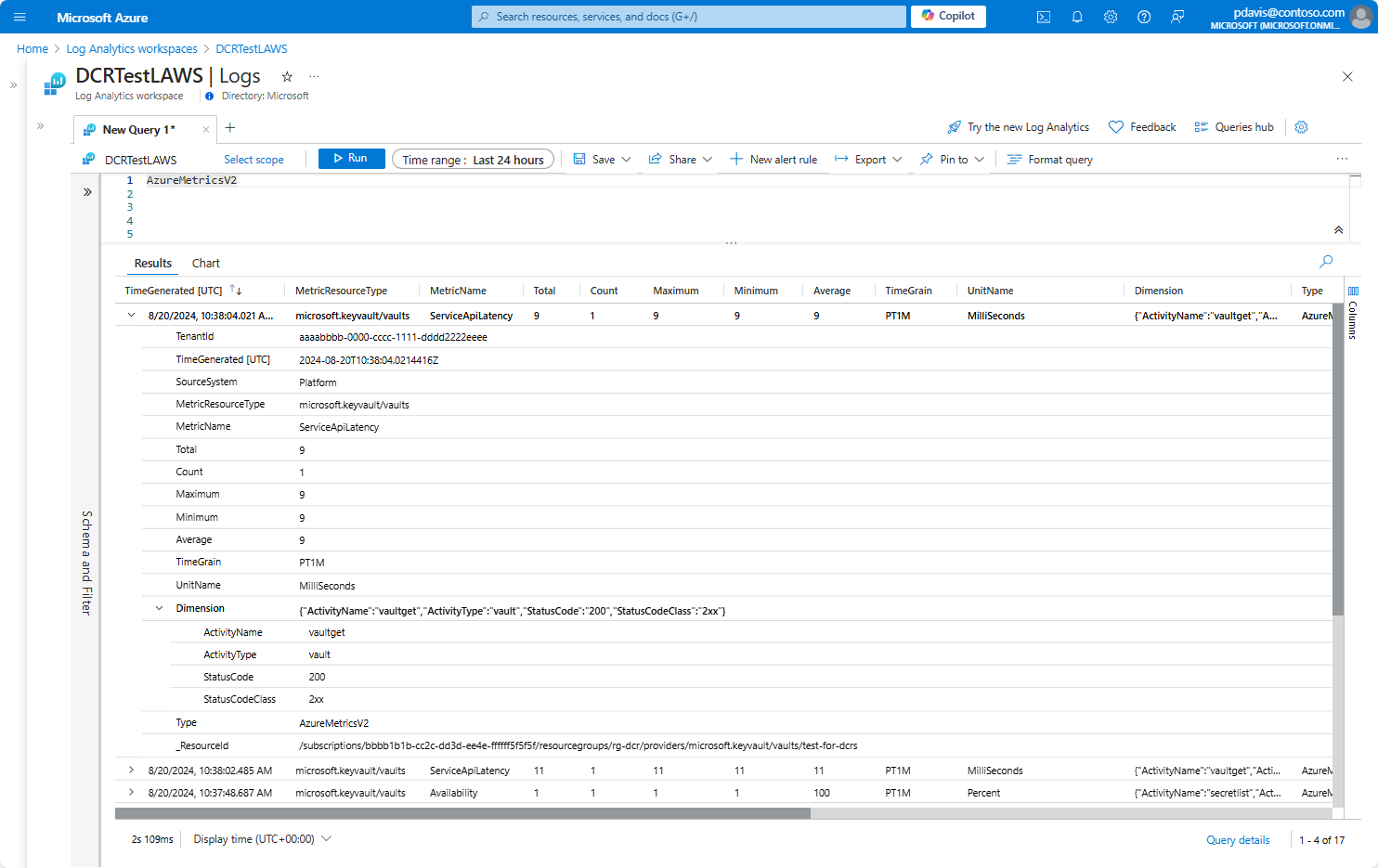
Data exported to a Log Analytics workspace is stored in the AzureMetricsV2 table in the Log Analytics workspace in the following format:
| Column |
Type |
Description |
| Average |
real |
Average value collected during in the time range. |
| _BilledSize |
real |
The record size in bytes |
| Count |
real |
Number of samples collected during the time range. |
| Dimension |
dynamic |
Associated dimension of the metric in JSON format. |
| _IsBillable |
string |
Specifies whether ingesting the data is billable. When _IsBillable is false ingestion isn't billed to your Azure account |
| Maximum |
real |
Maximum value collected during in the time range. |
| MetricCategory |
string |
Category name of the metric. |
| MetricName |
string |
Display name of the metric. |
| MetricResourceType |
string |
Resource type of the Azure resource reporting the metric. |
| Minimum |
real |
Minimum value collected during in the time range. |
| _ResourceId |
string |
A unique identifier for the resource that the record is associated with |
| SourceSystem |
string |
The type of agent the event was collected by. For example, OpsManager for Windows agent, either direct connect or Operations Manager, Linux for all Linux agents, or Azure for Azure Diagnostics |
| _SubscriptionId |
string |
A unique identifier for the subscription that the record is associated with |
| TenantId |
string |
The Log Analytics workspace ID |
| TimeGenerated |
datetime |
Timestamp (UTC) when the record was generated. |
| TimeGrain |
string |
Time grain of the metric. |
| Total |
real |
Sum of all of the values in the time range. |
| Type |
string |
The name of the table |
| UnitName |
string |
Unit of the metric. |
For example:
Storage accounts
The following example shows data exported to a storage account:
{
  "Average": "31.5",
  "Count": "2",
  "Maximum": "52",
  "Minimum": "11",
  "Total": "63",
  "resourceId": "/subscriptions/aaaa0a0a-bb1b-cc2c-dd3d-eeeeee4e4e4e/resourcegroups/rg-dcrs/providers/microsoft.keyvault/vaults/dcr-vault",
  "time": "2024-08-20T14:13:00.0000000Z",
  "unit": "MilliSeconds",
  "metricName": "ServiceApiLatency",
  "timeGrain": "PT1M",
  "dimension": {
    "ActivityName": "vaultget",
    "ActivityType": "vault",
    "StatusCode": "200",
    "StatusCodeClass": "2xx"
  }
}
Event Hubs
The following example shows a metric exported to Event Hubs.
{
  "Average": "1",
  "Count": "1",
  "Maximum": "1",
  "Minimum": "1",
  "Total": "1",
  "resourceId": "/subscriptions/aaaa0a0a-bb1b-cc2c-dd3d-eeeeee4e4e4e/resourcegroups/rg-dcrs/providers/microsoft.keyvault/vaults/dcr-vault",
  "time": "2024-08-22T13:43:00.0000000Z",
  "unit": "Count",
  "metricName": "ServiceApiHit",
  "timeGrain": "PT1M",
  "dimension": {
    "ActivityName": "keycreate",
    "ActivityType": "key"
  },
  "EventProcessedUtcTime": "2024-08-22T13:49:17.1233030Z",
  "PartitionId": 0,
  "EventEnqueuedUtcTime": "2024-08-22T13:46:04.5570000Z"
}
Verify and troubleshoot data collection
Once you install the DCR, it may take several minutes for the changes to take effect and data to be collected with the updated DCR. If you don't see any data being collected, use the DCR monitoring features, which include metrics and logs to help troubleshooting.
DCR metrics are collected automatically for all DCRs, and you can analyze them using metrics explorer like the platform metrics for other Azure resources. Enable DCR error logs to get detailed error information when data processing isn't successful.
- Check metrics such as
Logs Ingestion Bytes per Min and Logs Rows Received per Min to ensure that the data is reaching Azure Monitor. If not, then check your data source to ensure that it's sending data as expected.
- Check
Logs Rows Dropped per Min to see if any rows are being dropped. This may not indicate an error since the rows could be dropped by a transformation. If the rows dropped is the same as Logs Rows Dropped per Min though, then no data gets ingested in the workspace. Examine the Logs Transformation Errors per Min to see if there are any transformation errors.
- Check
Logs Transformation Errors per Min to determine if there are any errors from transformations applied to the incoming data. This could be due to changes in the data structure or the transformation itself.
- Check the
DCRLogErrors table for any ingestion errors that may have been logged. This can provide additional detail in identifying the root cause of the issue.
Next steps
