Note
Access to this page requires authorization. You can try signing in or changing directories.
Access to this page requires authorization. You can try changing directories.
In this article, you'll learn how to disable public access for your Azure App Configuration store. Setting up private access can offer better security for your configuration store.
Prerequisites
- An Azure account with an active subscription. Create an account for free.
- We assume you already have an App Configuration store. If you want to create one, create an App Configuration store.
Sign in to Azure
You will need to sign in to Azure first to access the App Configuration service.
Sign in to the Azure portal at https://portal.azure.com/ with your Azure account.
Disable public access to a store
Azure App Configuration offers four public access options:
- Automatic: Inbound public network access is enabled until you create a private endpoint for the store. Once a private endpoint exists, inbound public network access is automatically disabled. Outbound public network access is allowed. This option can only be selected when creating a store.
- Enabled: All networks can access the store over the public internet. Outbound public network access is allowed.
- Disabled: Inbound public network access is disabled. The store can only be reached through a private endpoint. Outbound public network access is allowed.
- Secured by perimeter: Inbound public network access is disabled. Only traffic from a private endpoint or traffic allowed by an associated network security perimeter can access the store. Outbound public network access is governed by the associated network security perimeter, or denied if no perimeter is associated.
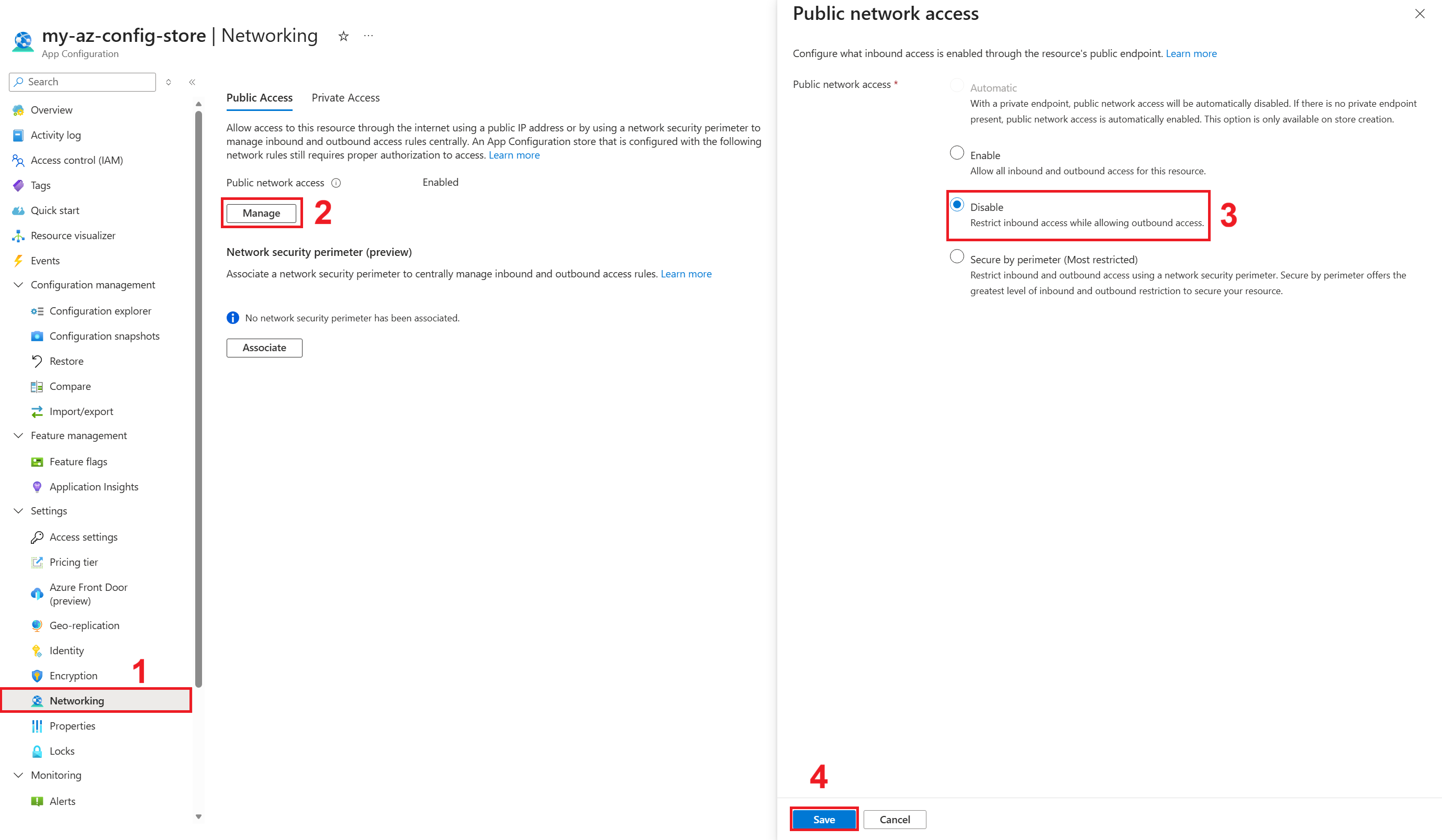
To disable access to the App Configuration store from public network, follow the process below.
In your App Configuration store, under Settings, select Networking.
Under Public Access, select Manage.
Under Public network access, select Disabled to disable public access to the App Configuration store and only allow access through private endpoints. If you already had public access disabled and instead wanted to enable public access to your configuration store, you would select Enabled.
Note
Once you've switched Public Access to Disabled or Enabled, you won't be able to select Public Access: Automatic anymore, as this option can only be selected when creating the store.
Select Apply.