Note
Access to this page requires authorization. You can try signing in or changing directories.
Access to this page requires authorization. You can try changing directories.
Connecting your agents to tools gives them practical capabilities beyond text generation, like searching documents, querying tables, calling external APIs, or running custom code.
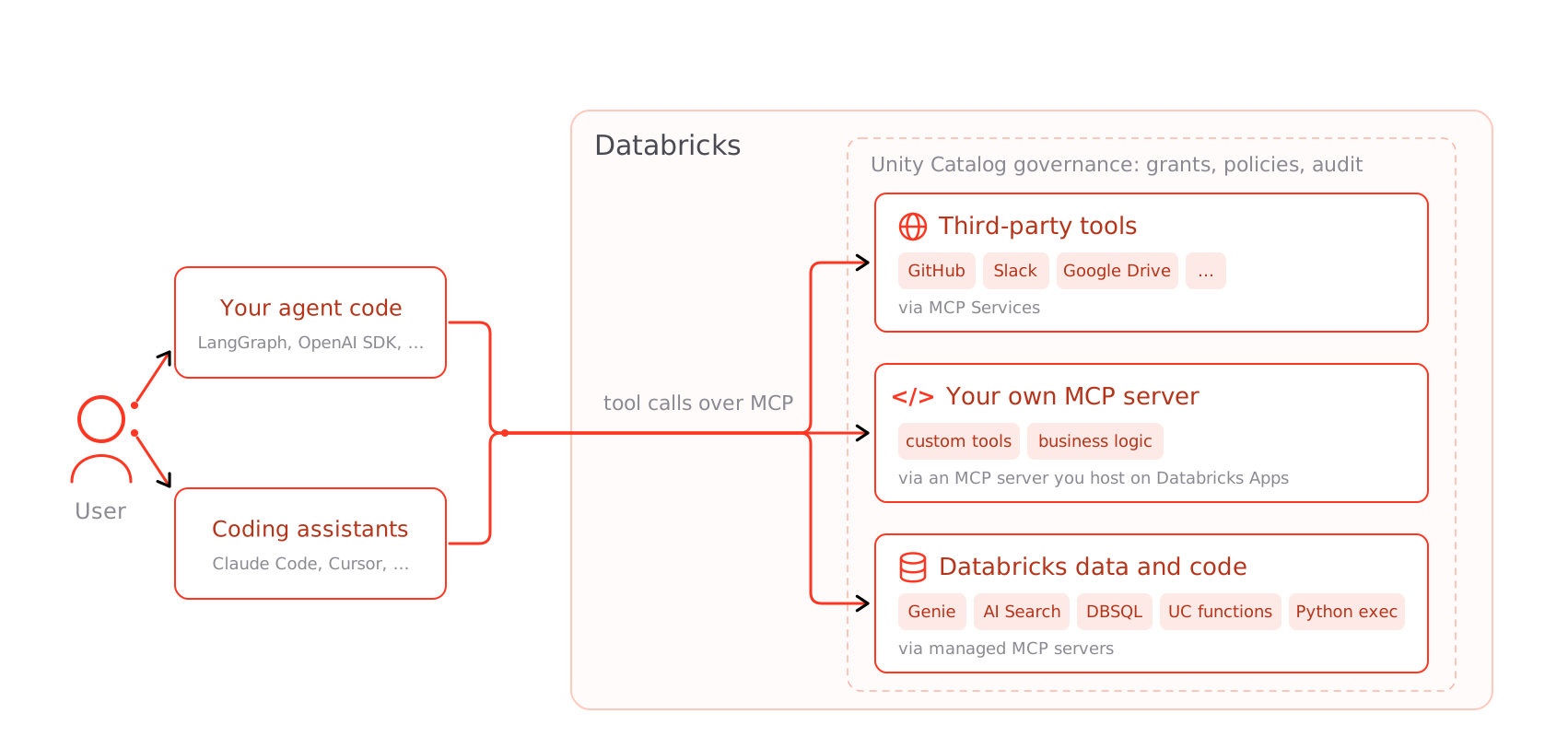
The diagram shows the MCP route, which Azure Databricks recommends for most integrations. MCP is one of several ways to connect agents to external services. Alongside MCP Services, you can call REST APIs directly through a Unity Catalog HTTP connection. Select Managed OAuth for per-user authentication, the Unity Catalog connections proxy to call APIs from agent code, or Unity Catalog function tools that wrap http_request(). The following table summarizes each way to connect, from Azure Databricks data to external services:
| Approach | Recommended use case |
|---|---|
| Managed MCP servers for Azure Databricks data | Use this approach to query Azure Databricks data and run governed functions with the ready-to-use Genie, Databricks AI Search, Databricks SQL, and Unity Catalog function MCP servers. |
| External MCP servers | Use this approach for services that publish an MCP server. It offers automatic tool discovery and governed access through Unity AI Gateway. |
| Managed OAuth | Use this approach for Google Drive or SharePoint integrations. Azure Databricks manages the OAuth credentials, so no app registration is required. |
| Unity Catalog connections proxy | Use this approach to make direct REST API calls from agent code using the external service's own client SDK. |
| Unity Catalog function tools | Use this approach for SQL-based tool definitions that wrap the http_request() function. |
Managed MCP servers for Azure Databricks data
Azure Databricks offers ready-to-use managed MCP servers that give agents governed access to data and functions in your workspace, with no server to build or host. Each server has a dedicated URL and OAuth scope, and Unity Catalog governs access:
- Genie: Query structured data in Genie Agents and Unity Catalog tables with natural language.
- Databricks AI Search (vector search): Search documents in vector search indexes.
- Databricks SQL: Run SQL queries against Unity Catalog tables.
- Unity Catalog functions: Call custom Python and SQL functions registered in Unity Catalog.
For server URLs, OAuth scopes, and the full catalog, see Azure Databricks managed MCP servers. To call these servers from agent code, see Use MCP servers in agents.
External MCP servers
Connect your agents to external applications like Slack, Google Calendar, or any service with an API. Azure Databricks offers several approaches depending on whether the external service has an MCP server, whether you need per-user authentication, or whether you prefer to call APIs directly from agent code. All approaches rely on a Unity Catalog HTTP connection, which provides secure, governed credential management and supports multiple authentication methods, including OAuth 2.0 user-to-machine (U2M) and machine-to-machine (M2M) authentication.
If the external service has an MCP server available, Azure Databricks recommends registering it as an MCP Service in Unity Catalog. MCP Services provide automatic tool discovery, per-user authentication, and governance through Unity AI Gateway with grants, tool selection, and service policies.
- See Register an external MCP server to register an external MCP server as an MCP Service and govern it. For connection and authentication setup, see Step 1. Create a connection.
- See Use MCP servers in agents for code examples per agent framework (OpenAI Agents SDK, LangGraph, Model Serving).
For common software-as-a-service (SaaS) tools such as Slack, GitHub, and Google Drive, Azure Databricks provides ready-to-use MCP Services with zero setup. See Databricks-provided MCP Services.
Managed OAuth
Azure Databricks offers managed OAuth flows for select API tool providers. You don't need to register your own OAuth app or manage credentials. Azure Databricks recommends Managed OAuth for development and testing. If production use cases require generating custom OAuth credentials, see the providers' documentation for more information.
The following integrations use OAuth credentials that Azure Databricks manages and stores securely in the backend.
| Provider | Configuration notes | Supported scopes | Description |
|---|---|---|---|
| Google Drive API | None | https://www.googleapis.com/auth/drive.readonly https://www.googleapis.com/auth/documents.readonly https://www.googleapis.com/auth/spreadsheets.readonly offline_access |
Read-only access to Google Drive files, including Google Docs and Google Sheets. |
| Gmail API | None | https://www.googleapis.com/auth/gmail.readonly offline_access |
Read-only access to Gmail messages, threads, drafts, and labels. |
| Google Calendar API | None | https://www.googleapis.com/auth/calendar.readonly offline_access |
Read-only access to Google Calendar events, calendars, and free/busy information. |
| SharePoint API | None | https://graph.microsoft.com/User.Read https://graph.microsoft.com/User.ReadBasic.All https://graph.microsoft.com/Sites.Read.All https://graph.microsoft.com/Files.Read https://graph.microsoft.com/Files.Read.All https://graph.microsoft.com/Mail.Read https://graph.microsoft.com/Mail.ReadBasic https://graph.microsoft.com/Mail.Read.Shared https://graph.microsoft.com/MailboxFolder.Read https://graph.microsoft.com/MailboxItem.Read https://graph.microsoft.com/Calendars.Read https://graph.microsoft.com/Calendars.Read.Shared https://graph.microsoft.com/Chat.Read https://graph.microsoft.com/Chat.ReadBasic https://graph.microsoft.com/ChatMember.Read https://graph.microsoft.com/ChatMessage.Read https://graph.microsoft.com/Channel.ReadBasic.All https://graph.microsoft.com/ChannelMessage.Read.All https://graph.microsoft.com/OnlineMeetings.Read https://graph.microsoft.com/OnlineMeetingTranscript.Read.All https://graph.microsoft.com/OnlineMeetingAiInsight.Read https://graph.microsoft.com/OnlineMeetingArtifact.Read.All https://graph.microsoft.com/OnlineMeetingRecording.Read.All offline_access openid profile email |
Read-only access via Microsoft Graph to SharePoint and OneDrive files, Outlook mail and calendar, and Microsoft Teams chats, channels, and meetings. |
To set up managed OAuth, create an HTTP connection with the OAuth User to Machine Per User auth type and select your provider from the OAuth Provider drop-down menu. For detailed steps, see Create a connection to the external service.
The provider prompts each user to authorize on first use.
If needed, allowlist the following redirect URIs that managed OAuth uses:
| Cloud | Redirect URI |
|---|---|
| AWS | https://oregon.cloud.databricks.com/api/2.0/http/oauth/redirect |
| Azure | https://westus.azuredatabricks.net/api/2.0/http/oauth/redirect |
| GCP | https://us-central1.gcp.databricks.com/api/2.0/http/oauth/redirect |
For managed OAuth providers with a published MCP server, such as Glean, GitHub, Atlassian, and Slack, Azure Databricks can manage the OAuth credentials when you register the server as an MCP Service. See Managed OAuth providers.
Unity Catalog connections proxy endpoint
Use the Unity Catalog connections proxy endpoint with the external service's own client SDK to call REST APIs directly from agent code. Point the SDK's base URL to the proxy endpoint and use your Azure Databricks token as the API key. Azure Databricks authenticates the request and automatically injects the external service's credentials from the Unity Catalog connection. Your code doesn't handle the external service's tokens directly.
Permissions required: USE CONNECTION on the connection object.
OpenAI
Use DatabricksOpenAI to route calls to external OpenAI through the Unity Catalog connections proxy. First, create a Unity Catalog HTTP connection using your OpenAI API key stored as a Databricks secret:
CREATE CONNECTION openai_connection TYPE HTTP
OPTIONS (
  host 'https://api.openai.com',
  base_path '/v1',
  bearer_token secret ('<secret-scope>', '<secret-key>')
);
Then install the databricks-openai package and use the proxy URL and workspace client in your agent code:
pip install databricks-openai
from databricks_openai import DatabricksOpenAI
from databricks.sdk import WorkspaceClient

w = WorkspaceClient()

client = DatabricksOpenAI(
    workspace_client=w,
    base_url=f"{w.config.host}/api/2.0/unity-catalog/connections/openai_connection/proxy/",
)

response = client.chat.completions.create(
    model="gpt-4o",
    messages=[{"role": "user", "content": "Hello!"}],
)
print(response.choices[0].message.content)
Slack
Configure the Slack SDK to route through the Unity Catalog connections proxy. Create a Unity Catalog HTTP connection with host https://slack.com and base path /api, then use the proxy URL as the SDK base URL:
from slack_sdk import WebClient
from databricks.sdk import WorkspaceClient

w = WorkspaceClient()

client = WebClient(
    token=w.config.authenticate()["Authorization"].split(" ")[1],
    base_url=f"{w.config.host}/api/2.0/unity-catalog/connections/slack_connection/proxy/",
)

result = client.chat_postMessage(channel="C123456", text="Hello from Databricks!")
print(result["message"]["text"])
Generic HTTP
For services without a dedicated SDK, use the requests library with the proxy URL directly:
import requests
from databricks.sdk import WorkspaceClient

w = WorkspaceClient()

response = requests.post(
    f"{w.config.host}/api/2.0/unity-catalog/connections/my_connection/proxy/api/v1/resource",
    headers={
        **w.config.authenticate(),
        "Content-Type": "application/json",
    },
    json={"key": "value"},
)
For details on the proxy endpoint, supported authentication methods, and connection setup, see Forward requests through the HTTP connection proxy.
Unity Catalog function tools
Note
Azure Databricks recommends using MCP Services or the Unity Catalog connections proxy for new integrations. Unity Catalog function tools with http_request remain supported but are no longer the recommended approach.
You can create a Unity Catalog function that wraps http_request() to call external services. This approach is useful for SQL-based tool definitions, such as a function that posts a message to Slack. For the full walkthrough, including the SQL example and connection-type limitations, see Call external APIs with http_request (legacy).
Example notebooks
The following notebooks demonstrate creating AI agent tools that connect to Slack, OpenAI, and Azure AI Search.
Slack messaging agent tool
Microsoft Graph API agent tool
Azure AI Search agent tool
For a walkthrough of connecting an agent to Microsoft Teams, see Connect an AI agent to Microsoft Teams.
Additional resources
- Connect agents to third-party tools with MCP Services to register and govern external MCP servers.
- Create AI agent tools using Unity Catalog functions to build Unity Catalog function tools, including the legacy
http_requestapproach. - Integrate Unity Catalog tools with third party generative AI frameworks to use Unity Catalog tools with LangChain, LlamaIndex, OpenAI, and Anthropic.
- Connect to external HTTP services to configure HTTP connections and the connections proxy.