Note
Access to this page requires authorization. You can try signing in or changing directories.
Access to this page requires authorization. You can try changing directories.
This article explains how to create a database connection to enable multiuser collaboration on plan items.
This connection is optional and allows other users to comment and collaborate on a plan that you create.
Important
This feature is in preview.
Prerequisites
- You have a plan item created.
- You have access to planning sheets.
- You have permission in the plan item to create and manage connections.
Create a database connection for collaboration
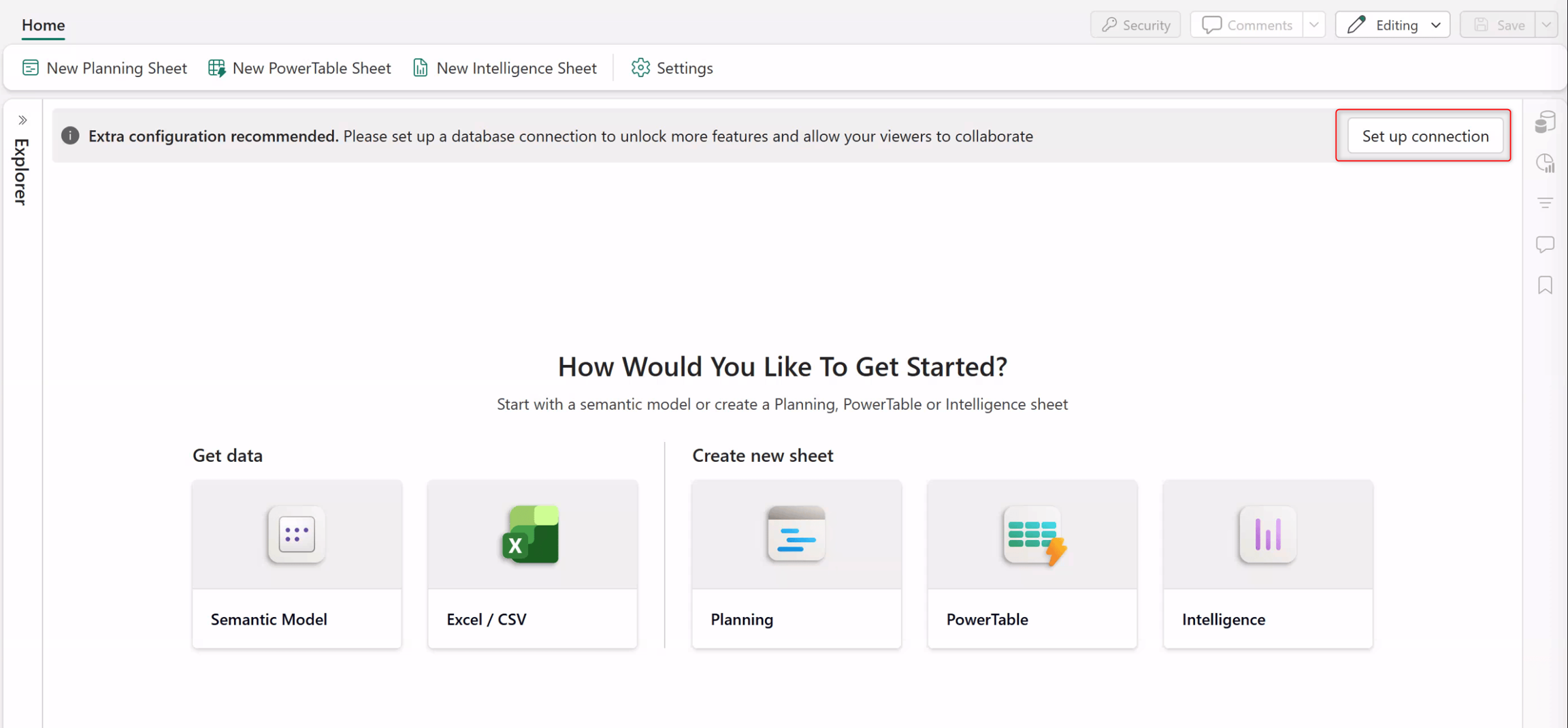
Inside a plan item, select Set up connection.
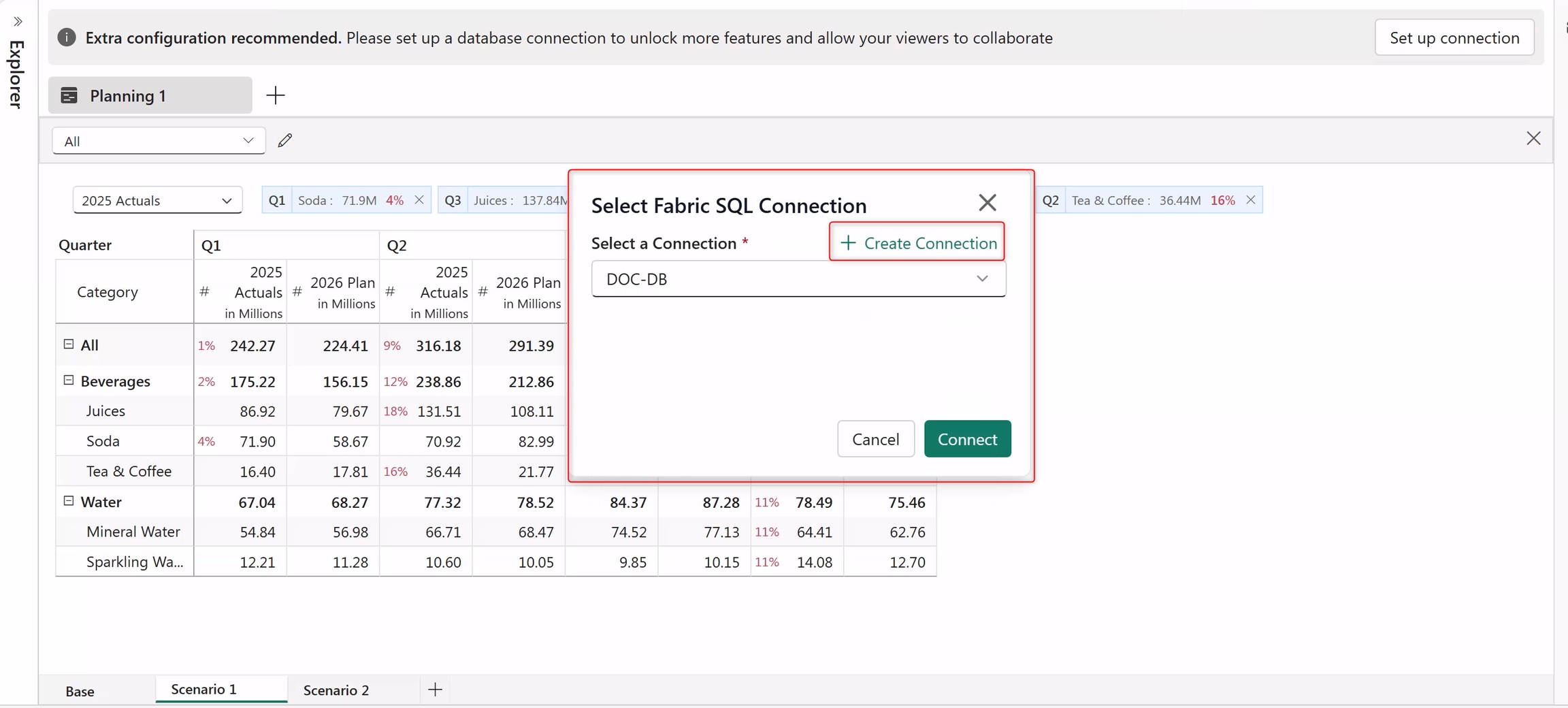
On Select Fabric SQL Connection, select Create Connection. Alternatively, you can select an existing connection and skip the creation steps.
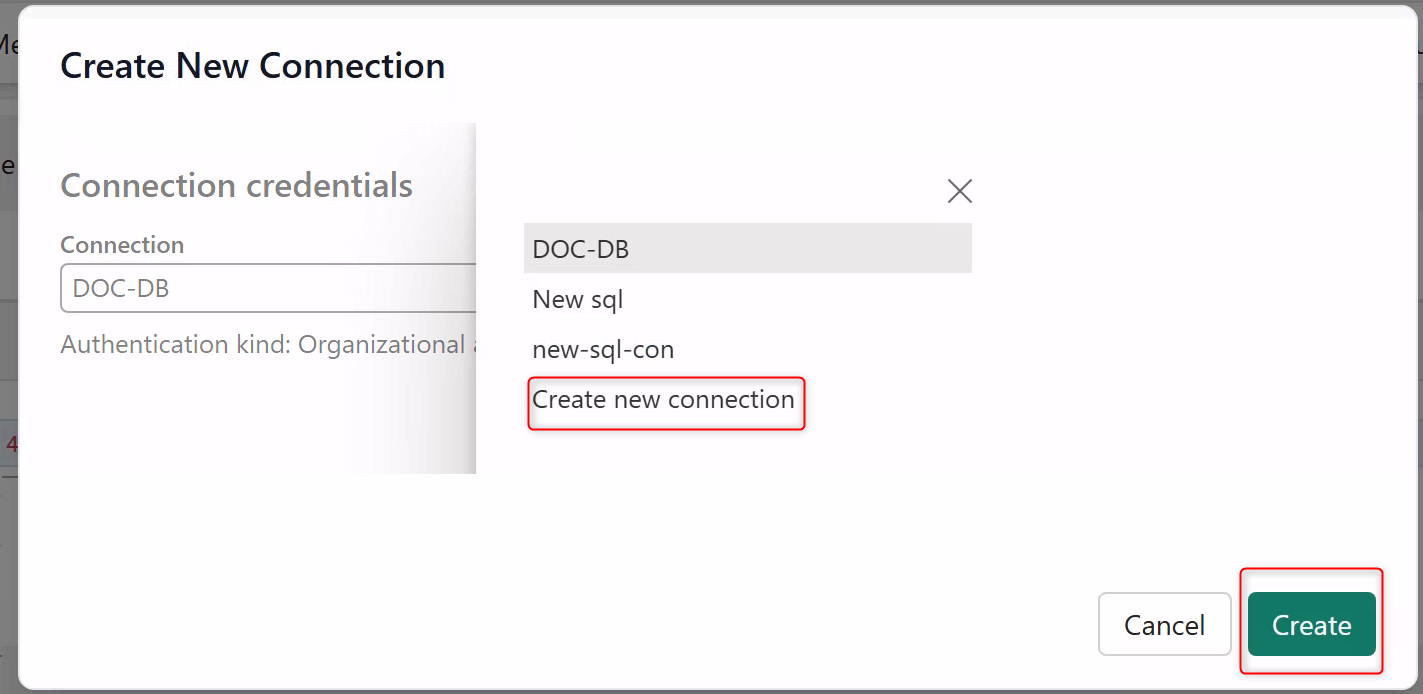
From the Connections credentials dropdown menu, select Create new connection, and then select Create.
Enter a connection name.
For Authentication kind, select Organizational account.
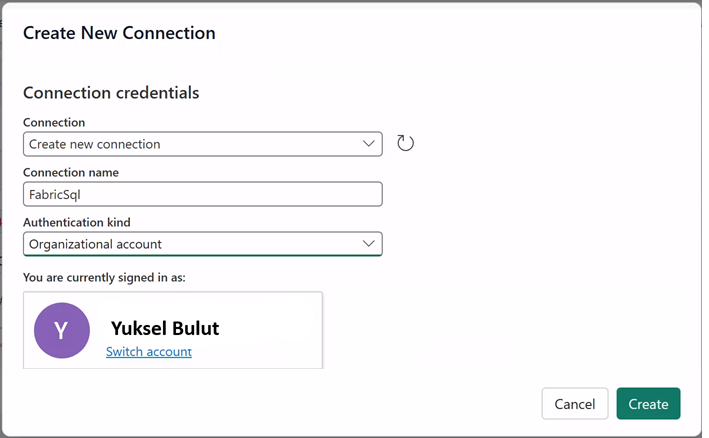
Select Create.
Now you have a database connection to store collaboration data.
Share the database connection
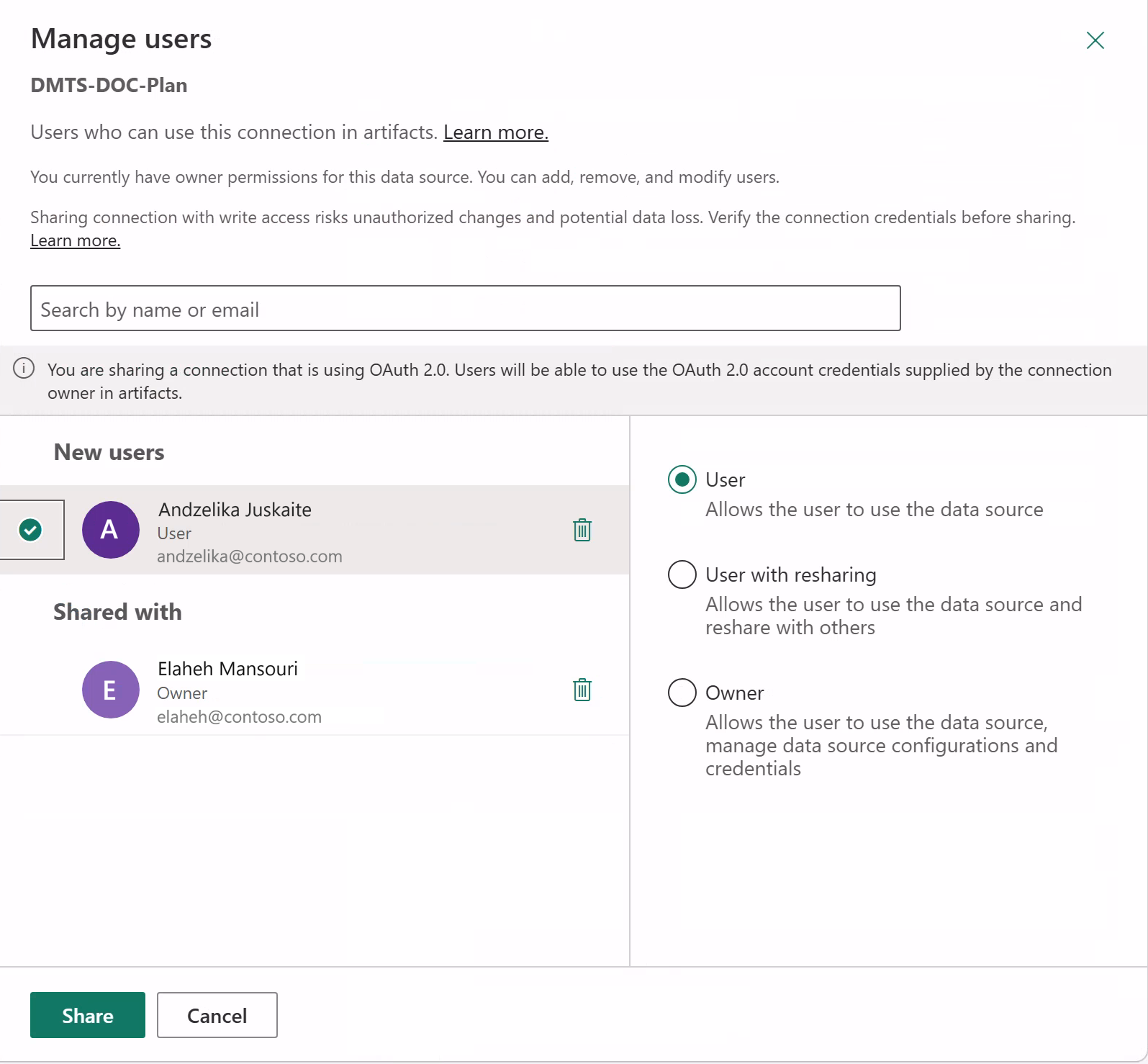
You can share the created connection and manage the user permissions.
Next to the name of the connection in your Microsoft Fabric workspace, select ..., and then select Manage users.
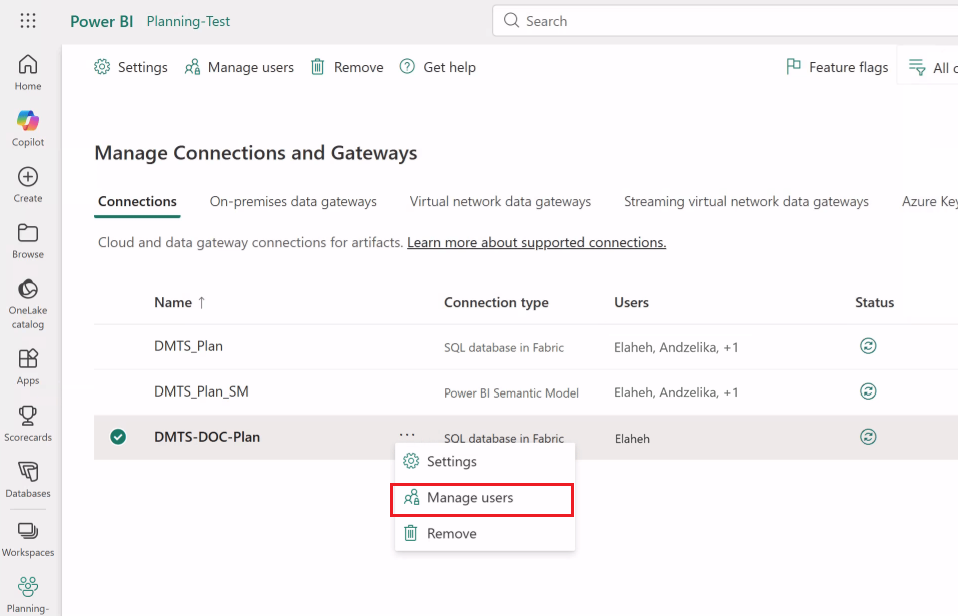
Edit the permissions and share as needed.