Note
Access to this page requires authorization. You can try signing in or changing directories.
Access to this page requires authorization. You can try changing directories.
This article explains how to connect to a semantic model from a plan item. This step is required to work with your semantic model data in a planning sheet.
Important
This feature is in preview.
To connect a plan to a semantic model, a workspace admin or member must create a shareable cloud connection. Other users can use this connection to access the semantic model. The following steps describe how to create and share the connection.
Prerequisites
Before you can create the semantic model connection, make sure that you have:
- Data in a Power BI semantic model.
Create a semantic model connection
Use this connection to connect to your semantic models when you create a plan. A workplace admin or member who has access to the semantic model must complete the following steps.
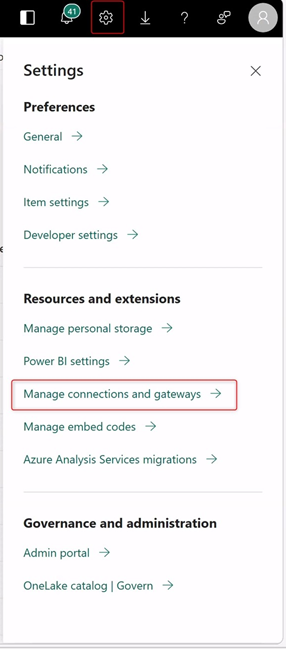
On your Microsoft Fabric toolbar, select the Settings icon. Select Manage connections and gateways > New.
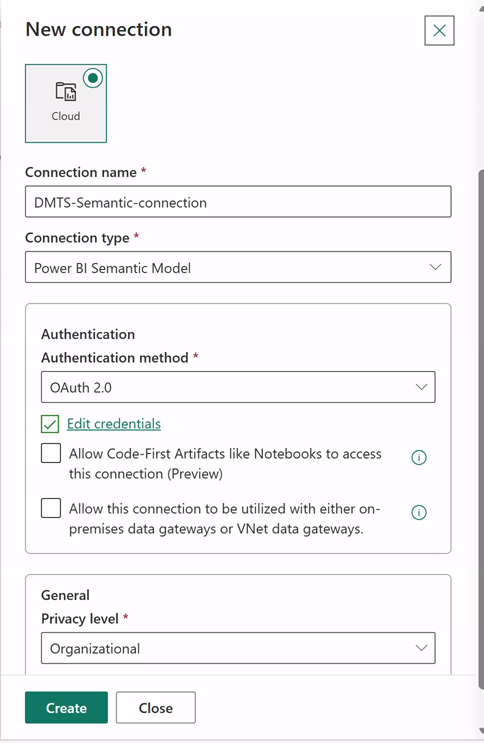
For the new connection, select Cloud.
Enter a connection name.
For Connection type, select Power BI Semantic Model.
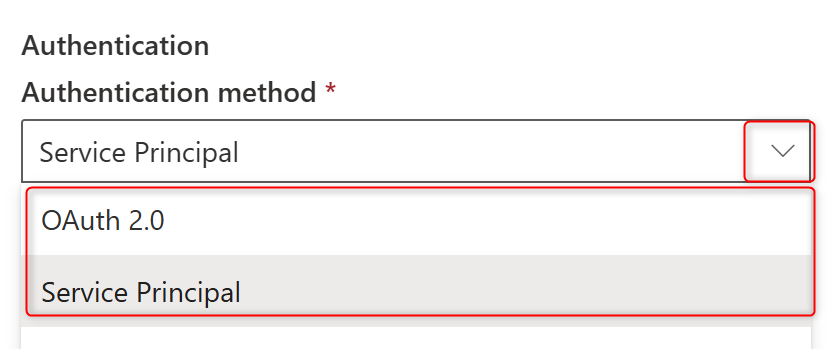
Select an Authentication method.
- OAuth 2.0: Select Edit credentials, then sign in with your Microsoft account.
- Service principal: Enter the Tenant ID, Service Principal ID, and Service Principal Key.
Select Create.
Share the semantic model connection
Next to the name of the semantic model connection in your Fabric workspace, select ..., and then select Manage users.
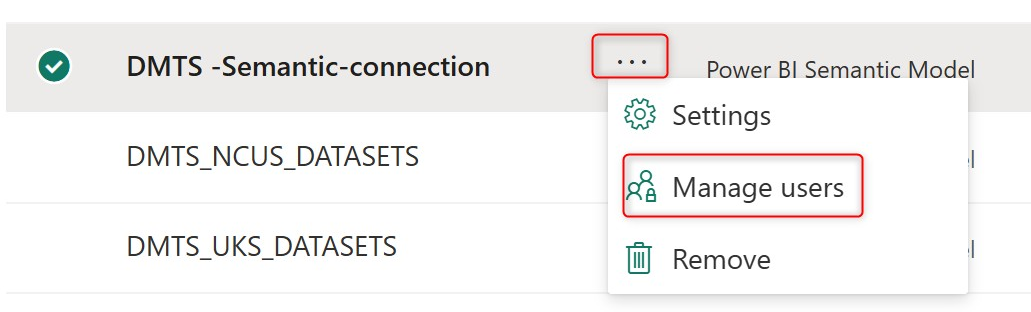
Search for the name or email of the users to share the semantic model connection.
Set the access permission to one of the following options: User, User with resharing, or Owner.
Select Share to share the connection.
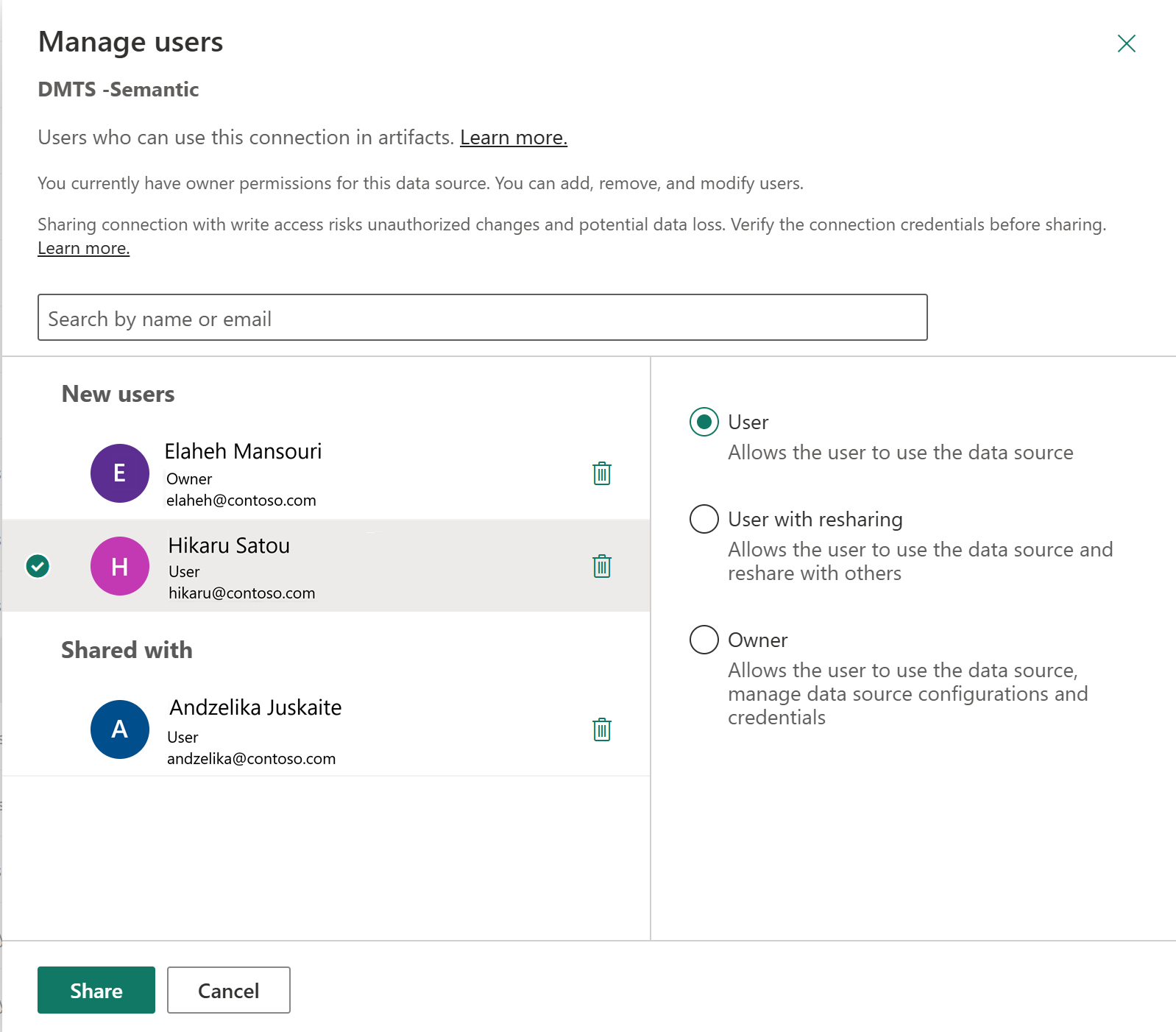
Other users can now use this shared connection to connect to the semantic model.
Connection types supported in a planning sheet
Planning supports the following connection types.
| Connection type | Support status | Requirements |
|---|---|---|
| Import mode | Supported fully | None. |
| Direct Lake | Supported with limitations | Gateway must use fixed credentials. Single sign-on (SSO) isn't supported at this time. |
| DirectQuery | Supported with limitations | Gateway must use fixed credentials. SSO isn't supported at this time. |
Connect to a Direct Lake semantic model
If you want to connect to a Direct Lake semantic model, follow these steps. An Admin or Member user can perform these steps.
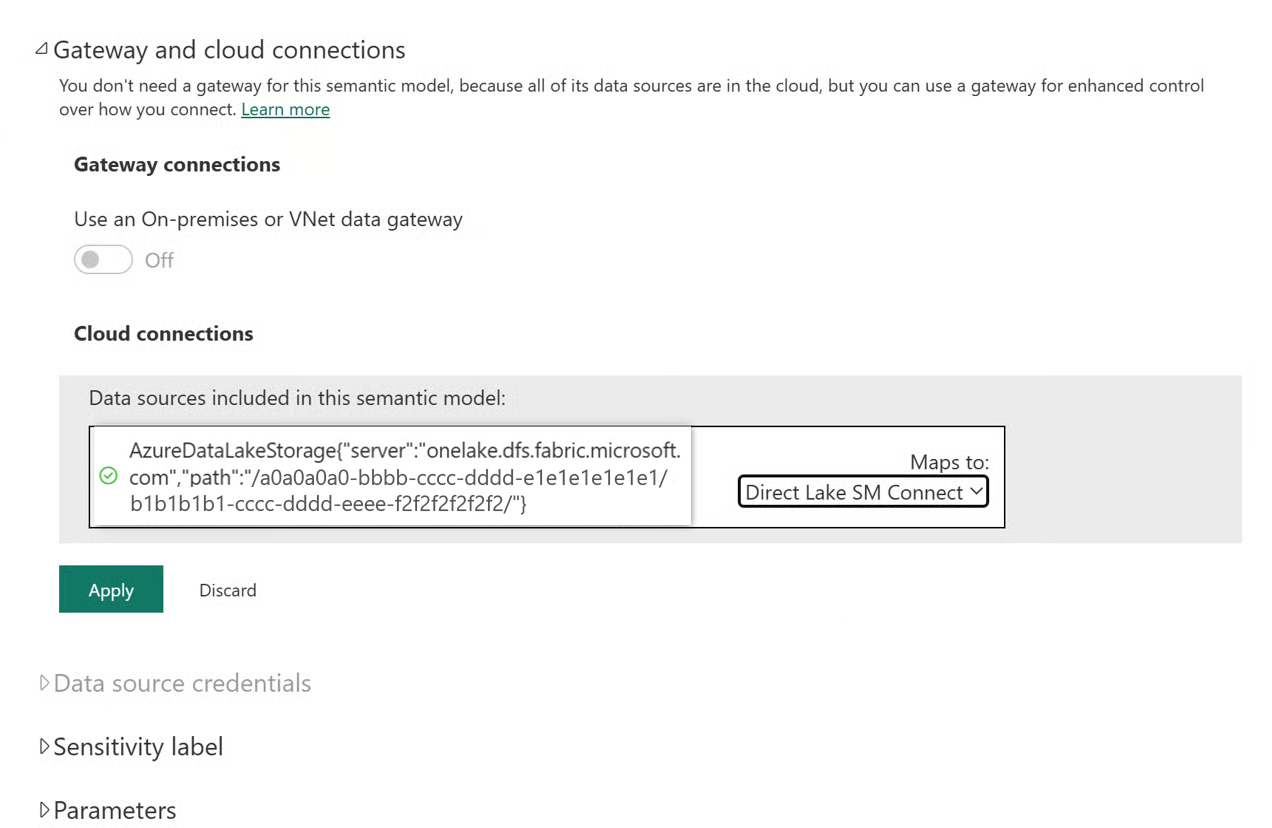
Next to the name of the semantic model in your Fabric workspace, select ... > Settings > Gateway and cloud connections.
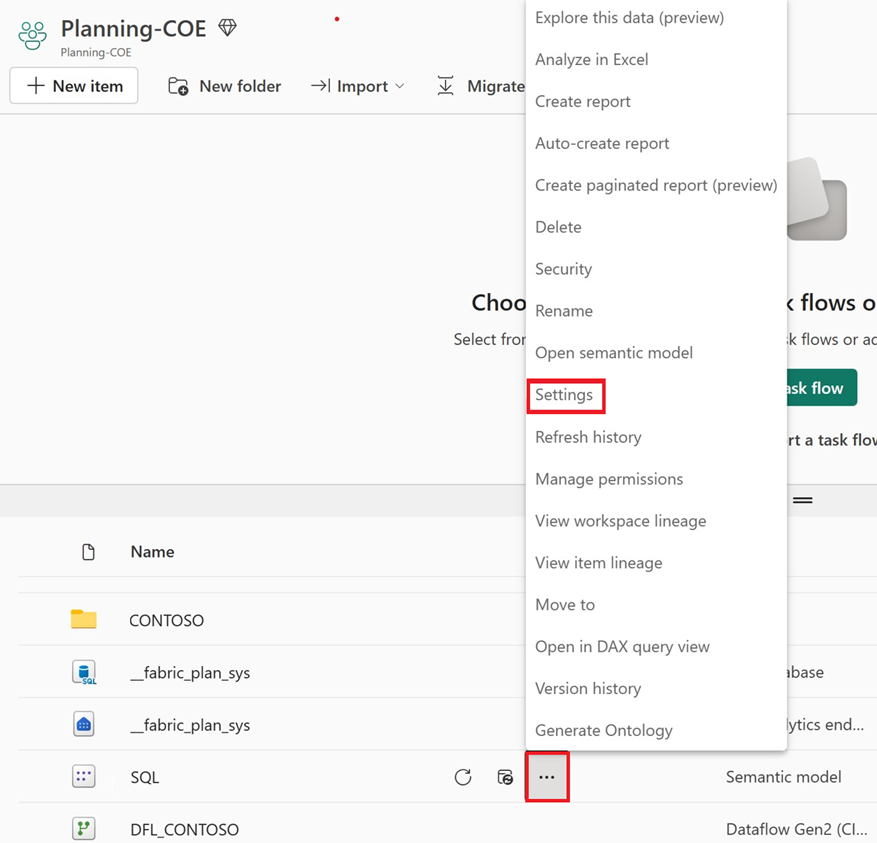
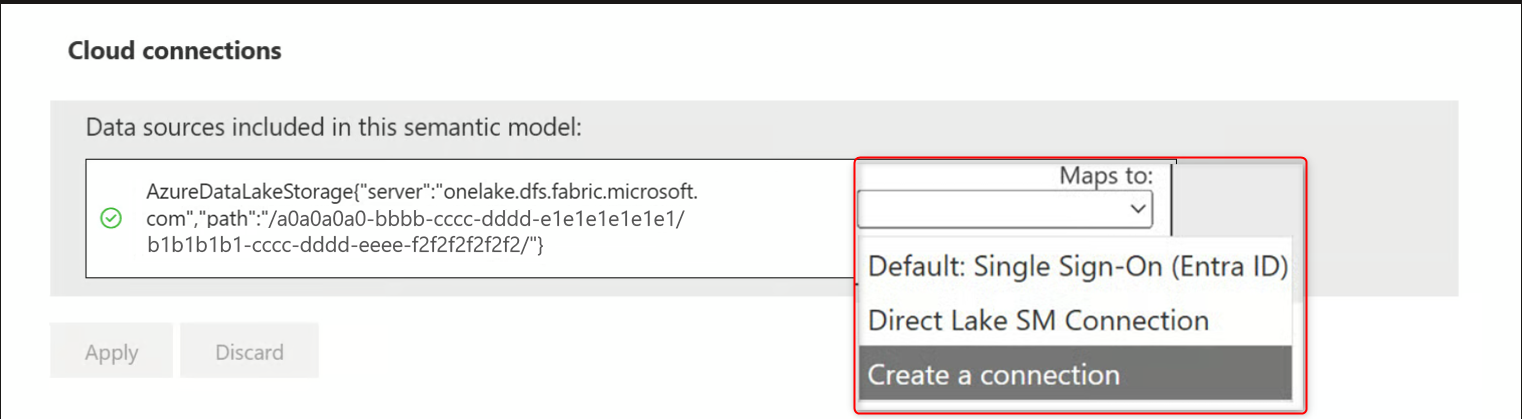
By default, the connection is set to SSO. You can create and use a new connection.
From the connection list, select Create a connection.
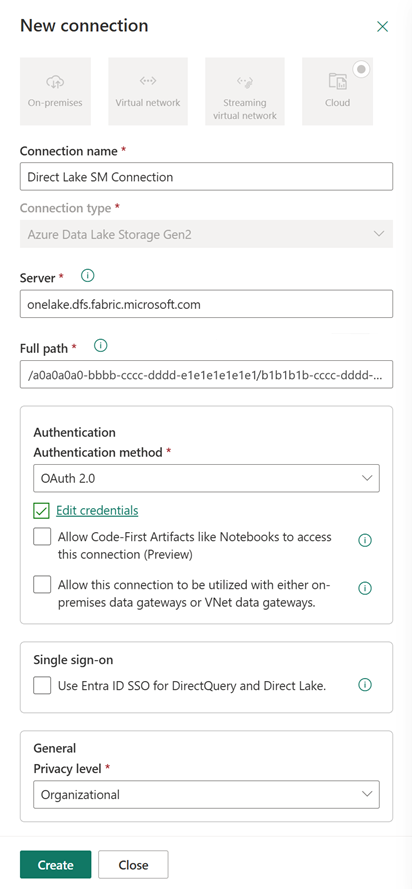
Enter the new connection name.
Select an Authentication method:
- OAuth 2.0: Select Edit credentials, then sign in with your Microsoft account.
- Service principal: Enter the Tenant ID, Service Principal ID, and Service Principal Key.
Select Create.
Select the newly created Direct Lake semantic model connection from the list, and then select Apply.
Conditions for Continuous Integration and Continuous Deployment
To enable Continuous Integration (CI) and Continuous Deployment (CD), ensure the following conditions are met:
- The semantic model connection must be created using Service Principal authentication.
- The service principal must have the required access across all environments. This ensures the same semantic model connection can be reused seamlessly in different environments during deployment.
Related content
- Now that you created your semantic model connection, you can create a planning sheet that uses this connection. See Create a planning sheet.
- Prerequisites for plan (preview)
- Troubleshoot semantic model connections in plan (preview)