Share via

windows update not working

Abhishekh M Kumar 0 Reputation points
2025-12-18T15:12:54.18+00:00

Windows update is not working and due to that I can't use microsoft store as it says "there is an issue with your windows update service. Please start it and try again"

When I try clicking on retry button on windows update it shows - C:\Windows\SoftwareDistribution>net start wuauserv

System error 1058 has occurred.

The service cannot be started, either because it is disabled or because it has no enabled devices associated with it.

Checked online and did some commands but then this happened - C:\Windows\SoftwareDistribution>net start wuauserv

System error 1058 has occurred.

The service cannot be started, either because it is disabled or because it has no enabled devices associated with it.
Please help...

Windows for home | Windows 11 | Windows update
0 comments No comments

3 answers

Sort by: Most helpful
  1. Ramesh 176.3K Reputation points Volunteer Moderator
    2025-12-18T15:41:54.09+00:00

    Please share your Farbar scan logs for analysis.

    • Download Farbar Recovery Scan Tool 64-bit FRST64.exe
    • If the OS language is not English, rename FRST64.exe to FRST64English.exe.
    • Run the program. Don't check or uncheck any options. Click "Scan".
    • Add the two logs, FRST.txt and Addition.txt, to a zip archive.
    • Share the zip file on OneDrive or GoFile.io, and post the link here.

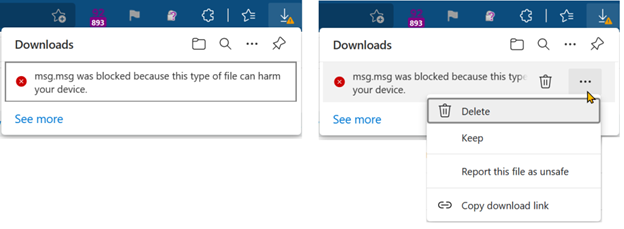
    Note: If Microsoft Edge or Chrome mislabels the Farbar Scanner executable as PUA/malware, choose to keep it by tapping … in the bottom bar, choosing Keep, and then choosing Keep anyway in the dialog that appears. See this screenshot. It's a safe tool used in most antimalware forums.

    Was this answer helpful?

    0 comments No comments

  2. Abhishekh M Kumar 0 Reputation points
    2025-12-18T15:14:21.9366667+00:00

    C:\Windows\System32> net start wuauserv

    System error 1058 has occurred.

    The service cannot be started, either because it is disabled or because it has no enabled devices associated with it.

    Was this answer helpful?

    0 comments No comments

  3. AI answer

    2025-12-18T15:13:14.1766667+00:00

    To resolve the issue with Windows Update not working and the error message indicating that the service cannot be started, you can follow these steps:

    1. Enable the Windows Update Service:
      • Press Windows + R, type services.msc, and press Enter.
      • In the Services window, locate Windows Update in the list.
      • Right-click on Windows Update and select Properties.
      • Set the Startup type to Automatic and click Start to start the service if it is not running.
      • Click OK to save the changes.
    2. Check Dependencies:
      • In the same Properties window, go to the Dependencies tab to ensure that all dependent services are also running. Make sure services like Background Intelligent Transfer Service (BITS) and Cryptographic Services are enabled and running.
    3. Reset Windows Update Components Manually:
      • Open a command prompt as an administrator and run the following commands:
             net stop bits
             net stop wuauserv
             net stop cryptsvc
             Del "%ALLUSERSPROFILE%\Application Data\Microsoft\Network\Downloader\qmgr*.dat"
             Ren %Systemroot%\SoftwareDistribution\DataStore DataStore.bak
             Ren %Systemroot%\SoftwareDistribution\Download Download.bak
             Ren %Systemroot%\System32\catroot2 catroot2.bak
             net start bits
             net start wuauserv
             net start cryptsvc
        
      • This will stop the services, delete the relevant files, rename the folders, and restart the services.
    4. Run the Windows Update Troubleshooter:
      • Go to Settings > Update & Security > Troubleshoot > Additional troubleshooters and run the Windows Update troubleshooter.
    5. Check for Windows File Corruption:
      • You can also run the following command in an elevated command prompt to check for and repair any corrupted files:
             Dism /online /cleanup-image /restorehealth
        

    After performing these steps, try running Windows Update again to see if the issue is resolved.


    References:

    AI-generated content may be incorrect. Read our transparency notes for more information.

    Was this answer helpful?

Your answer

Answers can be marked as 'Accepted' by the question author and 'Recommended' by moderators, which helps users know the answer solved the author's problem.
