Note
Access to this page requires authorization. You can try signing in or changing directories.
Access to this page requires authorization. You can try changing directories.
This article explains how to prepare for an Azure regional outage by replicating your Azure Data Explorer resources, management, and ingestion in different Azure regions. The article includes an example of data ingestion with Azure Event Hubs. It also discusses cost optimization for different architecture configurations. For a more in-depth look at architecture considerations and recovery solutions, see the business continuity overview.
Prepare for Azure regional outage to protect your data
Azure Data Explorer doesn't support automatic protection against the outage of an entire Azure region. This disruption can happen during a natural disaster, like an earthquake. If you need a disaster recovery solution, follow these steps to ensure business continuity. In these steps, you replicate your clusters, management activities, and data ingestion in two Azure paired regions.
- Create two or more independent clusters in two Azure paired regions.
- Replicate all management activities such as creating new tables or managing user roles on each cluster.
- Ingest data into each cluster in parallel.
Create multiple independent clusters
Create more than one Azure Data Explorer cluster in more than one region. Create at least two of these clusters in Azure paired regions.
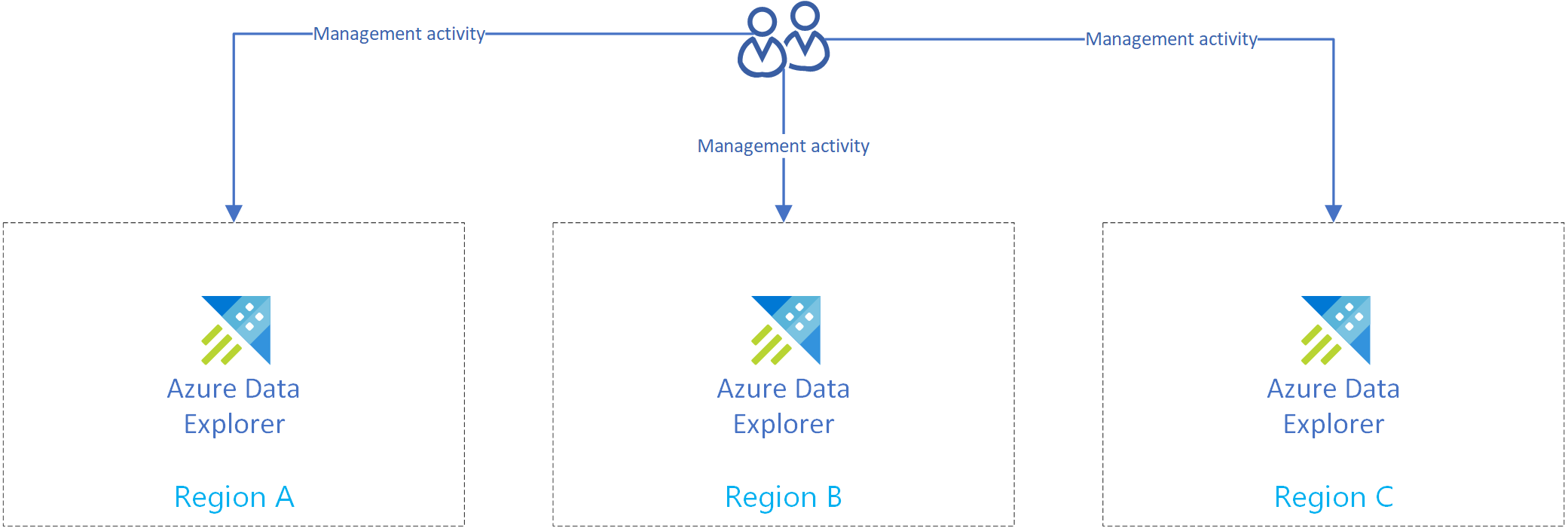
The following diagram shows three replica clusters in three different regions.

Replicate management activities
Replicate management activities so every replica has the same cluster configuration.
Create the same resources on each replica:
- Databases: Use the Azure portal or one of the SDKs to create a new database.
- Tables
- Mappings
- Policies
Manage the authentication and authorization on each replica.
Disaster recovery solution using Event Hubs ingestion
After you complete Prepare for Azure regional outage to protect your data, Azure Data Explorer stores your data and management across multiple regions. If there's an outage in one region, Azure Data Explorer can use the other replicas.
Set up ingestion by using Event Hubs
To ingest data from Azure Event Hubs into each region's Azure Data Explorer cluster, first replicate your Azure Event Hubs setup in each region. Then configure each region's Azure Data Explorer replica to ingest data from its corresponding Event Hubs.
Note
Ingestion through Azure Event Hubs, IoT Hub, or Storage is robust. If a cluster isn't available for time, it catches up later and inserts any pending messages or blobs. This process relies on checkpointing.
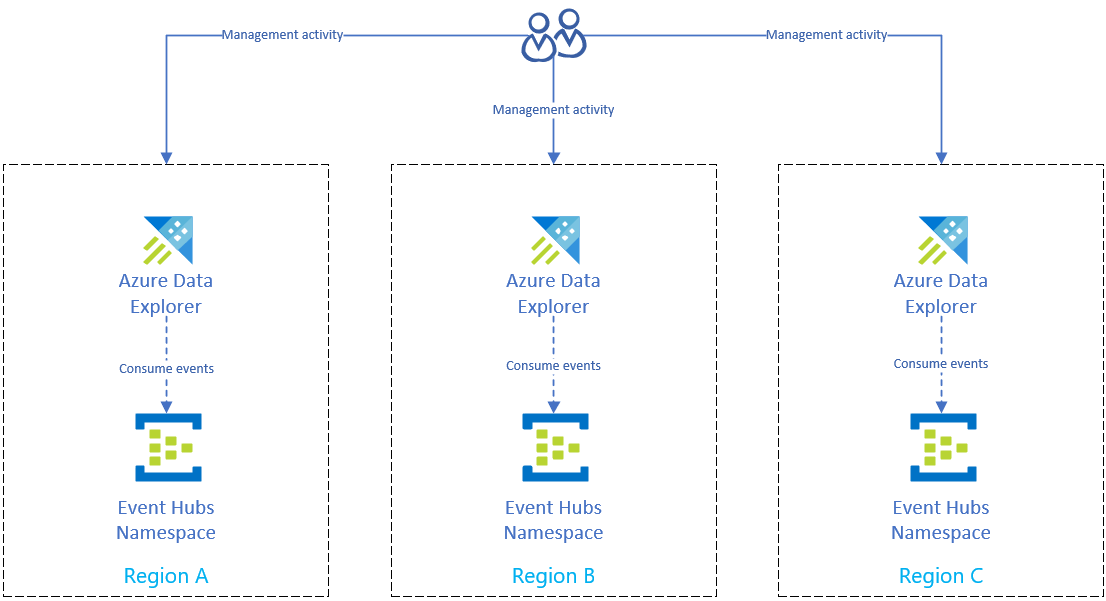
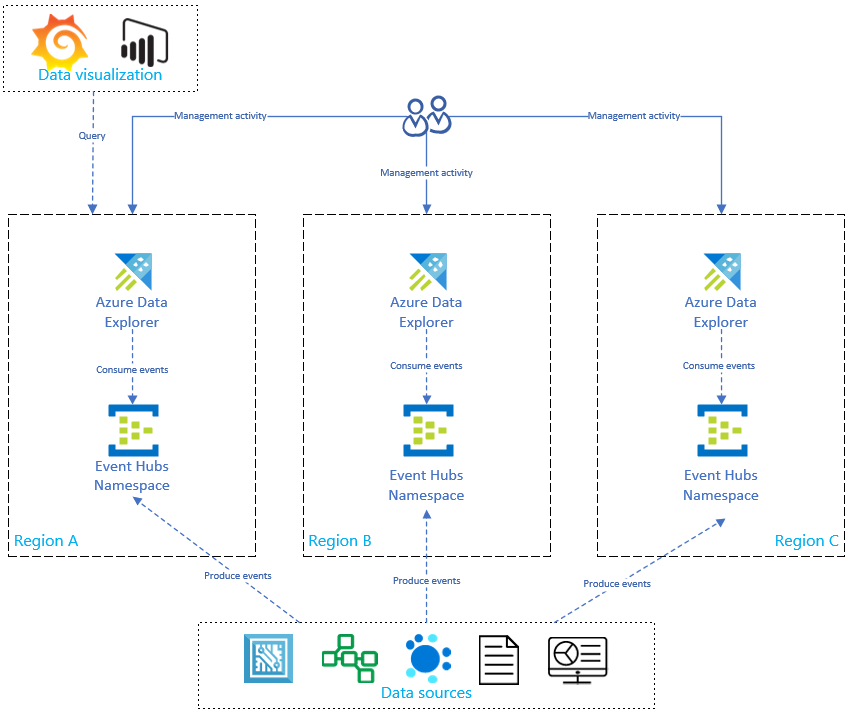
This diagram shows that your data sources produce events to Event Hubs in all regions, and each Azure Data Explorer replica consumes those events. Data visualization components like Power BI, Grafana, or SDK-powered web apps can query one replica.
Optimize costs
Now you're ready to optimize your replicas by using some of the following methods:
- Create an on-demand data recovery configuration.
- Start and stop the replicas.
- Implement a highly available application service.
- Optimize cost in an active-active configuration.
Create an on-demand data recovery configuration
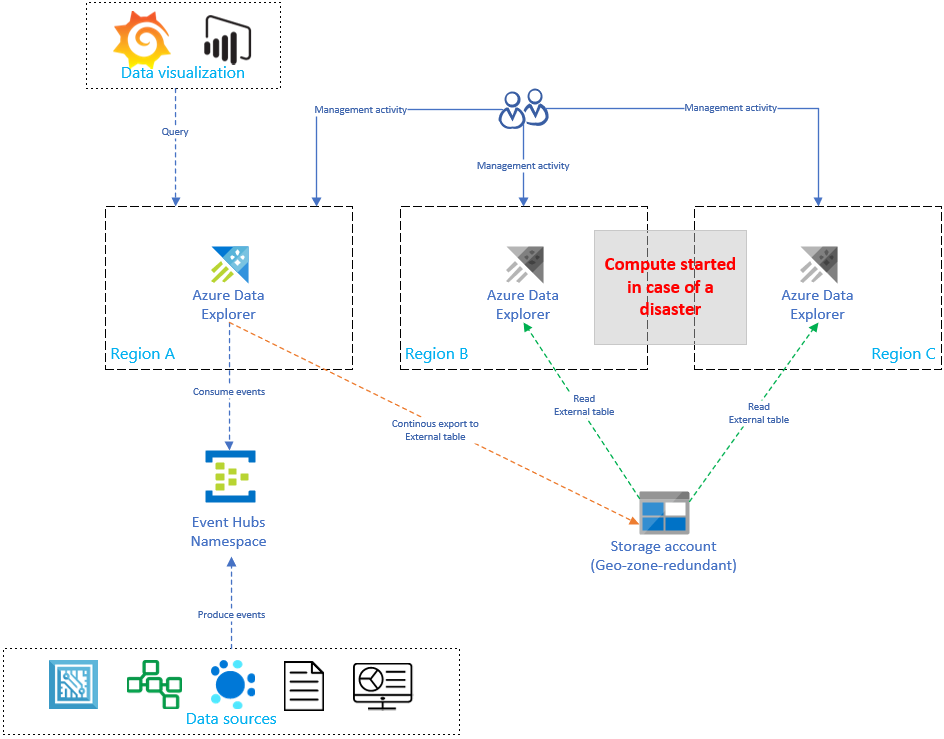
Replicating and updating the Azure Data Explorer setup linearly increases cost as the number of replicas increases. To optimize cost, implement an architectural variant that balances time, failover, and cost. An on-demand data recovery configuration optimizes cost by using passive Azure Data Explorer replicas. These replicas are only turned on if there's a disaster in the primary region (for example, region A). The replicas in Regions B and C don't need to be active 24/7, which significantly reduces the cost. But in most cases, these replicas don't perform and the primary cluster. For more information, see On-demand data recovery configuration.
In the following diagram, only one cluster ingests data from Event Hubs. The primary cluster in Region A performs continuous data export of all data to a storage account. The secondary replicas access the data by using external tables.
Start and stop the replicas
Start and stop the secondary replicas by using one of the following methods:
The Stop button in the Overview tab in the Azure portal. For more information, see Stop and restart the cluster.
Azure CLI:
az kusto cluster stop --name=<clusterName> --resource-group=<rgName> --subscription=<subscriptionId>
Implement a highly available application service
Create the Azure App Service BCDR client
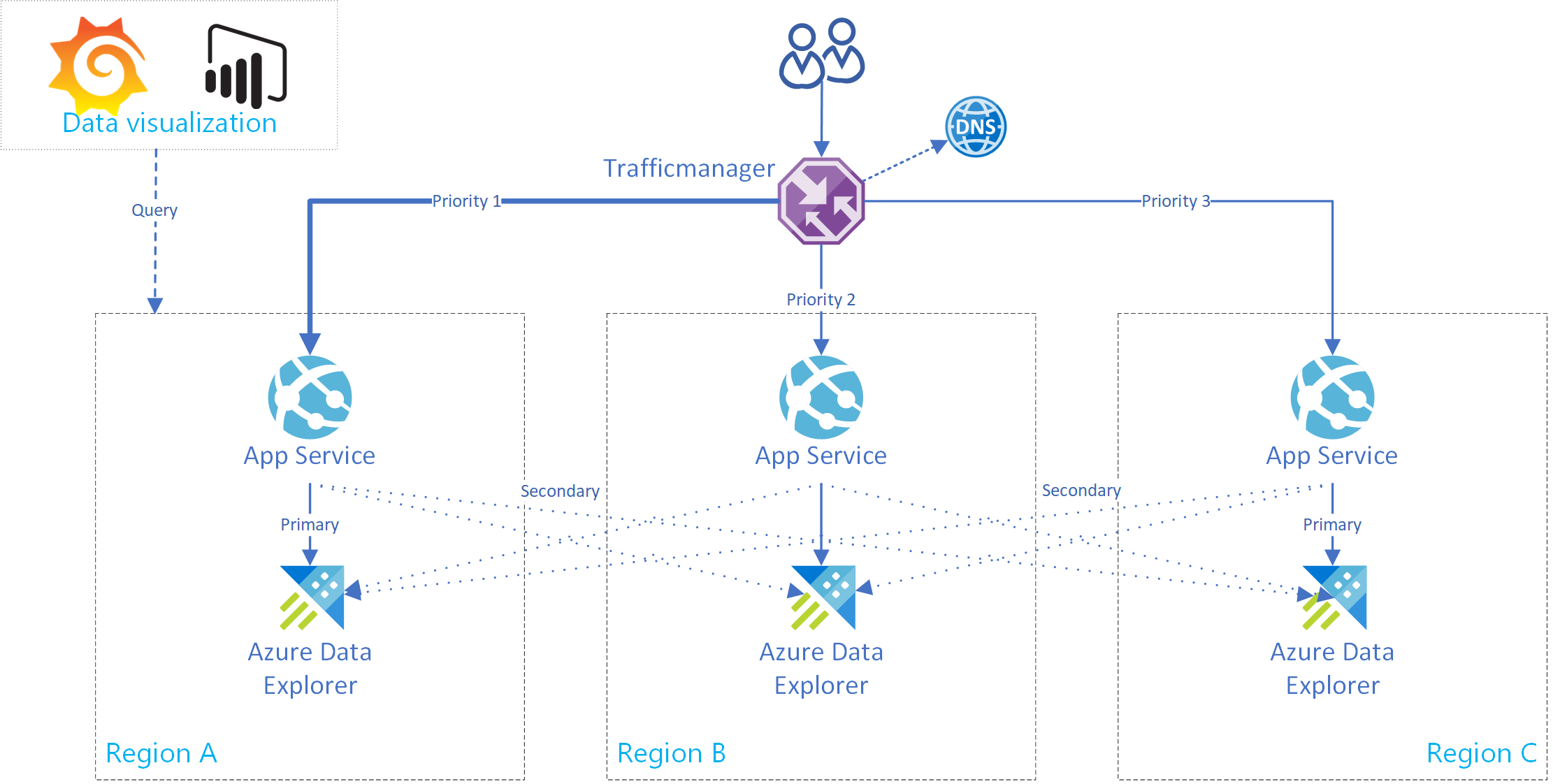
This section shows you how to create an Azure App Service that supports a connection to a single primary and multiple secondary Azure Data Explorer clusters. The following image illustrates the Azure App Service setup.
Tip
Having multiple connections between replicas in the same service gives you increased availability. This setup isn't only useful in instances of regional outages.
Use this boilerplate code for an app service. To implement a multicluster client, use the AdxBcdrClient class. Each query that this client executes is sent first to the primary cluster. If a failure occurs, the query is sent to secondary replicas.
Use custom application insights metrics to measure performance and request distribution to primary and secondary clusters.
Test the Azure App Service BCDR client
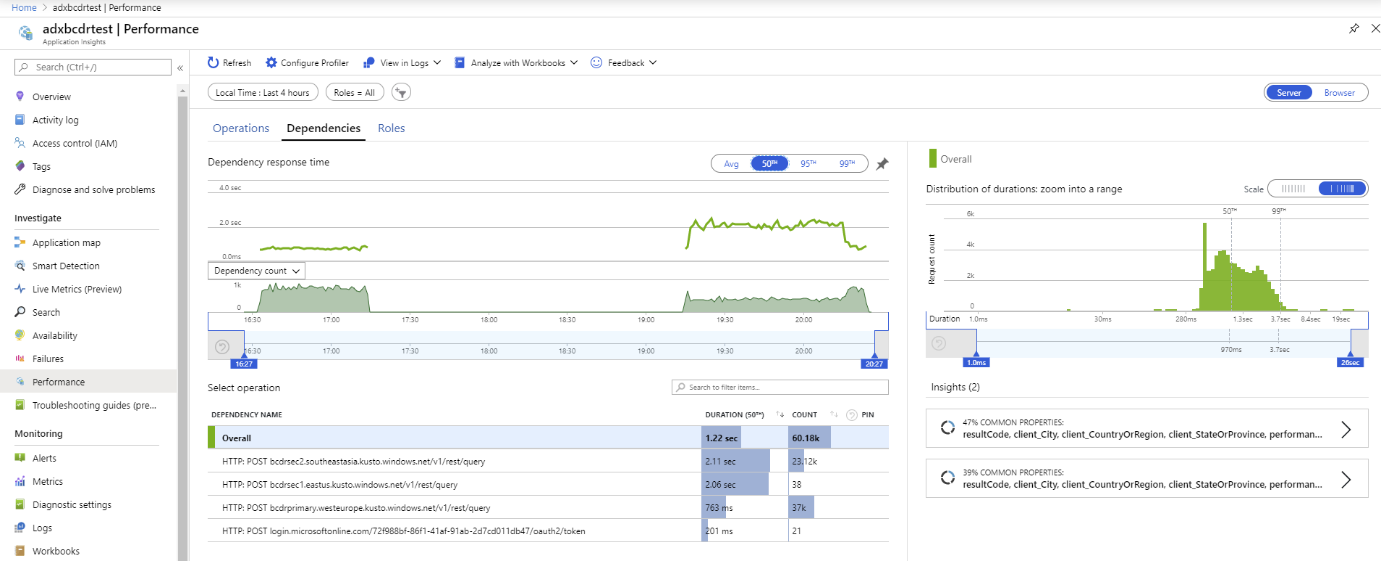
The following test uses multiple Azure Data Explorer replicas. After a simulated outage of primary and secondary clusters, the App Service BCDR client behaves as intended.
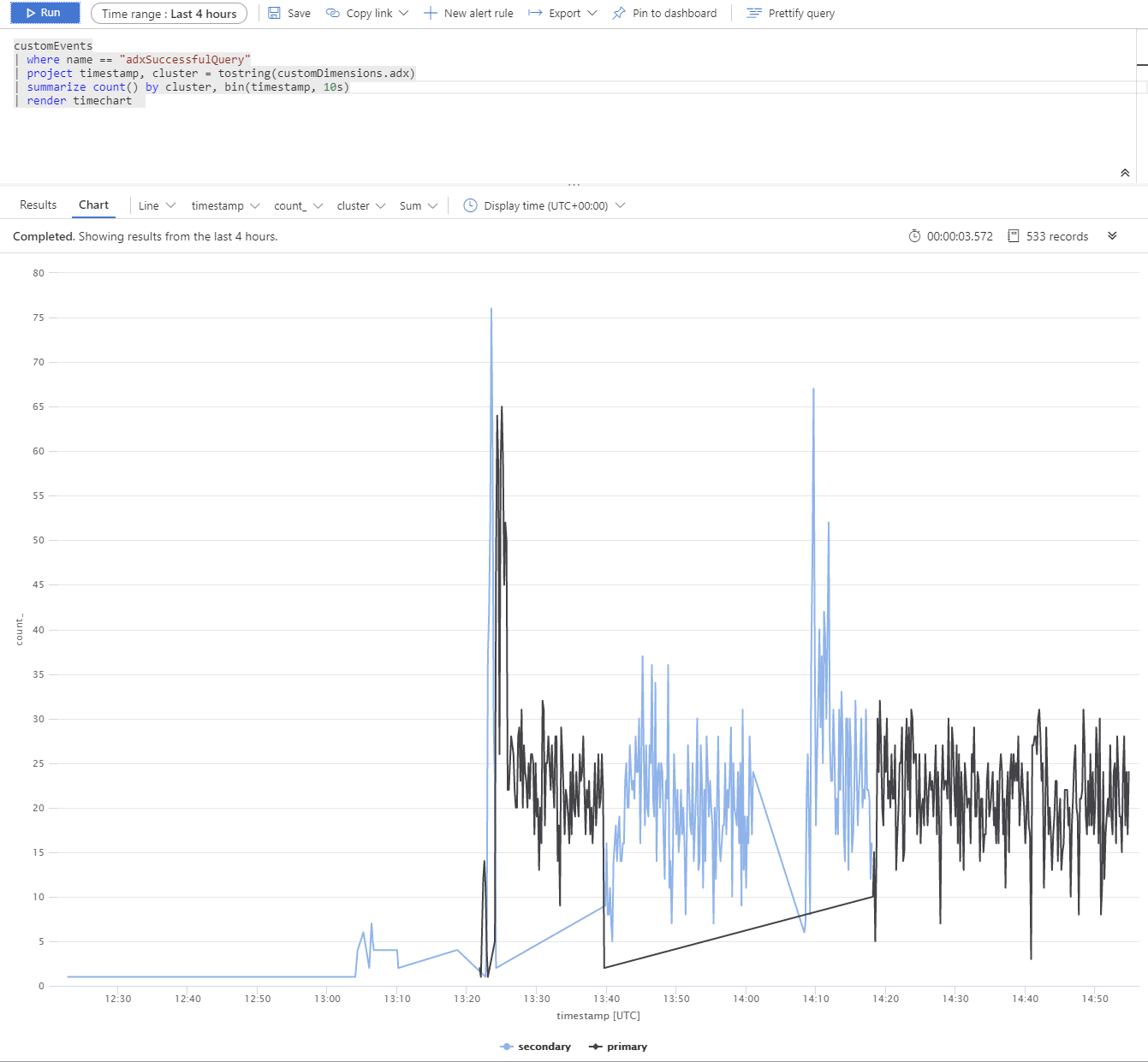
The Azure Data Explorer clusters are distributed across West Europe (2xD14v2 primary), South East Asia, and East US (2xD11v2).
Note
Slower response times are due to different SKUs and cross planet queries.
Perform dynamic or static routing
Use Azure Traffic Manager routing methods for dynamic or static request routing. Azure Traffic Manager is a DNS-based traffic load balancer that you can use to distribute App Service traffic. This traffic is optimized to services across global Azure regions, while providing high availability and responsiveness.
You can also use Azure Front Door based routing. For comparison of these two methods, see Load-balancing with Azure's application delivery suite.
Optimize cost in an active-active configuration
Using an active-active configuration for disaster recovery increases the cost linearly. The cost includes nodes, storage, markup, and increased networking cost for bandwidth.
Use optimized autoscale to optimize costs
Use the optimized autoscale feature to configure horizontal scaling for the secondary clusters. Size secondary clusters to handle the ingestion load. When the primary cluster isn't reachable, secondary clusters get more traffic and scale according to the configuration.
In this example, optimized autoscale saves roughly 50% in cost compared to using the same horizontal and vertical scale on all replicas.