Note
Access to this page requires authorization. You can try signing in or changing directories.
Access to this page requires authorization. You can try changing directories.
Microsoft Defender for Cloud shows affected resources through recommendations. Sometimes, a resource doesn't need to be included, or a recommendation appears in a scope where it isn't relevant.
For example, Defender for Cloud might not track a remediation process, or a specific subscription might not need a recommendation. Organizations might also accept risk for specific resources or recommendations. In these cases, create exemptions at scale to:
Prevent a resource from being listed as unhealthy or affecting the secure score by excluding it. Defender for Cloud marks it as "not applicable" and displays the selected justification.
Prevent a recommendation from affecting the secure score or appearing again by excluding a subscription or management group.
Prevent a recommendation or resource from being listed as unhealthy. Apply the exemption to the required scope and mark the item as "mitigated" or "risk accepted".
Resource exemption is limited to 5,000 resources per subscription. If you add more than 5,000 exemptions per subscription, you might experience load issues on the exemption page.
Create exemptions at scale
To tailor your security posture, create exemptions for recommendations that aren't applicable or are already mitigated.
To create exemptions at scale:
Sign in to the Azure portal.
Search for and select Microsoft Defender for Cloud.
Go to Environment settings > Exemptions.
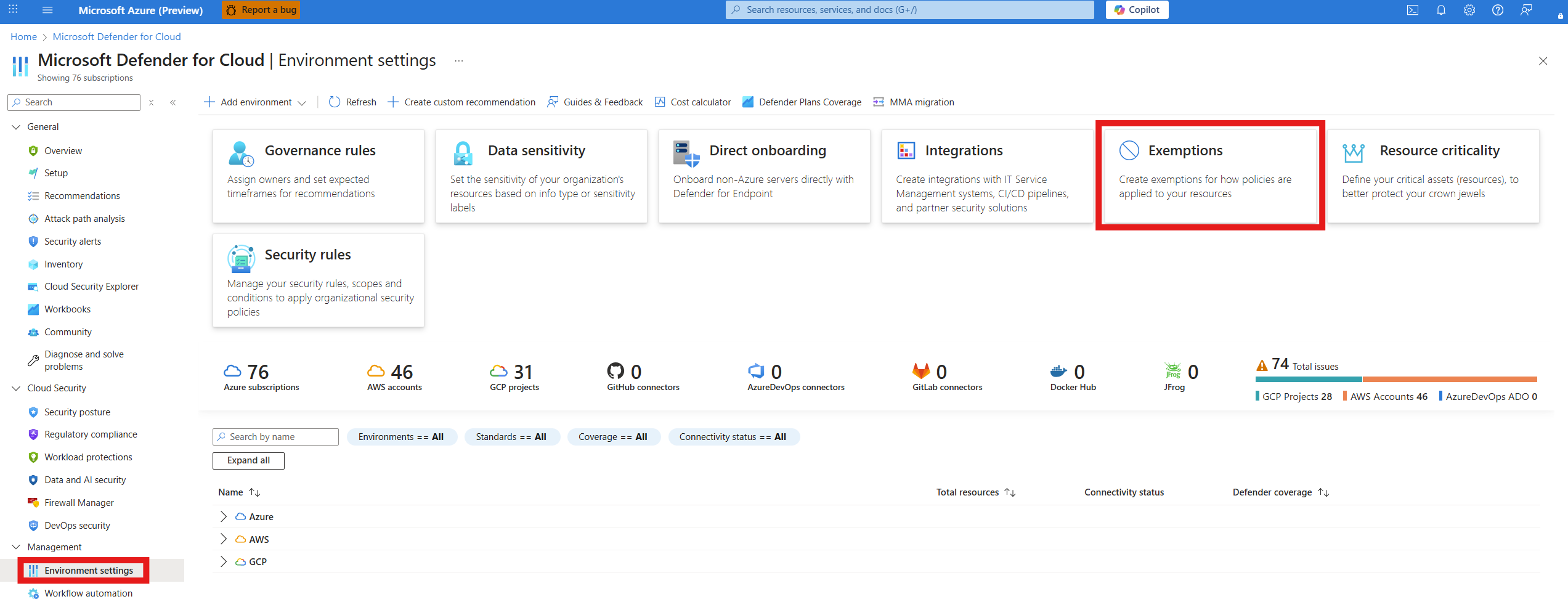
Select + Create.
Enter an exemption name and, optionally, a description.
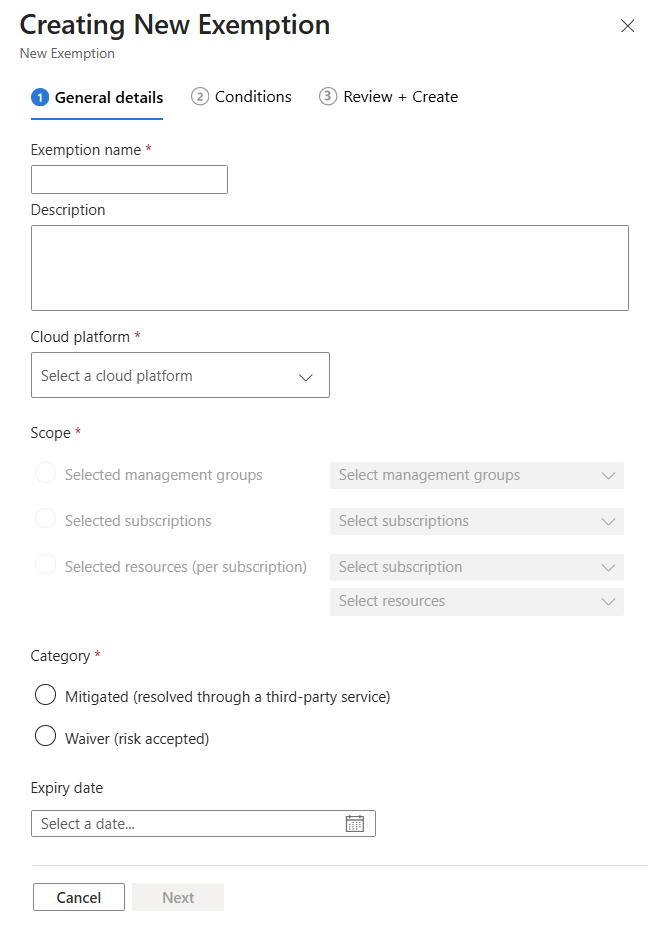
Select a cloud platform.
Select a management group, subscription, or resource (per subscription).
Select a category:
- Mitigated (resolved through a third-party service)
- Waiver (risk accepted)
(Optional) Select an expiry date.
Select Next.
Select one of the following options:
- Selected recommendations and the specific recommendations to exempt.
- Recommendation category and the category to exempt.
Select Next.
Select Create.
The exemption is created and applied to the selected resources or recommendations.
To view or manage existing exemptions, return to the Exemptions page in the Defender for Cloud menu. Select the ellipsis (...) next to the exemption you want to manage. You can then edit or delete the exemption as needed.