Note
Access to this page requires authorization. You can try signing in or changing directories.
Access to this page requires authorization. You can try changing directories.
Azure HorizonDB is a cloud-native, fully managed, AI-ready database service built on PostgreSQL. It combines a disaggregated compute and storage architecture with a database-as-a-log design to deliver predictable performance, enterprise-grade security, high availability, and seamless scalability for mission-critical workloads.
This quickstart shows you how to create an Azure HorizonDB cluster by using the Azure portal or Azure Resource Manager templates (ARM templates).
Prerequisites
Before you begin, make sure you have:
- An Azure subscription. If you don't have one, create a free Azure account.
- Appropriate permissions to create resources in your subscription.
Understand what you're creating
An Azure HorizonDB cluster includes:
- A configured set of compute resources and storage resources.
- Deployment within an Azure resource group.
- A
postgresdatabase created by default. - An
azure_maintenancedatabase for managed service processes. - An
azure_sysdatabase for query store and autonomous tuning features.
Note
Don't include any personal, sensitive, or confidential information in resource names (for example, table name, database name) and resource tags. Data you enter in these fields isn't considered customer data.
Cluster creation steps at a glance
To create a cluster, use the Azure portal or the REST API (2026-10-01-preview). Both methods use the same settings. The portal collects all of them in one wizard and then creates every resource for you in the correct order, including the read-write pool, named defaultpool, and any private endpoint. By using the REST API, you create each resource yourself, one request at a time, as described in REST API request order.
Decide these settings first. You can't change the PostgreSQL version, geo-redundant backup, or data encryption type after you create the cluster. You can use either geo-redundant backup or a customer-managed key, but not both, so choose the one that your workload needs.
Before you create a production cluster, prepare the resources for the features that you plan to use:
- For a customer-managed key, create an Azure Key Vault with purge protection enabled and a 4,096-bit RSA or RSA-HSM key. Give a user-assigned managed identity access to the key, for example through the Key Vault Crypto Service Encryption User role. For more information, see Data encryption at rest in Azure HorizonDB.
- For a private endpoint, have a virtual network and subnet ready. For more information, see Networking with private endpoints in Azure HorizonDB.
- For Microsoft Entra authentication, identify the user, group, or service principal to assign as the Microsoft Entra administrator, and its object ID. For more information, see Microsoft Entra authentication in Azure HorizonDB.
- For the REST API, register the
Microsoft.HorizonDbresource provider for your subscription, and get an Azure Resource Manager access token.
Create a cluster using the Azure portal
Follow these steps to create an Azure HorizonDB cluster by using the Azure portal. The wizard guides you through essential configuration options for compute, storage, and authentication.
Navigate to the creation wizard
- Sign in to the Azure portal.
- Select Create a resource in the upper-left corner.
- Under Categories, select Databases.
- Find and select Azure HorizonDB.
- Select Create.
Configure basic settings
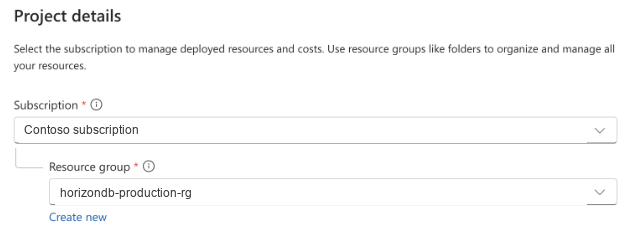
Project details
| Setting | Suggested value | Notes |
|---|---|---|
| Subscription | Your subscription | Choose where to bill the resource |
| Resource group | {resourceGroup} | Create new or select existing |
Cluster details
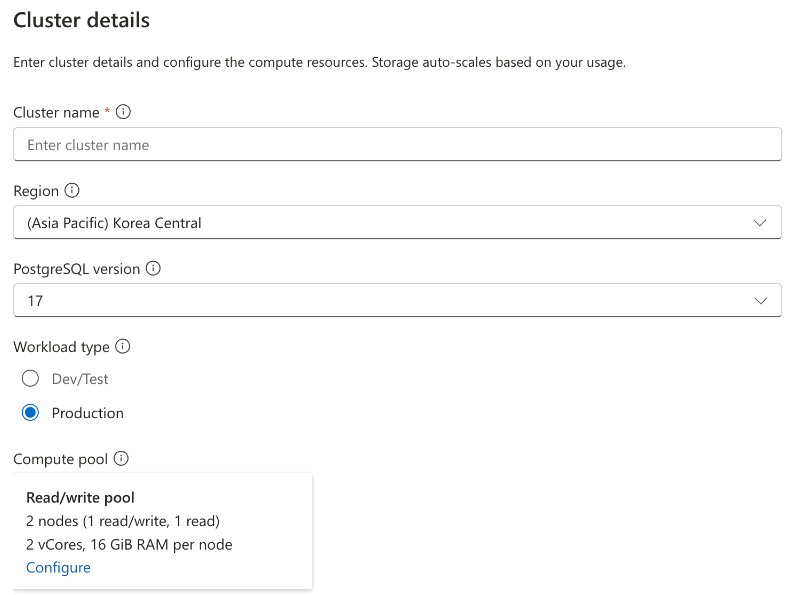
| Setting | Suggested value | Description |
|---|---|---|
| Cluster name | horizondb-production | Must be unique within the same Azure subscription and resource group. |
| Region | Region closest to you | Consider compliance, data residency, pricing, and proximity to users. |
| PostgreSQL version | Latest available | V17 and V18(Preview) are currently supported. |
| Workload type | Dev/Test or Production | Consider what type of workload you have. |
Compute pool details
Select Configure to customize:
Pool
| Setting | Suggested value | Description |
|---|---|---|
| Nodes | 2 nodes (1 read/write, 1 read) | Number of nodes in the pool. |
High availability
| Setting | Suggested value | Description |
|---|---|---|
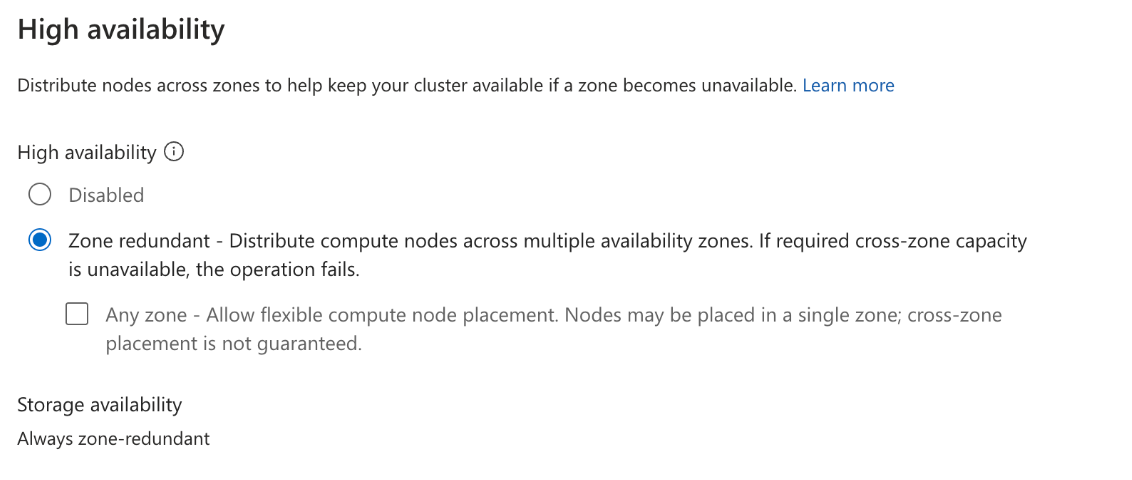
| High availability | Zone redundant | Protect your cluster against availability zone failures within a region. |
Node compute
| Setting | Suggested value | Description |
|---|---|---|
| Processor | Intel | Type of processors (Intel or AMD) for writer and reader nodes. |
| Generation | HorizonDB Generation 1 | Intel Edsv6 or AMD Eadsv6. |
| vCores | 2 | Number of vCores provisioned for writer and reader nodes (memory is automatically allocated as 8GB/vCore). |
Select Save to confirm or Cancel to discard changes.
High availability
If you select Disabled for high availability, the cluster uses one writer node.
If you select Zone redundant, the service distributes the nodes of your cluster across multiple availability zones. If required cross-zone capacity is unavailable, the operation fails.
If you select Any zone, you get flexible compute node placement. The nodes might be in a single zone, but cross-zone placement isn't guaranteed.
Backups
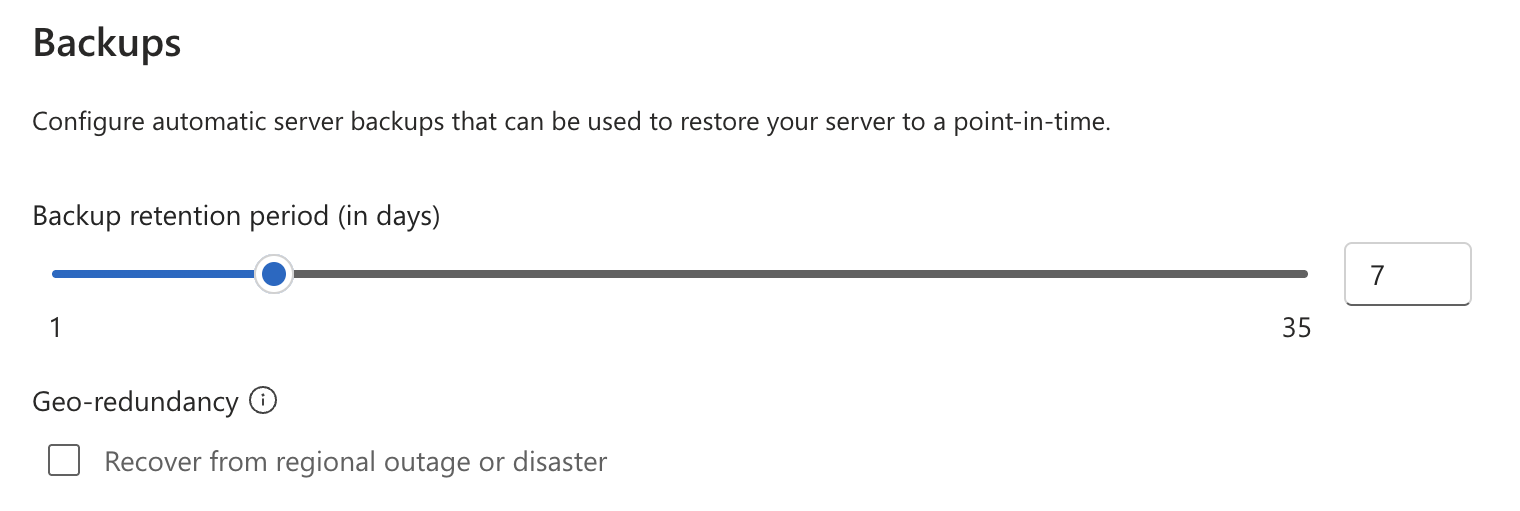
Azure HorizonDB automatically takes backups that you can use to restore your cluster to a point in time.
| Setting | Suggested value | Description |
|---|---|---|
| Backup retention period | 7 days | How long HorizonDB retains your backups. |
If you select Geo-redundancy, HorizonDB retains a backup in a paired region so your cluster can recover from a regional outage.
Authentication
| Setting | Description | Recommended |
|---|---|---|
| Authentication method | How users authenticate | - PostgreSQL authentication only (for quickstart) - Microsoft Entra authentication (for production) - Both (for flexibility) |
| Admin username | adminuser | - Must be 1-63 characters - Only numbers and letters - Can't start with pg_- Can't be system reserved names |
| Password | Complex password | 8-128 characters with uppercase, lowercase, numbers, and special characters |
AI capabilities
If you select Enable AI features, HorizonDB automatically activates Model Management, pgvector, and pg_diskann to add built-in AI capabilities to your cluster.
Configure networking
Choose your connectivity method:
Network connectivity
Connect through a public endpoint by using firewall rules.
Connectivity method:
| Setting | Description |
|---|---|
| Public access | Only the IP addresses you configure in the Firewall rules section can access this cluster. By default, no public IP addresses are allowed. |
Firewall rules:
| Setting | Description |
|---|---|
| Allow Azure services | Permit connections from all Azure services |
| Add current client IP | Add your IP address to the allow list |
Private endpoint:
Connect through a private endpoint within a virtual network.
Configure security
| Setting | Can change later | Options |
|---|---|---|
| Data encryption key | ❌ No | Service-managed or Customer-managed |
Add resource tags (optional)
Organize resources with name-value pairs:
| Name | Value | Purpose |
|---|---|---|
| Environment | Development | Identify environment type |
| CostCenter | IT-Dept | Track costs by department |
| Owner | admin@contoso.com | Identify responsible party |
Review and create
- Select Review + create.
- Review all configurations.
- Select Create to deploy.
Deployment typically takes 5-10 minutes. When complete, select Go to resource to access your cluster.
Create a cluster using an ARM template
ARM template overview
Azure Resource Manager templates (ARM templates) let you define infrastructure as code. Use templates for repeatable deployments.
Minimal ARM template
This example uses the 2026-10-01-preview REST API specification to create a PostgreSQL 17 cluster, a compute pool, password authentication, and a firewall rule for one client IPv4 address. The pool name is the cluster name with a -pool suffix.
Note
This minimal configuration uses one AMD Generation 1 node with 2 vCores and high availability disabled. Choose a region that supports this compute configuration or change to Intel as the compute processor type.
Save this file as horizondb-template.json:
{
    "$schema": "https://schema.management.azure.com/schemas/2019-04-01/deploymentTemplate.json#",
    "contentVersion": "1.0.0.0",
    "parameters": {
        "clusterName": {
            "type": "string",
            "defaultValue": "horizondb-quickstart",
            "minLength": 1,
            "maxLength": 58,
            "metadata": {
                "description": "Lowercase cluster name. Use letters, digits, and hyphens, and start and end with a letter or digit. The pool name adds the -pool suffix."
            }
        },
        "location": {
            "type": "string",
            "defaultValue": "[resourceGroup().location]",
            "metadata": {
                "description": "Azure region that supports HorizonDB and the compute configuration in this template."
            }
        },
        "administratorLogin": {
            "type": "string",
            "defaultValue": "adminuser",
            "minLength": 1,
            "maxLength": 63
        },
        "administratorLoginPassword": {
            "type": "securestring",
            "minLength": 8,
            "maxLength": 128
        },
        "clientIpAddress": {
            "type": "string",
            "minLength": 7,
            "maxLength": 15,
            "metadata": {
                "description": "Public IPv4 address of the client that will connect to the cluster."
            }
        }
    },
    "variables": {
        "poolName": "[concat(parameters('clusterName'), '-pool')]"
    },
    "resources": [
        {
            "type": "Microsoft.HorizonDb/clusters",
            "apiVersion": "2026-10-01-preview",
            "name": "[parameters('clusterName')]",
            "location": "[parameters('location')]",
            "properties": {
                "postgreSqlVersion": "17",
                "network": {
                    "publicAccess": "Enabled"
                },
                "backup": {
                    "geoRedundancy": "Disabled"
                }
            }
        },
        {
            "type": "Microsoft.HorizonDb/clusters/pools",
            "apiVersion": "2026-10-01-preview",
            "name": "[concat(parameters('clusterName'), '/', variables('poolName'))]",
            "dependsOn": [
                "[resourceId('Microsoft.HorizonDb/clusters', parameters('clusterName'))]"
            ],
            "properties": {
                "computeModel": {
                    "type": "Provisioned",
                    "computeProcessor": "AMD",
                    "computeGeneration": 1,
                    "vCores": 2
                },
                "nodeCount": 1,
                "highAvailability": {
                    "mode": "Disabled"
                }
            }
        },
        {
            "type": "Microsoft.HorizonDb/clusters/authentications",
            "apiVersion": "2026-10-01-preview",
            "name": "[concat(parameters('clusterName'), '/passwordMethod')]",
            "dependsOn": [
                "[resourceId('Microsoft.HorizonDb/clusters/pools', parameters('clusterName'), variables('poolName'))]"
            ],
            "properties": {
                "state": "Enabled",
                "administratorLogin": "[parameters('administratorLogin')]",
                "administratorLoginPassword": "[parameters('administratorLoginPassword')]"
            }
        },
        {
            "type": "Microsoft.HorizonDb/clusters/pools/firewallRules",
            "apiVersion": "2026-10-01-preview",
            "name": "[concat(parameters('clusterName'), '/', variables('poolName'), '/client-ip')]",
            "dependsOn": [
                "[resourceId('Microsoft.HorizonDb/clusters/pools', parameters('clusterName'), variables('poolName'))]",
                "[resourceId('Microsoft.HorizonDb/clusters/authentications', parameters('clusterName'), 'passwordMethod')]"
            ],
            "properties": {
                "startIpAddress": "[parameters('clientIpAddress')]",
                "endIpAddress": "[parameters('clientIpAddress')]"
            }
        }
    ]
}
Deploy the ARM template
- Sign in to the Azure portal.
- Search for Template deployment and select Create.
- Select Build your own template in editor.
- Paste or upload the ARM template JSON, then select Save.
- Select your subscription and resource group. Enter the cluster name, a supported location, the administrator sign-in name, and the administrator password. For
clientIpAddress, enter the public IPv4 address of the computer that connects to the cluster. - Review the parameters and submit the deployment.
Get connection information
After creating your cluster, retrieve connection details:
Use Azure portal
- Go to your cluster in the Azure portal.
- Open the Overview page.
- Copy these values:
- Cluster name (Read-Write endpoint):
{cluster}.rw.{randomId}.australiaeast.horizondb.azure.com - Administrator login:
{administratorLogin}
- Cluster name (Read-Write endpoint):
Connect by using psql
Install psql
If you don't have PostgreSQL client tools, download PostgreSQL for your platform.
Connect to your cluster
psql "host={cluster}.rw.{randomId}.australiaeast.horizondb.azure.com port=5432 dbname=postgres user={administratorLogin} sslmode=require"
When prompted, enter the administrator password you set during cluster creation.
Connection string format
host={cluster}.rw.{randomId}.australiaeast.horizondb.azure.com port=5432 dbname={databaseName} user={administratorLogin} password={administratorLoginPassword} sslmode=require
Verify connection
After connecting, you see:
psql (16.12, server 17.9 (Azure HorizonDB (c8e7b717d05)(release)))
WARNING: psql major version 16, server major version 17.
         Some psql features might not work.
SSL connection (protocol: TLSv1.3, cipher: TLS_AES_256_GCM_SHA384, compression: off)
Type "help" for help.

postgres=>
Create a database
CREATE DATABASE user_database;
\c user_database
\q
Troubleshoot connection issues
Firewall blocking connection
If you see:
connection to server at "{cluster}.rw.{randomId}.australiaeast.horizondb.azure.com" (###.###.###.###), port 5432 failed: Connection timed out
Solution: Make sure that there's a firewall rule whose range of start and end IP addresses includes the IP address that your computer uses to access the cluster.
SSL required but not configured
Ensure your connection string includes sslmode=require.
Clean up resources
When you finish the quickstart, delete the resources to avoid charges.
Delete the entire resource group
Go to Azure portal and search for your resource group. Delete the entire resource group.
Delete only the cluster
Go to Azure portal and search for your Azure HorizonDB. Delete the Azure HorizonDB.
Create a cluster with production settings
The following table lists each setting in the order that the portal shows it, with a production value and the matching REST API property.
| Step | Production setting | Azure portal | REST API |
|---|---|---|---|
| Project and cluster details | Subscription, resource group, region, and a lowercase cluster name that uses letters, digits, and hyphens | Project details and Cluster details | Cluster request URL and location |
| PostgreSQL version | 17. PostgreSQL 18 is in preview. | PostgreSQL version | Cluster: properties.postgreSqlVersion |
| Read-write pool | A processor, generation, and vCore count that the region supports, with at least two nodes and Zone redundant high availability | Compute pool details > Configure | Pool: properties.computeModel (type: Provisioned, computeProcessor, computeGeneration, vCores), properties.nodeCount, and properties.highAvailability.mode: ZoneRedundant |
| Backup retention | 35 days, the maximum. The default is 7 days. Longer retention increases backup storage cost. | Backups > Backup retention period | Cluster: properties.backup.retentionDays |
| Geo-redundant backup | Enabled, unless you use a customer-managed key | Backups > Geo-redundancy | Cluster: properties.backup.geoRedundancy |
| Authentication method | PostgreSQL + Microsoft Entra authentication | Authentication | authentications/passwordMethod and authentications/microsoftEntra, each with properties.state: Enabled |
| Administrator credentials | An administrator username and a strong password | Admin username and Password | authentications/passwordMethod: properties.administratorLogin and properties.administratorLoginPassword |
| Microsoft Entra administrator | A user, group, or service principal | Microsoft Entra administrator | microsoftEntraAdministrators/{objectId}: properties.principalName and properties.principalType |
| AI capabilities | Enabled. In the portal, this setting also adds the vector and pg_diskann extensions to the allow list. |
AI capabilities > Enable AI features | Cluster update: properties.aiModelManagement: Enabled |
| Public access | Enabled only if clients outside your virtual networks connect, with a firewall rule for each client IP range | Networking > Public access and Firewall rules | Cluster: properties.network.publicAccess (default Disabled). Pool: firewallRules/{ruleName} |
| Private endpoint | A private endpoint for the read-write endpoint | Networking > Private endpoint | Microsoft.Network/privateEndpoints with groupIds set to the cluster name |
| Data encryption | Customer-managed key, unless you use geo-redundant backup | Security > Data encryption key | Cluster: identity and properties.dataEncryption (type: AzureKeyVault, a versionless primaryKeyUri, and primaryUserAssignedIdentityId) |
| Create | Review all settings | Review + create > Create | Send the requests in REST API request order |
REST API request order
Send the requests in this order, and append ?api-version=2026-10-01-preview to each Azure HorizonDB request URL. Each PUT and PATCH request is a long-running operation. Before you send the next request, poll the Azure-AsyncOperation or Location response header until the operation succeeds. For more information, see Track asynchronous Azure operations.
In these steps, {cluster} stands for https://management.azure.com/subscriptions/{subscriptionId}/resourceGroups/{resourceGroupName}/providers/Microsoft.HorizonDb/clusters/{clusterName}.
- Check regional capabilities. Send
GET https://management.azure.com/subscriptions/{subscriptionId}/providers/Microsoft.HorizonDb/locations/{location}/capabilitiesto list the PostgreSQL versions, processors, generations, and vCore counts that the region supports. - Create the cluster. Send
PUT {cluster}withlocation,properties.postgreSqlVersion,properties.backup(geoRedundancyandretentionDays), andproperties.network.publicAccess. For a customer-managed key, also includeidentityandproperties.dataEncryption. The cluster has no compute until you create a pool. - Create the read-write pool. Send
PUT {cluster}/pools/{poolName}withcomputeModel,nodeCount, andhighAvailability. The first pool becomes the read-write pool. Use a pool name that's different from the cluster name. This API version supports one pool per cluster. - Enable password authentication. Send
PUT {cluster}/authentications/passwordMethodwithstateset toEnabled,administratorLogin, andadministratorLoginPassword. This request requires a pool. - Enable Microsoft Entra authentication. Send
PUT {cluster}/authentications/microsoftEntrawithstateset toEnabled. - Add the Microsoft Entra administrator. Send
PUT {cluster}/microsoftEntraAdministrators/{objectId}withprincipalNameandprincipalType. This request requires a pool. - Add firewall rules. If public access is enabled, send
PUT {cluster}/pools/{poolName}/firewallRules/{ruleName}withstartIpAddressandendIpAddressfor each client IP range. - Create the private endpoint. Create a
Microsoft.Network/privateEndpointsresource with a private link service connection whoseprivateLinkServiceIdis the cluster resource ID and whosegroupIdscontains the cluster name. Link a private DNS zone namedprivatelink.horizondb.azure.comto the virtual network. If the connection isPending, approve it by sendingPUT {cluster}/privateEndpointConnections/{connectionName}withprivateLinkServiceConnectionState.statusset toApproved. Approval requires a pool. - Enable AI features. Send
PATCH {cluster}withproperties.aiModelManagementset toEnabled. In the portal, this setting also adds thevectorandpg_diskannextensions to the allow list. If they aren't in theazure.extensionsallow list after this request, allow them. - Get the connection endpoints. Send
GET {cluster}/endpointsto get the host names of the cluster's read-write endpoint and the pool's read-only endpoint. Then connect by using psql.