Note
Access to this page requires authorization. You can try signing in or changing directories.
Access to this page requires authorization. You can try changing directories.
This article provides step-by-step instructions to stop the compute of an Azure Database for PostgreSQL flexible server.
Steps to stop a server
Using the Azure portal:
Select your Azure Database for PostgreSQL flexible server.
In the resource menu, select Overview.
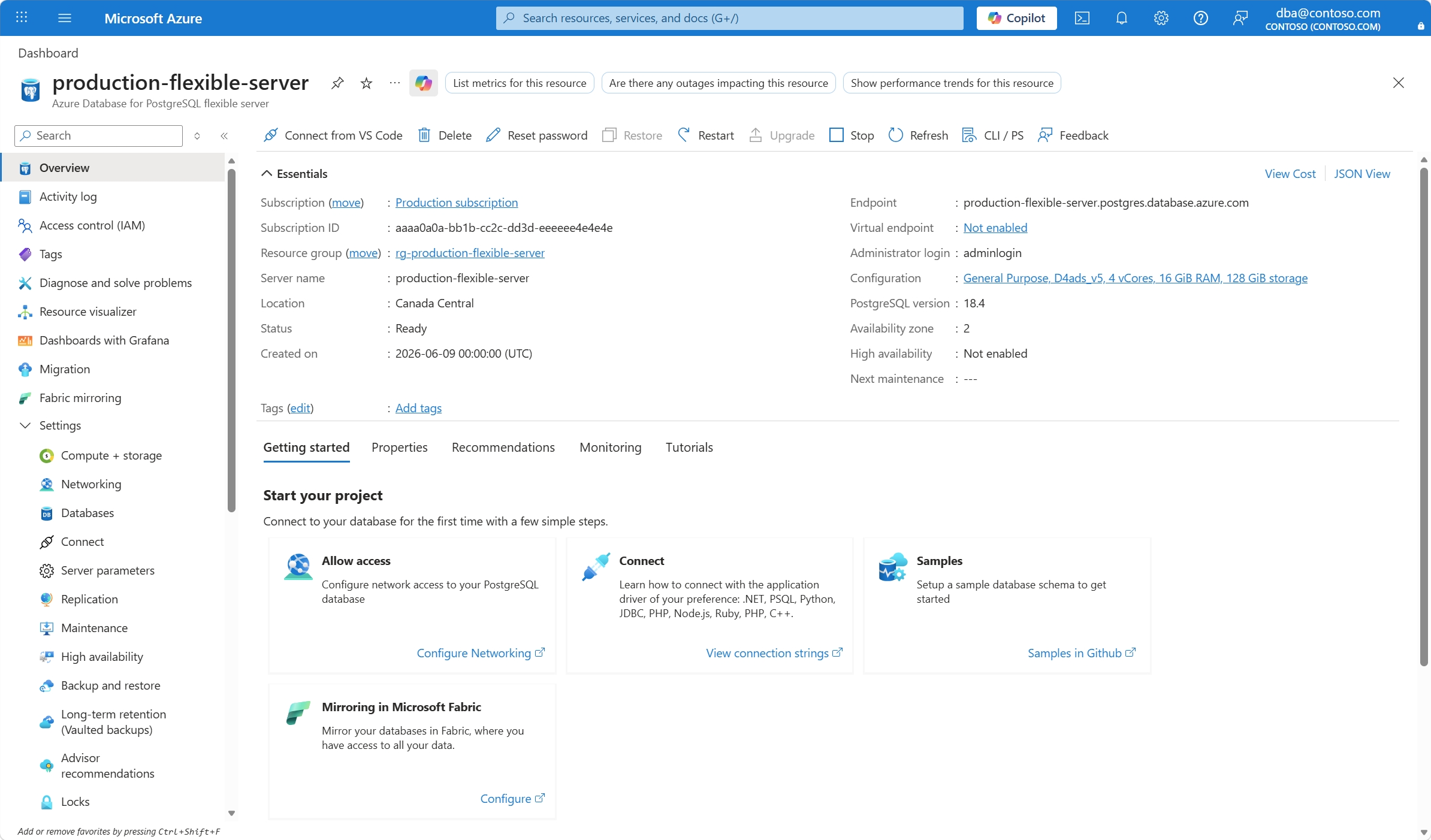
The status of the server must be Ready, for the Stop button to appear on the toolbar.
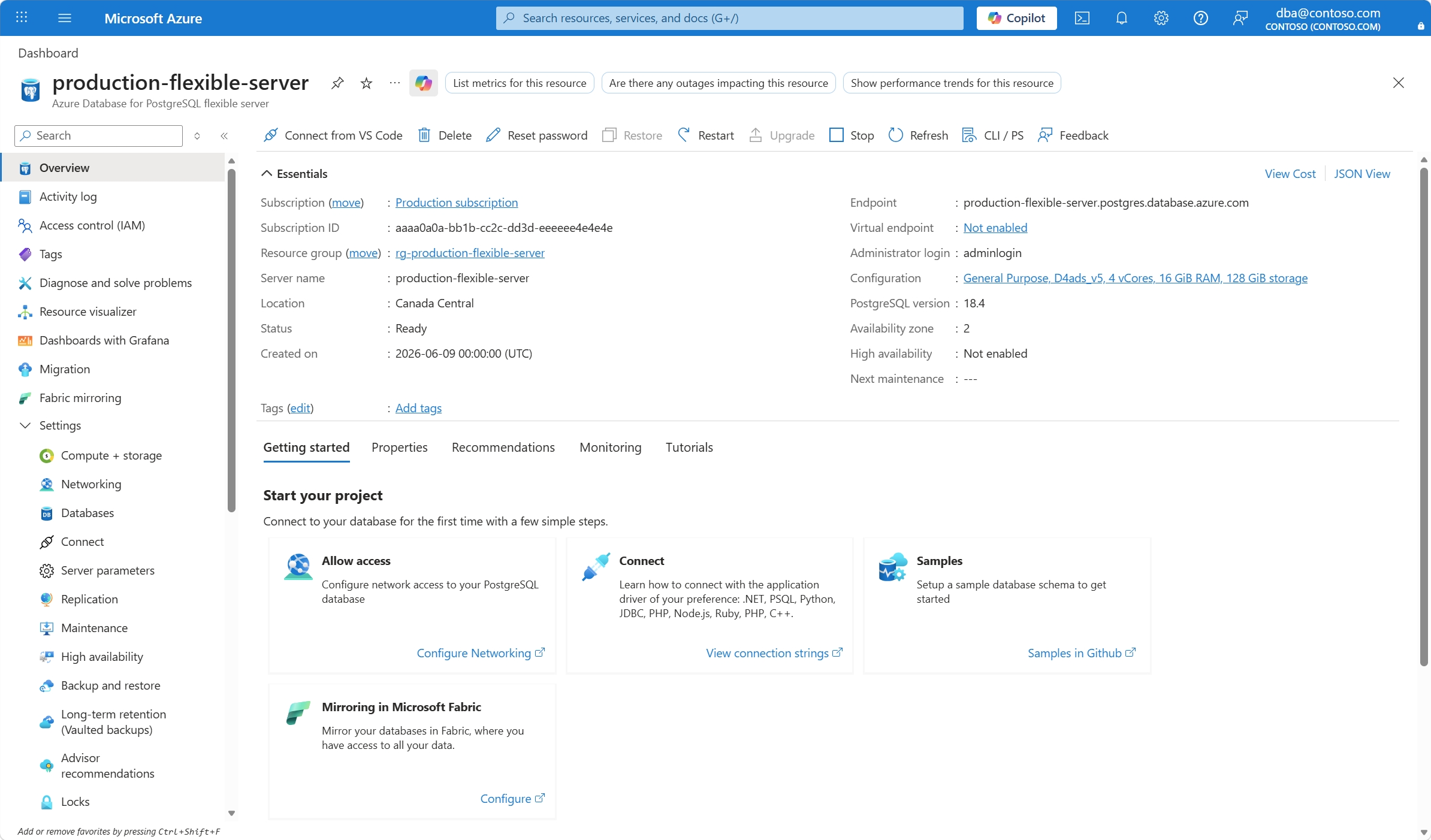
Select the Stop button.
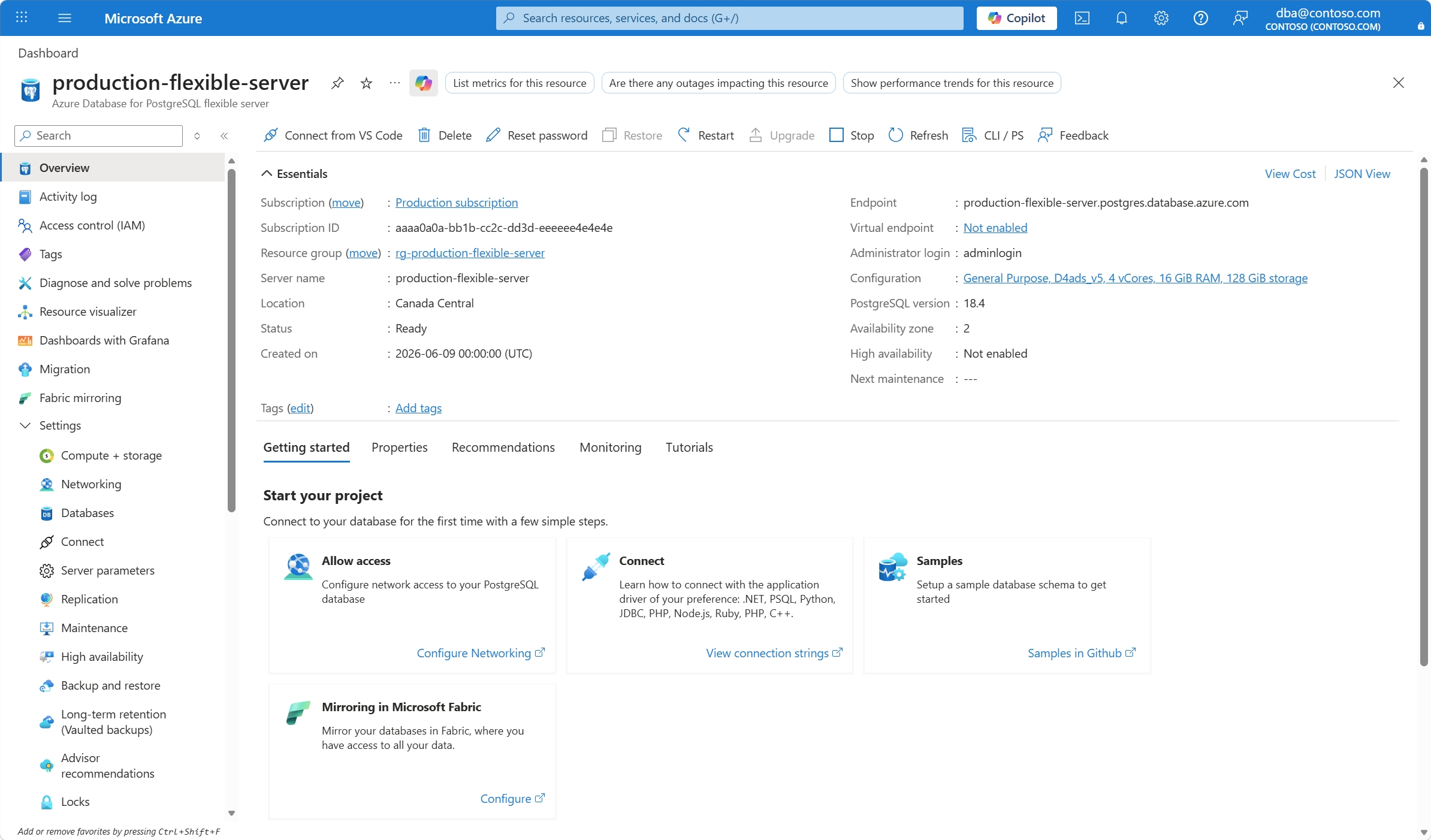
In the Stop server dialog, confirm or abort your decision to stop the server.
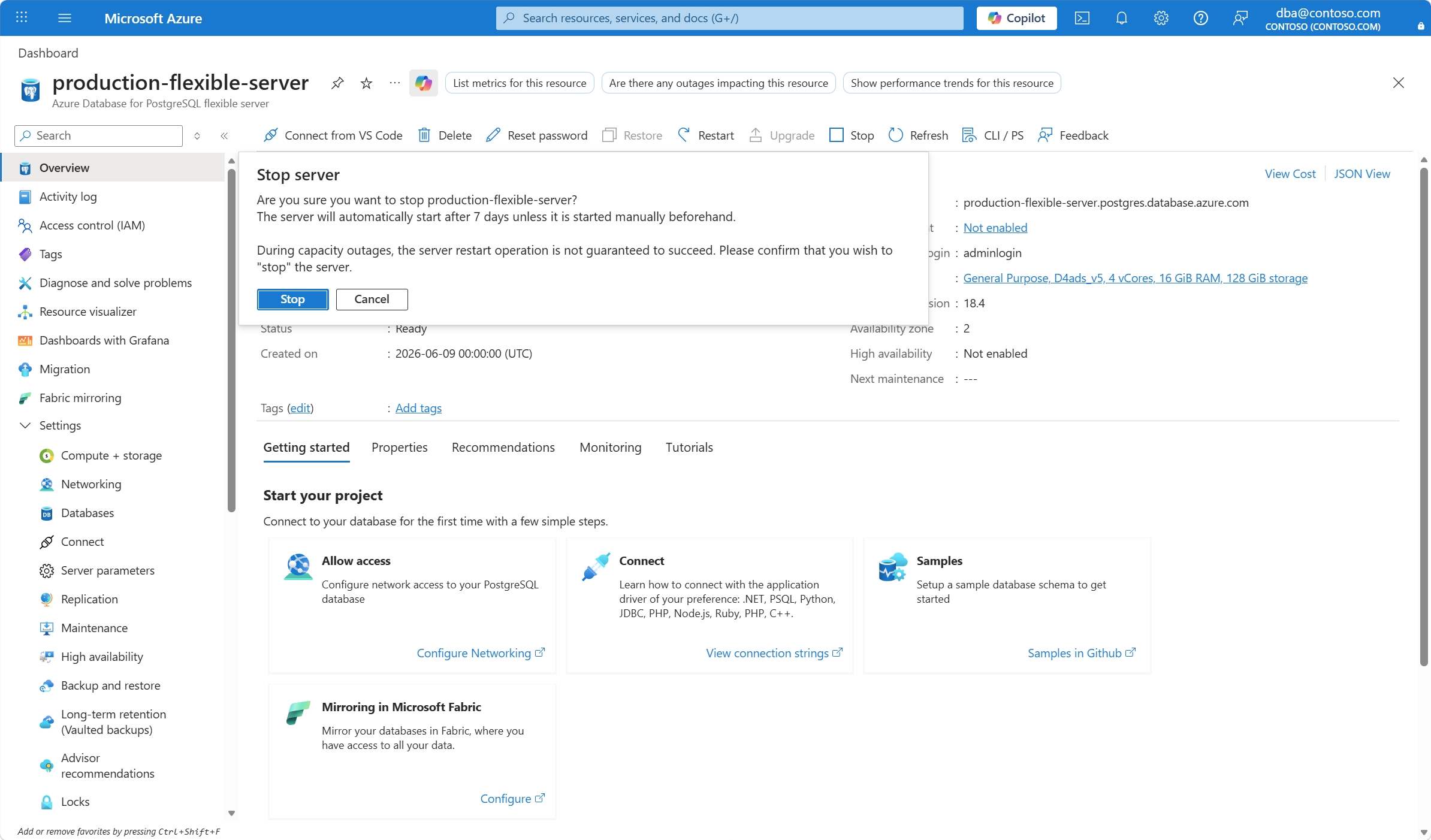
A notification informs you that the server is stopping. Also, the status of the server changes to Stopping.
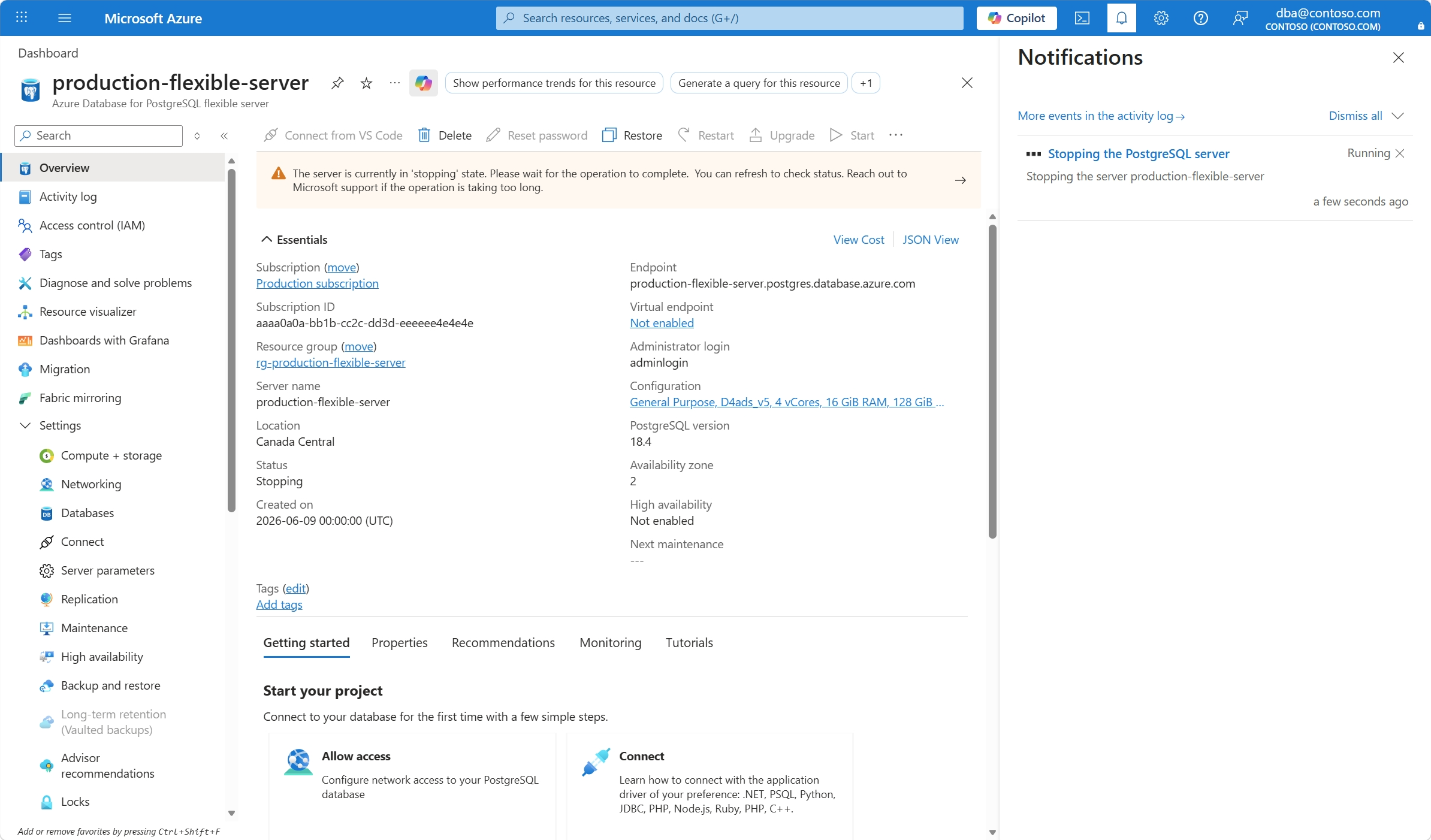
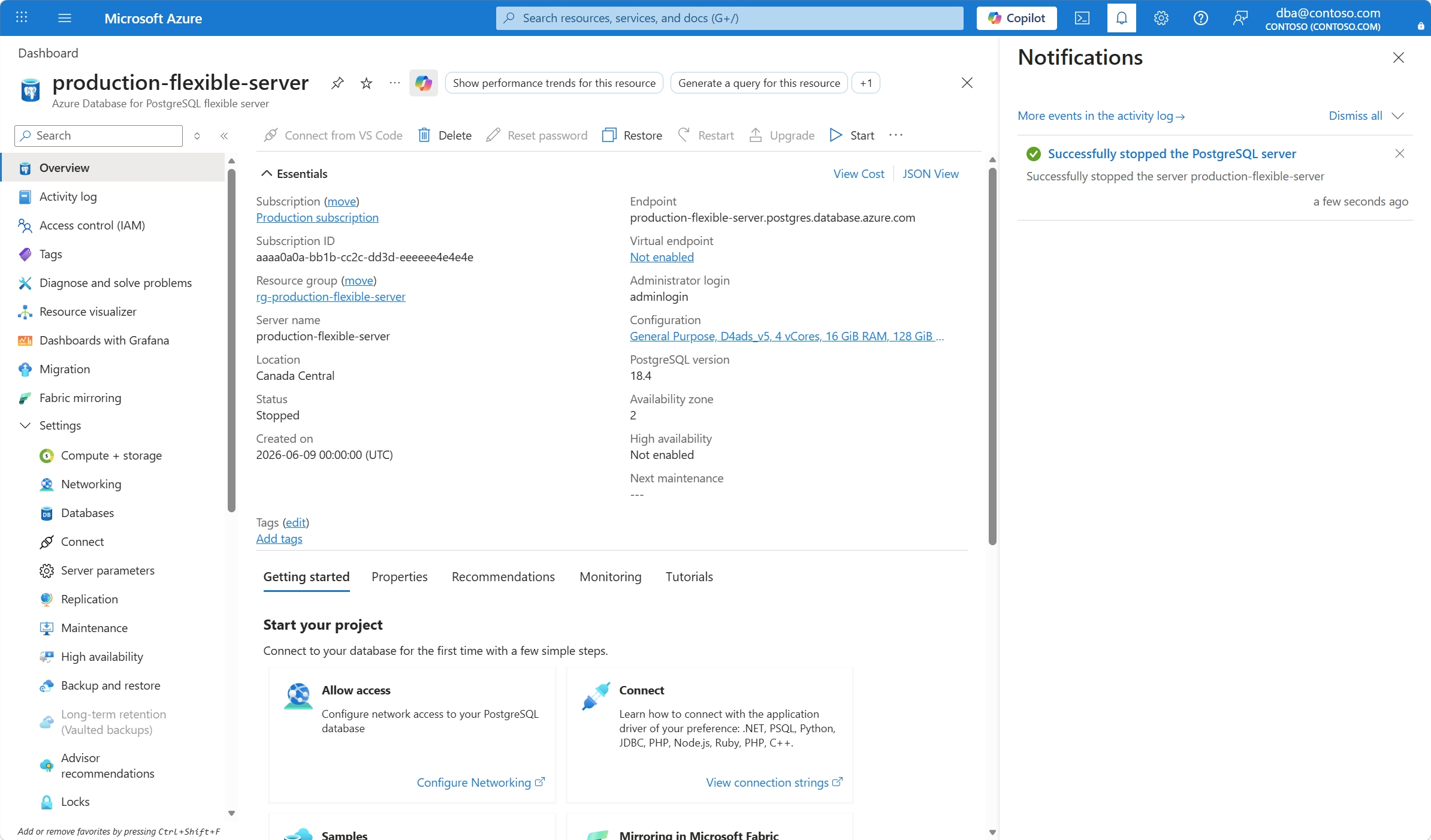
When the process completes, a notification informs you that the server is stopped. Also, the status of the server changes to Stopped.
Note
Once the server is stopped, other management operations aren't available for the Azure Database for PostgreSQL flexible server. While the Azure Database for PostgreSQL flexible server is in stopped state, it could be briefly restarted for scheduled monthly maintenance, and then returned to its stopped state. This procedure ensures that even flexible servers in a stopped state, stay up to date with all necessary patches and updates.