Note
Access to this page requires authorization. You can try signing in or changing directories.
Access to this page requires authorization. You can try changing directories.
Azure routes traffic between all subnets within a virtual network by default. You can create your own routes to override Azure's default routing. Custom routes are helpful when, for example, you want to route traffic between subnets through a network virtual appliance (NVA).
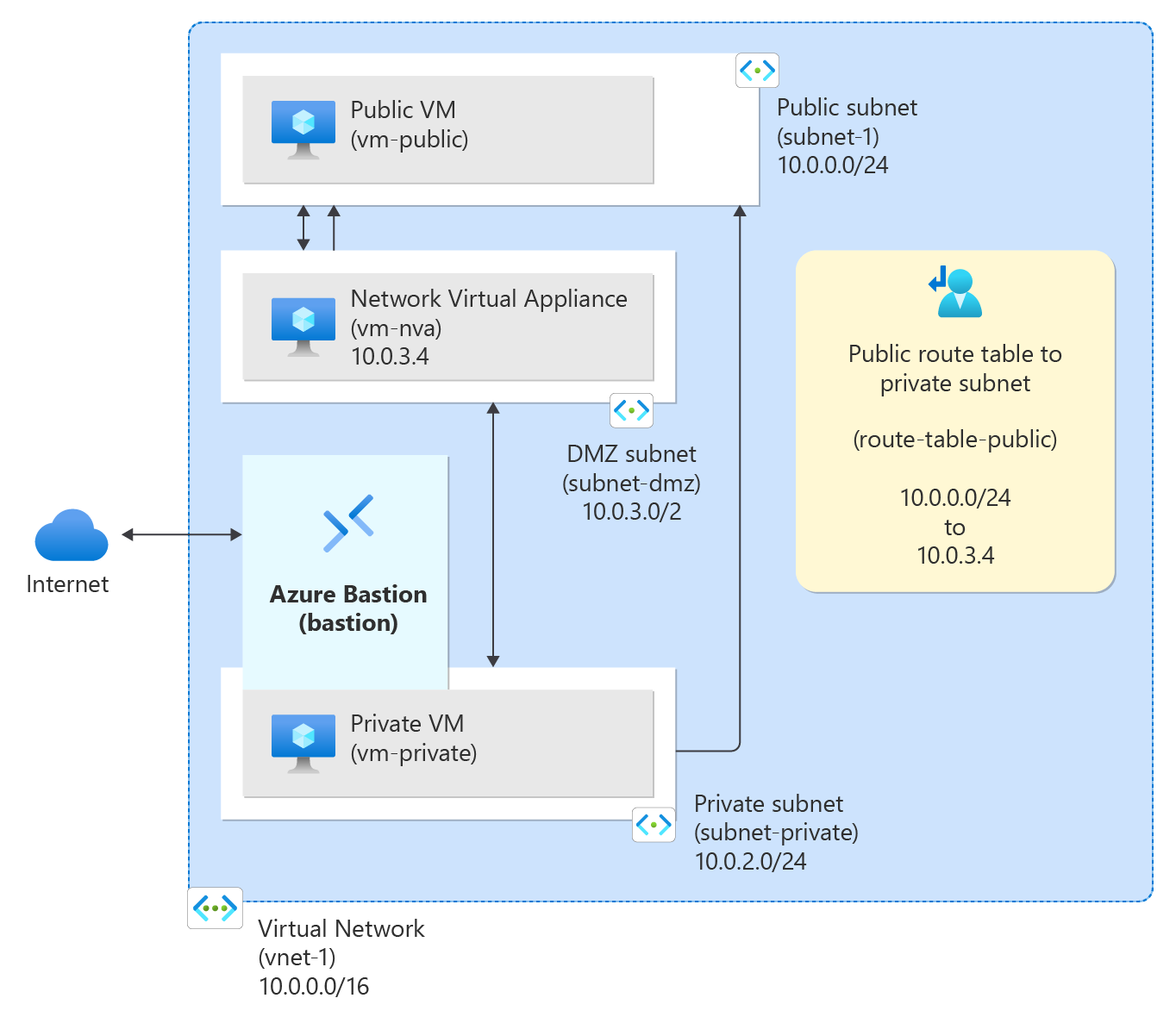
In this tutorial, you learn how to:
- Create a virtual network and subnets
- Create an NVA that routes traffic
- Deploy virtual machines (VMs) into different subnets
- Create a route table
- Create a route
- Associate a route table to a subnet
- Route traffic from one subnet to another through an NVA
Prerequisites
- An Azure account with an active subscription. You can create an account for free.




Create subnets
A DMZ and Private subnet are needed for this tutorial. The DMZ subnet is where you deploy the NVA and the Private subnet is where you deploy the private virtual machines you want to route traffic to. In the diagram, subnet-1 is the Public subnet used for the public virtual machine.
Create a resource group
Sign in to the Azure portal.
In the search box at the top of the portal, enter Resource group. Select Resource groups in the search results.
Select + Create.
In the Basics tab of Create a resource group, enter or select the following information:
Setting Value Subscription Select your subscription. Resource group Enter test-rg. Region Select East US 2. Select Review + create.
Select Create.
Create a virtual network
In the search box at the top of the portal, enter Virtual network. Select Virtual networks in the search results.
Select + Create.
On the Basics tab of Create virtual network, enter or select the following information:
Setting Value Project details Subscription Select your subscription. Resource group Select test-rg. Instance details Name Enter vnet-1. Region Select East US 2. Select Next to proceed to the Security tab.
Select Next to proceed to the IP Addresses tab.
In the address space box in Subnets, select the default subnet.
In Edit subnet, enter or select the following information:
Setting Value Subnet details Subnet template Leave the default Default. Name Enter subnet-1. Starting address Leave the default of 10.0.0.0. Subnet size Leave the default of /24 (256 addresses). Select Save.
Select + Add a subnet.
In Add a subnet, enter or select the following information:
Setting Value Subnet details Subnet template Leave the default Default. Name Enter subnet-private. Starting address Enter 10.0.2.0. Subnet size Leave the default of /24 (256 addresses). Select Add.
Select + Add a subnet.
In Add a subnet, enter or select the following information:
Setting Value Subnet details Subnet template Leave the default Default. Name Enter subnet-dmz. Starting address Enter 10.0.3.0. Subnet size Leave the default of /24 (256 addresses). Select Add.
Select Review + create at the bottom of the screen, and when validation passes, select Create.
Deploy Azure Bastion
Azure Bastion uses your browser to connect to VMs in your virtual network over secure shell (SSH) or remote desktop protocol (RDP) by using their private IP addresses. The VMs don't need public IP addresses, client software, or special configuration. For more information about Azure Bastion, see Azure Bastion.
Note
Hourly pricing starts from the moment that Bastion is deployed, regardless of outbound data usage. For more information, see Pricing and SKUs. If you're deploying Bastion as part of a tutorial or test, we recommend that you delete this resource after you finish using it.
In the search box at the top of the portal, enter Bastion. Select Bastions in the search results.
Select + Create.
In the Basics tab of Create a Bastion, enter or select the following information:
Setting Value Project details Subscription Select your subscription. Resource group Select test-rg. Instance details Name Enter bastion. Region Select East US 2. Tier Select Developer. Configure virtual networks Virtual network Select vnet-1. Subnet The AzureBastionSubnet is created automatically with an address space of /26 or larger. Select Review + create.
Select Create.
Create an NVA virtual machine
Network virtual appliances (NVAs) are virtual machines that help with network functions, such as routing and firewall optimization. In this section, create an NVA using an Ubuntu 24.04 virtual machine.
In the search box at the top of the portal, enter Virtual machine. Select Virtual machines in the search results.
Select + Create then Azure virtual machine.
In Create a virtual machine enter or select the following information in the Basics tab:
Setting Value Project details Subscription Select your subscription. Resource group Select test-rg. Instance details Virtual machine name Enter vm-nva. Region Select (US) East US 2. Availability options Select No infrastructure redundancy required. Security type Select Standard. Image Select Ubuntu Server 24.04 LTS - x64 Gen2. VM architecture Leave the default of x64. Size Select a size. Administrator account Authentication type Select SSH public key. Username Enter a username. SSH public key source Select Generate new key pair. Key pair name Enter vm-nva-key. Inbound port rules Public inbound ports Select None. Select Next: Disks then Next: Networking.
In the Networking tab, enter or select the following information:
Setting Value Network interface Virtual network Select vnet-1. Subnet Select subnet-dmz (10.0.3.0/24). Public IP Select None. NIC network security group Select Advanced. Configure network security group Select Create new.
In Name enter nsg-nva.
Select OK.Leave the rest of the options at the defaults and select Review + create.
Select Create.
Create public and private virtual machines
Create two virtual machines in the vnet-1 virtual network. One virtual machine is in the subnet-1 subnet and the other virtual machine is in the subnet-private subnet. Use the same virtual machine image for both virtual machines.
Create public virtual machine
The public virtual machine is used to simulate a machine in the public internet. The public and private virtual machines are used to test the routing of network traffic through the NVA virtual machine.
In the search box at the top of the portal, enter Virtual machine. Select Virtual machines in the search results.
Select + Create then Azure virtual machine.
In Create a virtual machine enter or select the following information in the Basics tab:
Setting Value Project details Subscription Select your subscription. Resource group Select test-rg. Instance details Virtual machine name Enter vm-public. Region Select (US) East US 2. Availability options Select No infrastructure redundancy required. Security type Select Standard. Image Select Ubuntu Server 24.04 LTS - x64 Gen2. VM architecture Leave the default of x64. Size Select a size. Administrator account Authentication type Select SSH public key. Username Enter a username. SSH public key source Select Generate new key pair. Key pair name Enter vm-public-key. Inbound port rules Public inbound ports Select None. Select Next: Disks then Next: Networking.
In the Networking tab, enter or select the following information:
Setting Value Network interface Virtual network Select vnet-1. Subnet Select subnet-1 (10.0.0.0/24). Public IP Select None. NIC network security group Select None. Leave the rest of the options at the defaults and select Review + create.
Select Create.
Create private virtual machine
In the search box at the top of the portal, enter Virtual machine. Select Virtual machines in the search results.
Select + Create then Azure virtual machine.
In Create a virtual machine enter or select the following information in the Basics tab:
Setting Value Project details Subscription Select your subscription. Resource group Select test-rg. Instance details Virtual machine name Enter vm-private. Region Select (US) East US 2. Availability options Select No infrastructure redundancy required. Security type Select Standard. Image Select Ubuntu Server 24.04 LTS - x64 Gen2. VM architecture Leave the default of x64. Size Select a size. Administrator account Authentication type Select SSH public key. Username Enter a username. SSH public key source Select Generate new key pair. Key pair name Enter vm-private-key. Inbound port rules Public inbound ports Select None. Select Next: Disks then Next: Networking.
In the Networking tab, enter or select the following information:
Setting Value Network interface Virtual network Select vnet-1. Subnet Select subnet-private (10.0.2.0/24). Public IP Select None. NIC network security group Select None. Leave the rest of the options at the defaults and select Review + create.
Select Create.
Enable IP forwarding
To route traffic through the NVA, turn on IP forwarding in Azure and in the operating system of vm-nva. When IP forwarding is enabled, any traffic received by vm-nva destined for a different IP address isn't dropped and is forwarded to the correct destination.
Enable IP forwarding in Azure
In this section, you turn on IP forwarding for the network interface of the vm-nva virtual machine.
In the search box at the top of the portal, enter Virtual machine. Select Virtual machines in the search results.
In Virtual machines, select vm-nva.
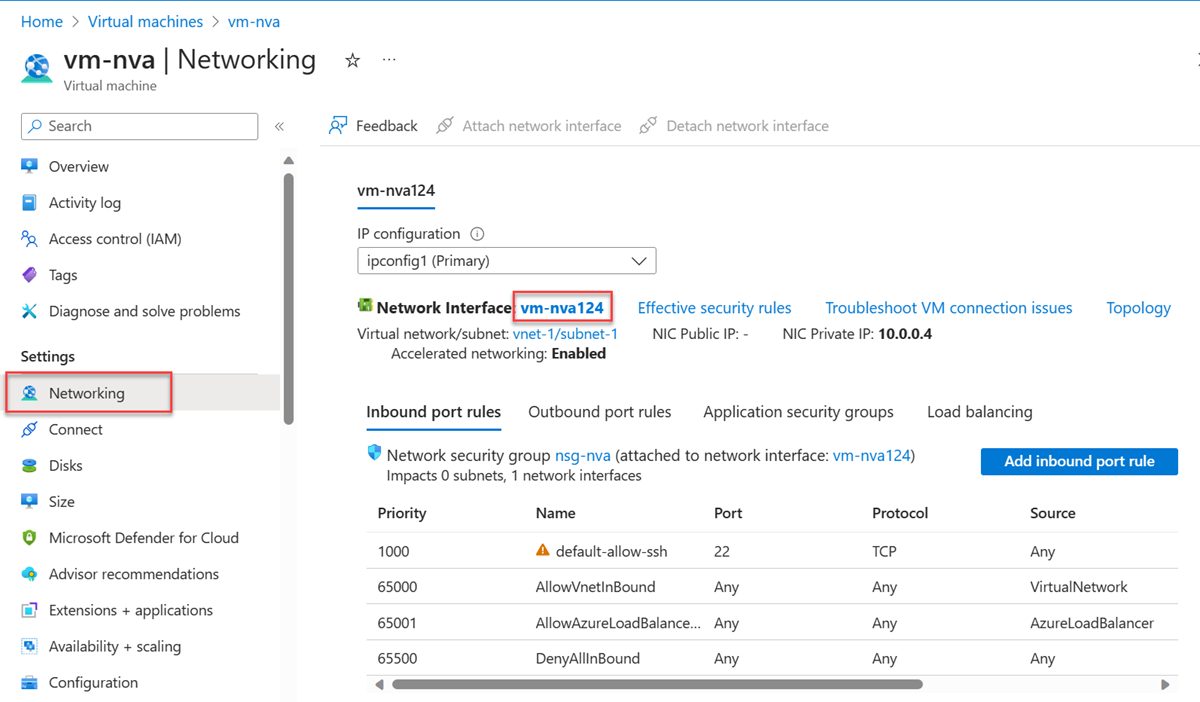
In vm-nva, expand Networking then select Network settings.
Select the name of the interface next to Network Interface:. The name begins with vm-nva and has a random number assigned to the interface. The name of the interface in this example is vm-nva313.
In the network interface overview page, select IP configurations from the Settings section.
In IP configurations, select the box next to Enable IP forwarding.
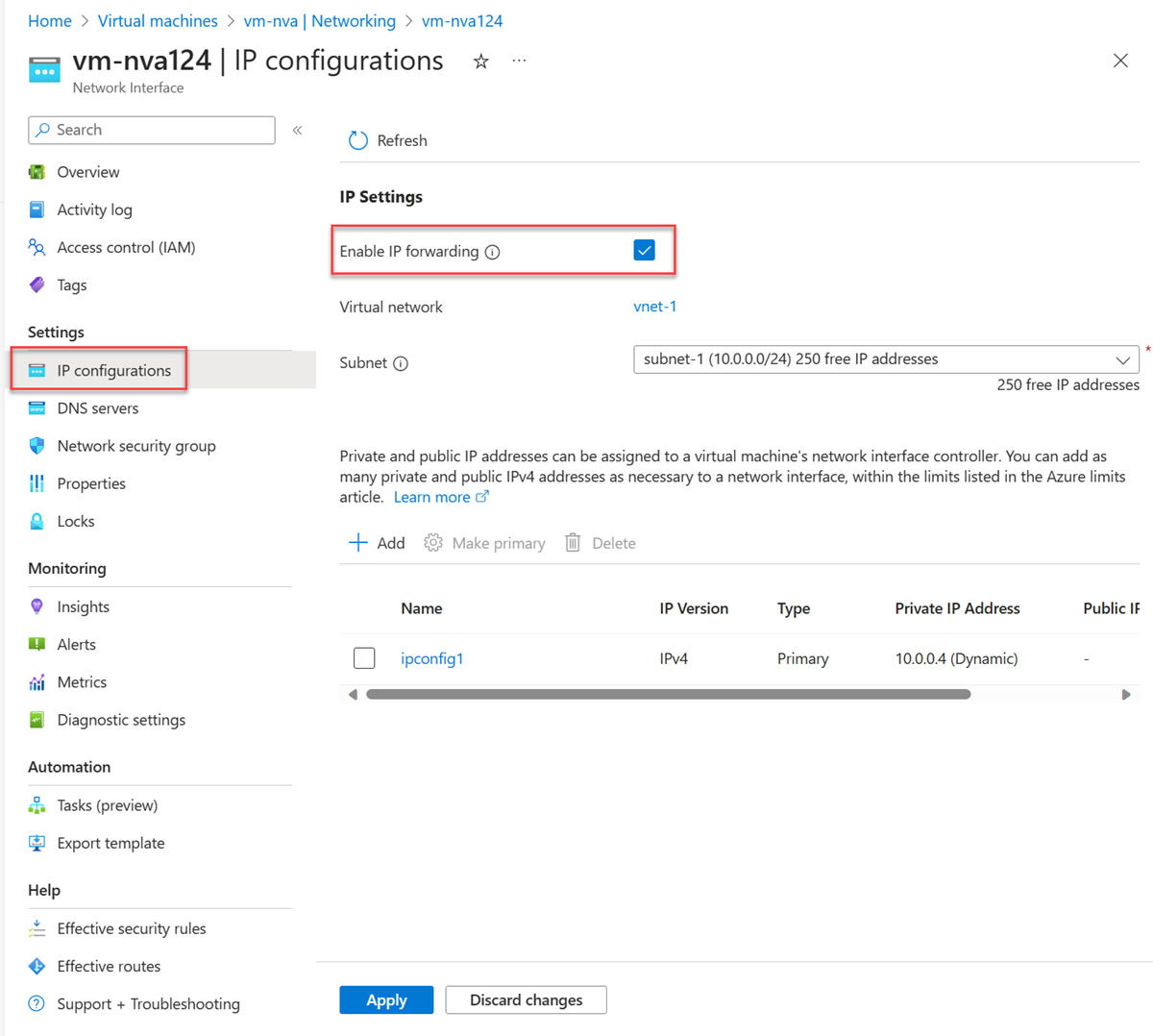
Select Apply.
Enable IP forwarding in the operating system
In this section, turn on IP forwarding for the operating system of the vm-nva virtual machine to forward network traffic. Use the Run Command feature to execute a script on the virtual machine.
In the search box at the top of the portal, enter Virtual machine. Select Virtual machines in the search results.
In Virtual machines, select vm-nva.
Expand Operations then select Run command.
Select RunShellScript.
Enter the following script in the Run Command Script window:
sudo sed -i 's/#net.ipv4.ip_forward=1/net.ipv4.ip_forward=1/' /etc/sysctl.conf
sudo sysctl -p
Select Run.
Wait for the script to complete. The output shows the IP forwarding setting has been enabled.
Return to the Overview page of vm-nva and select Restart to restart the virtual machine.
Create a route table
In this section, create a route table to define the route of the traffic through the NVA virtual machine. The route table is associated to the subnet-1 subnet where the vm-public virtual machine is deployed.
In the search box at the top of the portal, enter Route table. Select Route tables in the search results.
Select + Create.
In Create Route table enter or select the following information:
Setting Value Project details Subscription Select your subscription. Resource group Select test-rg. Instance details Region Select East US 2. Name Enter route-table-public. Propagate gateway routes Leave the default of Yes. Select Review + create.
Select Create.
Create a route
In this section, create a route in the route table that you created in the previous steps.
In the search box at the top of the portal, enter Route table. Select Route tables in the search results.
Select route-table-public.
Expand Settings then select Routes.
Select + Add in Routes.
Enter or select the following information in Add route:
Setting Value Route name Enter to-private-subnet. Destination type Select IP Addresses. Destination IP addresses/CIDR ranges Enter 10.0.2.0/24. Next hop type Select Virtual appliance. Next hop address Enter 10.0.3.4.
This is the IP address of the vm-nva you created in the earlier steps..Select Add.
Select Subnets in Settings.
Select + Associate.
Enter or select the following information in Associate subnet:
Setting Value Virtual network Select vnet-1 (test-rg). Subnet Select subnet-1. Select OK.
Test the routing of network traffic
Test routing of network traffic from vm-public to vm-private. Test routing of network traffic from vm-private to vm-public.
Test network traffic from vm-public to vm-private
In the search box at the top of the portal, enter Virtual machine. Select Virtual machines in the search results.
In Virtual machines, select vm-public.
Select Connect then Connect via Bastion in the Overview section.
In the Bastion connection page, enter or select the following information:
Setting Value Authentication Type Select SSH Private Key from Local File. Username Enter the username you created. Local File Select the vm-public-key private key file you downloaded. Select Connect.
In the prompt, enter the following command to trace the routing of network traffic from vm-public to vm-private:
tracepath vm-privateThe response is similar to the following example:
azureuser@vm-public:~$ tracepath vm-private
 1?: [LOCALHOST]                      pmtu 1500
 1:  vm-nva.internal.cloudapp.net                          1.766ms
 1:  vm-nva.internal.cloudapp.net                          1.259ms
 2:  vm-private.internal.cloudapp.net                      2.202ms reached
 Resume: pmtu 1500 hops 2 back 1
You can see that there are two hops in this response for
tracepathICMP traffic from vm-public to vm-private. The first hop is vm-nva. The second hop is the destination vm-private.Azure sent the traffic from subnet-1 through the NVA and not directly to subnet-private because you previously added the to-private-subnet route to route-table-public and associated it to subnet-1.
Close the Bastion session.
Test network traffic from vm-private to vm-public
In the search box at the top of the portal, enter Virtual machine. Select Virtual machines in the search results.
In Virtual machines, select vm-private.
Select Connect then Connect via Bastion in the Overview section.
In the Bastion connection page, enter or select the following information:
Setting Value Authentication Type Select SSH Private Key from Local File. Username Enter the username you created. Local File Select the vm-private-key private key file you downloaded. Select Connect.
In the prompt, enter the following command to trace the routing of network traffic from vm-private to vm-public:
tracepath vm-publicThe response is similar to the following example:
azureuser@vm-private:~$ tracepath vm-public
 1?: [LOCALHOST]                      pmtu 1500
 1:  vm-public.internal.cloudapp.net                       2.584ms reached
 1:  vm-public.internal.cloudapp.net                       2.147ms reached
 Resume: pmtu 1500 hops 1 back 2
You can see there's one hop in this response, which is the destination vm-public.
Azure sent the traffic directly from subnet-private to subnet-1. By default, Azure routes traffic directly between subnets.
Close the Bastion session.
When you finish using the resources that you created, you can delete the resource group and all its resources.
In the Azure portal, search for and select Resource groups.
On the Resource groups page, select the test-rg resource group.
On the test-rg page, select Delete resource group.
Enter test-rg in Enter resource group name to confirm deletion, and then select Delete.
Next steps
In this tutorial, you:
Created a route table and associated it to a subnet.
Created a simple NVA that routed traffic from a public subnet to a private subnet.
You can deploy different preconfigured NVAs from the Azure Marketplace, which provide many useful network functions.
To learn more about routing, see Routing overview and Manage a route table. Routing can also be automatically configured at scale with Azure Virtual Network Manager's user-defined route (UDR) management feature.
To learn how to restrict network access to PaaS resources with virtual network service endpoints, advance to the next tutorial.