Note
Access to this page requires authorization. You can try signing in or changing directories.
Access to this page requires authorization. You can try changing directories.
Note
The Vulnerability Management section in the Microsoft Defender portal is now located under Exposure management. With this change, you can now consume and manage security exposure data and vulnerability data in a unified location, to enhance your existing Vulnerability Management features. Learn more.
These changes are relevant for Preview customers (Microsoft Defender XDR + Microsoft Defender for Identity preview option).
Detect and mitigate Log4Shell vulnerability exposure
The Log4Shell vulnerability is a remote code execution (RCE) vulnerability found in the Apache Log4j 2 logging library. As Apache Log4j 2 is commonly used by many software applications and online services, it represents a complex and high-risk situation for companies across the globe. Referred to as "Log4Shell" (CVE-2021-44228, CVE-2021-45046) it introduces a new attack vector that attackers can exploit to extract data and deploy ransomware in an organization. This article explains how to use Microsoft Defender Vulnerability Management to discover exposed devices, detect vulnerable software and files, apply mitigations, and hunt for Log4Shell exposure in your environment.
Note
Refer to the blogs Guidance for preventing, detecting, and hunting for exploitation of the Log4j 2 vulnerability and Microsoft Security Response Center for guidance and technical information about the vulnerability and product specific mitigation recommendations to protect your organization.
Overview of discovery, monitoring, and mitigation capabilities
Defender Vulnerability Management provides you with the following capabilities to help you identify, monitor, and mitigate your organizational exposure to the Log4Shell vulnerability:
- Discovery: Detection of exposed devices, both Microsoft Defender for Endpoint onboarded devices and devices that have been discovered but aren't yet onboarded, is based on vulnerable software and vulnerable files detected on disk.
- Threat awareness: A consolidated view to assess your organizational exposure. This view shows your exposure at the device level and software level. It also provides access to details on vulnerable files. For example, you can see when a file was last seen, last executed, and last executed with open ports. Use this information to prioritize your remediation actions. It can take up to 24 hours for exposed device data to appear on the dashboard.
- Mitigation options: Apply mitigation options to help lower your exposure risk.
- Advanced hunting: Use advanced hunting to return details for vulnerable log4j files identified on disk.
Note
These capabilities are supported on Windows 10 & Windows 11, Windows Server, Linux and macOS.
Support on Linux requires Microsoft Defender for Endpoint Linux client version 101.52.57 (30.121092.15257.0) or later.
Support on macOS requires Microsoft Defender for Endpoint macOS client version 20.121111.15416.0 or later.
For more information on supported versions, see Supported operating systems platforms and capabilities.
Exposed devices discovery
Defender Vulnerability Management capabilities in the Microsoft Defender portal help you discover devices exposed to the Log4Shell vulnerability. You can also enable Log4j detection for broader coverage.
Onboarded devices are assessed using built-in capabilities that discover vulnerable software and files.
For devices that are discovered but not yet onboarded, you must enable Log4j detection. This feature sends probes the same way device discovery probes your network. The probes run from onboarded endpoints (Windows 10+ and Windows Server 2019+ devices). They only probe within subnets to find devices that are vulnerable and remotely exposed to CVE-2021-44228.
To enable Log4 detection:
Go to Settings > Device discovery > Discovery setup.
Select Enable Log4j2 detection (CVE-2021-44228).
Select Save.
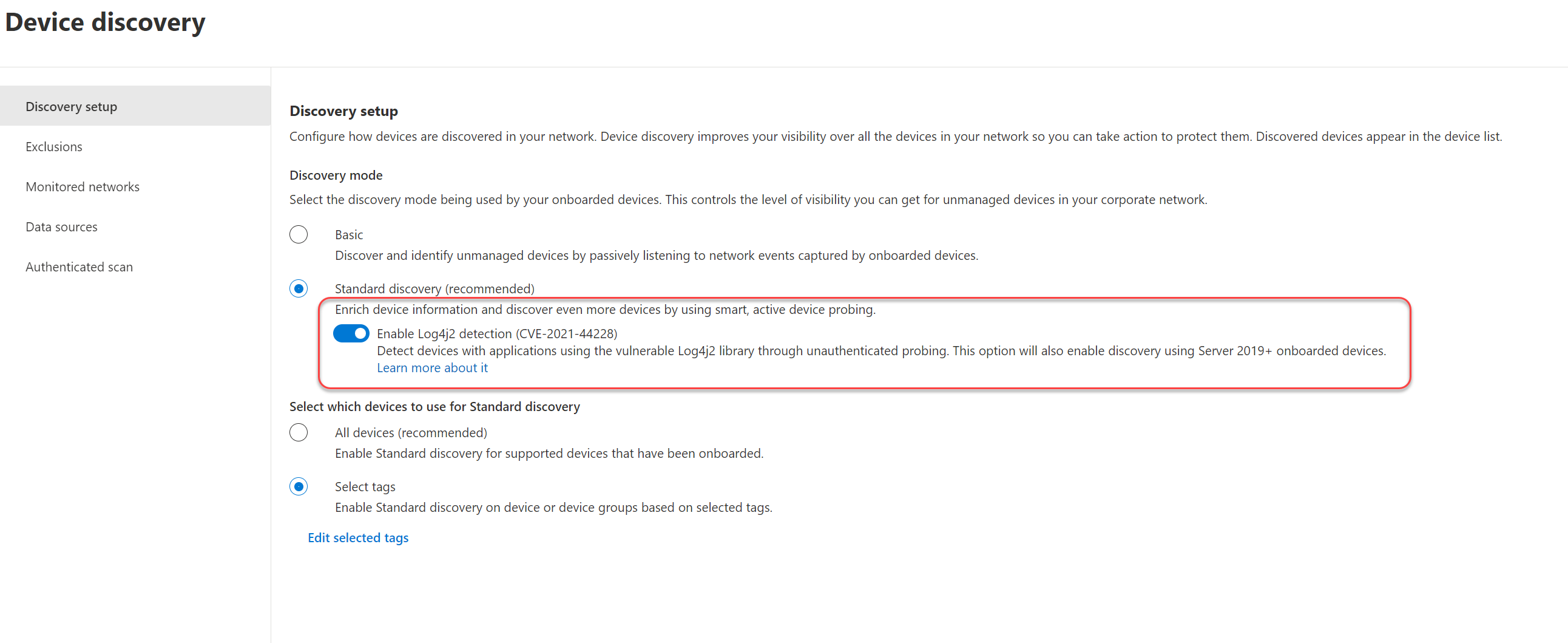
Running these probes triggers the standard Log4j flow without causing any harmful impact on either the device being probed or the probing device. The probing itself is done by sending multiple HTTP requests to discovered devices, targeting common web application ports (for example - 80,8000,8080,443,8443) and URLs. The request contains HTTP headers with a JNDI payload. This payload triggers a DNS request from the probed machine.
For example, User-Agent: ${jndi:dns://192.168.1.3:5353/MDEDiscoveryUser-Agent} where 192.168.1.3 is the IP of the probing machine.
Note
Enabling Log4j2 detection also means onboarded devices will use self-probing to detect local vulnerabilities.
Vulnerable software and files detection
Defender Vulnerability Management provides layers of detection to help you discover:
Vulnerable software: Discovery is based on installed application Common Platform Enumerations (CPE) that are known to be vulnerable to Log4j remote code execution.
Vulnerable files: Both files in memory and files in the file system are assessed. These files can be Log4j-core jar files with a known vulnerable version. They can also be an Uber-JAR that contains a vulnerable JNDI lookup class or a vulnerable log4j-core file. The file detection process performs these checks:
- Examines JAR files and searches for the file: \META-INF\maven\org.apache.logging.log4j\log4j-core\pom.properties. If this file exists, the Log4j version is read and extracted.
- Looks for the JndiLookup.class file inside the JAR file. It searches for paths that contain the string "/log4j/core/lookup/JndiLookup.class". If this class file exists, the tool checks whether the JAR contains a Log4j version defined in pom.properties.
- Searches for vulnerable Log4j-core JAR files inside a nested JAR. It looks for paths that contain any of these strings:
- lib/log4j-core-
- WEB-INF/lib/log4j-core-
- App-INF/lib/log4j-core-
This table describes the search capabilities supported platforms and versions:
| Capability | File Type | Windows 10+, server2019+ |
Server 2012R2, server2016 |
Server 2008R2 | Linux + macOS |
|---|---|---|---|---|---|
| Search In Memory | Log4j-core | Yes | Yes[1] | - | Yes |
| Uber-JARs | Yes | Yes[1] | - | Yes | |
| Search all files on disk | Log4j-core | Yes | Yes[1] | Yes | - |
| Uber-JARs | Yes | Yes[1] | - | - |
(1) Capabilities are available when KB5005292 is installed on Windows Server 2012 R2 and 2016.
Learn about your Log4Shell exposure and mitigation options
To review your organization's Log4Shell exposure and available mitigation options, follow these steps:
In the Microsoft Defender portal, do one of the following:
- If you're a Microsoft Defender XDR + Microsoft Defender for Identity preview customer, select Exposure management >Vulnerability management > Vulnerabilities.
- If you're an existing customer, select Endpoints > Vulnerability management > Weaknesses.
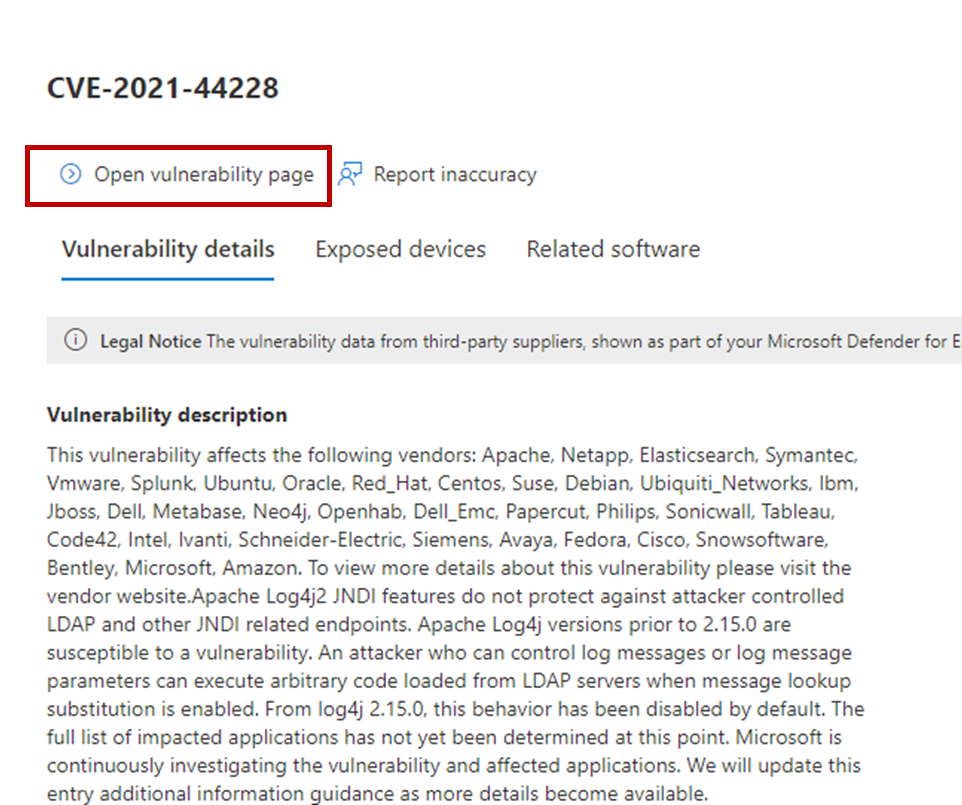
Select CVE-2021-44228.
Select Open vulnerability page.
Log4Shell vulnerability mitigation
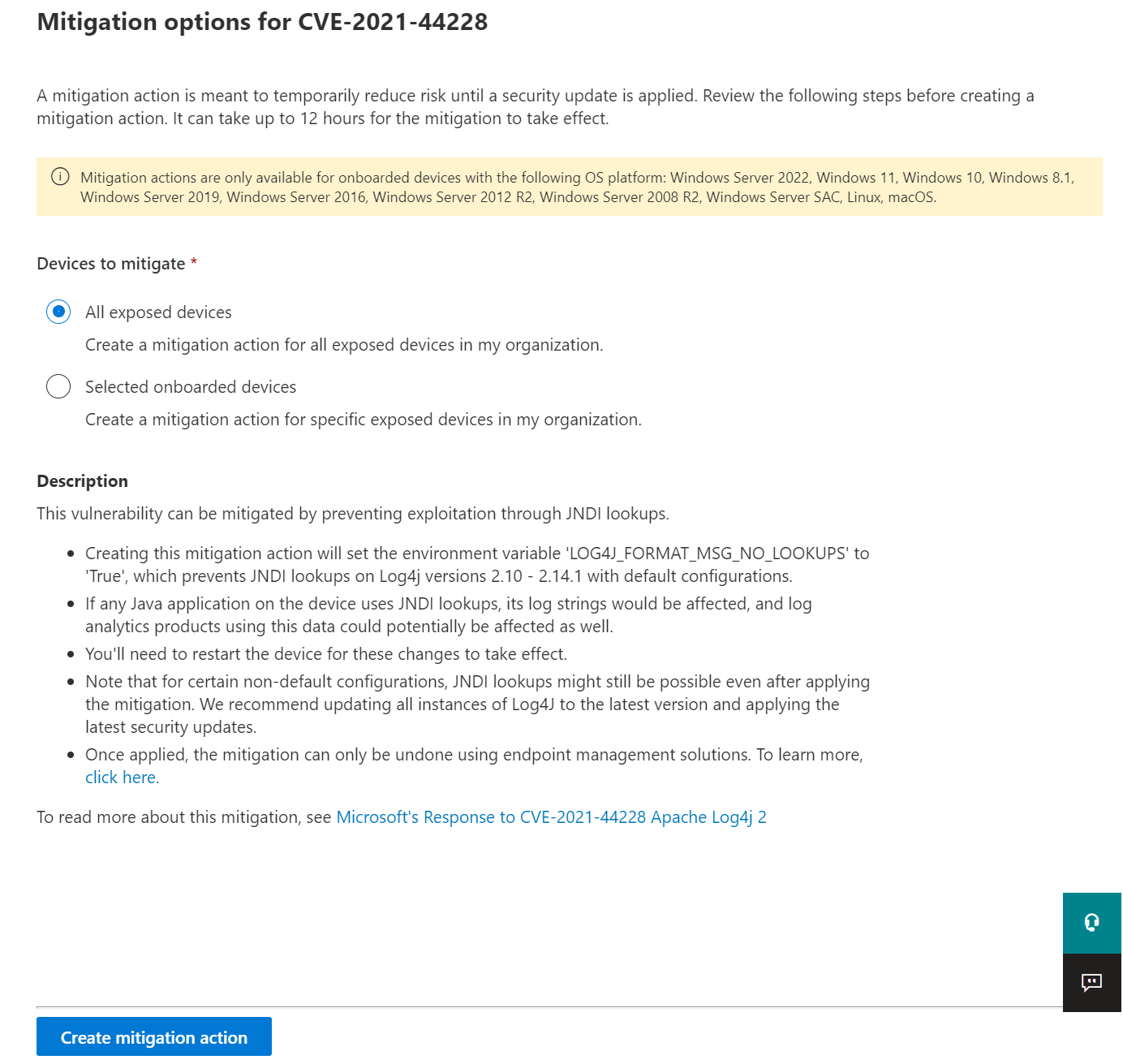
The log4Shell vulnerability can be mitigated by preventing JNDI lookups on Log4j versions 2.10 - 2.14.1 with default configurations. To create a mitigation action that disables JNDI lookups, from the Threat awareness dashboard:
Select View vulnerability details.
Select Mitigation options.
You can choose to apply the mitigation to all exposed devices or select specific onboarded devices. To complete the process and apply the mitigation on devices, select Create mitigation action.
Mitigation status
The mitigation status indicates whether the workaround mitigation to disable JDNI lookups was applied to the device. You can view the mitigation status for each affected device in the Exposed devices tabs. This can help prioritize mitigation and/or patching of devices based on their mitigation status.
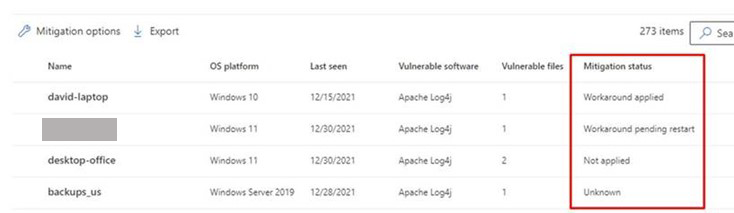
The following table lists the potential mitigation statuses:
| Mitigation status | Description |
|---|---|
| Workaround applied | Windows: The LOG4J_FORMAT_MSG_NO_LOOKUPS environment variable was observed before latest device reboot. Linux + macOS: All running processes have LOG4J_FORMAT_MSG_NO_LOOKUPS=true in its environment variables. |
| Workaround pending reboot | The LOG4J_FORMAT_MSG_NO_LOOKUPS environment variable is set, but no following reboot detected. |
| Not applied | Windows: The LOG4J_FORMAT_MSG_NO_LOOKUPS environment variable wasn't observed. Linux + macOS: Not all running processes have LOG4J_FORMAT_MSG_NO_LOOKUPS=true in its environment variables, and mitigation action wasn't applied on device. |
| Partially mitigated | Linux + macOS: Although mitigation action was applied on device, not all running processes have LOG4J_FORMAT_MSG_NO_LOOKUPS=true in its environment variables. |
| Not applicable | Devices that have vulnerable files that aren't in the version range of the mitigation. |
| Unknown | The mitigation status couldn't be determined at this time. |
Note
It may take a few hours for the updated mitigation status of a device to be reflected.
Revert mitigations applied for the Log4Shell vulnerability
In cases where the mitigation needs to be reverted, follow these steps:
For Windows:
Open an elevated PowerShell window.
Run the following command to remove the
LOG4J_FORMAT_MSG_NO_LOOKUPSmachine environment variable and re-enable JNDI lookups:[Environment]::SetEnvironmentVariable("LOG4J\_FORMAT\_MSG\_NO\_LOOKUPS", $null,[EnvironmentVariableTarget]::Machine)
The change will take effect after the device restarts.
For Linux:
Open the file /etc/environment and delete the line LOG4J_FORMAT_MSG_NO_LOOKUPS=true
Delete the file /etc/systemd/system.conf.d/log4j_disable_jndi_lookups.conf
Delete the file /etc/systemd/user.conf.d/log4j_disable_jndi_lookups.conf
The change will take effect after the device restarts.
For macOS:
Remove the file setenv.LOG4J_FORMAT_MSG_NO_LOOKUPS.plist from the following folders:
- /Library/LaunchDaemons/
- /Library/LaunchAgents/
- /Users/[username]/Library/LaunchAgents/ - for all users
The change will take effect after the device restarts.
Apache Log4j security recommendations
To see active security recommendation related to Apache log4j, select the Security recommendations tab from the vulnerability details page. If you select Update Apache Log4j, a flyout opens with more information:
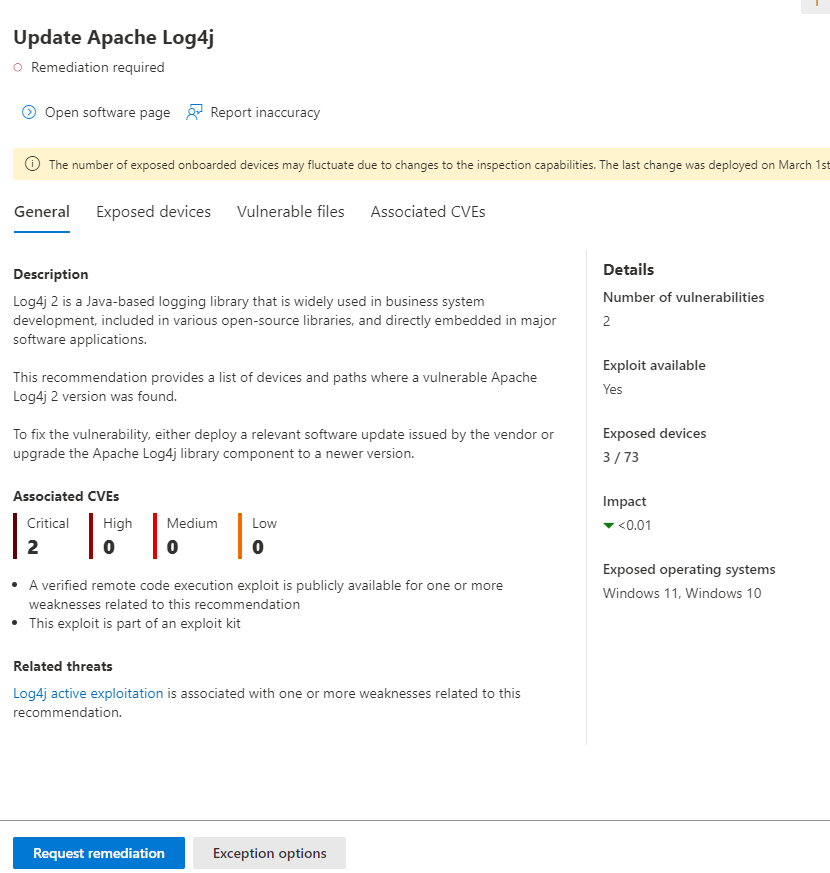
Select Request remediation to create a remediation request.
Explore the vulnerability in the Microsoft Defender portal
Once exposed devices, files and software are found, relevant information is conveyed through the following experiences in the Microsoft Defender portal:
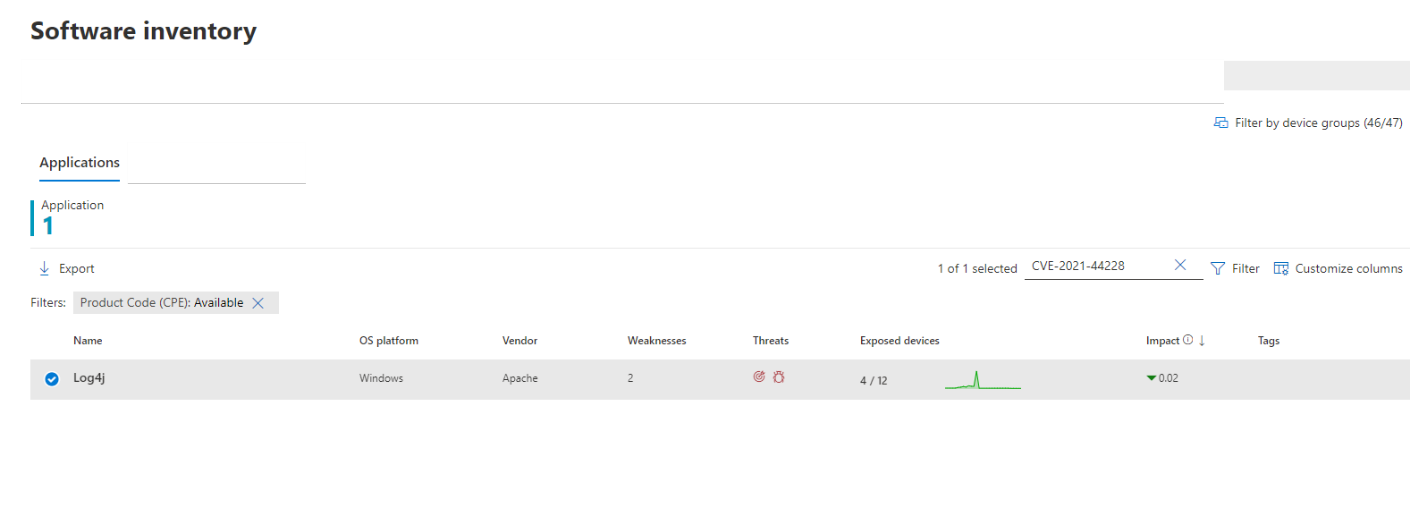
Review Log4Shell findings in Software inventory
On the software inventory page, search for CVE-2021-44228 to see details about the Log4j software installations and exposure:
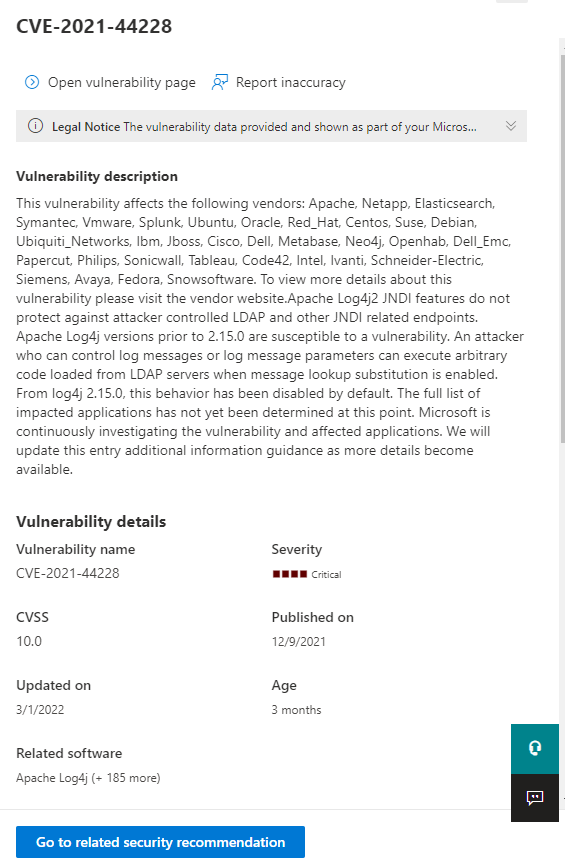
Review Log4Shell findings in the Vulnerabilities page
In the Vulnerabilities or Weaknesses page, search for CVE-2021-44228 to see information about the Log4Shell vulnerability:
Use advanced hunting
Advanced hunting lets you query for Log4j issues across your devices. Use the examples below to get started.
This query finds devices with vulnerable software:
   DeviceTvmSoftwareVulnerabilities
   | where CveId in ("CVE-2021-44228", "CVE-2021-45046")
This query shows file-level results from disk:
   DeviceTvmSoftwareEvidenceBeta
   | mv-expand DiskPaths
   | where DiskPaths contains "log4j"
   | project DeviceId, SoftwareName, SoftwareVendor, SoftwareVersion, DiskPaths
Related content
For more information, see the following articles: