Note
Access to this page requires authorization. You can try signing in or changing directories.
Access to this page requires authorization. You can try changing directories.
Real-Time Dashboards are a collection of tiles that feature a visual representation supported by an underlying Kusto Query Language (KQL) query. This article explains how to edit the visualizations and queries of a Real-Time Dashboard tile. It also provides an overview of customization properties specific to each visualization type.
Real-Time Dashboards support all visualizations that you can create in the context of the render operator, along with the dashboard-specific visuals.
Prerequisites
- A workspace with a Microsoft Fabric-enabled capacity
- Editor permissions on a Real-Time Dashboard
Customize a dashboard tile
To make changes to your dashboard:
In the top menu, select Viewing and toggle to Editing mode.
On the tile that you want to customize, select the Edit icon. Edit the underlying query or the visualization properties.
Select Apply changes to save your changes and return to the dashboard.
Customization properties
The following table describes the available customization properties, categorized alphabetically by section, and specifies which visuals support each property.
| Section | Property | Description | Visual types |
|---|---|---|---|
| Colors | Color palette | Determines the set of colors to use for the heatmap. | Heatmap |
| Conditional formatting | Hide or Show | A toggle option to turn off or turn on conditional formatting. For more information, see Apply conditional formatting. | Anomaly chart, Area chart, Bar chart, Column chart, Multi Stat, Scatter chart, Table, Time chart |
| Data | Y columns | The columns that provide data for the vertical axis. | Anomaly chart, Area chart, Bar chart, Column chart, Line chart, Scatter chart, Time chart |
| X column | The column that provides data for the horizontal axis. | Anomaly chart, Area chart, Bar chart, Column chart, Line chart, Scatter chart, Time chart | |
| Series columns | The columns used to categorize data into different series. | Anomaly chart, Area chart, Bar chart, Column chart, Line chart, Scatter chart, Time chart | |
| Category column | The column that determines the data categories. | Funnel chart, Heatmap, Pie chart | |
| Label column | Assigns labels to each slot using the designated column. | Multi Stat | |
| Value column | The column that provides data for the visualization. | Funnel chart, Multi stat | |
| Value | The numeric column that serves as the primary variable for the heatmap. | Heatmap | |
| Numeric column | The column that provides the numeric value for the data category. | Pie chart | |
| Define location by | Determines the method used to define the location: Infer, Latitude and longitude, or Geo point. | Map | |
| Data series colors | Color palette | Customizes the colors presented in the visualization. | Anomaly chart, Area chart, Bar chart, Column chart, Line chart, Pie chart, Scatter chart, Time chart, Time series chart |
| Display options | Order by | How to order the results in the chart: Name, Size, or None. | Pie chart |
| Top N | Option to only show sections for the top n values in the chart. | Pie chart | |
| General | Display orientation | Determines the orientation of the display: Horizontal or Vertical. | Multi Stat |
| Text size | Determines the size of the text: Recommended, Small, or Large. | Multi Stat, Stat | |
| Visual format | Determines the format for the chart. For area, bar, and column charts, the format can be standard, stacked, or stacked 100%. For pie charts, the format can be pie or donut. | Area chart, Bar chart, Column chart, Pie chart | |
| Layout | Slot configuration | Customizes the grid layout with options ranging from 1 column by 1 row (1 slot) to 5 columns by 5 rows (25 slots). | Multi Stat |
| Legend | Hide or Show | Hides or shows a legend explaining data series in the chart. | Anomaly chart, Area chart, Bar chart, Column chart, Multi Stat, Scatter chart, Time chart |
| Size | Hide or Show | Toggles sizing for the map points on or off. | Map |
| Size column | The column used to determine the size of the map point. | Map | |
| URLs | Apply link on column | When enabled, selecting a value in this column directs to the URL specified in the URL column. | Table |
| URL column | The column that contains URL values. | Table | |
| X Axis | Label | Sets a custom label for the horizontal axis. | Anomaly chart, Area chart, Bar chart, Column chart, Multi Stat, Scatter chart, Time chart |
| Vertical line value | Specifies a value on the horizontal axis for vertical reference lines. | Anomaly chart, Area chart, Bar chart, Column chart, Multi Stat, Scatter chart, Time chart | |
| X axis scale | Adjusts the scale of the horizontal axis to linear or logarithmic. | Anomaly chart, Area chart, Bar chart, Multi Stat, Scatter chart, Table, Time chart | |
| Y Axis | Label | Sets a custom label for the vertical axis. | Anomaly chart, Area chart, Bar chart, Column chart, Multi Stat, Scatter chart, Time chart |
| Maximum value | Defines the maximum value on the vertical axis. | Anomaly chart, Area chart, Bar chart, Column chart, Multi Stat, Scatter chart, Time chart | |
| Minimum value | Defines the minimum value on the vertical axis. | Anomaly chart, Area chart, Bar chart, Column chart, Multi Stat, Scatter chart, Time chart | |
| Reference lines | Marks a value on the chart as a reference line for visual guidance. | Anomaly chart, Area chart, Bar chart, Column chart, Multi Stat, Scatter chart, Time chart |
Data series colors
By using data series colors, you control how colors are applied to your visuals. Instead of relying on automatic color assignments, assign specific colors to each data series to convey meaning and maintain consistency across your dashboards.
By using data series colors, you can:
Assign colors directly to each data series.
Override system defaults with intentional choices.
Maintain color consistency across visuals and dashboards.
This feature is supported for the following visual types: Anomaly chart, Area chart, Bar chart, Column chart, Line chart, Pie chart, Scatter chart, Time chart, and Time series visual.
To configure data series colors:
In the top menu, select Viewing and toggle to Editing mode.
Select the Edit icon on the visual you want to customize.
In the Visual tab of the formatting pane, expand the Series colors section.
Select a color for each data series in your visual.
Select Apply changes to save your settings.
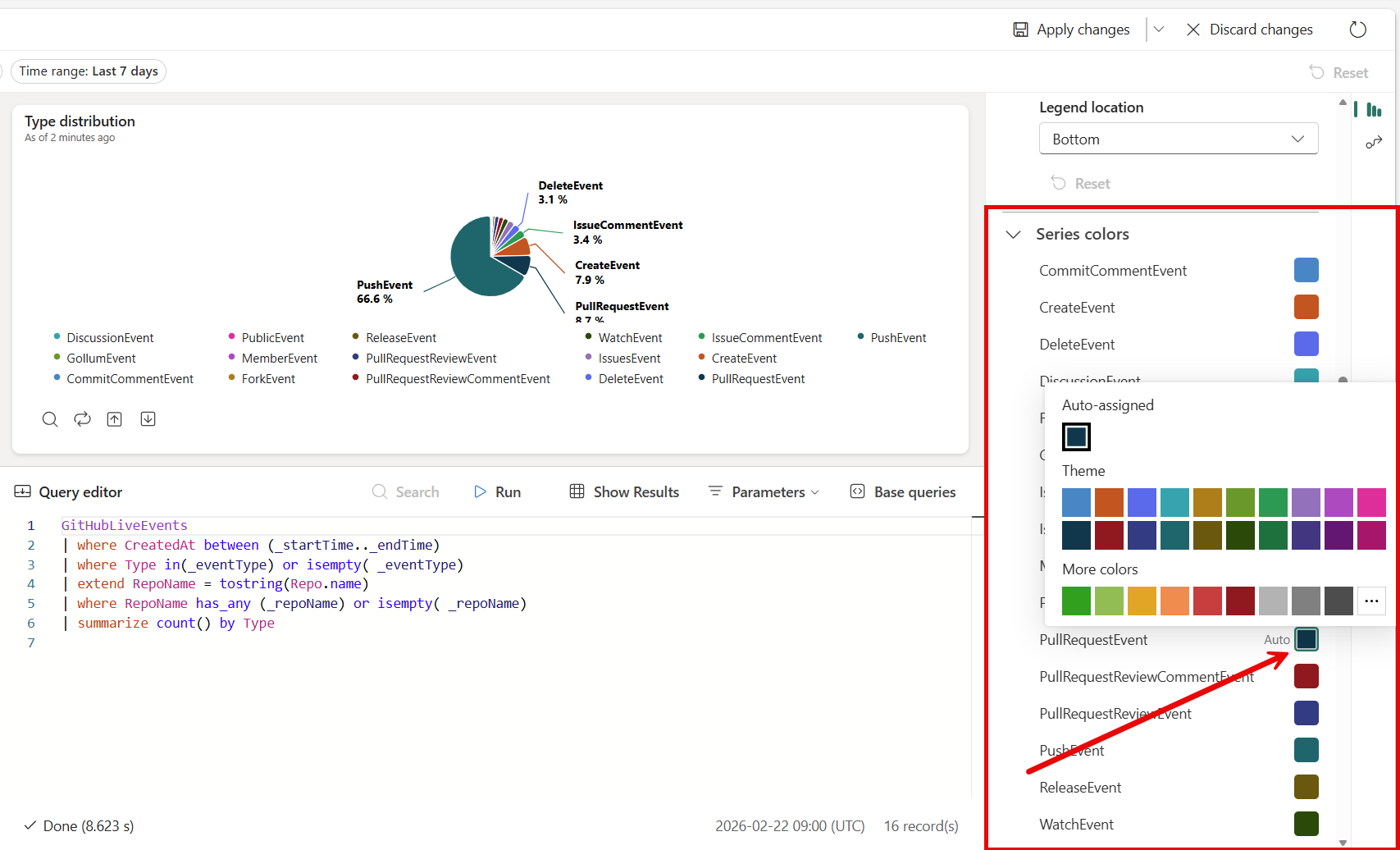
When you assign colors intentionally, viewers can interpret visuals at a glance without needing to read legends or labels. Consider using colors that align with your organization's standards or that naturally convey the meaning of each series, such as red for critical states or green for healthy metrics.
Time series visual (Preview)
Use the Time series visual to display time-based data across multiple measures and categories. It plots numeric values over time, making it easier to identify trends, patterns, and anomalies.
Create a Time series visual
Important
Ensure your data includes a timestamp column and at least one numeric value column to visualize trends over time.
To create and configure a Time series visual in your Real-Time Dashboard:
In the top menu, select Viewing and toggle to Editing mode.
Select the Edit icon on the visual you want to customize.
In the Visual formatting pane, open Visual type and select Time series.
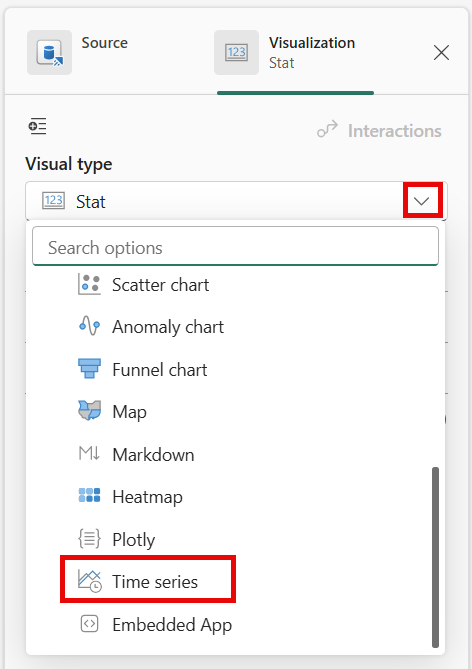
In the Data section, configure the following properties:
Time column (X-axis): Select the timestamp column that represents time intervals on the horizontal axis.
Measured data (Y-axis): Select one or more numeric fields to plot over time on the vertical axis.
Entities and Measures (optional): Select categorical fields to group your data into multiple series.
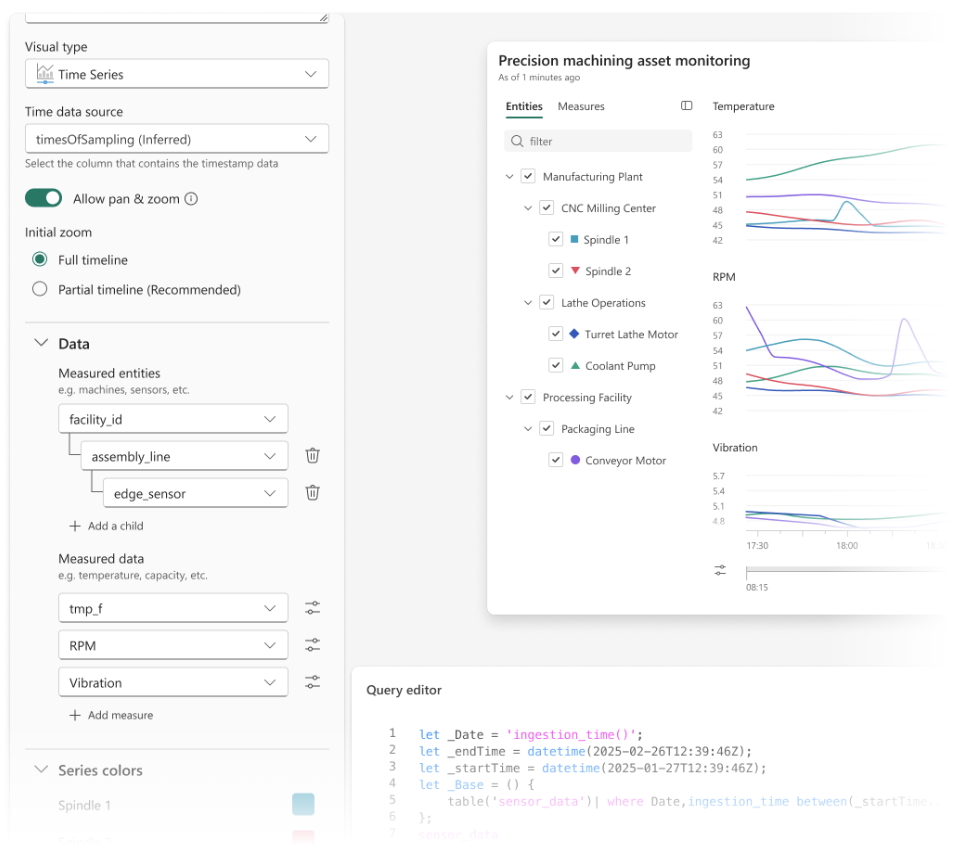
Use the Entities and Measures panel to control which data appears:
- Search for a specific series by name.
- Expand or collapse groups in the entity hierarchy.
- Select or clear checkboxes to show or hide series.
- Reorder series to control display and legend order.
This selection doesn't modify the underlying query.
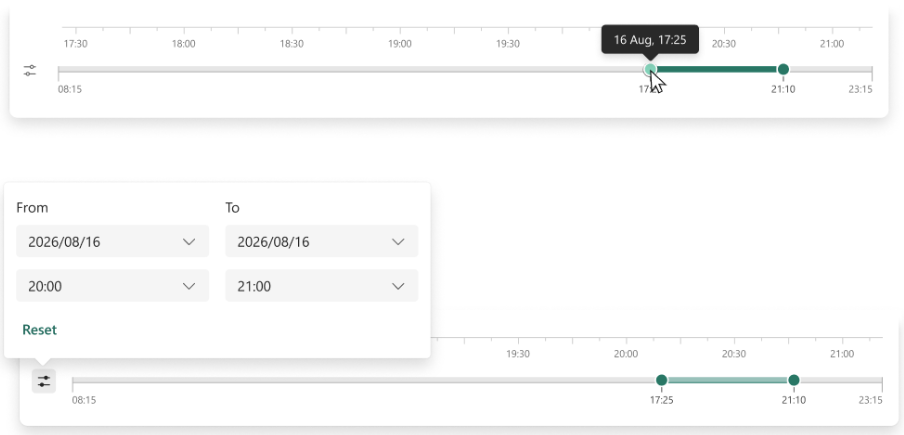
Adjust the time range using the timeline controls:
- Drag the time slider to zoom in or out on specific intervals.
- Enter start and end times to define a precise range.
When multiple measures are displayed, all charts remain synchronized to the selected time range.
Customize your chart further by configuring properties such as:
Y-axis scaling:
- Global (shared scale across charts)
- Separate (independent scales per chart)
- Adaptive (reduces the impact of outliers)
Colors: Assign colors from a palette or per series.
Axis scale: Switch between linear and logarithmic scale for different data distributions.
Zoom behavior: Enable pan and zoom for interactive exploration.
Select Done to save your settings and return to the dashboard.
Embed images
You can embed images in your dashboard tiles by using Markdown text.
For more information on GitHub Flavored Markdown, see GitHub Flavored Markdown Spec.
Open a Real-Time Dashboard.
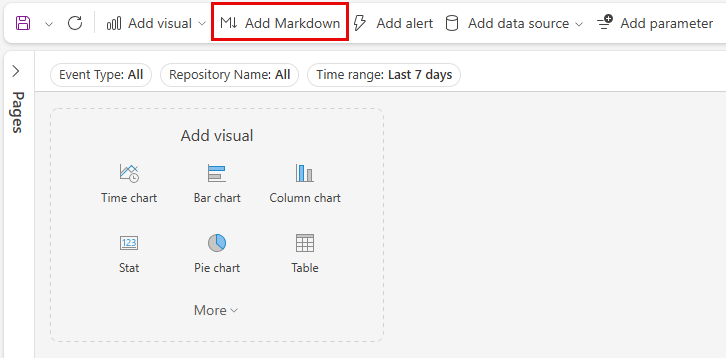
In the top menu, select Add markdown to open a markdown tile.
In the query pane, paste the URL of an image located in an image hosting service by using the following syntax:
The image renders in the tile's preview.
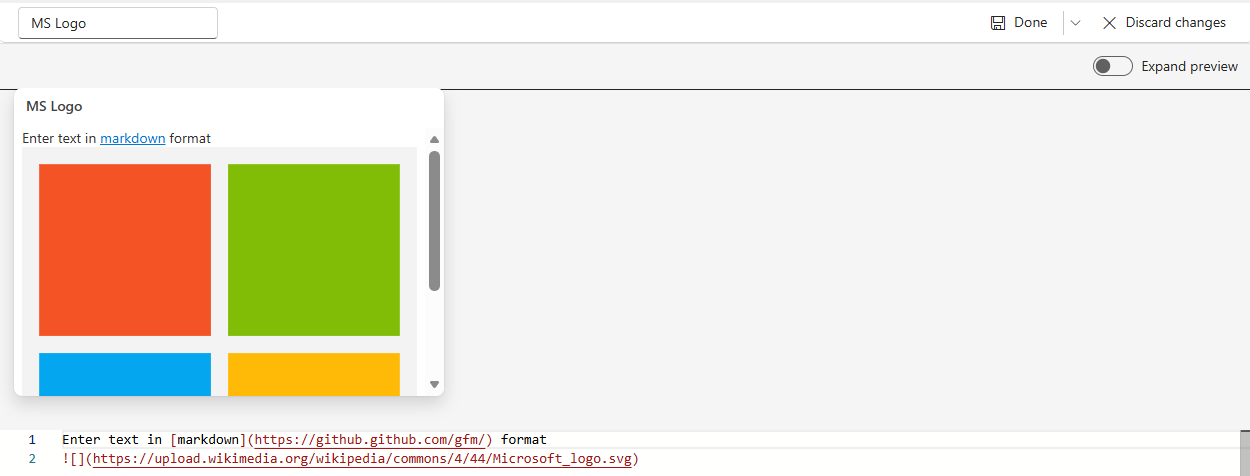
In the top menu, select Done to save the tile.
For more information on image syntax in GitHub Flavored Markdown, see Images.