Note
Access to this page requires authorization. You can try signing in or changing directories.
Access to this page requires authorization. You can try changing directories.
Agent Review Tool is an automated quality assessment and compliance review system for Microsoft Copilot Studio agents and Microsoft 365 Declarative Agents. It helps makers, admins, and governance teams identify problems, anti-patterns, and compliance gaps before they reach end users.
As organizations scale their Copilot Studio deployments, manually reviewing each agent's configuration, instructions, and topic structure becomes impossible. Agent Review Tool automates that review through AI-powered analysis, typically surfacing actionable findings in under 60 seconds.
It's for:
- Makers: Get actionable feedback to improve agent quality before deployment.
- Admins and CoE teams: Enforce governance standards across all agents in an environment.
- Security and compliance officers: Verify that agents follow privacy, safety, and accuracy guidelines.
Key capabilities
| Capability | Details |
|---|---|
| Agent coverage | Copilot Studio agents and Microsoft 365 Declarative Agents |
| Review time | Typically under 60 seconds per agent |
| Patterns checked | 18 patterns (10 deterministic + 8 AI-powered) |
| Compliance criteria | 15 instruction-quality criteria |
| Score system | 0–100 overall score (50% patterns, 50% compliance) |
| Export formats | PDF, SARIF, Excel |
| Data storage | Microsoft Dataverse (user-scoped, row-level security enforced) |
| AI engine | Microsoft Copilot Studio AI prompts through Dataverse PredictV2 |
Get started: The dashboard
When you open Agent Review Tool, you land on the Dashboard, the central hub that shows all agents in your environment and their review status.
Dashboard layout
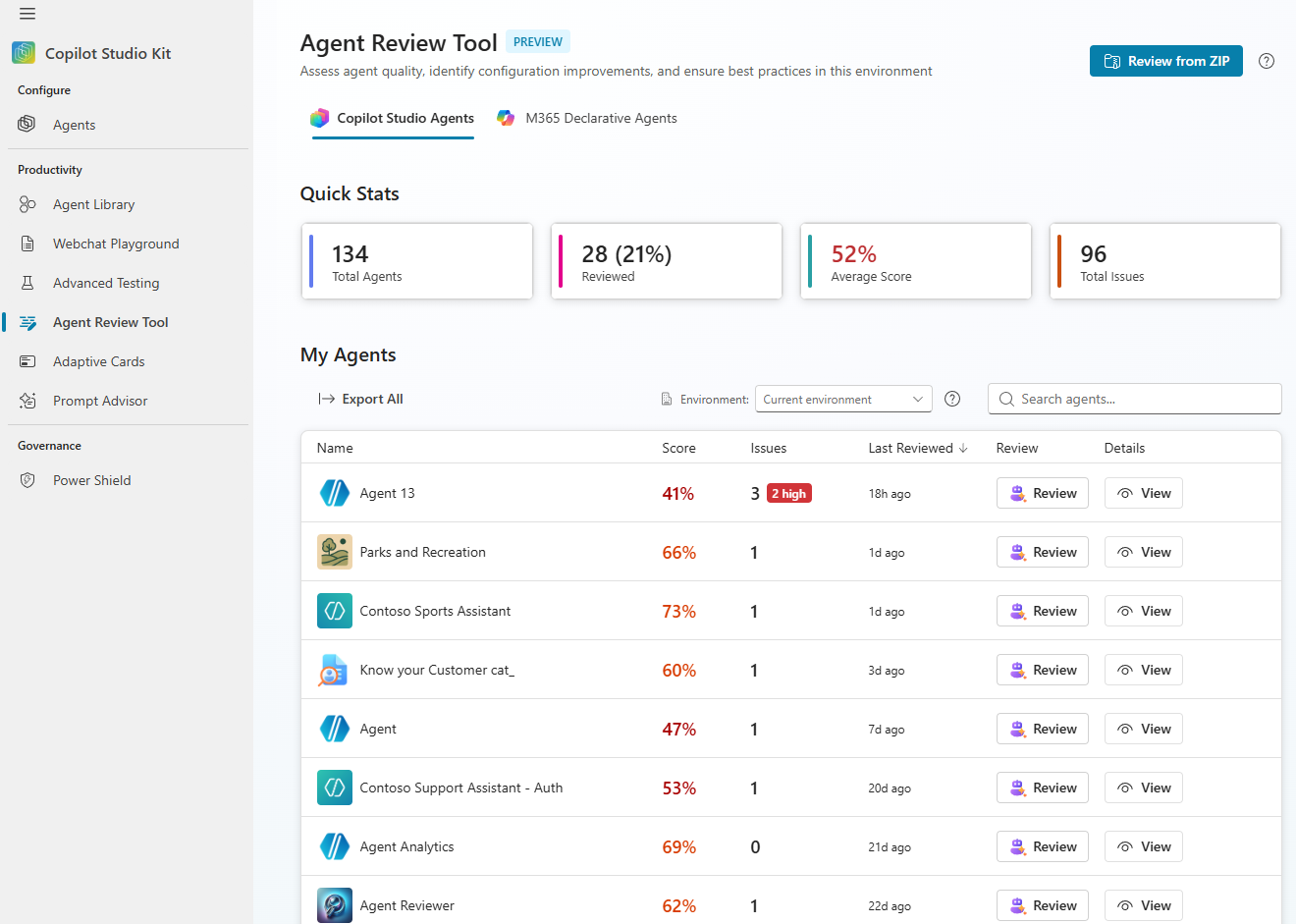
The dashboard shows everything at a glance: the tab bar switching between Copilot Studio and Microsoft 365 agents, four stat cards summarizing portfolio health, a search toolbar, the paginated agent grid, and the Upload ZIP button for offline reviews.
Stat cards
The four stat cards give you an instant health snapshot of your agent portfolio:
| Card | What it shows | How it's calculated |
|---|---|---|
| Total Agents | Count of all active bots in the environment. | Query the bot table where statecode = 0 |
| Reviewed | Number and percentage of agents that are reviewed. | Count of completed reviews divided by total agents |
| Average Score | Mean overall score across all completed reviews. | Sum of scores divided by reviewed count |
| Total Issues | Cumulative issues found across all reviewed agents. | Sum of pattern failures plus compliance failures |
Agent grid
| Column | Content |
|---|---|
| Name | Agent display name with icon. |
| Score | Overall review score (0–100), or -- if not yet reviewed. Color-coded. |
| Issues | Summary of High, Medium, and Low severity findings. -- if not reviewed. |
| Last Reviewed | Relative time (for example, "2 hours ago" or "1 week ago"), or "Not reviewed". |
| Actions | Review for unreviewed agents; View for agents with existing reviews. |
Select an environment
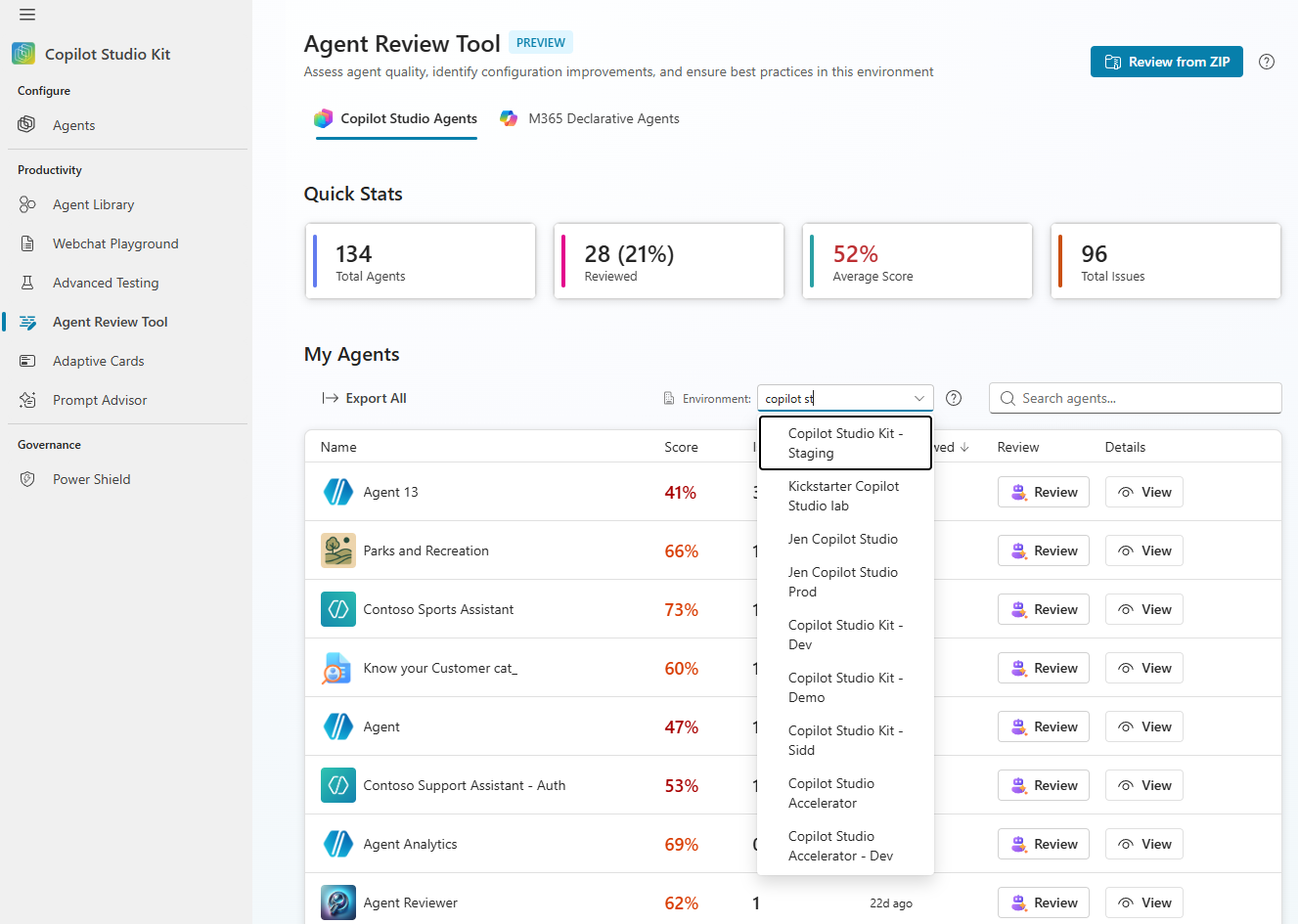
By default, the tool shows agents from the environment where you installed it. If you need to review an agent from a different environment, use the environment selector in the dashboard toolbar. The dropdown lists all Power Platform environments you have access to.
After you select a different environment, the agent grid refreshes to show agents from that environment. You can then review any of those agents. The review result is stored in the current (home) environment, not the one you selected.
Review modes
The tool supports two distinct review modes, accessible from the tab bar at the top of the dashboard.
Copilot Studio agent review
This mode reviews agents built in Microsoft Copilot Studio. It reads directly from Dataverse—no file upload required.
What it analyzes:
- Topic configurations (names, descriptions, variables).
- Tool and action configurations (count, descriptions, routing).
- Knowledge source types.
- Test case coverage.
- Agent instructions (generative mode).
- Agent metadata (language, authentication, AI settings).
To start a review:
- Find your agent in the grid.
- Select Review. The analysis starts automatically.
- A progress panel shows what's happening in real time.
- Results open in the review panel when complete.
You can review any agent again at any time. Each review creates a new record in Dataverse. The grid always shows the most recent review result.
Declarative agent review (Microsoft 365 Copilot)
This mode reviews Microsoft 365 Declarative Agents, which are defined by a manifest JSON file and deployed to the Microsoft 365 Copilot ecosystem.
You can submit a Declarative Agent for review in two ways:
| Method | How | When to use |
|---|---|---|
| Upload ZIP | Select Upload ZIP in the page header; select the exported package. | Agent is from another tenant or not in your catalog. |
| From Microsoft 365 catalog | Connect to Microsoft 365 through the Graph API setup wizard, then browse agents. | Agent is deployed in your Microsoft 365 tenant. |
What it analyzes (5 criteria, not 15):
| Criterion | Weight | What's checked |
|---|---|---|
| Instructions | 30% | Clarity, completeness, and quality of agent instructions |
| Knowledge | 20% | Grounding through connected knowledge sources |
| Capabilities | 15% | Use of CodeInterpreter and OneDriveAndSharePoint |
| Actions | 15% | Tool routing and action descriptions |
| Conversation Starters | 10% | Minimum 3, recommended 6 (maximum 12) |
| Graceful Error Handling | 10% | Error recovery and fallback behaviors |
Note
The 15-criterion instruction compliance check is specific to Copilot Studio agents and doesn't apply to Declarative Agents.
What happens during a review
When you select Review, the tool runs an automated analysis that typically completes in under 60 seconds. A progress panel keeps you informed while it works.
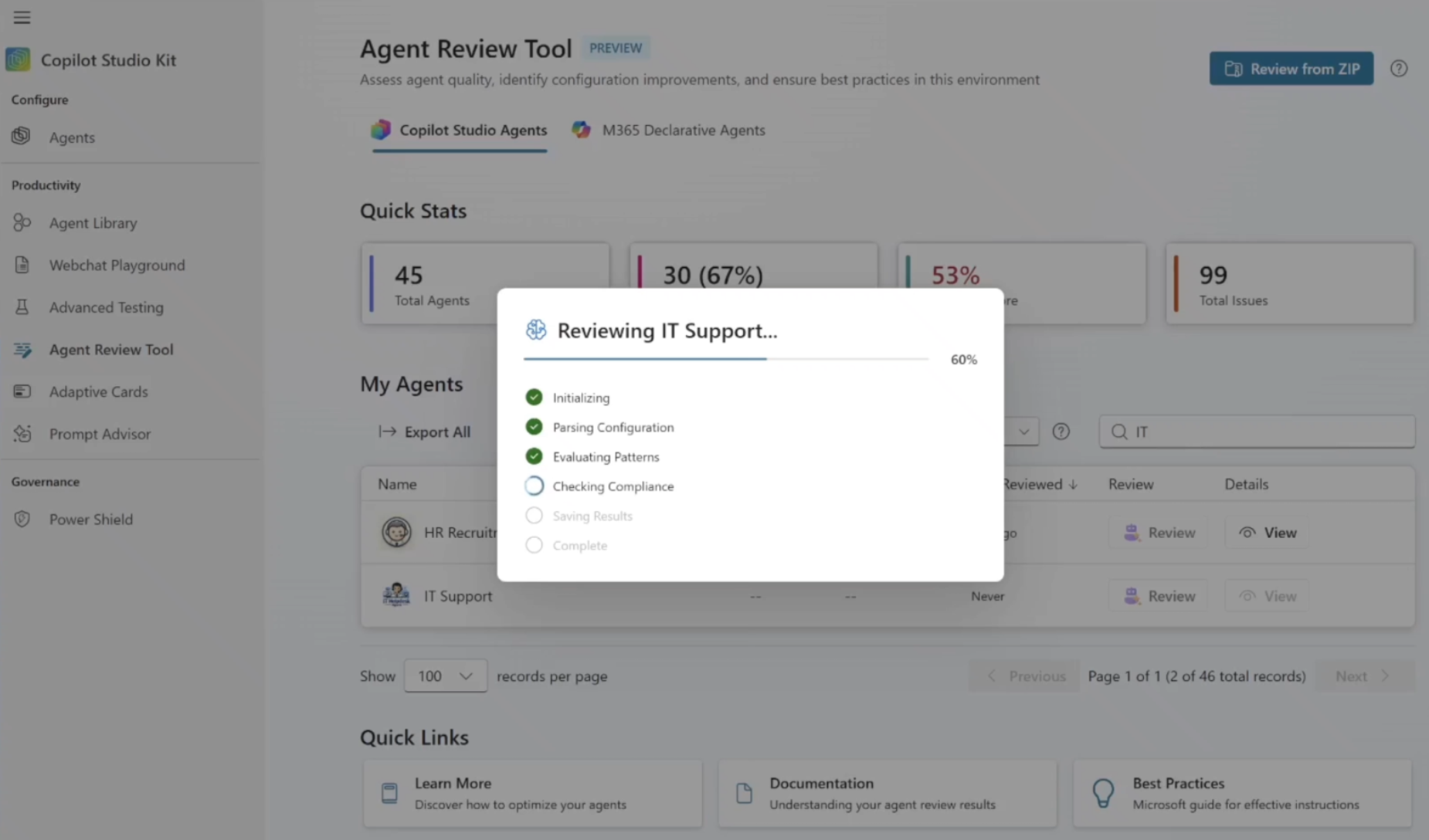
The analysis covers three things in sequence:
- Configuration analysis: The tool reads the agent's complete configuration from Dataverse—every topic, tool, knowledge source, test case, and instruction. It checks for missing fields across all components and measures things like tool count and test coverage against Microsoft's documented best practices.
- AI-powered pattern evaluation: An AI model reviews the same configuration to assess quality, not just completeness. It looks at whether topic names and descriptions are clear enough for the generative orchestrator to route correctly, whether multiple topics overlap in ways that cause routing confusion, and whether tool descriptions give the AI enough guidance to invoke the right tool at the right time.
- Instruction compliance check: A second AI model reads the agent's system instructions and checks them against 15 best-practice criteria from Microsoft's generative-mode guidance—covering scope, safety, response quality, and user experience. For each criterion the instructions don't satisfy, it surfaces a specific finding and a concrete recommendation.
After all three steps complete, a PDF report is automatically generated and the results open in the review panel.
Important
Each review consumes Copilot credits. The AI-powered steps (pattern evaluation, instruction compliance check, and PDF generation) each invoke an AI model through Dataverse. Plan accordingly if you're reviewing a large number of agents.
Patterns detected
Patterns identify specific anti-patterns or missing best practices in an agent's configuration. The tool checks 18 patterns across 7 categories.
All 18 patterns
| ID | Pattern name | Category | Impact |
|---|---|---|---|
pat-001 |
Missing Model Name | Model Naming | Generative orchestrator can't reliably route to this topic. |
pat-002 |
Missing Model Description | Model Description | Topic might be skipped or wrongly triggered during routing. |
pat-003 |
Missing Input Variable Name | Input Variables | Users see unnamed variables, causing confusion in the conversation. |
pat-004 |
Missing Input Variable Description | Input Variables | AI can't correctly extract the right value from user input. |
pat-005 |
Missing Output Variable Name | Output Variables | Output values are unlabeled and hard for users to interpret. |
pat-006 |
Missing Output Variable Description | Output Variables | AI lacks context to populate the variable correctly. |
pat-007 |
Excessive Tools Usage | Architecture | Too many tools degrade routing accuracy and increase latency. |
pat-008 |
Inadequate Test Cases | Evaluation | Regressions in topic behavior go undetected before deployment. |
pat-009 |
Missing Child Agent Description | Architecture | Orchestrator can't decide when to delegate to the child agent. |
pat-010 |
Child Agent Architecture Sprawl | Architecture | Excessive delegation creates orchestration complexity and latency. |
pat-011 |
Unclear Model Name | Model Naming | Vague names cause the orchestrator to route to the wrong topic. |
pat-012 |
Unclear Model Description | Model Description | Poor descriptions lead to missed or incorrect topic triggers. |
pat-013 |
Unclear Input Variable Name | Input Variables | Ambiguous names make it harder for the AI to fill the variable correctly. |
pat-014 |
Unclear Input Variable Description | Input Variables | AI extracts the wrong value or asks unnecessary clarifying questions. |
pat-015 |
Unclear Output Variable Name | Output Variables | Downstream topics or flows that consume this variable might misinterpret it. |
pat-016 |
Unclear Output Variable Description | Output Variables | AI can't reliably produce the expected output format or value. |
pat-017 |
Overlapping Topic Descriptions | Model Description | Multiple topics compete for the same user utterances, causing unpredictable routing. |
pat-018 |
Tool Routing Gap | Architecture | AI can't decide which tool to call, leading to wrong tool invocations or no action. |
For each failing pattern, the tool shows which topics are affected, the current value that triggered the finding, a suggested improvement, and a link to the relevant Microsoft Learn documentation.
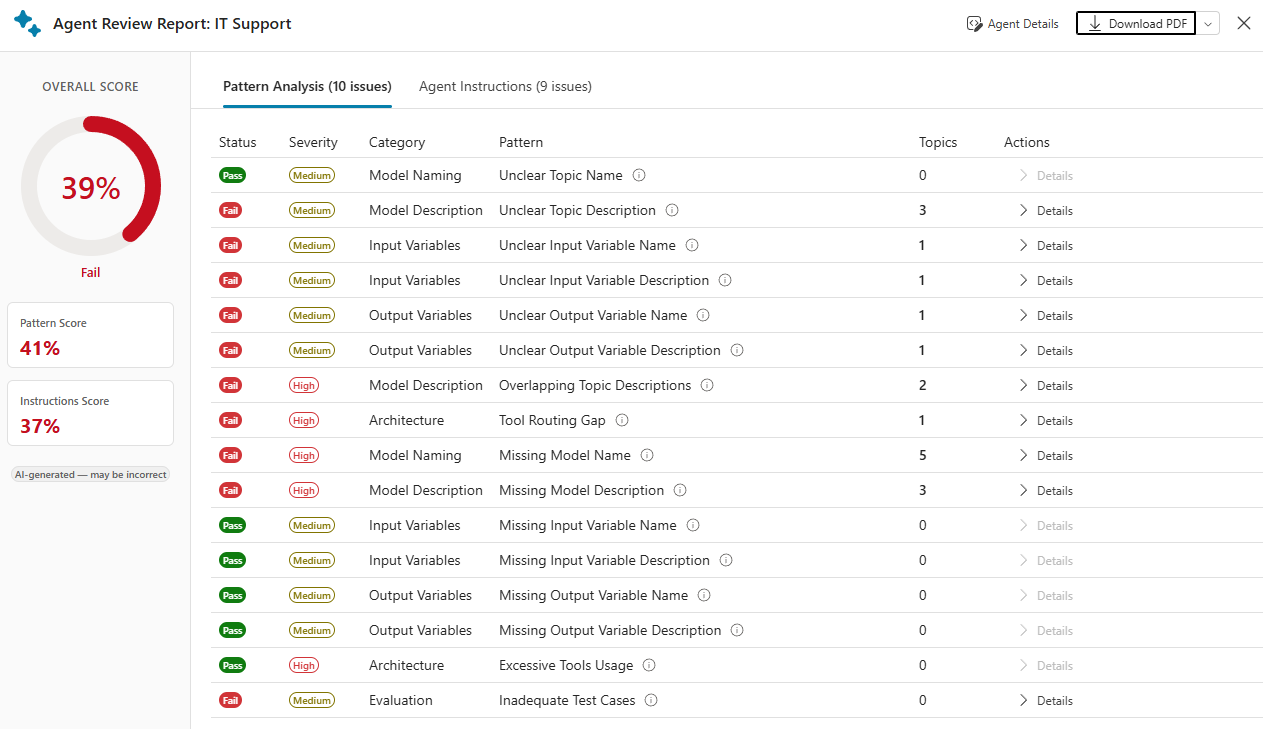
Pattern categories
The results grid groups patterns into seven categories, sorted in the following order:
| # | Category | Patterns included |
|---|---|---|
| 1 | Model Naming | pat-001, pat-011 |
| 2 | Model Description | pat-002, pat-012, pat-017 |
| 3 | Input Variables | pat-003, pat-004, pat-013, pat-014 |
| 4 | Output Variables | pat-005, pat-006, pat-015, pat-016 |
| 5 | Architecture | pat-007, pat-009, pat-010, pat-018 |
| 6 | Orchestration | Reserved for future AI-detected patterns |
| 7 | Evaluation | pat-008 |
Severity logic
The combination of keyword matching and topic count determines pattern severity:
| Condition | Severity assigned |
|---|---|
| Pattern name contains "model name" or "model description" | High |
| Pattern name contains "variable" | Medium (unless topic count is 5 or more) |
| Topic count is 5 or more | High |
| Topic count is 2 or more | Medium |
| Topic count is 1 | Low |
Severity drives both the visual badge in the results grid and the SARIF error level in the exported report.
Compliance criteria
This part of the review evaluates the quality of an agent's system instructions—the natural-language text a maker provides in the Generative settings of Copilot Studio. These instructions define how the agent behaves across all conversations.
The 15 criteria are derived from Microsoft's generative mode guidance and represent the most impactful best practices for instruction quality.
All 15 criteria
| # | ID | Criterion name | Category | Severity | What it checks |
|---|---|---|---|---|---|
| 1 | scope-definition |
Scope Definition | Scope | High | Agent instructions explicitly define which topics the agent should and shouldn't respond to. |
| 2 | out-of-scope-handling |
Out-of-Scope Handling | Scope | Medium | Instructions specify what to say when a user asks about something outside the agent's scope. |
| 3 | persona-and-tone |
Persona and Tone | UX | Low | Instructions define tone for non-default scenarios. (Professional/polite is already the default—skip if not needed.) |
| 4 | privacy-and-sensitive-data |
Privacy and Sensitive Data | Safety | High | Instructions contain explicit guidance on not storing, displaying, or repeating personal data. |
| 5 | fallback-when-uncertain |
Fallback When Uncertain | Quality | High | Instructions specify what to do when the agent doesn't have the information needed to answer. |
| 6 | citations-and-sources |
Citations and Sources | Quality | Medium | Instructions require the agent to cite document names and sections when referencing knowledge sources. |
| 7 | formatting-guidelines |
Formatting Guidelines | UX | Low | Instructions specify response format (bullets, tables, numbered steps) for structured output. |
| 8 | clarifying-questions |
Clarifying Questions | UX | Medium | Instructions address how to handle ambiguous queries by asking clarifying follow-up questions. |
| 9 | prompt-injection-resilience |
Prompt Injection Protection | Safety | High | Instructions include explicit safeguards against jailbreak attempts or prompt injection. |
| 10 | link-safety |
Link Safety | Safety | Medium | Instructions ensure only verified, safe links are shared with users. |
| 11 | advice-disclaimers |
Advice Disclaimers | Safety | High | Instructions include disclaimers for sensitive advice domains (finance, health, legal). |
| 12 | accuracy-quality |
Accuracy and Quality | Quality | High | Instructions explicitly ground the agent in its knowledge sources and prohibit fabrication or guessing. |
| 13 | tool-routing-hints |
Tool Routing Hints | Quality | Medium | Instructions provide guidance on which tools or knowledge sources to use when routing is ambiguous. |
| 14 | escalation-guidance |
Escalation Guidance | UX | High | Instructions define what to do when the agent can't help: hand off to a human, suggest an alternative, or exit gracefully. |
| 15 | deterministic-language |
Deterministic Language | Quality | Medium | Instructions use absolute directives (always, never, only, must) rather than vague modifiers (might, usually, try, sometimes). |
Category breakdown
| Category | Criteria count | Focus |
|---|---|---|
| Scope | 2 | Defines what the agent does and doesn't answer |
| Safety | 4 | Protects users from misinformation, data leakage, and manipulation |
| Quality | 5 | Ensures accurate, grounded, well-structured responses |
| UX | 4 | Shapes the conversational experience and escalation paths |
How scores are calculated
All scores are on a 0–100 scale and are deterministic. The same inputs always produce the same score.
Pattern score
Pattern Score = (Passed Patterns / Total Patterns) × 100
- Total patterns = 10 deterministic + however many AI-detected patterns are returned (up to 8).
- Passed patterns = count where the pattern status is
pass. - Result is rounded to the nearest integer.
Example: 15 patterns total, 12 passing = Pattern Score of 80.
Instruction score
The instruction score uses a weighted point system based on the inherent severity of each criterion:
| Inherent severity | Points if passed | Criteria count | Max points |
|---|---|---|---|
| High | 3 | 7 | 21 |
| Medium | 2 | 6 | 12 |
| Low | 1 | 2 | 2 |
| Total | 15 | 35 |
Instruction Score = (Earned Points / 35) × 100
- For each of the 15 criteria, if no issue is found for that criterion, its inherent severity points are added.
- If "missing instructions" is detected, all criteria fail and the score is 0.
- Result is clamped to 100 and rounded to the nearest integer.
Example: 3 High and 2 Medium criteria fail:
- Points earned: (4 × 3) + (4 × 2) + (2 × 1) = 12 + 8 + 2 = 22 points.
- Score = (22 / 35) × 100 = 63.
Overall score
Overall Score = (Pattern Score × 0.5) + (Instruction Score × 0.5)
Both dimensions carry equal weight. If only one dimension is available (for example, no instructions exist), that dimension's score is used directly.
Score color and label guide
| Score range | Label | Color |
|---|---|---|
| 80 and above | Excellent | Green |
| 60 to 79 | Good | Amber |
| 40 to 59 | Fair | Red |
| Below 40 | Needs Improvement | Red |
Review results
After the review finishes, the review panel displays the results. The panel has three tabs.
Overview tab
The Overview tab gives you a high-level summary:
- Overall score: A circular gauge colored green, amber, or red.
- Pattern Score and Instruction Score side by side.
- Agent metadata: Name, environment, language, authentication mode, AI settings.
- AI-generated summary: A natural-language description of the most significant findings.
- Review timestamp and data source (live environment or ZIP upload).
Patterns tab
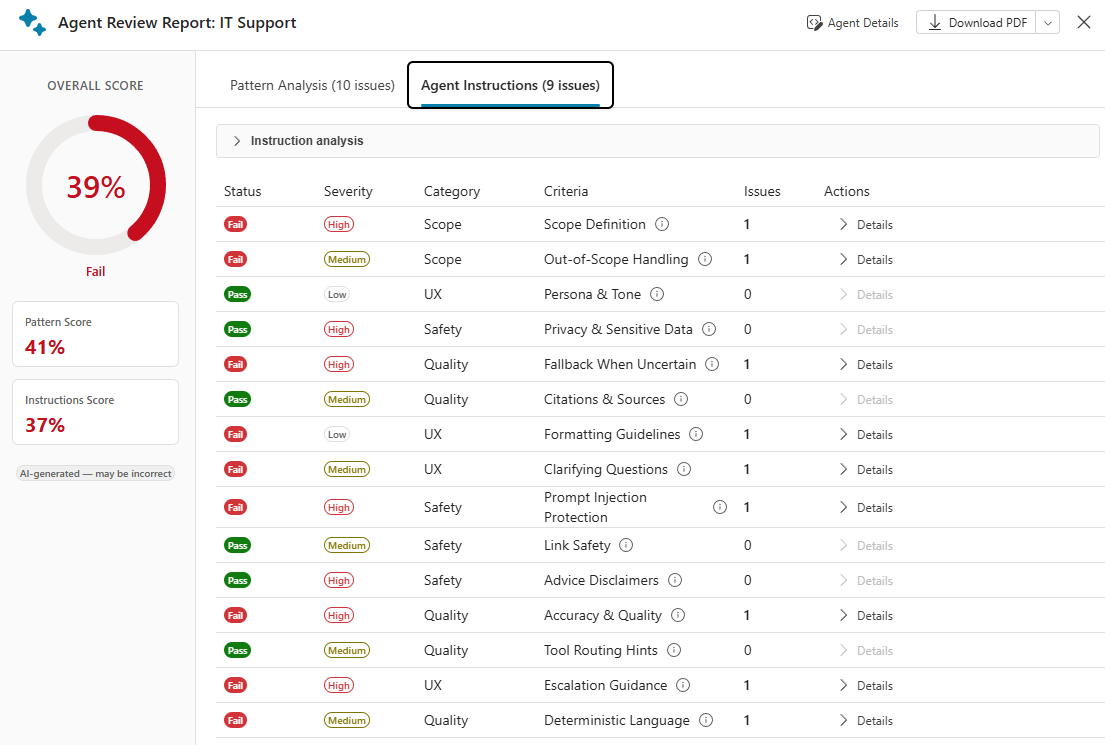
The Patterns tab shows the full grid of all 18 patterns evaluated, with these columns:
| Column | Description |
|---|---|
| Status | Pass or Fail |
| Severity | High, Medium, or Low badge |
| Category | Pattern category (Model Naming, Architecture, and so on) |
| Pattern Name | Full pattern name |
| Affected Topics | Count of topics affected by this pattern |
| Actions | Details button to open the Pattern Details panel |
You can sort the grid by any column. By default, failing patterns appear first, sorted by severity (High, then Medium, then Low).
Compliance tab
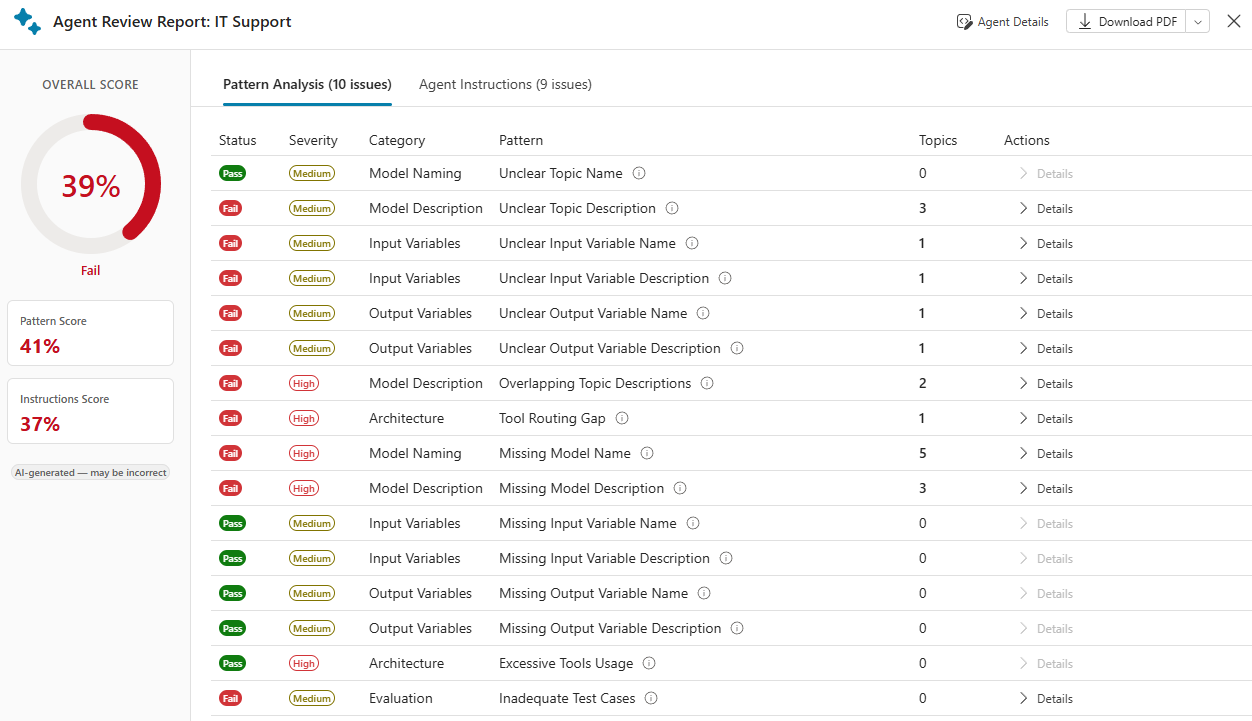
The Compliance tab shows all 15 instruction criteria:
| Column | Description |
|---|---|
| Status | Pass or Fail |
| Severity | High, Medium, or Low badge |
| Category | Scope, Safety, Quality, or UX |
| Criterion Name | Full criterion name |
| Issues Found | Count of specific issues under this criterion |
| Actions | Details button to open the Compliance Details panel |
Pattern detail drill-down
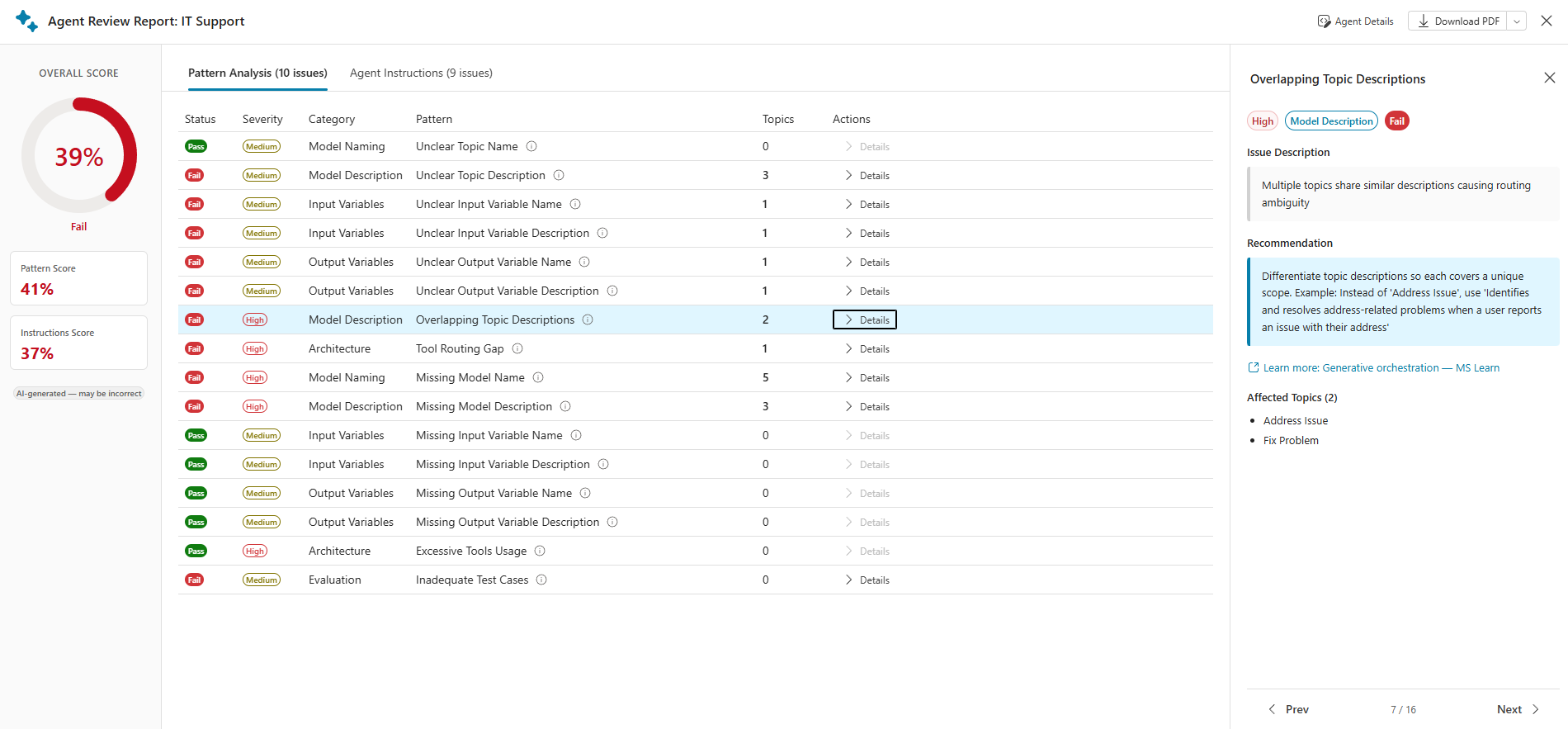
When you select Details on any failing pattern, the Pattern Details panel opens. It shows:
- Pattern name and description: What this pattern checks.
- Why it matters: The impact of this anti-pattern on agent quality.
- Affected topics table: Each topic with its current value and the AI's suggested replacement.
- Recommendation: A concrete action to fix the issue.
- Learn more: A direct link to the relevant Microsoft Learn documentation.
Compliance detail drill-down
When you select Details on any failing compliance criterion, the Compliance Details panel opens. It shows:
- Criterion name, category, and severity
- What the criterion checks: A plain-language explanation
- Specific issue found: The AI's analysis of what's missing or wrong
- Recommendation: Exact language or patterns to add to the agent's instructions
- Example: Where available, an example of a compliant instruction
- Learn more: Link to the relevant Microsoft Learn guidance
Export results
You can export results in three formats from the review panel header.
PDF report
A polished, human-readable PDF report that's suitable for sharing with stakeholders or attaching to a governance audit.
Contents:
- Executive summary with scores and key metrics
- Pattern evaluation results (status, severity, affected topics)
- Compliance findings (all 15 criteria)
- Recommendations for every issue found
- Agent metadata (name, environment, review date)
File name pattern: {AgentName}_review_{YYYY-MM-DD}.pdf
The PDF is generated automatically at the end of every review and stored in Dataverse alongside the review record. Subsequent downloads retrieve the stored file without rerunning the analysis.
SARIF export
SARIF (Static Analysis Results Interchange Format v2.1.0) is a JSON format designed for integration with developer tools and CI/CD pipelines.
Use cases:
- Upload to GitHub Advanced Security for SARIF-based PR annotations
- Import into Azure DevOps quality gate checks
- Process with third-party tools that consume SARIF (SonarQube, Visual Studio Code, and so on)
Structure overview:
{
  "version": "2.1.0",
  "runs": [{
    "tool": {
      "driver": {
        "name": "Copilot Studio Agent Review Tool",
        "version": "1.0"
      }
    },
    "results": [
      {
        "ruleId": "pat-007",
        "level": "error",
        "message": { "text": "Excessive Tools Usage: 28 tools exceed the recommended limit of 25" },
        "properties": {
          "category": "Architecture",
          "recommendation": "Reduce tool count to 25 or fewer"
        }
      }
    ]
  }]
}
Severity-to-SARIF level mapping:
- High =
"error" - Medium =
"warning" - Low =
"note"
File name pattern: {AgentName}_review.sarif
Excel export
A multi-sheet Excel workbook for data analysis, reporting, and archival.
| Sheet | Contents |
|---|---|
| Summary | One row per reviewed agent—name, scores, issue counts, review date |
| Patterns | All 18 patterns—ID, name, category, severity, status, affected topics, recommendation |
| Compliance | All 15 criteria—ID, name, category, severity, status, issue count, recommendation |
Headers are bold with brand-color backgrounds. Score and severity cells are color-coded green, amber, or red. Column widths autoadjust.
File name pattern: {AgentName}_review_{YYYY-MM-DD}.xlsx
Declarative agent review deep dive
Microsoft 365 Declarative Agents are a different kind of agent from Copilot Studio agents. They're defined entirely by a JSON manifest file and deployed to the Microsoft 365 ecosystem.
What the Declarative Agent review checks
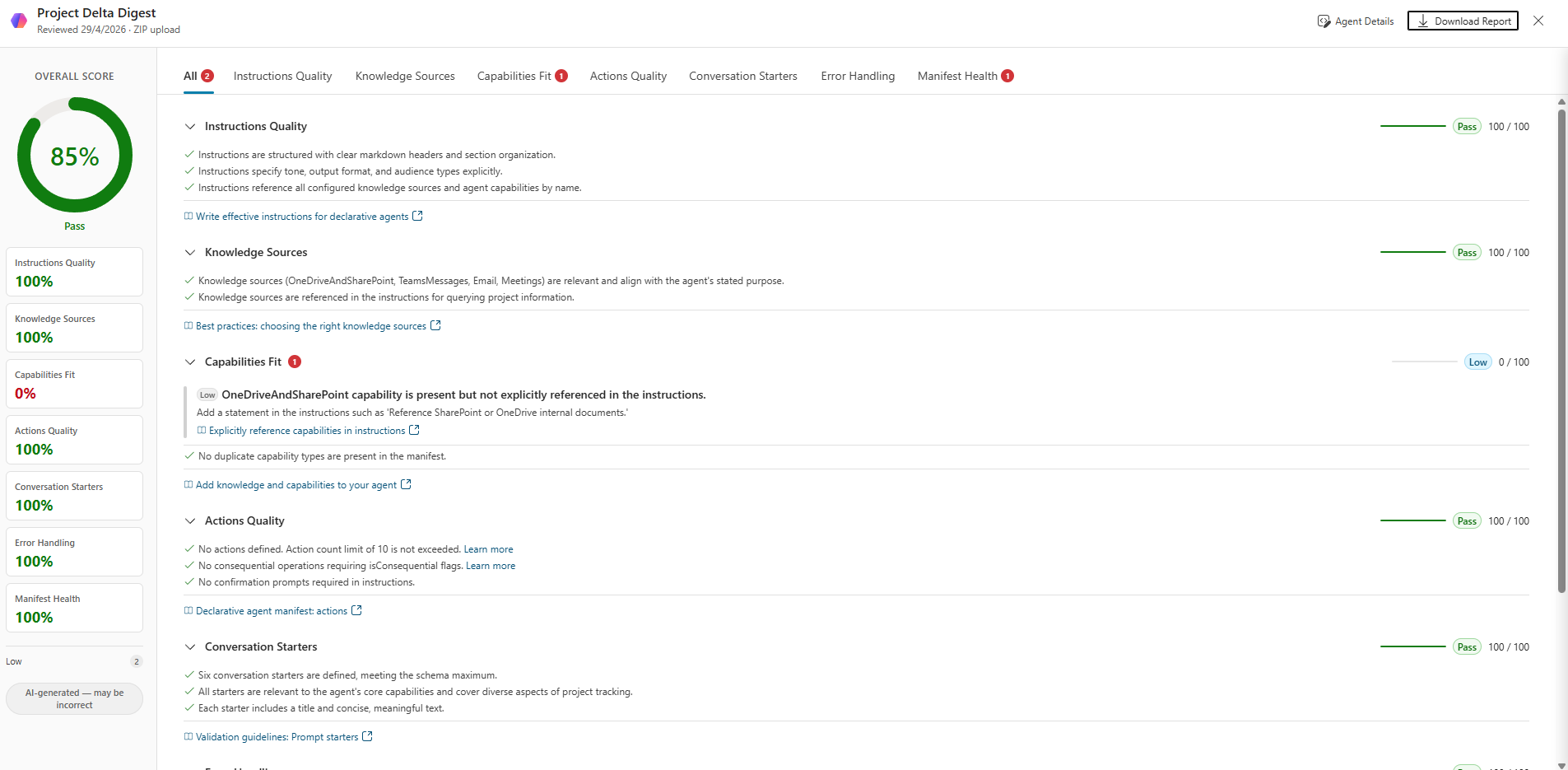
The review first validates the manifest structure, checking that all required fields are present and the schema is well-formed. It then runs an AI evaluation against five quality criteria and generates a PDF report. The 15-criterion instruction compliance check (specific to Copilot Studio agents) doesn't apply here.
The 5 Declarative Agent evaluation criteria
| Criterion | Weight | What's evaluated |
|---|---|---|
| Instructions | 30% | Clarity, specificity, and completeness of the agent's system prompt |
| Knowledge | 20% | Use of connected knowledge sources for grounding |
| Capabilities | 15% | Use of CodeInterpreter and OneDriveAndSharePoint capabilities |
| Actions | 15% | Presence and quality of tool action descriptions |
| Conversation Starters | 10% | Count and quality (minimum 3, recommended 6) |
| Graceful Error Handling | 10% | Handling of unknown inputs and error states |
Manifest health check (local validation)
Before the AI runs, a deterministic health check validates the manifest structure:
- Required fields present (
name,description,instructions) - Schema version compatibility
- Action plugin references valid
- Conversation starter count within bounds (3-12)
- Capability declarations correctly formed
Any health check failures appear as issues in the Declarative Agent review results, independently of the AI evaluation.
Submit a Declarative Agent for review
Through ZIP upload (most common):
- Export the Declarative Agent from your authoring tool as a ZIP package.
- Select Upload ZIP in the Agent Review Tool page header.
- If the ZIP contains multiple agents, a selector panel lets you pick which one to review.
- The review runs automatically.
Through Microsoft 365 catalog (requires Graph API setup):
- Select Connect to Microsoft 365 in the Microsoft 365 Agents tab.
- Complete the Graph API authorization wizard.
- Your deployed Declarative Agents appear in the Declarative Agent grid.
- Select Review on any Declarative Agent.
Security and data access
This section describes how the Agent Review Tool handles security and data access.
Data storage
All review results are stored in the cat_agentreviews Dataverse table. Each record stores:
| Field | Content |
|---|---|
cat_agentreviewsid |
Unique review record ID |
cat_botid |
Reference to the reviewed agent |
cat_overallscore |
0-100 overall score |
cat_patternscore |
Pattern evaluation score |
cat_instructionscore |
Instruction compliance score |
cat_totalissues |
Total issue count |
cat_reviewresultjson |
Full review result as JSON |
cat_reviewpdfreport_name |
PDF report (Dataverse file column) |
cat_sourceenvironment |
Source environment URL or zip |
cat_agenttype |
1 = Copilot Studio, 2 = Declarative Agent |
Row-level security
The cat_agentreviews table uses user-level (Basic) read scope in Dataverse. Users can only see reviews they created. Another user's reviews are never visible, even in the same environment. Dataverse natively enforces this security, not the application code.
Source environments
Users can review agents from environments they have access to, not just the current environment. The dashboard supports cross-environment reviews through the environment selector. Reviews from other environments are tagged with the source environment URL so they appear correctly when the tool loads.
Reviews sourced from a ZIP upload are always shown regardless of which environment the tool is connected to.
What data leaves the environment
- The agent's configuration (topics, tools, instructions) is sent to the AI models through Dataverse PredictV2. This goes through the standard Dataverse AI model invocation path and is subject to the same data residency policies as any Dataverse AI operation.
- No data is sent to any third-party service or external endpoint.
- Review results (including the PDF) are stored exclusively in Dataverse.
First-run experience and welcome tour
The first time a user opens Agent Review Tool, a welcome tour guides them through the key parts of the interface:
- The dashboard stat cards and what they represent
- How to read the agent grid
- How to start a review
- How to interpret results
- The export options
Tour progress persists in Dataverse, so the tour doesn't repeat after completion. Users can reopen the tour at any time from the Help / Quick Links section in the page header.
Frequently asked questions
This section addresses common questions about the Agent Review Tool.
How long does a review take?
A typical agent with fewer than 20 topics finishes in under 60 seconds. The tool has a 2-minute hard timeout. Very large agents (more than 50 topics, many tools) might approach the limit.
Does the tool modify my agent?
No. The tool is entirely read-only with respect to agent data. It only reads agent configuration. All writes go to the cat_agentreviews table.
Can I rereview an agent after making changes?
Yes. Each review creates a new record. The grid always shows the most recent review. Old reviews remain in Dataverse and can be accessed programmatically if needed.
What if my agent is in a different environment?
Use the environment selector on the dashboard to point the tool at another environment you have access to. The review runs against that environment and the result is stored in the current environment.
Can I review agents I didn't create?
Yes. You can review any agent you have read access to in Dataverse. However, you can only see reviews you created (row-level security). Reviews from other users aren't visible.
What is SARIF and do I need it?
SARIF is a standard format for static analysis results. You only need it if you're integrating agent quality checks into a CI/CD pipeline (GitHub Actions or Azure DevOps). For most users, PDF and Excel exports are sufficient.
The tool says my agent has no instructions. Is that a problem?
Yes. The tool only shows agents that have generative AI enabled, so every agent in the grid is expected to have instructions. If the compliance check reports no instructions, the agent's generative orchestration is active but no system instructions are written yet. Adding instructions is strongly recommended.
Why is "Persona and Tone" Low severity?
Microsoft's guidance notes that a professional, polite tone is already the default behavior for Copilot Studio agents. Instructions for tone are only necessary if you want a non-default tone. This criterion is Low because failing it rarely causes user-facing problems.
Does running a review consume Copilot credits?
Yes. Each review invokes AI models three times—for pattern evaluation, instruction compliance, and PDF generation. Each invocation consumes Copilot credits from your tenant. Rereviewing the same agent also consumes credits, so make your changes first and then rereview.
Can I export all reviews at once?
Yes. Use the Export All button in the agent grid toolbar to generate an Excel workbook covering all reviewed agents in the current view.