Note
Access to this page requires authorization. You can try signing in or changing directories.
Access to this page requires authorization. You can try changing directories.
Custom functions enable developers to add new functions to Excel by defining those functions in JavaScript as part of an add-in. Users within Excel can access custom functions just as they would any native function in Excel, such as SUM().
Note
Custom function is a general term that is interchangeable with user-defined function. Both terms apply to VBA, COM, and Office.js add-ins. The Office Add-ins documentation uses the term custom function when referring to custom functions that use Office JavaScript APIs.
The following animated image shows your workbook calling a function you've created with JavaScript or TypeScript. In this example, the custom function =MYFUNCTION.SPHEREVOLUME calculates the volume of a sphere.
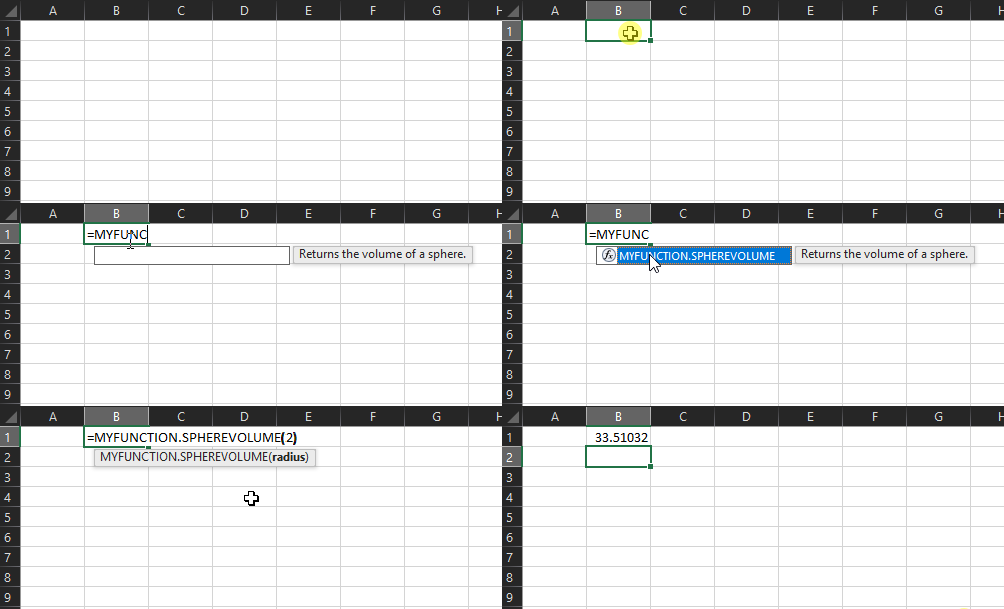
The following code defines the custom function =MYFUNCTION.SPHEREVOLUME.
/**
 * Returns the volume of a sphere.
 * @customfunction
 * @param {number} radius
 */
function sphereVolume(radius) {
  return Math.pow(radius, 3) * 4 * Math.PI / 3;
}
How a custom function is defined in code
If you use the Yeoman generator for Office Add-ins to create an Excel custom functions add-in project, it creates files which control your functions and task pane. We'll concentrate on the files that are important to custom functions.
| File | File format | Description |
|---|---|---|
| ./src/functions/functions.js or ./src/functions/functions.ts |
JavaScript or TypeScript |
Contains the code that defines custom functions. |
| ./src/functions/functions.html | HTML | Provides a <script> reference to the JavaScript file that defines custom functions. |
| ./manifest.xml or ./manifest.json | XML or JSON | Specifies the location of multiple files that your custom function use, such as the custom functions JavaScript, JSON, and HTML files. It also lists the locations of task pane files, command files, and specifies which runtime your custom functions should use. The Yeoman generator for Office Add-ins creates a project with an XML manifest. |
Tip
The Yeoman generator for Office Add-ins offers multiple Excel Custom Functions projects. We recommend selecting the project type Excel Custom Functions using a Shared Runtime and the script type JavaScript.
Script file
The script file (./src/functions/functions.js or ./src/functions/functions.ts) contains the code that defines custom functions and comments which define the function.
The following code defines the custom function add. The code comments are used to generate a JSON metadata file that describes the custom function to Excel. The required @customfunction comment is declared first, to indicate that this is a custom function. Next, two parameters are declared, first and second, followed by their description properties. Finally, a returns description is given. For more information about what comments are required for your custom function, see Autogenerate JSON metadata for custom functions.
/**
 * Adds two numbers.
 * @customfunction
 * @param first First number.
 * @param second Second number.
 * @returns The sum of the two numbers.
 */

function add(first, second){
  return first + second;
}
Tip
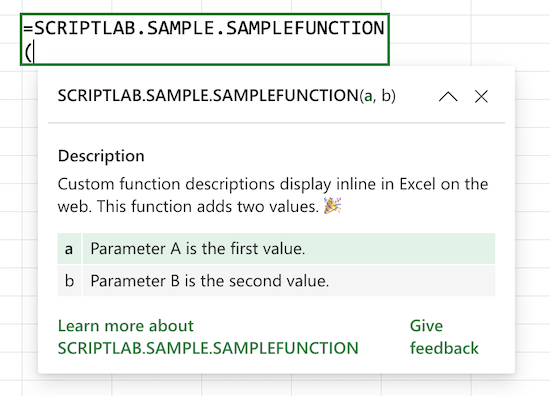
In Excel on the web, custom function descriptions and parameter descriptions display inline. This gives users additional information when writing custom functions. Learn how to configure the inline descriptions by exploring any of the custom functions Script Lab samples in Excel on the web. See the following screenshot for an example.
Manifest file
The manifest file for an add-in that defines custom functions configures the namespace, specifies file locations, and defines the runtime. Select the tab for the manifest type you're using.
Note
Custom functions are only available in preview with the unified manifest. Don't use custom functions with the unified manifest in a production add-in.
The unified manifest for an add-in that defines custom functions (./manifest.json in the project) does several things.
- Defines the namespace for your custom functions using the
customFunctions.namespaceobject. A namespace prepends itself to your custom functions to help customers identify your functions as part of your add-in. - Uses the
customFunctionsextension to specify metadata about custom functions, including the JSON metadata file location via themetadataUrlproperty. - Configures the runtime for custom functions using the
runtimesarray with anactions.typeproperty set to"executeFunction".
To see a full working manifest from a sample add-in, see the manifest in one of our Office Add-in samples GitHub repositories.
Tip
If you'll be testing your add-in across multiple environments (for example, in development, staging, demo, etc.), we recommend that you maintain a different manifest file for each environment. In each manifest file, you can:
Specify the URLs that correspond to the environment.
Customize metadata values so that end users are able to identify a sideloaded add-in's corresponding environment. For example:
- In the unified manifest for Microsoft 365, customize the
"name"property of the add-in and the"label"properties for various UI controls to indicate the environment. - In the add-in only manifest, customize the
DisplayNameelement and and labels within theResourceselement to indicate the environment.
- In the unified manifest for Microsoft 365, customize the
Customize the custom functions
namespaceto indicate the environment, if your add-in defines custom functions.
By following this guidance, you'll streamline the testing process and avoid issues that would otherwise occur when an add-in is simultaneously sideloaded for multiple environments.
Coauthoring
Excel on the web and on Windows connected to a Microsoft 365 subscription allow end users to coauthor in Excel. If an end user's workbook uses a custom function, that end user's coauthoring colleague is prompted to load the corresponding custom functions add-in. Once both users have loaded the add-in, the custom function shares results through coauthoring.
For more information on coauthoring, see About coauthoring in Excel.
Supported platforms
Excel custom functions are supported by most Office client applications. Excel custom functions aren't currently supported in Office on iPad or volume-licensed perpetual versions of Office 2021 or earlier on Windows. For more information, see Custom functions requirement sets.
Next steps
Want to try out custom functions? Check out the simple custom functions quick start or the more in-depth custom functions tutorial if you haven't already.
Another easy way to try out custom functions is to use Script Lab, an add-in that allows you to experiment with custom functions right in Excel. You can try out creating your own custom function or play with the provided samples.
See also
Collaborate with us on GitHub
The source for this content can be found on GitHub, where you can also create and review issues and pull requests. For more information, see our contributor guide.
Office Add-ins