Note
Access to this page requires authorization. You can try signing in or changing directories.
Access to this page requires authorization. You can try changing directories.
Power Query can connect to many different data sources so you can work with the data you need. This article provides a high-level overview of the stages for bringing in data to Power Query either in Power Query Desktop or Power Query Online. For product-specific instructions on how to start the get data experience, go to Where to get data.
Connecting to a data source with Power Query follows a standard set of stages before landing the data at a destination. This article summarizes each of these stages.
Important
In some cases, a connector might have all stages of the get data experience, and in other cases a connector might have just a few of them. For more information about the experience of a specific connector, go to the documentation available for the specific connector by searching on the Connectors in Power Query article.
Power Query Desktop experience
The stages for getting data in the Power Query Desktop experiences are:
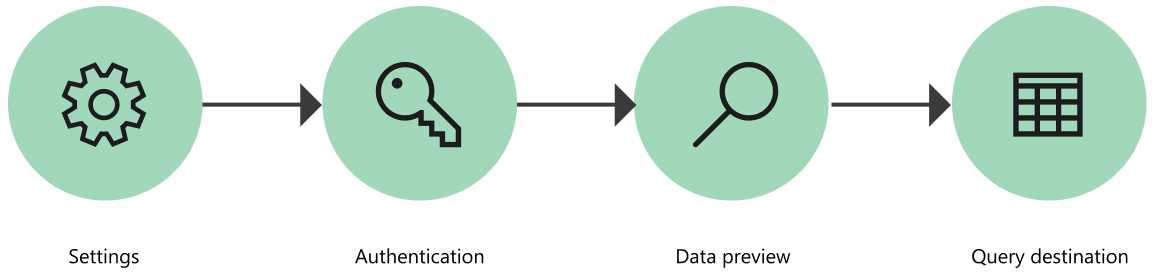
1. Connection settings
Most connectors initially require at least one parameter to initialize a connection to the data source. For example, the SQL Server connector requires at least the host name to establish a connection to the SQL Server database.
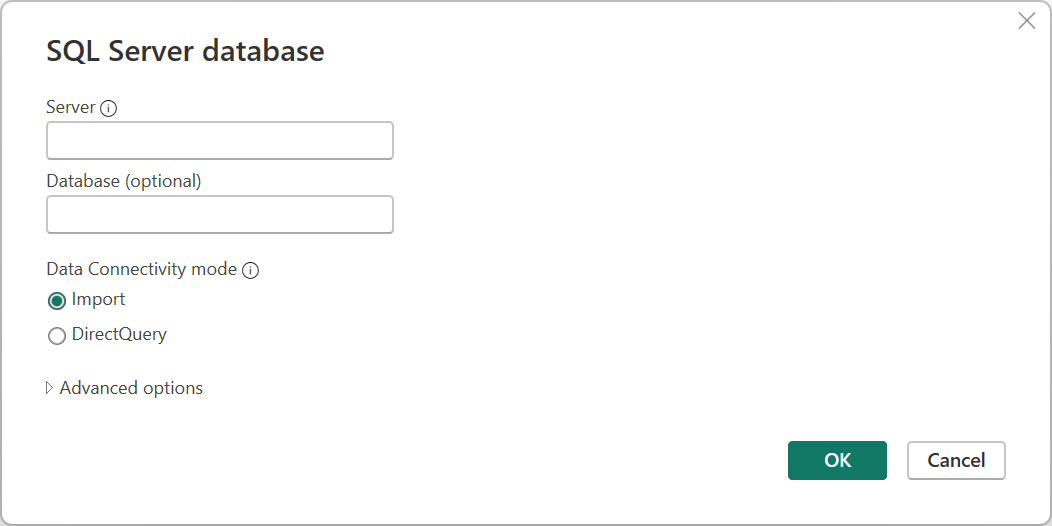
In comparison, when trying to connect to an Excel file, Power Query requires that you use the file path to find the file you want to connect to.
The connector parameters are commonly used to establish a connection to a data source, and they—in conjunction with the connector used—define a data source path.
Note
Some connectors don't require you to enter any parameters at all. These connectors are called singleton connectors and only have one data source path available per environment. Some examples are Adobe Analytics, MailChimp, and Google Analytics.
For a full list of available connectors and the products they support, go to Connectors in Power Query.
2. Authentication
Every single connection made in Power Query has to be authenticated. The authentication methods vary from connector to connector, and some connectors might offer multiple methods of authentication.
The currently available methods of authentication for Power Query are:
- Anonymous: Commonly used when connecting to a data source that doesn't require user authentication, such as a webpage or a file available over public HTTP.
- API Key: A single API key is accepted for authentication.
- Basic: A username and password sent in base64 encoding are accepted for authentication.
- Database: This method is only available in some database connectors.
- Organizational account or Microsoft account: This method is also known as OAuth 2.0.
- Service Principal: Uses Microsoft Entra ID for authentication.
- Windows: Can be implicit or explicit.
For example, the available authentication methods for the SQL Server database connector are Windows, Database, and Microsoft account.
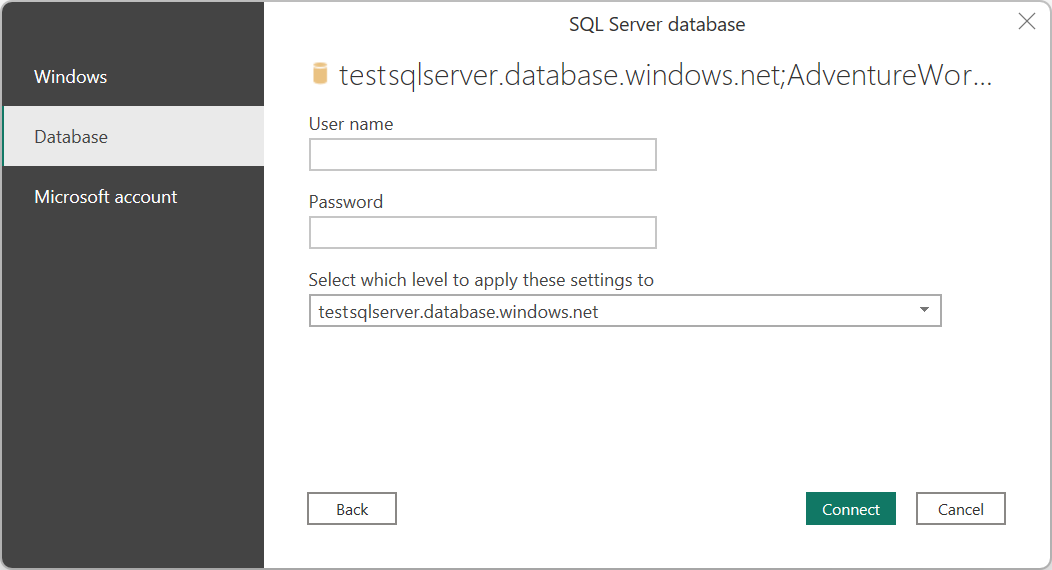
For more information about how authentication works, how to change credentials, and how to troubleshoot authentication issues, go to Connector authentication.
3. Data preview
The goal of the data preview stage is to provide you with a user-friendly way to preview and select your data.
Depending on the connector that you use, you can preview data by using either:
- Navigator window
- Table preview dialog box
Navigator window (navigation table)
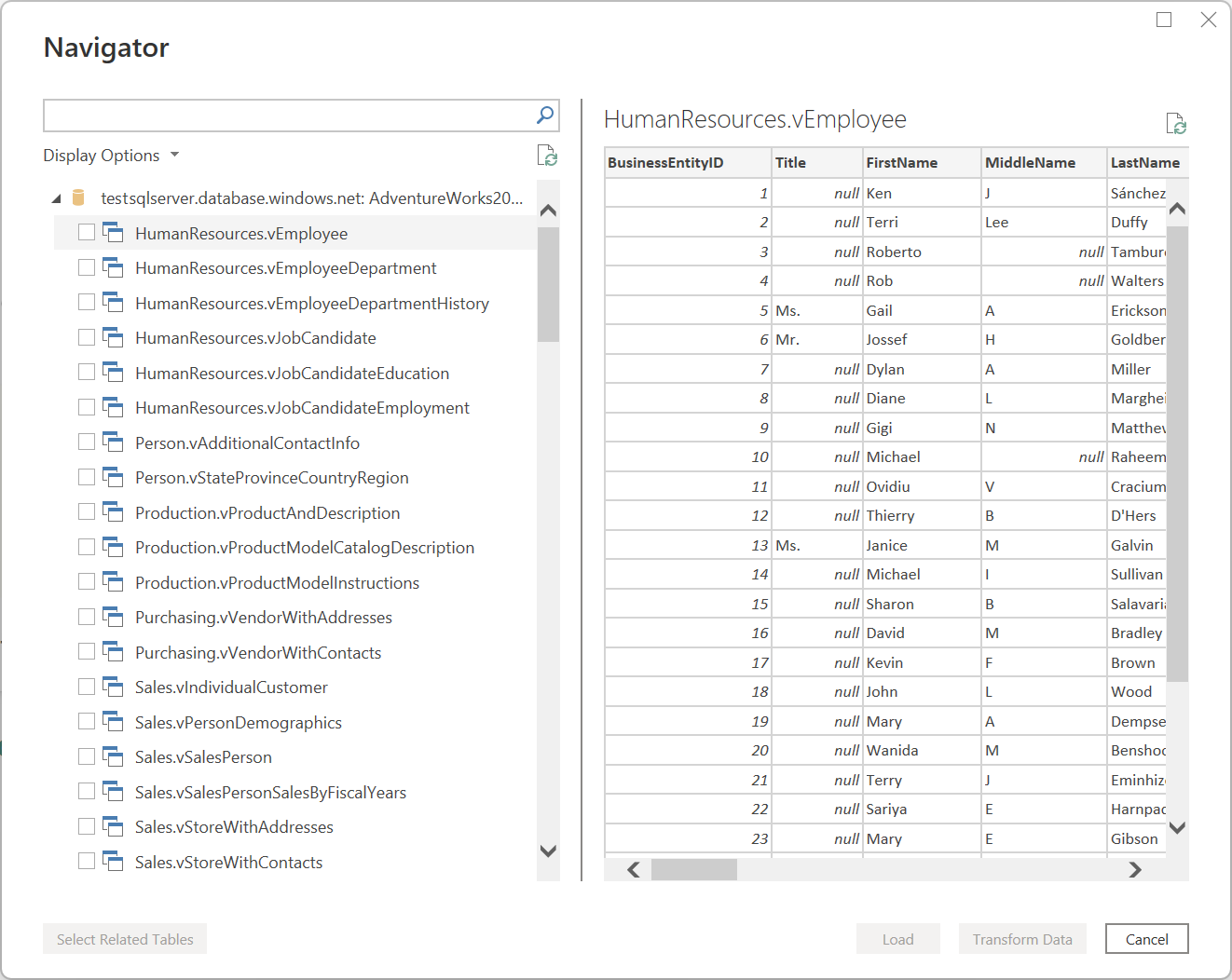
The Navigator window consists of two main sections:
The object selection pane is displayed on the left side of the window. The user can interact with and select these objects.
Note
For Power Query in Excel, select the Select multiple items option from the upper-left corner of the navigation window to select more than one object at a time in the object selection pane.
Note
The list of objects in Power Query Desktop is limited to 10,000 items. This limit doesn't exist in Power Query Online. For a workaround in Power Query Desktop, go to Object limitation workaround.
The data preview pane on the right side of the window shows a preview of the data from the object you selected.
Object limitation workaround
There's a fixed limit of 10,000 objects in the Navigator in Power Query Desktop. This limit doesn't occur in Power Query Online. The Power Query Online UI is eventually going to replace the one in the desktop.
In the interim, you can use the following workaround:
Right-click on the root node of the Navigator, and then select Transform Data.
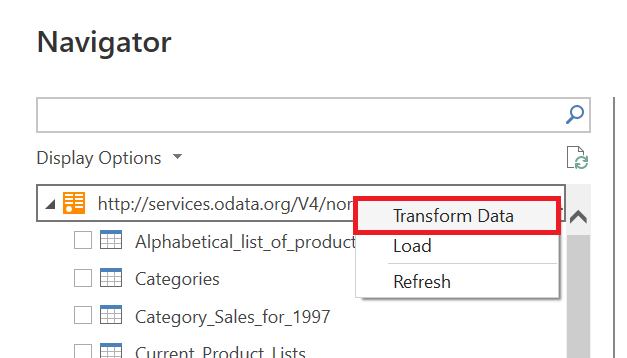
The Power Query editor then opens with the full navigation table in the table preview area. This view doesn't have a limit on the number of objects, and you can use filters or any other Power Query transforms to explore the list and find the rows you want (for example, based on the Name column).
Upon finding the item you want, you can get at the contents by selecting the data link (such as the Table link in the following image).
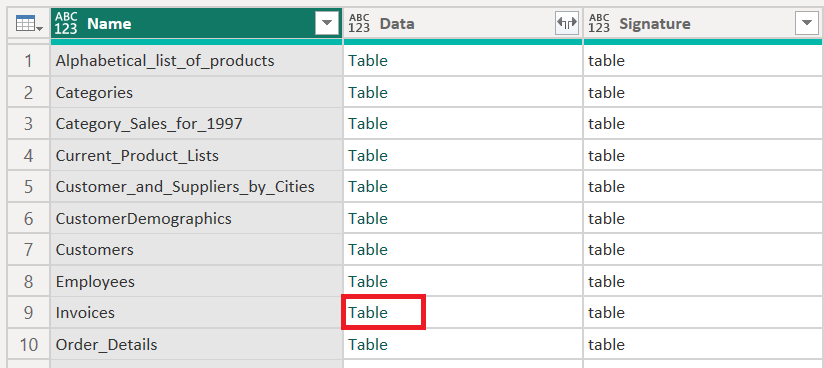
Table preview dialog box
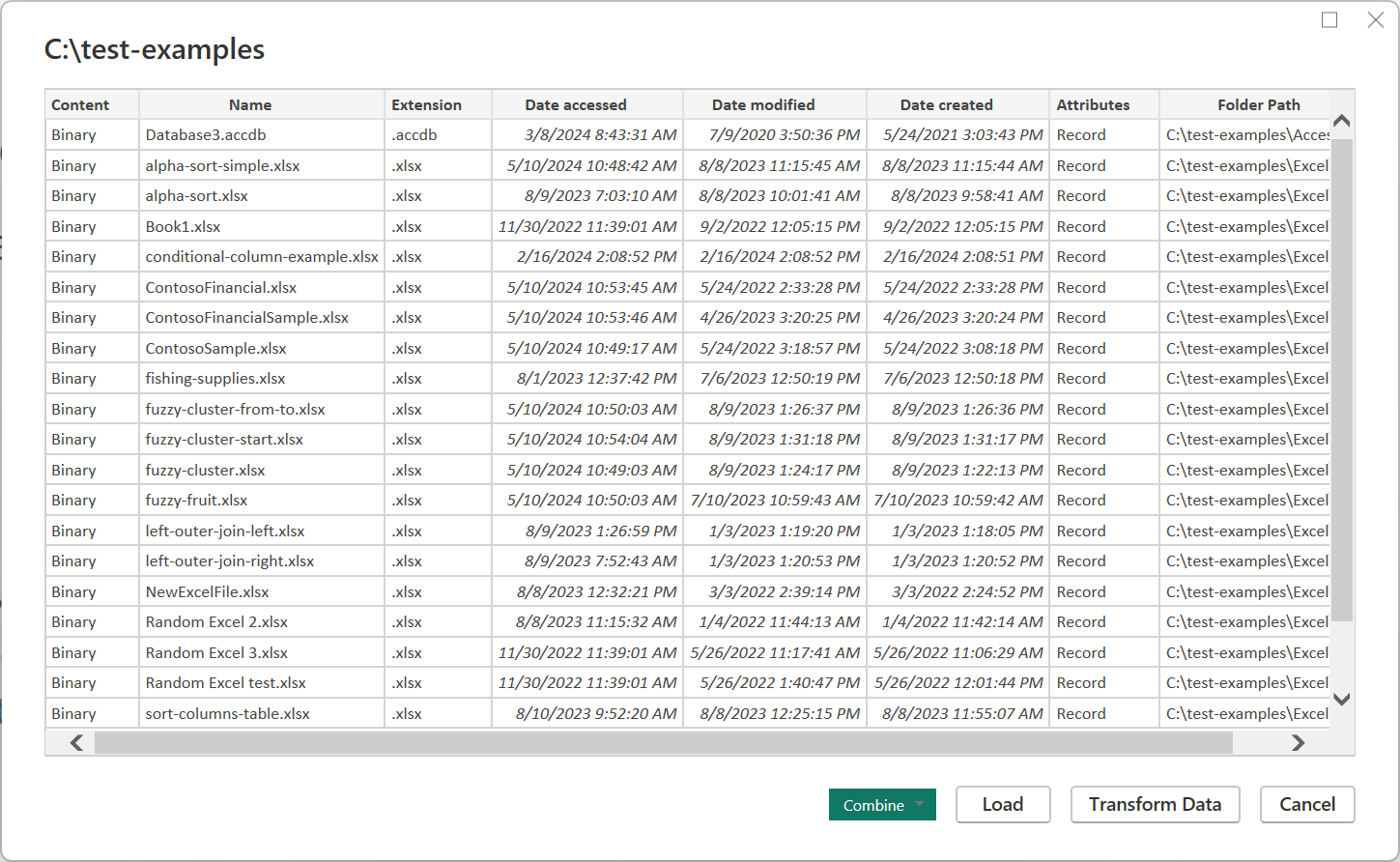
The table preview dialog box consists of only one section for the data preview. An example of a connector that provides this experience and window is the Folder connector.
4. Query destination
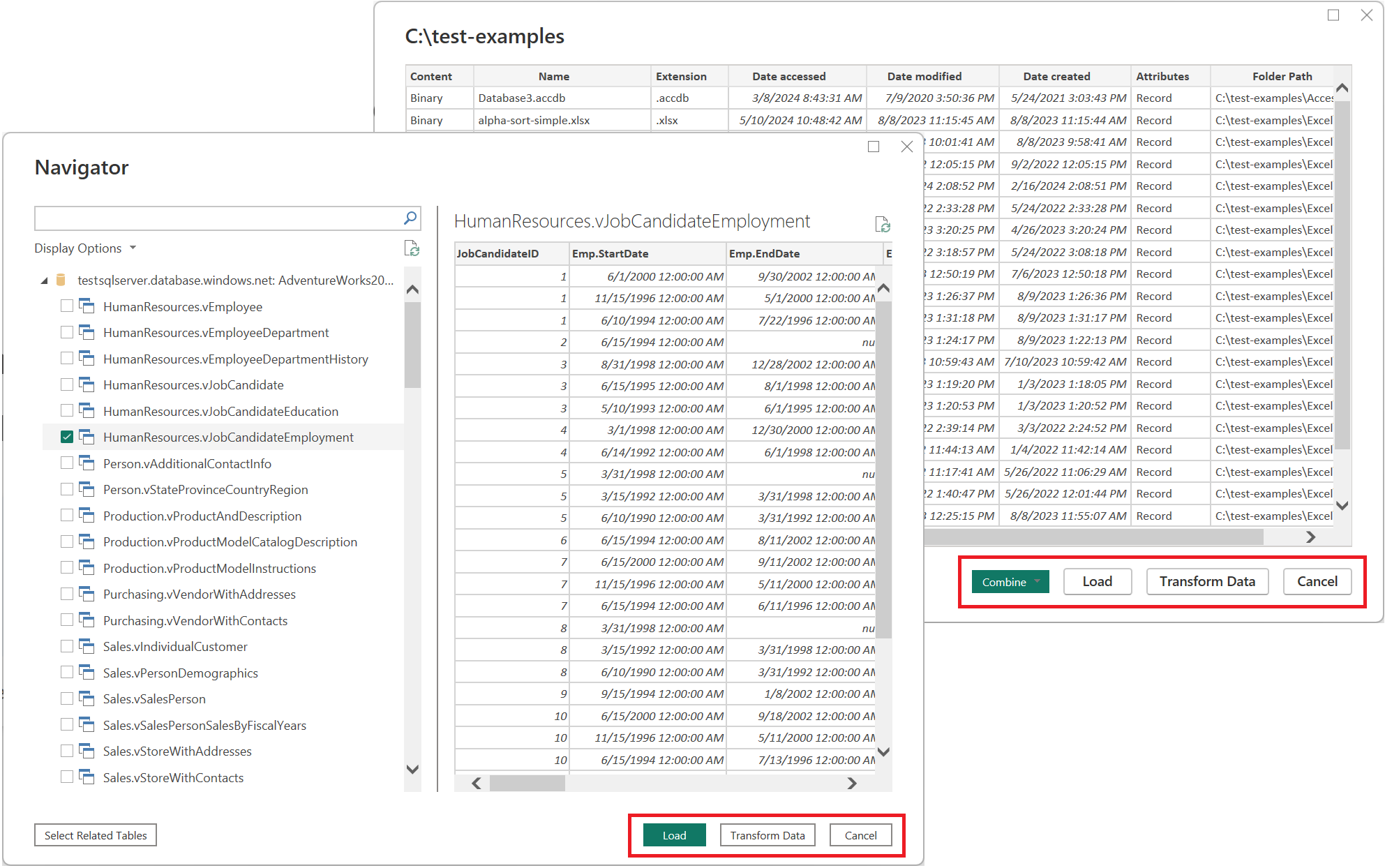
At this stage, you specify where to load the query. The options vary from integration to integration, but the one option that's always available is Transform data, which loads data to the Power Query editor to further transform and enrich the query.
Power Query Online experience
The stages for getting data in Power Query Online are:
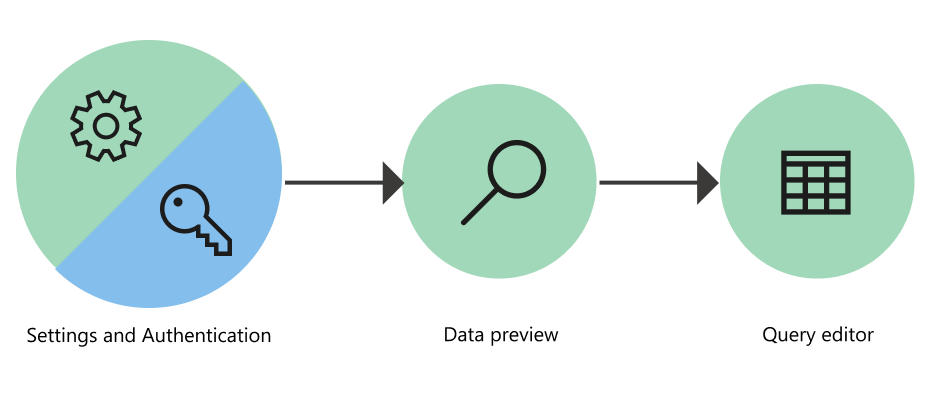
1. Connection settings and authentication
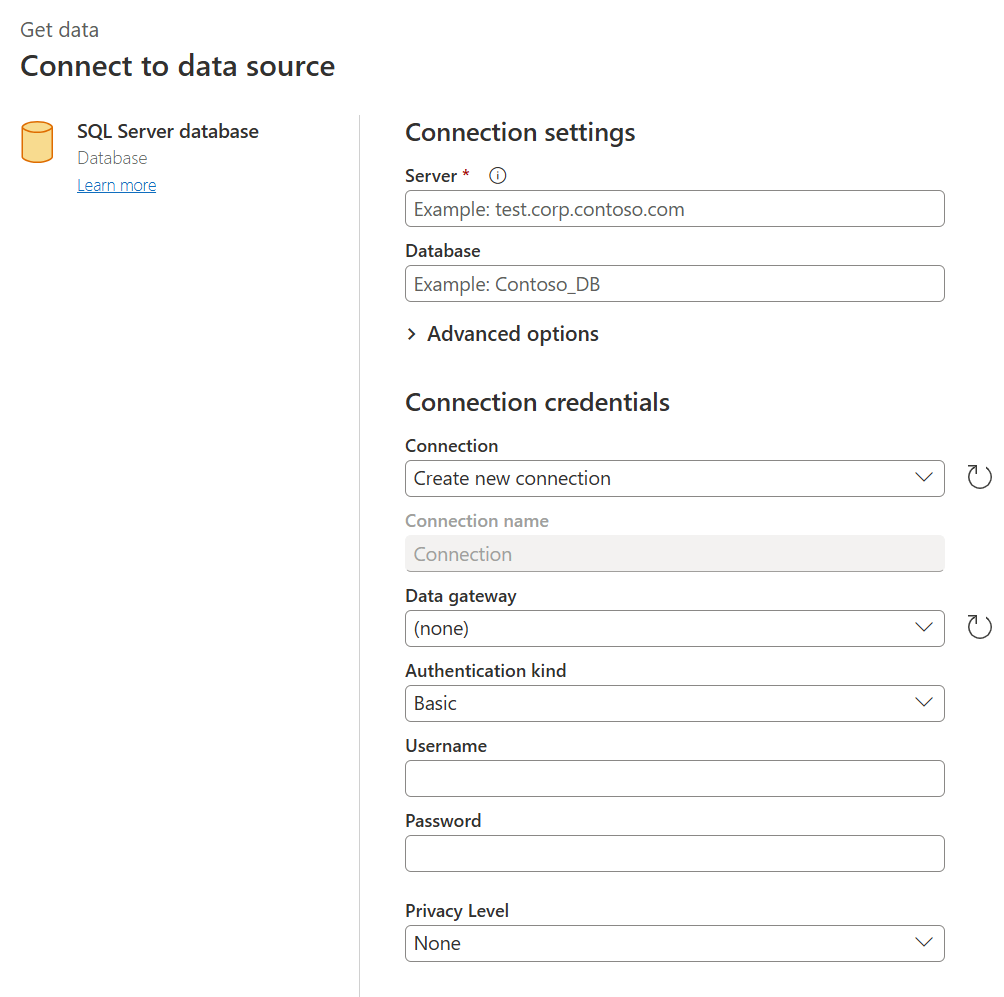
In the Power Query Online experience, you begin with the Connect to data source page where you enter values in two distinct sections:
Connection settings
Connection credentials
Connection settings
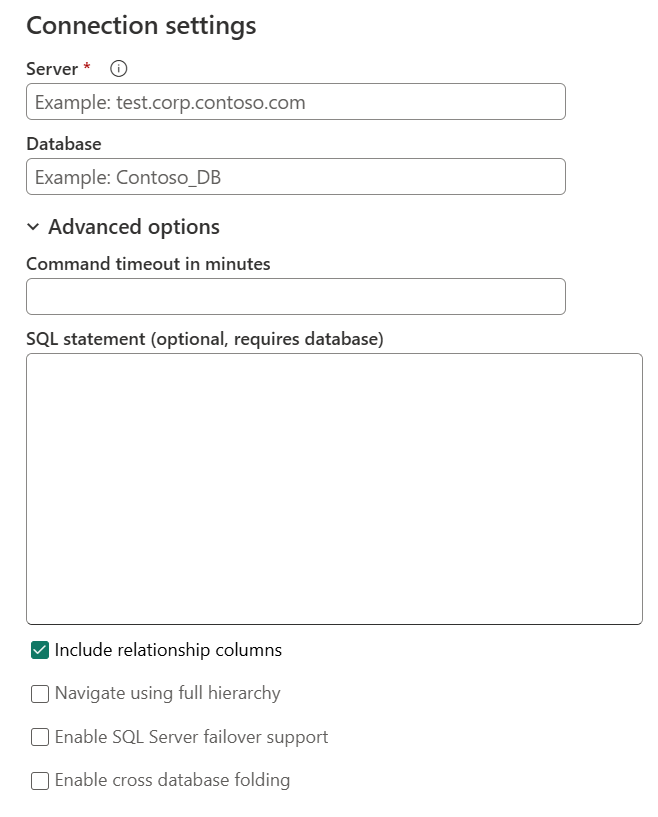
In the connection settings section, you define the information needed to establish a connection to your data source. Depending on your connector, that information could be the name of the server, the name of a database, a folder path, a file path, or other information required by the connector to establish a connection to your data source. Some connectors also enable specific subsections or advanced options to give you more control and options when connecting to your data source.
Connection credentials
The first time you use Power Query to connect to a specific data source, you're required to create a new connection associated with that data source. A connection is the full definition of the gateway, credentials, privacy levels, and other connector-specific fields that make up the connection credentials required to establish a connection to your data source. For a detailed walkthrough of connection settings and credentials in Power Query Online, go to Connections and authentication in Power Query Online.
Note
Some connectors offer specific fields inside the connection credentials section to enable or define any sort of security related to the connection that needs to be established. For example, the Amazon Redshift connector offers the Use Encrypted Connection field.
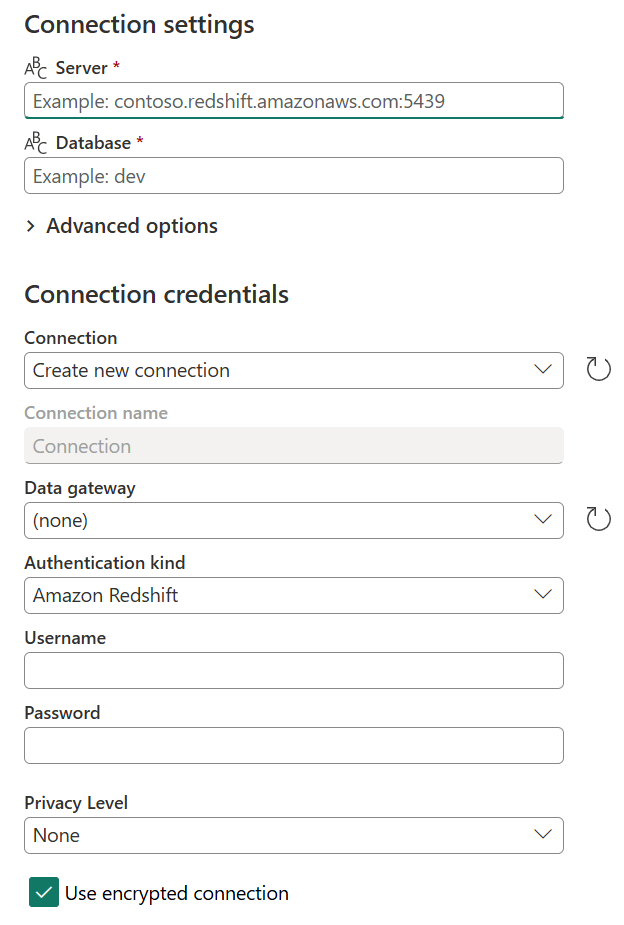
The primary information required by all connectors to define a connection are:
- Connection name: The name that you can define to uniquely identify your connections. You can't duplicate the name of a connection in your environment.
- Data gateway: If your data source requires a data gateway, select the gateway using the dropdown list from this field. To learn more about data gateways, go to On-premises data gateways documentation.
- Authentication kind and credentials: Depending on the connector, you're presented with multiple authentication kind options that are available to establish a connection, and fields where you enter your credentials. For example, if the Windows authentication kind is selected, the Username and Password fields that need to be filled in to establish a connection are displayed.
- Privacy level: You can define the privacy level for your data source to be either None, Private, Organizational, or Public. For more information, go to Privacy levels.
Important
Some Power Query integrations don't currently enable a defined connection or a privacy level. But, all Power Query Online experiences do provide a way to define the data gateway, authentication kind, and the credentials needed to establish a connection with your data source.
Once a connection in Power Query Online is defined, you can reuse the same connection later on without reentering all this information again. The Connection field offers a dropdown list menu where you select your already defined connections. Once you select your already defined connection, you don't need to enter any other details before selecting Next.
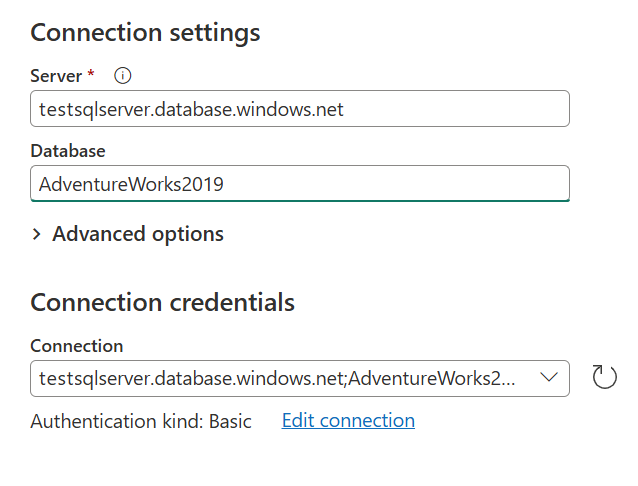
After you select a connection from this menu, you can also make changes to the credentials, privacy level, the data gateway, and other connector-specific fields for your data source in your project. Select Edit connection, then under Connection, select Create new connection. Then change any of the provided fields.
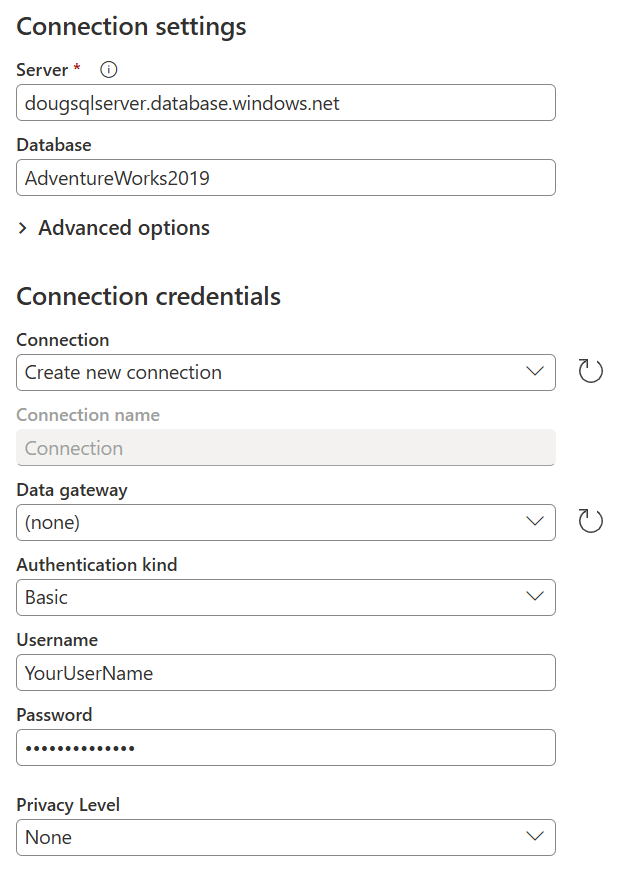
For more information about managing, editing, and reusing connections, go to Manage connections.
2. Data preview
The goal of the data preview stage is to provide you with a user-friendly way to preview and select your data.
Depending on the connector that you're using, you can preview data by using either:
- Navigator window
- Table preview dialog box
Navigator window (navigation table) in Power Query Online
The Navigator window consists of two main sections:
The object selection pane is displayed on the left side of the window. The user can interact with and select these objects.
The data preview pane on the right side of the window shows a preview of the data from the object you selected.
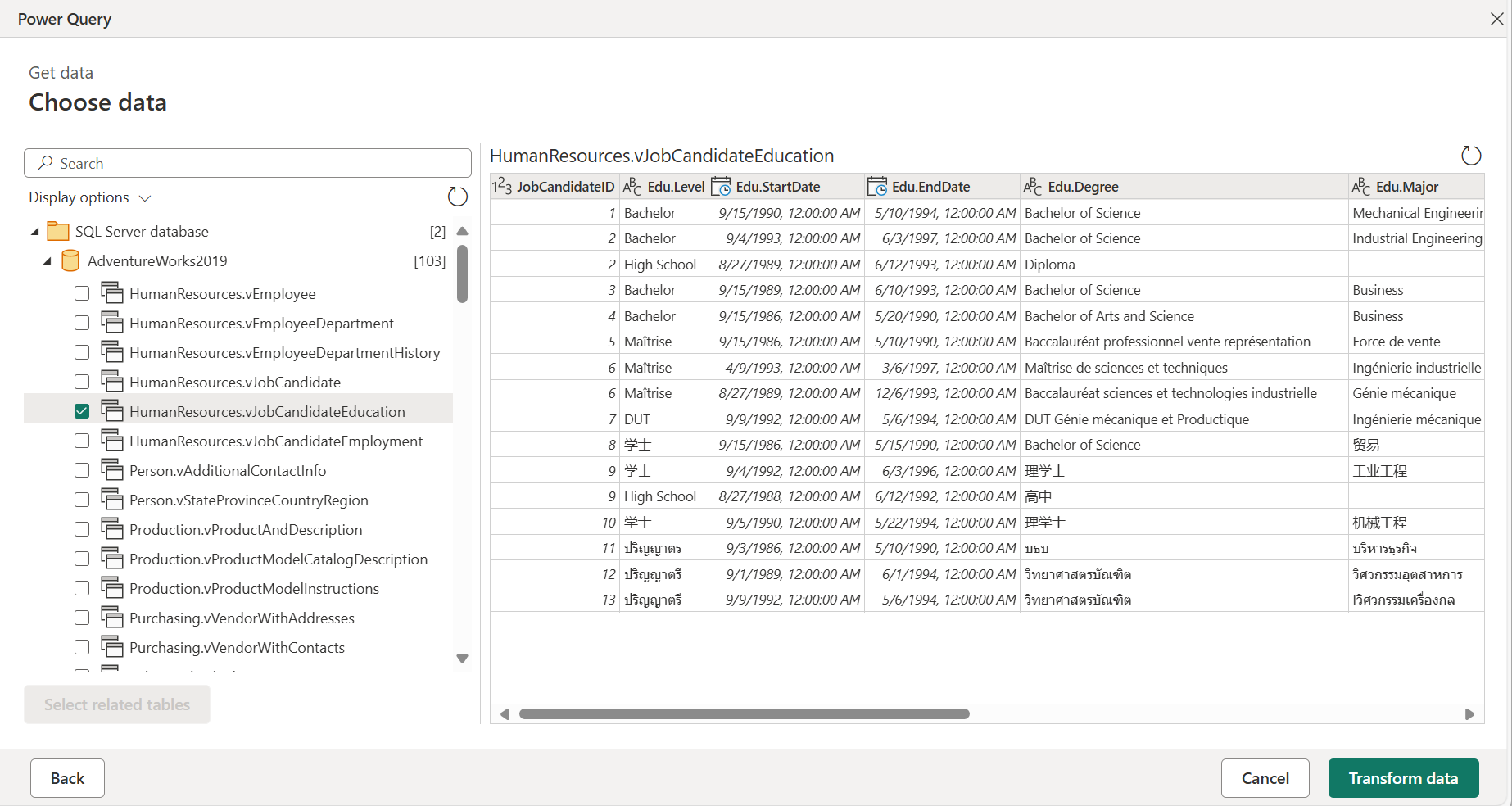
Table preview dialog box in Power Query Online
The table preview dialog box consists of only one section for the data preview. An example of a connector that provides this experience and window is the Folder connector.
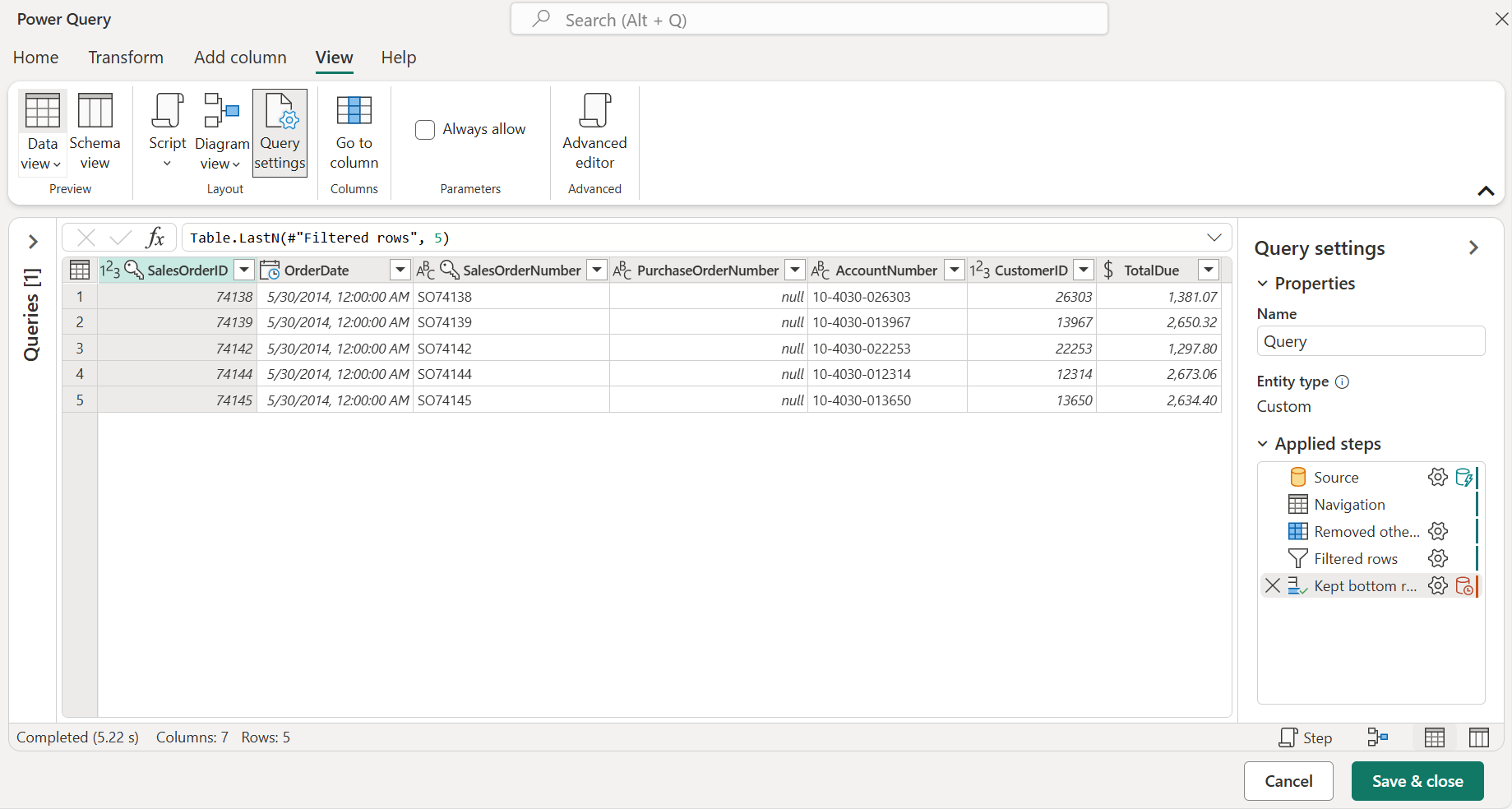
3. Query editor
For Power Query Online, you're required to load the data into the Power Query editor. In the editor, you can further transform and enrich the query if you choose to do so.
Get data modules in Power Query Online
The get data experience in Power Query Online uses a modular interface separated into different modules located on the left side navigation bar. Depending on the product and connector, these modules include:
- Home
- New data source
- Recent data sources
- Dataflow templates (Power BI service only)
- OneLake catalog (Fabric only)
- Azure data sources
- Upload file
- Blank table
- Blank query
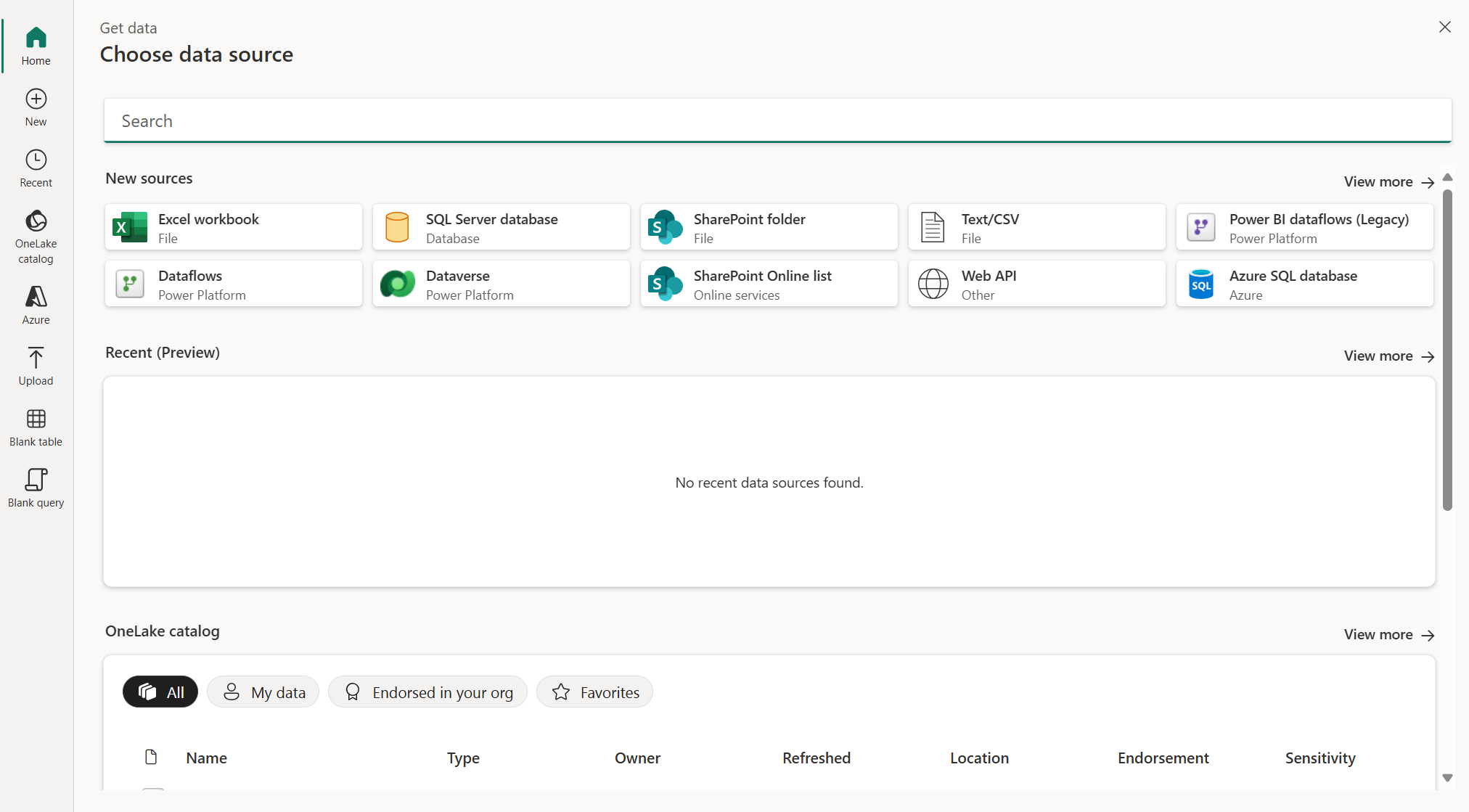
Home module
The home page acts as a summary of all the modules and presents you with different options to expedite the process and get you closer to your data. Typically, this module contains any existing data sources and gives you the option to use a new data source, table, and upload files. From the home page, you can select View more on the right side of the New sources, Recent (Preview), and OneLake catalog sections to visit those modules.
New data source module
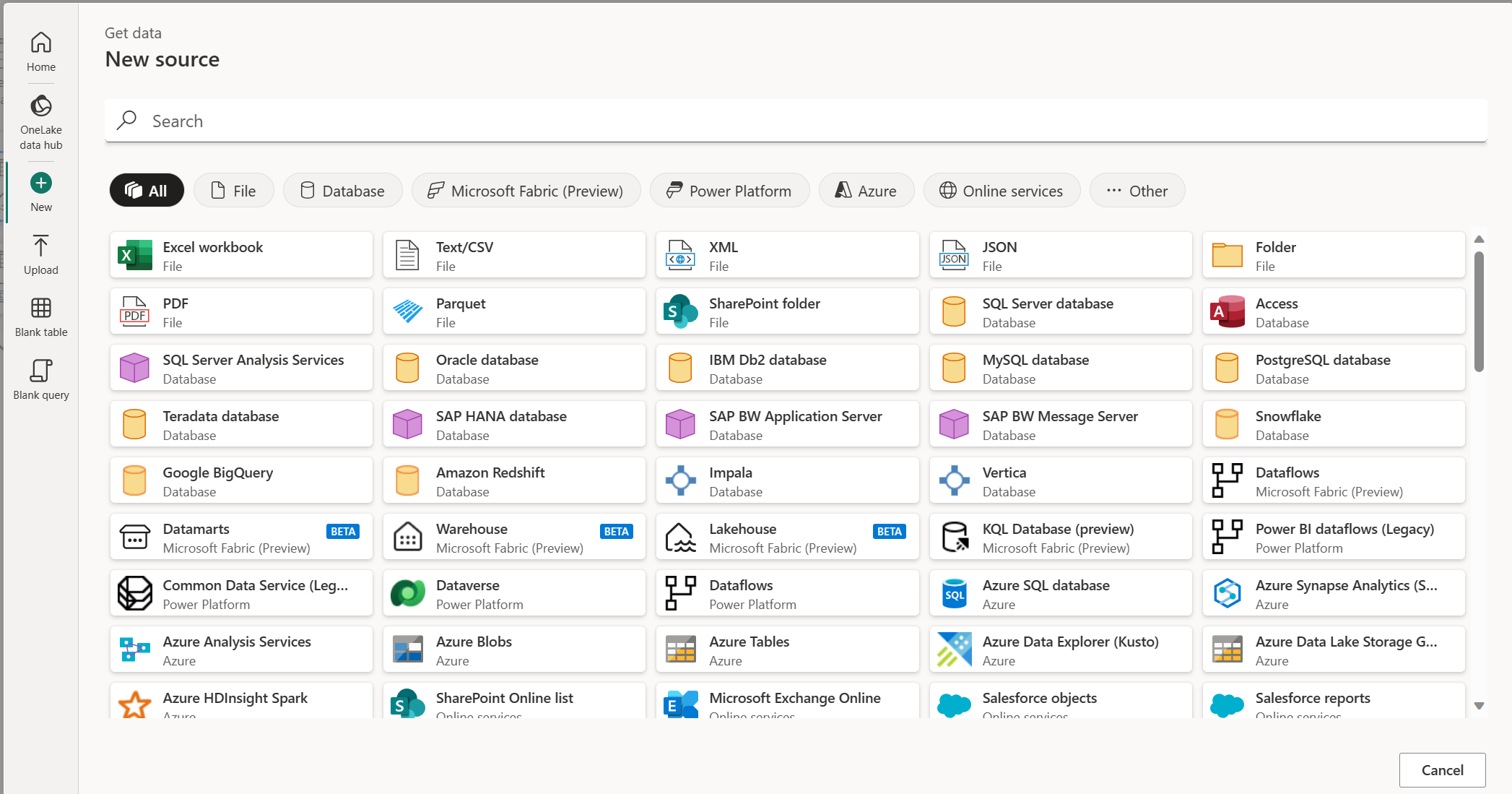
The New module provides a full list of connectors that you can select from. On this page, you can search for a connector across all categories by using the search bar at the top of page. You can also navigate across the categories to find a specific connector to integrate with. Selecting a connector here opens the connection settings window, which begins the process of connecting.
Recent data sources module
The Recent module displays recently used data sources, allowing you to quickly reconnect to sources you've used before.
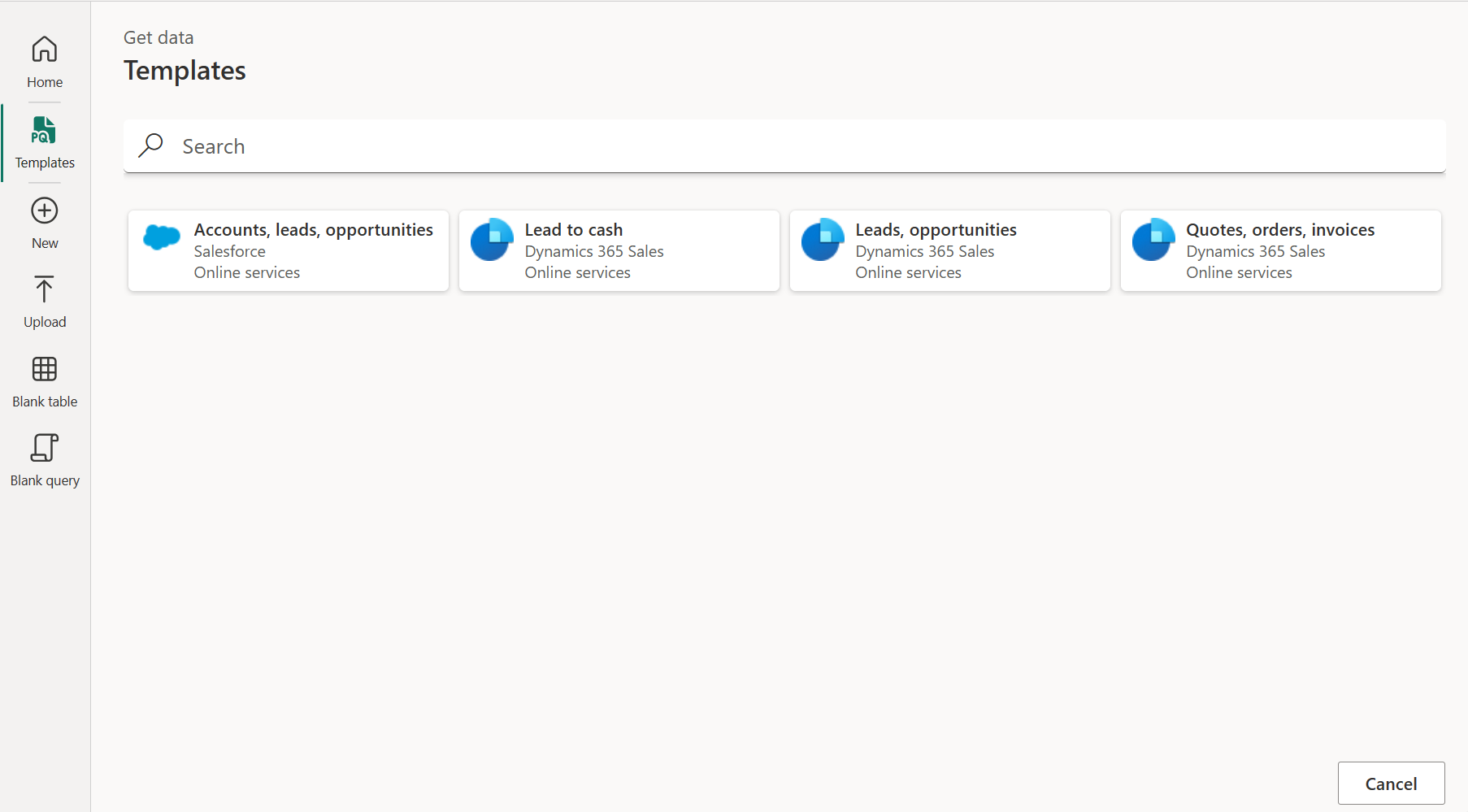
Dataflow templates module
A dataflow template provides predefined entity and field mappings for moving data from source to destination in the Common Data Model, so you don't need to configure mappings manually. For more information about templates, go to Introducing dataflow templates; A quick and efficient way to build your sales leaderboard and get visibility over your sales pipeline.
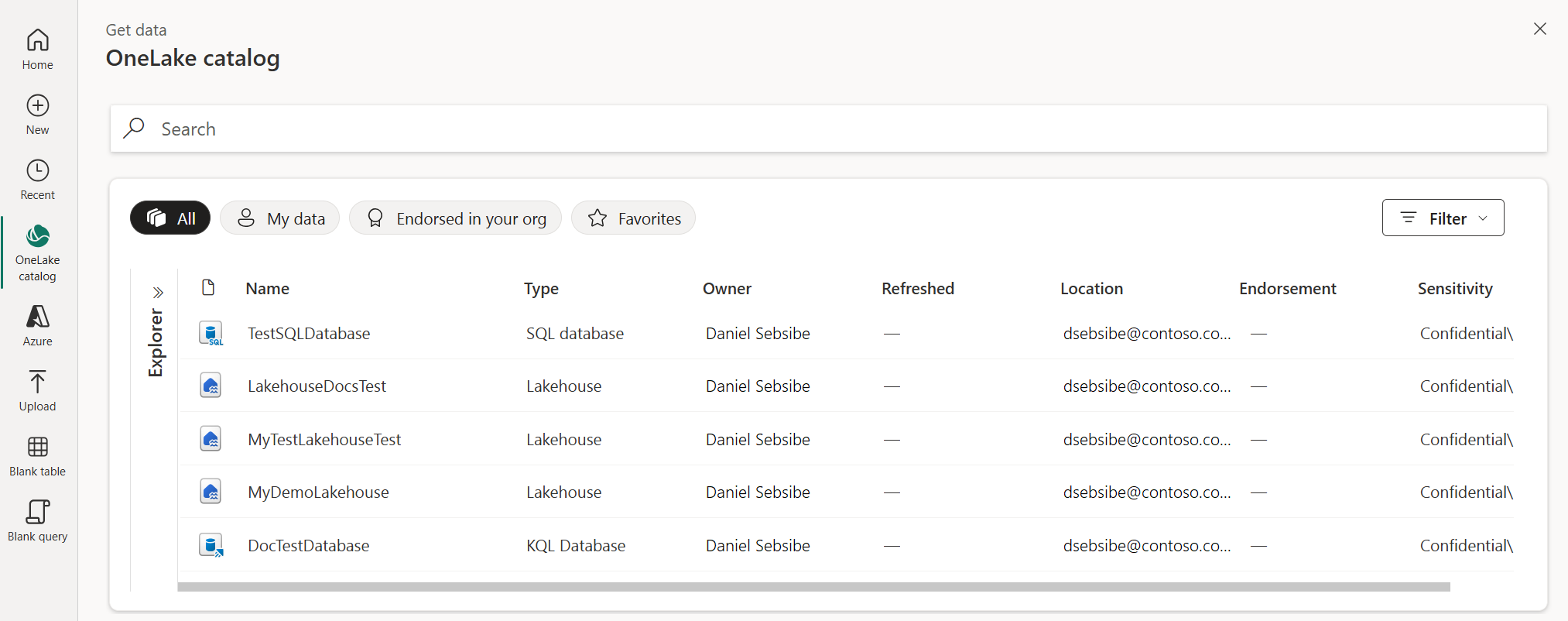
OneLake catalog module
The OneLake catalog makes it easy to find, explore, and use the Fabric data items in your organization that you have access to. It provides information about the items and entry points for working with them. For more information on the OneLake catalog, go to OneLake catalog.
Azure data sources module
The Azure module lets you connect to Azure-hosted data sources such as Azure SQL Database, Azure Blob Storage, and Azure Data Lake Storage.
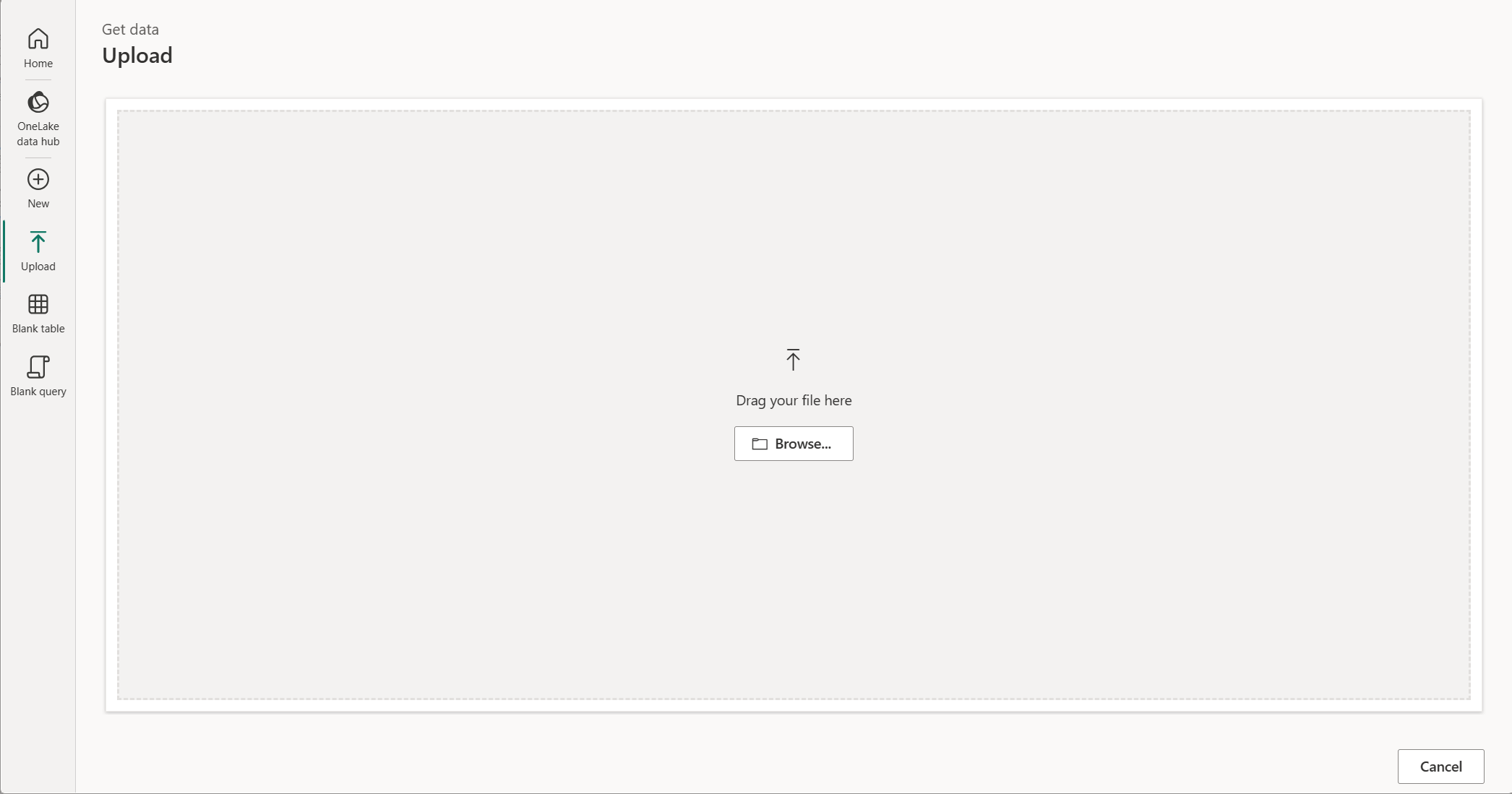
Upload file module
The Upload module lets you upload files directly by browsing for a local file or dragging and dropping it. The following connectors support this capability:
For more information on uploading files, go to Upload a file.
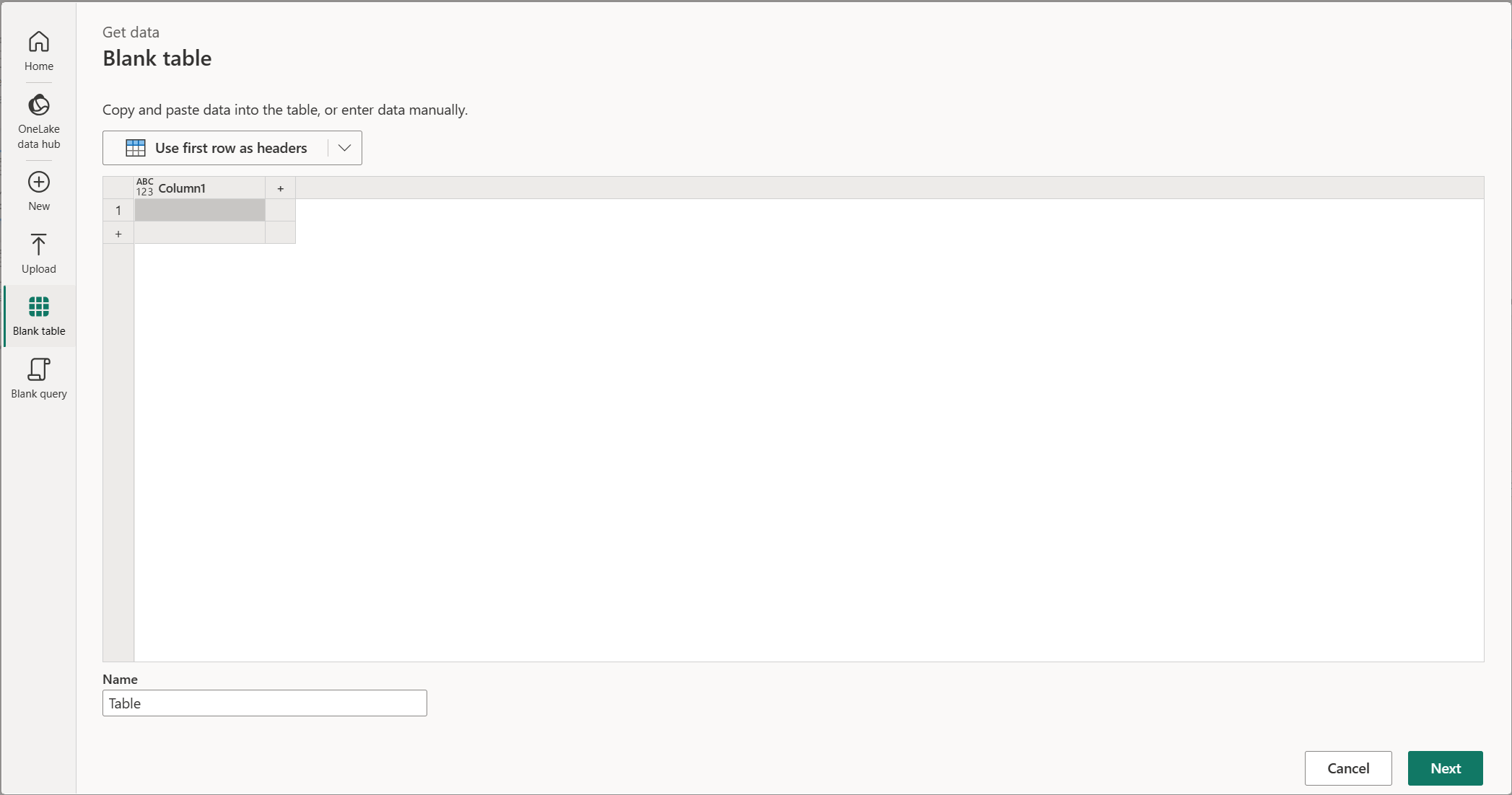
Blank table module
The Blank table module provides a quick start in creating a table in a dataflow.
Blank query module
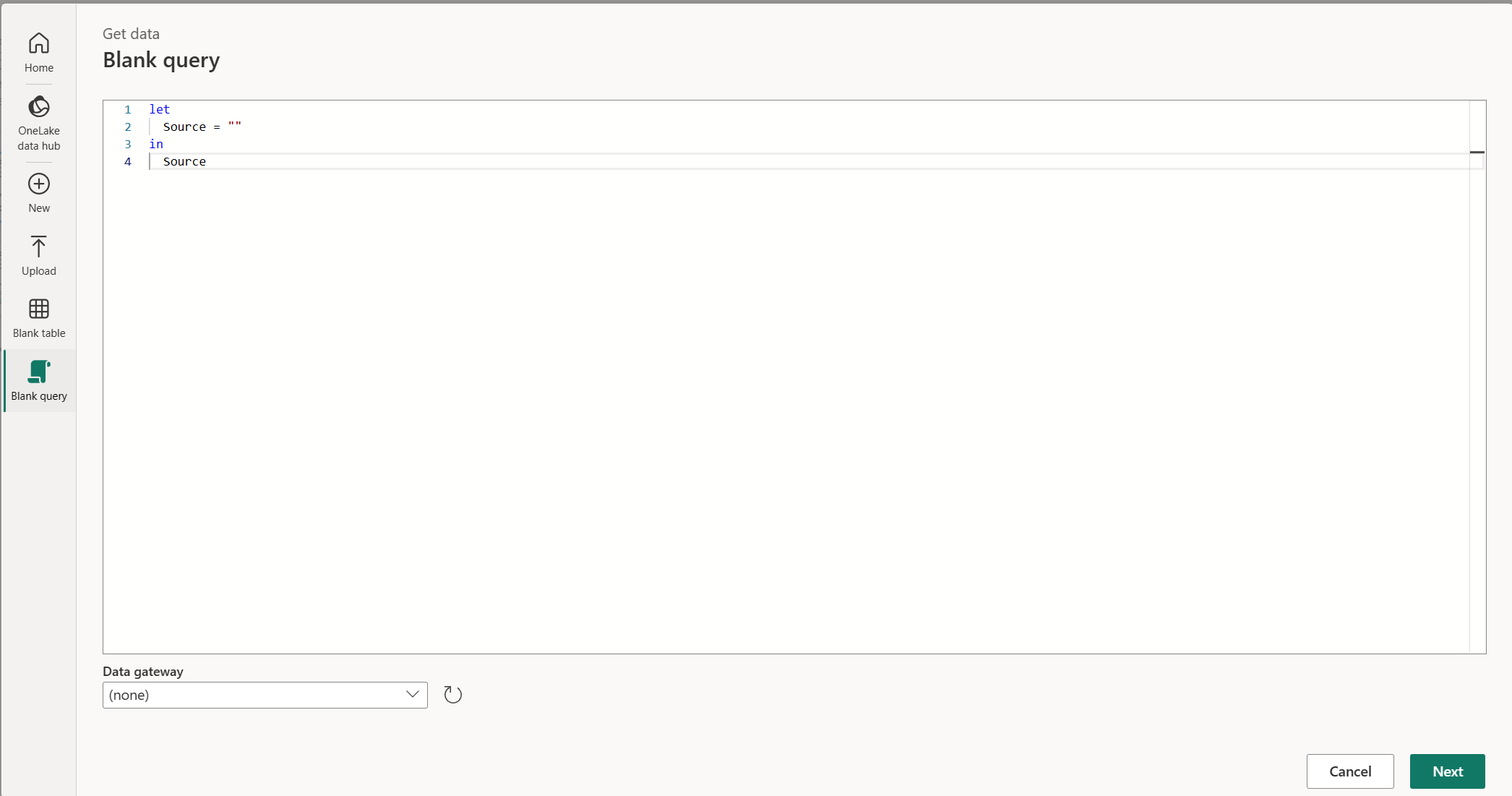
The Blank query module lets you write or paste your own M script to create a new query.
Save and load your data
Once your data is transformed, you can then save your changes and load the data. Depending on where you arrived from when transforming your data, you might have slightly different ways of saving and loading your changes.
For example, if you open the Power Query editor from Excel, you save and load your changes using the Close & Load option in the Home tab.
If you open the Power Query editor from Power BI Desktop, you save and load your changes using the Close & Apply option in the Home tab.
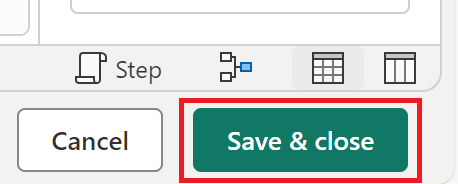
If you open the Power Query editor online, you save and load your changes using the Save & close button in the lower right side of the Power Query editor.
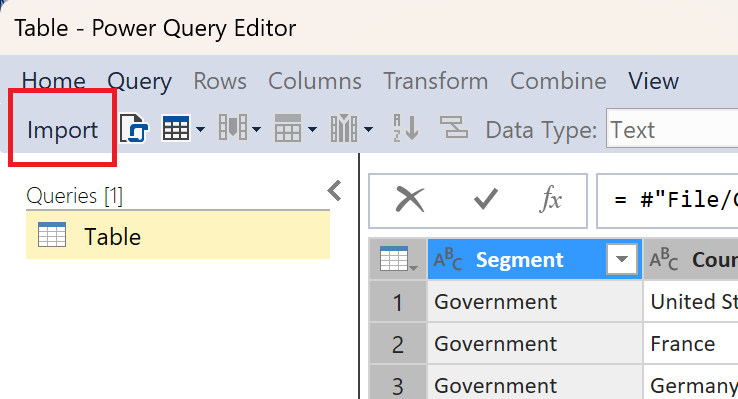
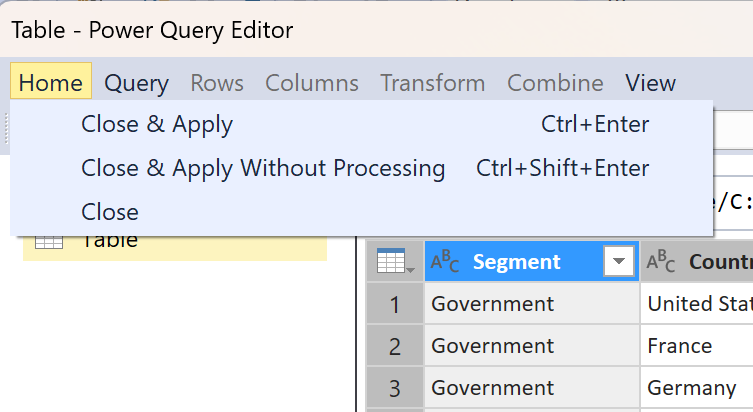
If you open the Power Query editor in Analysis Services, you can save and load your changes by either using the Import button or the Home > Close & Apply option in the Power Query editor ribbon.