Custom metrics
Custom metrics is a powerful feature of the Power Automate Process Mining desktop app that helps you define custom KPIs and then use the KPIs as part of your process analysis. You can apply custom metrics in a process map, statistics, and filters.
You can use the following methods to define your own custom metrics:
Predefined metrics in the application
Different aggregations, mathematical, datetime, string, and other operations
Functions and constants in a formula editor
You can visualize custom metrics in the process map or based on their context in other parts of the application, similar to static metrics.
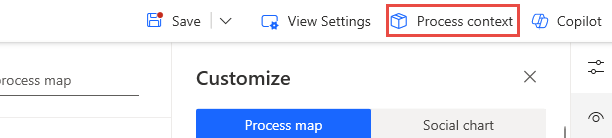
To create a custom metric, select Process context.
After you select custom metrics, your existing custom metrics are listed on the Custom metrics page, if you have any. To create new custom metrics, select the Create new custom metrics button.
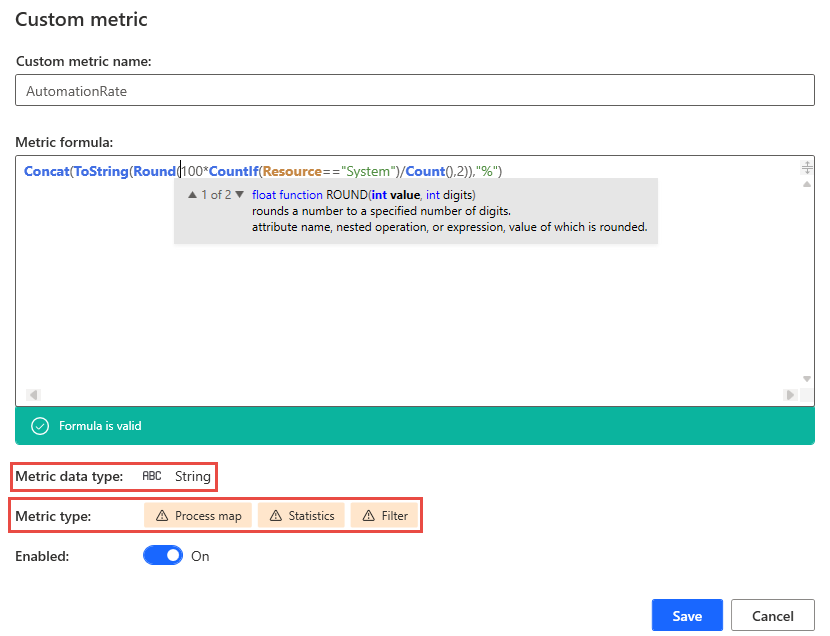
This example shows how to create a custom metric that calculates automation rate. The Custom metric name is AutomationRate and the Metric formula box contains the following formula for this custom metric:
Concat(ToString(Round(100*CountIf(Resource=="System")/Count(),2)),"%")
When you build the formula in the editor, it offers full syntax editing features, including:
Syntax highlighting
Intellisense with function overload hints
Formula validation - Syntax errors, datatype issues
The following image shows the AutomationRate custom metric and its associated formula in the editor.
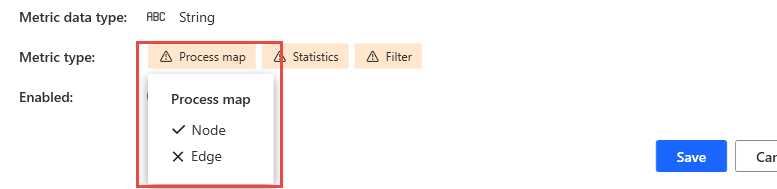
To view where your custom metric is available, select the Metric type options.
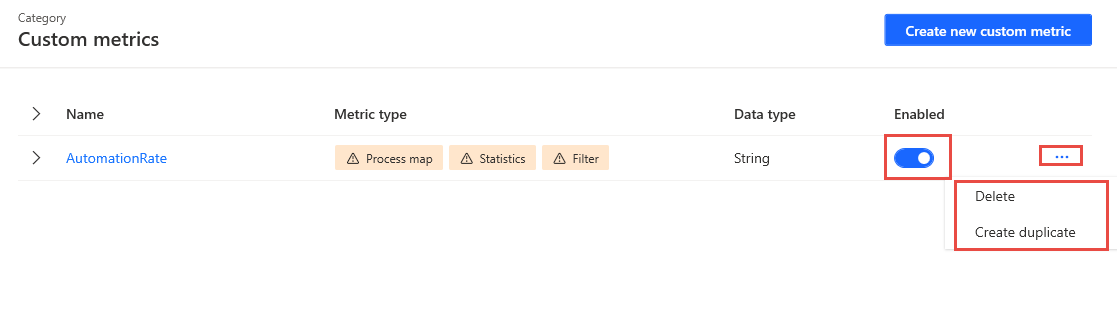
After you save the custom metric formula, return to the Process context pane, where you can turn on, turn off, delete, or create a duplicate custom metric.
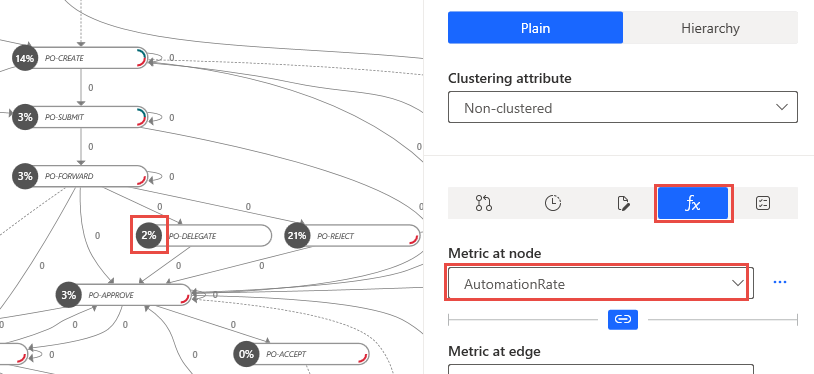
After you save the custom metric, it's available for use according to the metric type. Then, you can use the custom metric in the process map. It's available in the Customize pane under the Custom tab. The AutomationRate now displays on the nodes.
The custom metrics are also available for use in statistics and filters.