Project Operations for resource or non-stocked scenarios
Select the Project Operations for resource or non-stocked scenario if you're new to Project Operations and if you haven't deployed finance and operations apps and Microsoft Dynamics 365 Customer Engagement apps.
The process to deploy Project Operations for a resource or non-stocked scenario is as follows:
Redeem software subscriptions for:
- Project Operations (CRM)
- Office 365 Project Operations
- Finance and operations apps
- Assign licenses to users
- Register for Microsoft Azure subscription
Provision a finance and operations environment:
- Create a new project in Lifecycle Services
- Admin consent to Azure subscription
- Configure Access Control to Azure
- Add Azure Connector to the Lifecycle Services project
- Deploy a finance and operations environment
Post deployment actions:
- Establish a dual-write connection.
- Update security settings on the Project Operations environment.
- Configure and run dual-write table maps.
- Import configuration and demo data (This step is optional.)
Redeem software subscriptions
To enhance your learning experience in this module, you can access a trial environment of Project Operations by selecting Get started in the upper-right corner of the Dynamics 365 Project Operations page.
Provision a finance and operations environment
Watch the following video for a demonstration of how to provision a finance and operations environment by using Lifecycle Services.
Establish a dual-write connection
Connection is automatically made when you use Lifecycle Services to deploy finance and operations that includes Dataverse environment deployment.
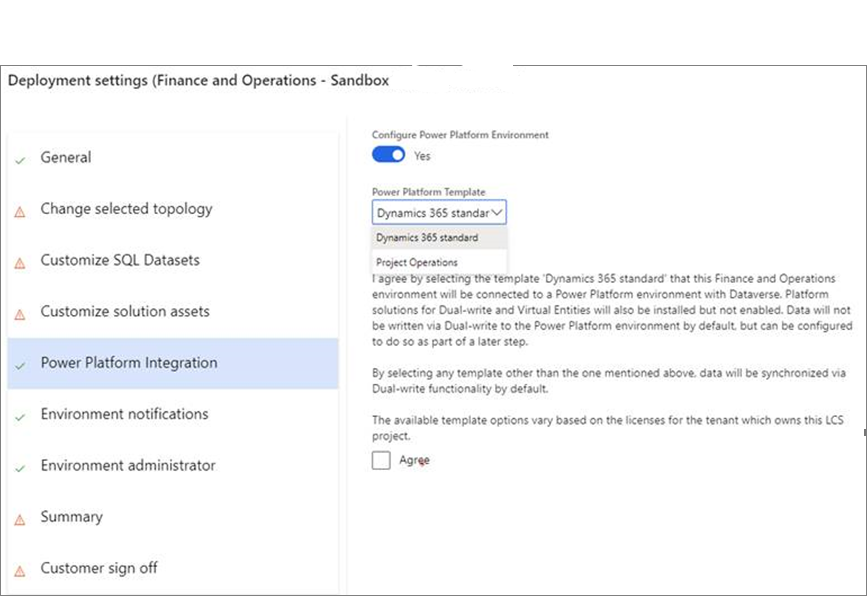
You can also set up the dual-write connection manually by using a wizard in finance and operations.
Watch the following video for a demonstration of how to set up the dual-write connection by using the wizard.
Update security settings on the Project Operations environment
The dual-write app user requires Read and Append To privileges that are assigned for the organization for the following tables:
Chart of Accounts
Currency Exchange Rate Type
Fiscal Calendar
Ledger
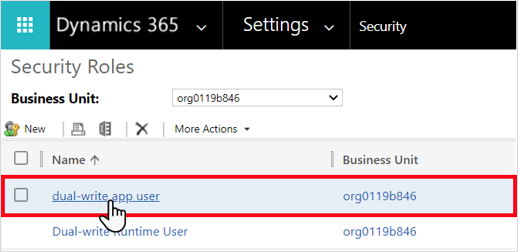
The default team requires the dual-write app user role assignment.
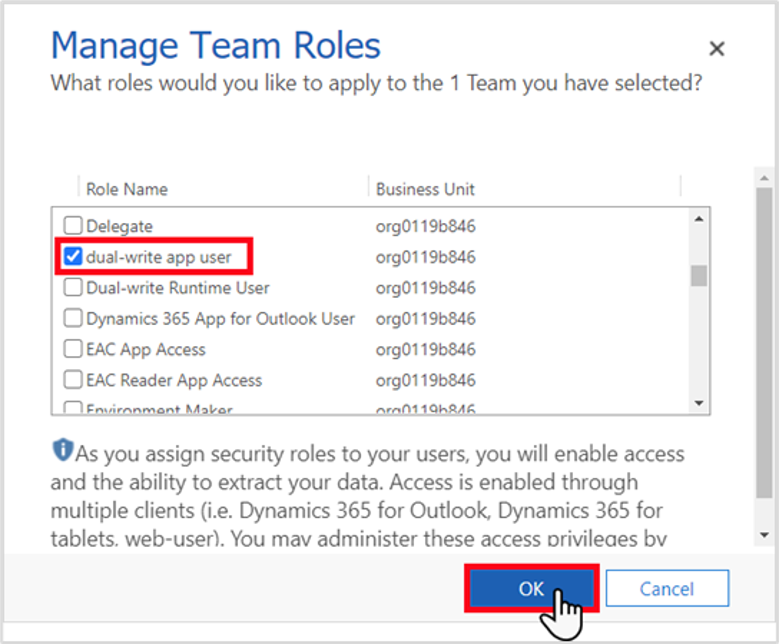
Watch the following video for a demonstration of how to update security settings.
Configure and run dual-write table maps
To configure and run dual-write maps, follow these steps:
On the Dual-write page in finance and operations, in the Search box (upper-right corner), enter Project Res to narrow the results.
Select Project resource roles for all companies (bookableresourcecategories), and then select Run.
On the Initial writes and related table map(s) pane, ensure that the Initial sync check box is cleared.
Select Run.
Watch the following two videos for demonstrations of how to configure and run dual-write table maps.
Import configuration and demo data
The import configuration and demo data are optional.
You can optionally import Microsoft demo data to your environment so that you have data to use when practicing the exercises. Follow these steps:
Open a new tab in your web browser, copy the following link in the web address box, and then press the Enter key: https://aka.ms/AAbf3j5
At the bottom of the screen, select the ellipsis (...) and then select Show in folder.
Right-click the .zip file and then select Extract All...
In the Extract Compressed (Zipped) Folders dialog box, clear Show extracted files when complete check box and then select Extract.
In the new File Explorer window, double-click the DataMigrationUtility.exe file.
In the Configuration Migration window, select Import data and then select Continue.
In the Login window, select Office 365, ensure that the Show Advanced check box is selected, complete the form, and then select Login.
In the Zip File box, select the ellipsis (...), select the SampleSetupAndConfigData.zip file, and then select Open.
In the Configuration Migration window, select Import Data. The import process will take approximately three minutes to complete.
Watch the following video for a demonstration of how to import configuration and demo data.