Describe the capabilities of Copilot in customer engagement apps
Artificial intelligence (AI) is changing how companies do business. It gives organizations important insights and streamlines how individuals work. Microsoft’s Copilot uses AI to allow individuals to communicate their needs using natural language and provides them with relevant assistance based on the details they provide.
Copilot can be used throughout Dynamics 365 customer engagement applications. Copilot can help users easily retrieve information about their customers and streamline things such as data entry and task completion.
Sales in Microsoft 365 Copilot
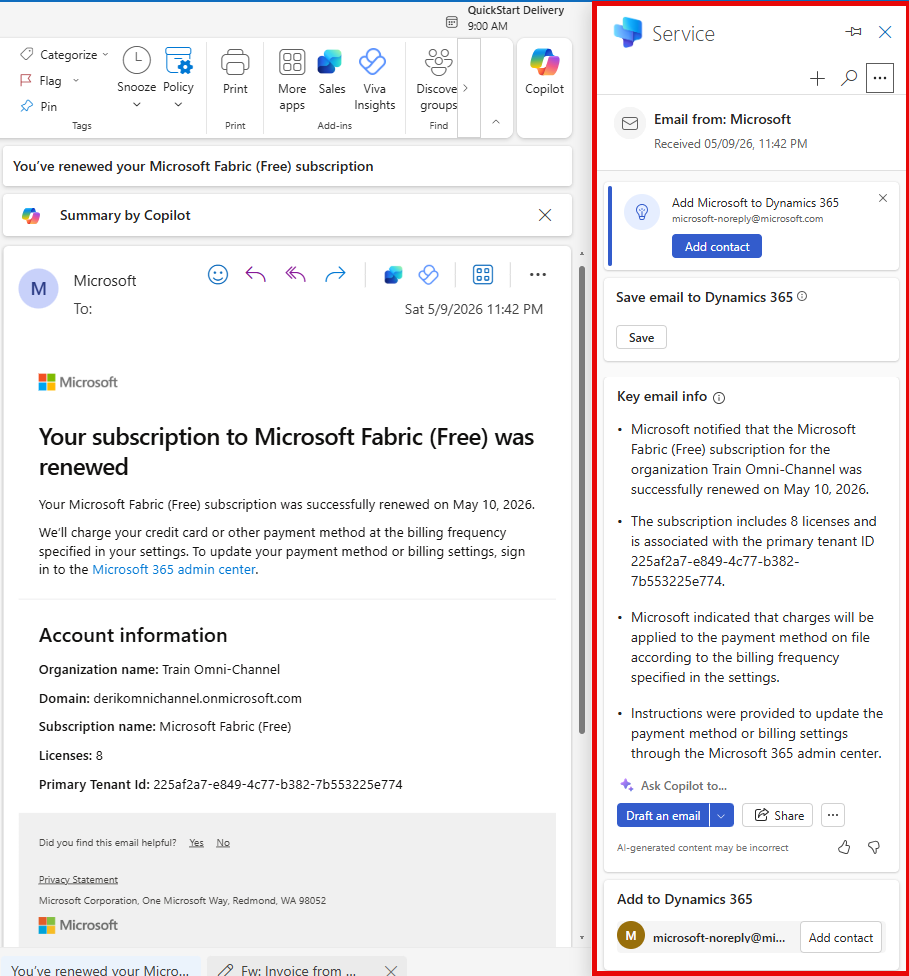
Sales in Microsoft 365 Copilot is an AI assistant designed for sellers to maximize productivity and close more deals. It brings next-generation AI and sales insights from their CRM platform into the Microsoft 365 productivity tools that they use daily like Microsoft Outlook, Microsoft Teams, and Microsoft Word.
Sellers can work more efficiently and improve customer experiences with email assistance, personalized sales content creation, AI-generated insights, and recommendations for next steps. Sales managers can empower their teams with AI-powered manager insights and collaboration tools. Sales in Microsoft 365 Copilot can also be customized according to your business needs. Sales in Microsoft 365 Copilot integrates seamlessly with Microsoft Dynamics 365 Sales and Salesforce Sales Cloud and can be configured to connect to other sales solutions.
Copilot in Dynamics 365 Sales capabilities
Copilot is an AI assistant in Dynamics 365 Sales that helps sales teams be more productive and efficient in their daily work. It has a chat interface that sellers can use to get a quick summary of their opportunity and lead records, catch up on recent changes to their records, prepare for meetings, and read the latest news about their accounts. Sellers can chat with Copilot in natural language or use predefined prompts to get the information they need.
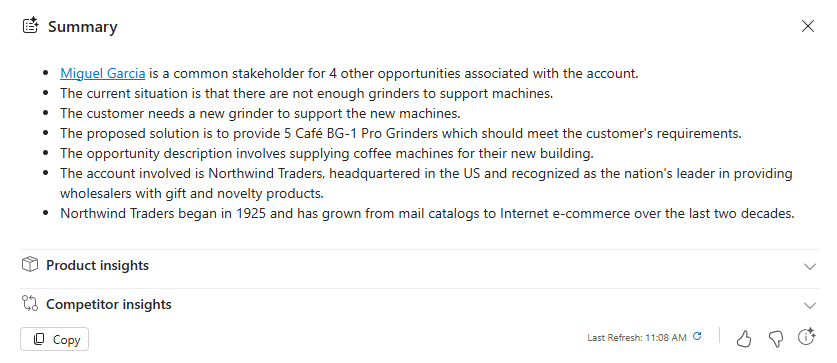
Record summarization: The Copilot in Dynamics 365 Sales record summarization feature provides a quick summary of your opportunity and lead records. Summaries are generated from the fields in the default opportunity or lead view. As users start typing the opportunity or lead name after the @ symbol, Copilot suggests records that match your search. Select the record for which you want a summary.
The following screenshot is an example of an opportunity summary generated by Copilot in Sales:
Email assistance: Copilot is also used to help compose professional-looking emails, respond to emails, and get email follow-up reminders. Copilot uses natural language processing (NLP) algorithms to create emails. You describe the email you want to create to Copilot, and it generates a draft email. The draft can be edited as needed before sending it to a customer.
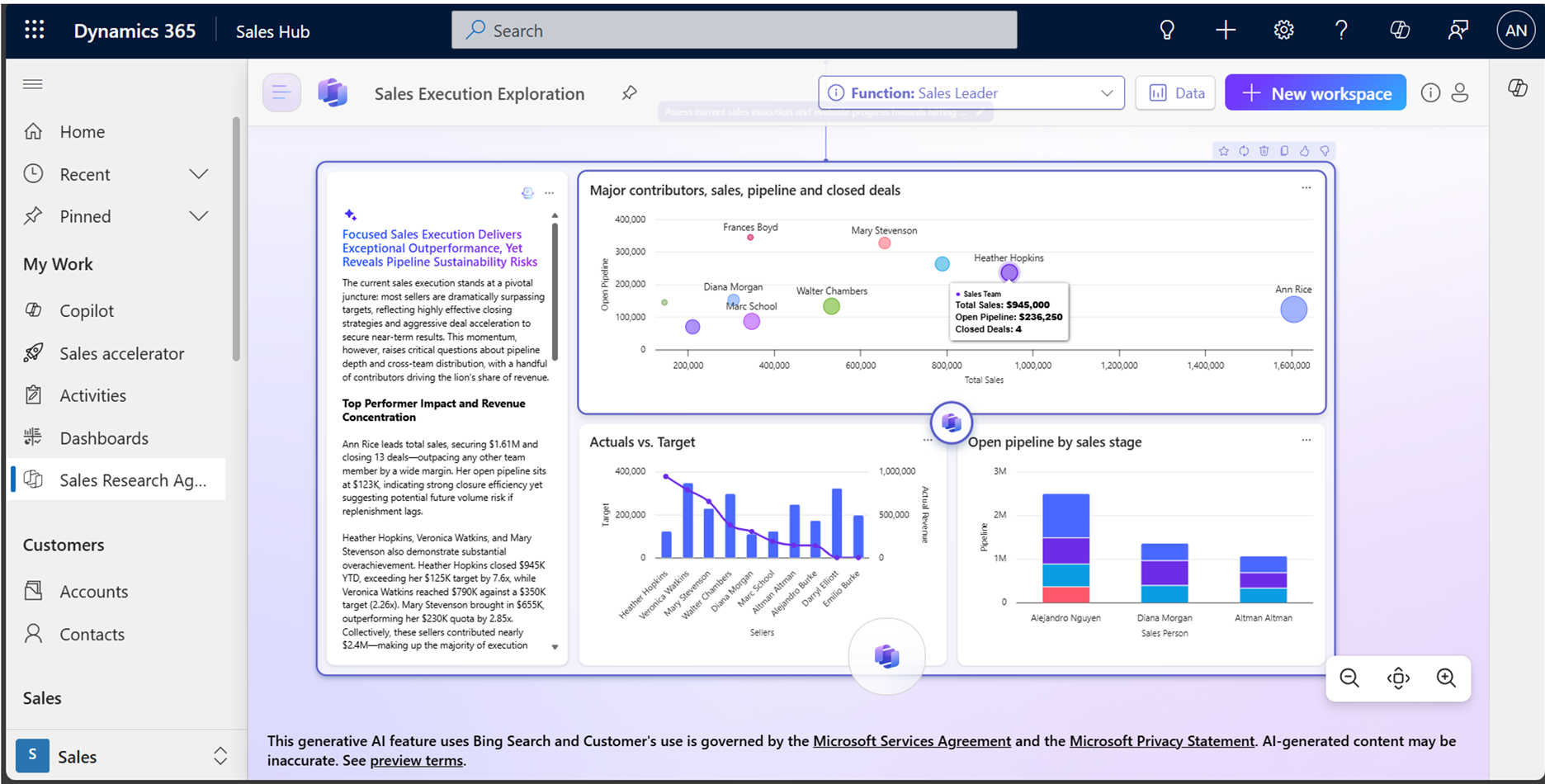
Sales Research Agent: The Sales Research Agent is an AI-powered assistant that is designed to help streamline lead qualification and outreach by automating research and content generation. For example, the research agent searches through both internal and external information to obtain information about the lead, it summarizes that information to simplify researching them, and from there drafts personalized emails based on the research it did.
Sales Qualification Agent: An AI-powered tool that helps sales teams assess and qualify leads. It analyzes lead data using predictive models to determine the likelihood of conversion, assigns a qualification score, and provides actionable recommendations to guide sales representatives. Additionally, the agent integrates with Copilot to deliver conversational summaries and next best actions, making lead management smarter and more streamlined.
Copilot in Dynamics 365 Customer Service
In support scenarios, the faster that you can identify appropriate information about a case, the easier it can be to resolve the customer’s issue. Copilot in Dynamics 365 Customer Service helps organizations more effectively summarize data.
There are two primary elements related to summarization:
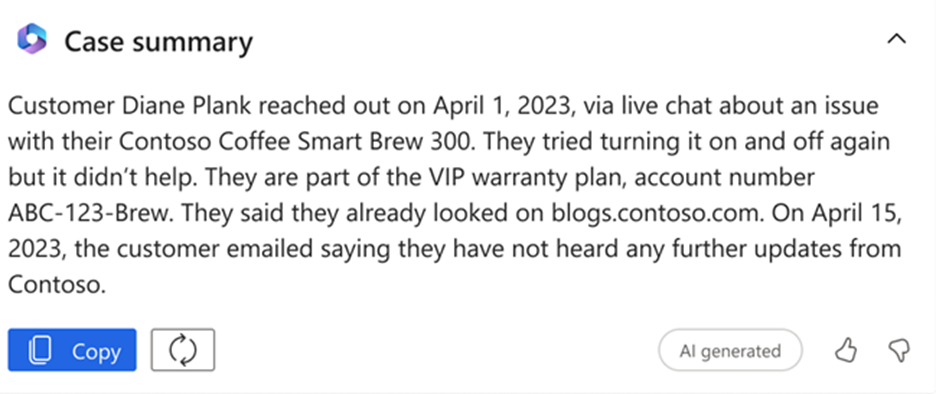
Summarize cases: Copilot case summaries help support agents quickly understand the context of a case and resolve customer issues more efficiently. The case summary includes key information such as the case title, customer, subject, product, priority, case type, and description.
Summarize conversations: Copilot conversation summaries provide context and relay the steps that you took to solve the issue. You can summarize chat and voice conversations.
The image shows an example of a case summary created.
Microsoft 365 Copilot for Service
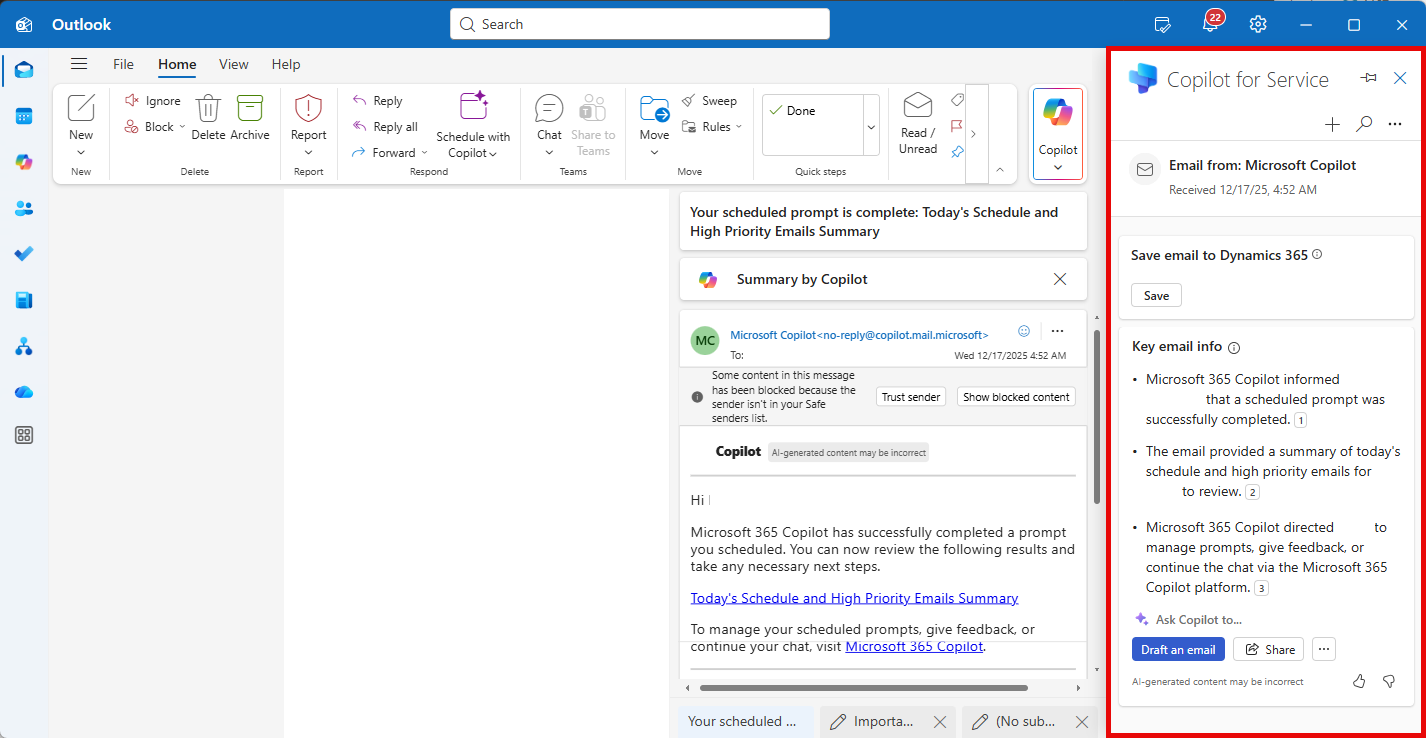
For many organizations, their service centers use multiple applications and data sources to support their customers. Microsoft 365 Copilot for Service provides them with the ability to connect all their data, including CRM, contact center systems, and other sources to fuel AI-powered conversations without needing to replace their existing solution.
Out-of-the-box integrations with services such as Salesforce, ServiceNow, and Zendesk not only let you use that information in generative answers, but you can also deploy to the applications that your agents are using every day.
Copilot in Dynamics 365 Field Service
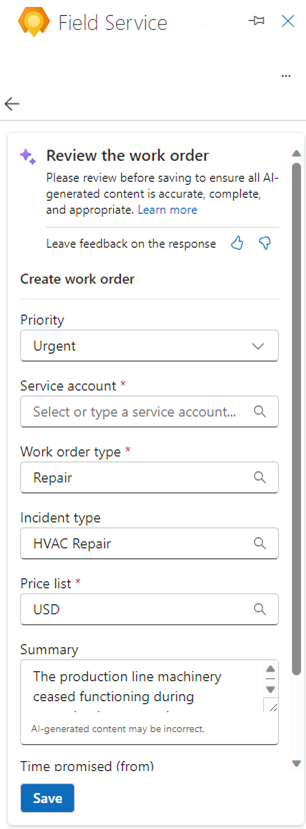
The initial release of Copilot in Dynamics 365 Field Service focuses on simplifying work order creation. Organizations that use the Dynamics 365 Field Service app for Outlook can easily create work orders directly from incoming emails. Copilot considers information in the email such as who it is from and what the customer is requesting. Copilot configures Field Service data and populates a suggestion for the Field Service work order record. Users can either accept the suggestion and create a work order, or they can modify the data and then create a work order. Either way, Copilot suggestions can reduce the amount of time that it takes to enter work orders in the system.
Schedule Operations Agent
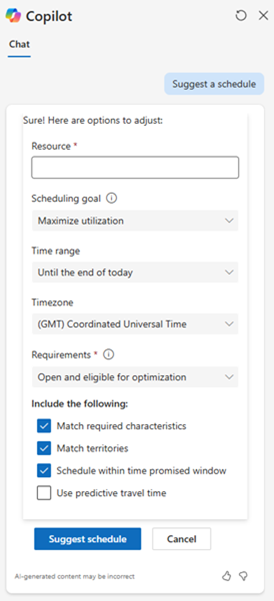
The Scheduling Operations Agent in Dynamics 365 Field Service helps dispatchers quickly and efficiently optimize a technician's schedule. It addresses common scheduling challenges by using AI to suggest intelligent updates based on real-time conditions. For example, if a technician experiences same-day cancellations, the agent can recommend nearby work orders that align with promised times and priorities. If a technician is running behind schedule, the agent can help adjust the remaining bookings to minimize delays.
Copilot in Dynamics 365 Customer Insights – Journeys
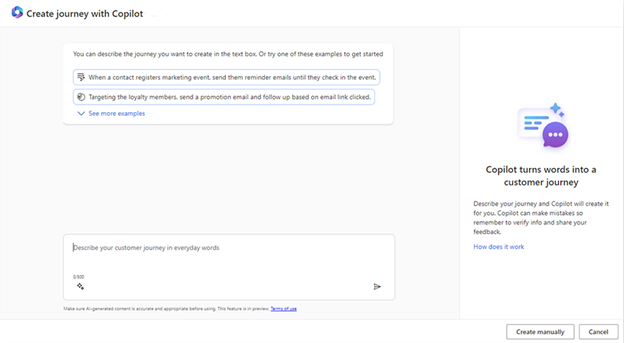
In Dynamics 365 Customer Insights, Copilot can, for instance, help create customer journeys. An organization might want to create a welcome journey for people who recently joined your organization's loyalty program. With Copilot journeys, you can describe the journey that you want to create or select from different examples. Copilot processes the prompt and responds with a journey suggestion that includes the automatically detected segment and each subsequent step clearly.