Optimize processes with Microsoft 365
According to Bernard Marr in "What really is the 4th Industrial Revolution, and what does it mean for you?," this era in our history is driven by technology like artificial intelligence (AI), machine learning, and robots. While these advances are exciting and new, sometimes it's the simplest aspects of technology that fade into the background and become forgotten and underutilized. For years, since the third industrial revolution, we have been automating production and tasks, but as referenced in "Takeaways from distance learning" and stated in John Hattie's 2021 report, Not all that glitters is gold, "the impact of technology on learning hasn't fundamentally changed since the 1970s." This is where the tools and applications included in Microsoft tools come into play. Even using these tools to optimize processes and develop/enhance systems already in place can be transformational.
This module informs school leaders about the Microsoft tools available and the real world applications/use cases of those tools that help close the consumption gap in hopes of optimizing systems and processes to use the power available when cyber and physical worlds coexist.
Microsoft Forms for collecting school-wide data
Educators have long used paper forms and surveys to collect information from stakeholders. Many educators use Microsoft Forms to digitize the initial collection of student information during "Meet the Teacher" events that typically happen at the start of a new school year.
Consider using Forms to gather school-wide student dismissal information at the beginning of the school year. In this case, student dismissal is referring to students returning home at the end of each school day. This data helps in planning logistics such as dismissal routes, procedures, and assigning supervision duties.
- Sample dismissal form (view & take the survey, make sure to select different answer choices and notice how branching works).
- Sample dismissal form (duplicate link - duplicate this form to your own Microsoft Forms library, edit, and share)
- To duplicate this form and save a copy in your own Forms library, select the link, then Duplicate it. Then sign in to your Microsoft account.
How could this data or this process of using Forms to gather this data be transformative for emergency early release days?
Additional supports
Power Automate to save time and energy
With Power Automate users create automated workflows between apps and services that allow for automatic notifications, collecting data, sending emails, and more. Power Automate is broken into three components: connectors, flows, and PowerApps.
- Connectors are the application actions you put together to make your life easier
- Flows are the actual pieces being put together, so two or more connectors = one flow
- PowerApps bring everything together and combine with the user interface (UI) to create a custom app to add to your team
Ideas for automation
- Stay up to date and create a repository by making a new Teams post every time a specific user posts on social media or a certain tag is used
- Notify a team when a new Forms response is submitted
- Post messages in Teams when new tasks are created in Planner
- Notify a channel when the status of a task changes in Planner
- Get a push notification when you receive an email from certain users
- Save email attachments to OneDrive
- Email a list of upcoming calendar events
- Create Planner tasks for important Outlook emails
Additional supports
Staff Notebook for faculty meeting resources
OneNote Staff Notebook is built into Staff Teams and is designed for use by education faculty and staff. Just like a Class Notebook, Staff Notebook includes three notebook sections: collaboration space, content library, and private staff member.
- Collaboration Space: A notebook for all staff members and the staff leader in the group to share, organize, and collaborate.
- Content Library: A notebook for a staff leader to share course materials with staff members. A staff leader can add and edit its materials, but for staff members, the notebook is read-only.
- Staff member notebooks: Private notebooks that are shared between each staff leader and their individual staff members. Staff leaders can access these notebooks at any time, but staff members can't see other staff members’ notebooks.
There are many staff meetings where important topics are discussed that often require note-taking. Many school leaders choose to use agendas and presentations to guide these meetings and communicate information. When leaders choose to use OneNote Staff Notebook, they no longer have the burden of making paper copies of presentations to pass out. Instead, the school leader can add the agenda, presentation materials, and resources directly to the content library in their Staff Notebook. Adding these to the content library allows school leaders to collect and curate the information they communicate to their faculty and staff while giving teachers and other members visibility with read-only access.
To take this to the next level, consider creating and distributing a section in each staff member's private notebook section, titled "staff meetings." Then, school leaders can distribute pages to that section that include the agenda, presentations, and additional resources for each staff meeting. Teachers have their own copy of your meeting materials that they can use for their own notes. Teachers can type notes to the side of the agenda or presentation slides, or they can ink with a stylus. Leaders can even embed YouTube videos, Microsoft Forms, and other kinds of content directly onto these OneNote pages. The best part is, because these notes are digital, they can be accessed from anywhere.
Additional supports
- Getting started with the OneNote Staff Notebook: A walkthrough for staff leaders in education
- OneNote Staff Notebook: Tools for staff collaboration (module)
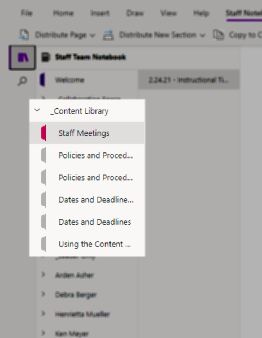
Staff Notebook: Content Library
School leaders (team owners) can edit. Teachers (team members) have read-only access, but may copy pages to their private sections to edit and take notes.
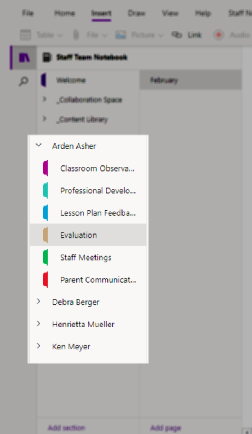
Staff Notebook: Private Staff member sections
School leaders have visibility and edit access to all private staff member sections.
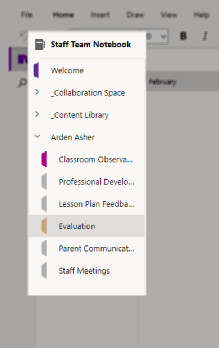
Staff Notebook: Teacher's perspective
Teachers have access to:
- Collaboration Space: view and edit
- Content Library: view-only
- Their private teacher section titled with their name: view and edit
Microsoft Bookings for parent conferences
Microsoft Bookings is an app integrated with Outlook calendar that provides a simple way for people to schedule appointments. Virtual appointments are created automatically in Microsoft Teams.
Communication with parents is one of teachers' top priorities, but the process of scheduling a time that works for everyone's schedule is often cumbersome. Bookings does away with sending emails back and forth exchanging available times. In a few steps, educators and leaders create a Bookings calendar, adjust settings, and publish for parent access. Bookings sends text message reminders and allows school leaders to see when their teachers are booked on a master calendar.
Additional supports
- Overview of Microsoft Bookings
- How to use Microsoft Bookings for parent teacher conferences (9)video)
Bookings for teacher conferences
With Bookings users are able to choose the appropriate teacher, then see a list of times available.
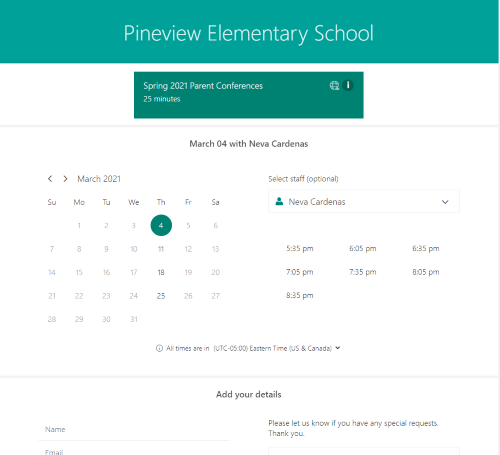
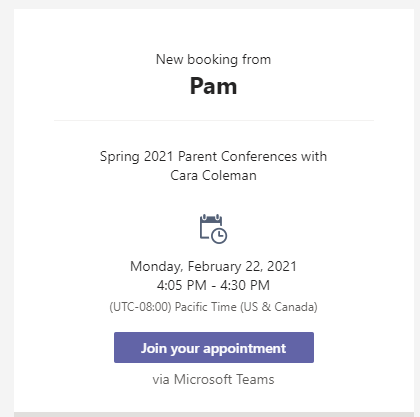
New Bookings appointment message
A notification email message is automatically sent to the teacher when a time slot is booked.