Identify rework in your processes
The Rework Detector feature of the Power Automate Process Mining desktop app can help you find unnecessary rework and eliminate it by analyzing the frequency of rework. Use the detector after you identify potential rework. Then, you can investigate which activities trigger it and then remediate to end the rework from happening. Reducing repetitions is crucial for improving the efficiency of the process and reducing costs.
You can choose different rework metrics so that you can focus on identifying various kinds of repetitions that the system finds in a process. Choose from the following rework metrics:
Self-loop - When an activity is directly followed by the same activity. In terms of edges and transitions, the starting and ending activity of the edge is the same. For example, the PO-Validate activity repeats itself five times. Zero values exist over all other activities and edges because no other activities are involved in this type of repetition.
Loop - A specific repetition where an activity is followed by the same activity, but not directly. For example, the PO-Validate and PO-Create activities are repeated five times. The edge between these two activities is also repeated five times.
Rework - Rework count is the sum of all self-loops and loops.
Loop inflow - Repetitions of an activity's predecessors.
Loop outflow - Repetitions of an activity's predecessors.
Net loop gain - The difference between Loop outflow and Loop inflow. When the value is positive, the activity is directly followed by more repeated activities than preceded it. Such activities start new loops in processes. If the value is negative, the activity is directly followed by fewer repeated activities than preceded it. Such activities end, close, or exit loops in processes.
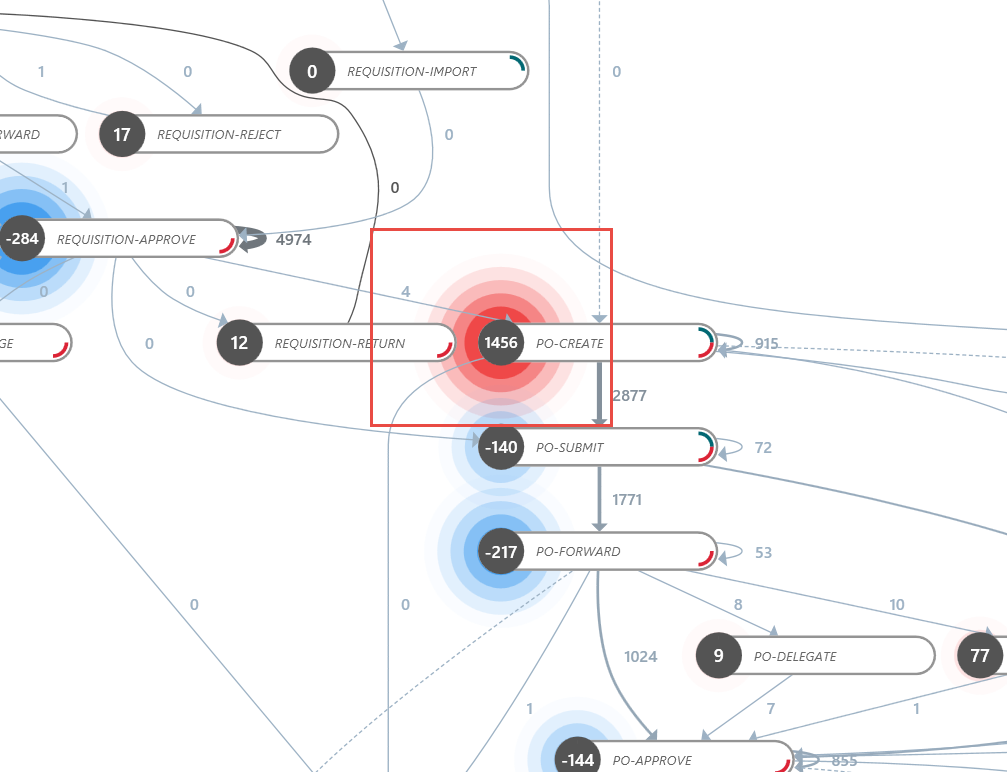
The following image shows the halo effect color to help you observe positive and negative trends in the process. The red color represents a problem (start of new loops), and the blue color represents a favorable change (end of loops).
Set up the process map to use rework metrics
When the rework metrics are set up, the process map displays information that represents the volume of repetitions for activities and edges that the process involves.
To display the rework information, follow these steps:
On the right panel, select Customize (the upper icon).
On the Customize toolbar, select Rework.
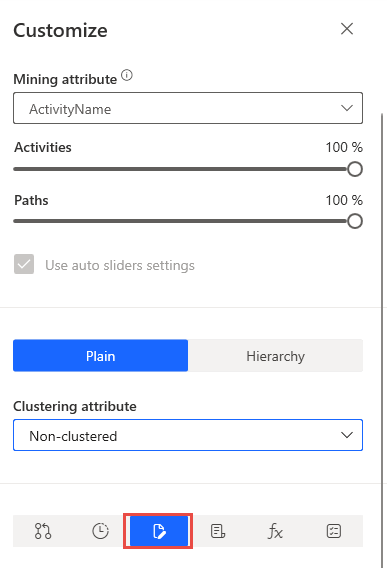
You can select if the system should use the same metric for at node and at edge, or you can specify if each metric is set separately. You can link or unlink metrics by using the link icon to select your preference.
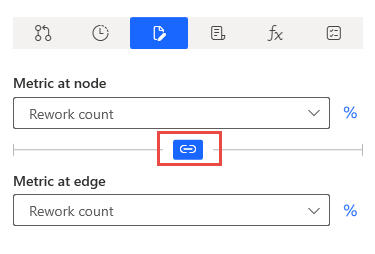
You can also switch between count and percentage for each metric by using the percent (%) icon to the right of the metric dropdown menus.
The list of metrics is the same for activities and edges, with one exception. The Net Loop Gain is available only for activities.
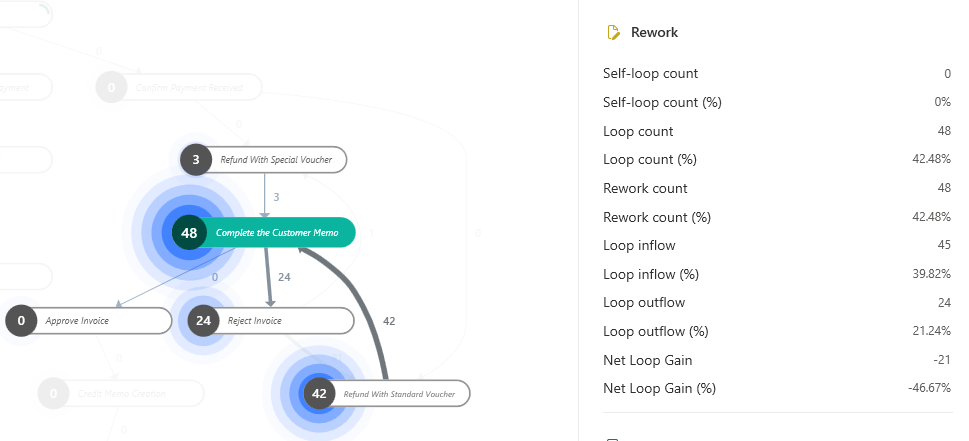
By selecting an activity or edge, you can display rework details about the object. The percentage represents the proportion of the individual types of reworks to the overall number of instances.
Review rework metrics in statistics
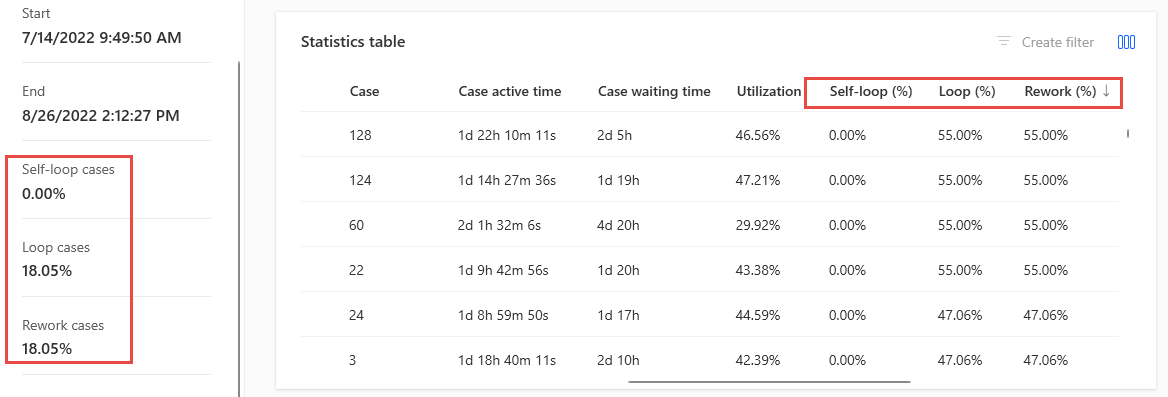
The Statistics section is a good place to check if your process has rework indicated in the statistics. From this section, you can get an overall perception of the significance of the rework. Then, you can drill down to the case level to review individual case rework metrics.
On the Statistics screen, the rework information is available for case overview, activities, edge statistics, resources, and all event-level attribute statistics.
The rework columns are on the right end of the table, and the information can also display in the chart. The system calculates the percentage from the event frequency value. In Case overview, the system calculates the percentage from the event count.
Information about reworks is also present in the overview panel. The percentage shows the proportion of the displayed rows that contain self-loops, loops, and reworks.
Include rework metrics in your filters
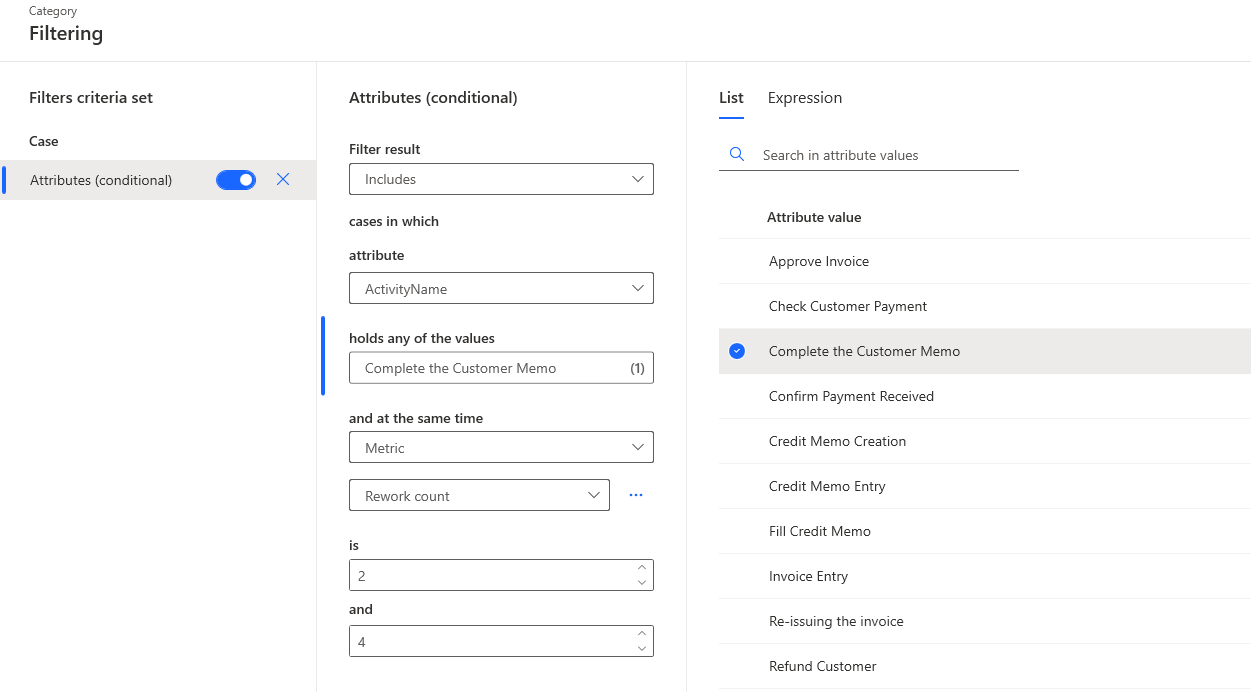
You can use the rework metrics as part of the case filters that you set up. An example of this scenario would be if you only want to include cases with significant rework indicated.
The Metrics filter supports filtering for each case according to the number of self-loops, loops, and reworks. The Attributes (conditional) and Edge (conditional) filters allow you to use a rework metrics filter for each event.
Evaluating rework significance in the process that you're analyzing should be one of your first steps in your in-depth analysis. As a result, you can identify any rework that you need to eliminate to optimize the process.