Install the desktop app
Prerequisites
To install the Power Automate Process Mining desktop app, make sure that you meet the following prerequisites:
Compilation of Mod02, and make sure that you create a process mining report
Power Automate per-user plan with attended RPA or Power Automate trial license
Install the application
Follow these steps to download the desktop app and then find the process that you created on the web.
Go to Microsoft Power Automate and sign in.
Select Process mining from the left navigation pane.
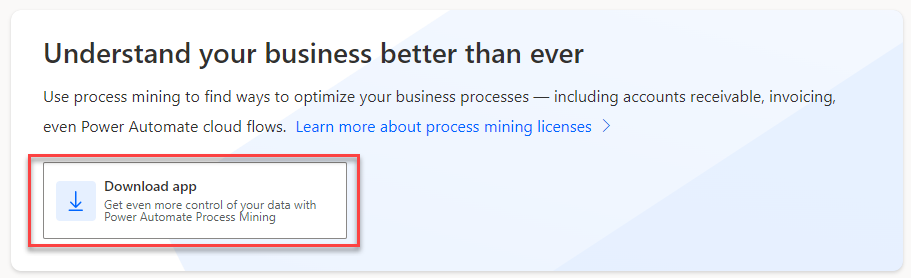
In the Understand your business better than ever section, select Download app.
Locate and launch the app installer that you downloaded.
Select Install and then wait for the application to install.
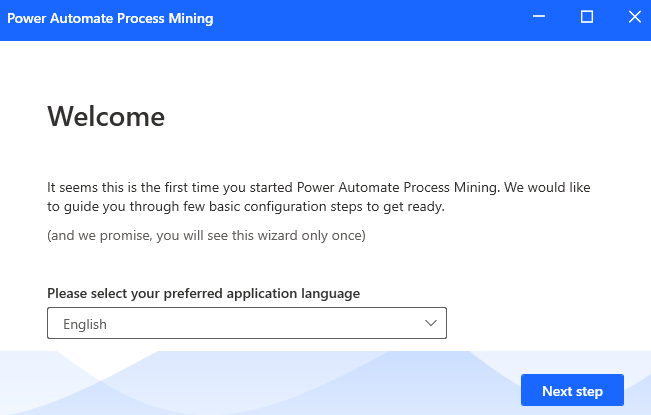
The application should launch after the installation completes. Select your language and then select Next step. For this exercise, select English.
Review the terms of use and select Next step to continue.
Select Apply and Mine!
Provide your organization email and then select Sign in.
Complete the sign-in process.
Select Done.
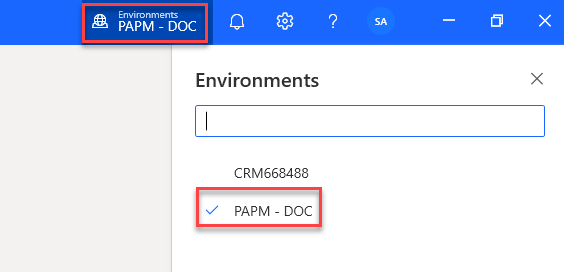
Select the environment name and then choose the environment that you used when creating the process.
The process that you created should display. Open the Default view.
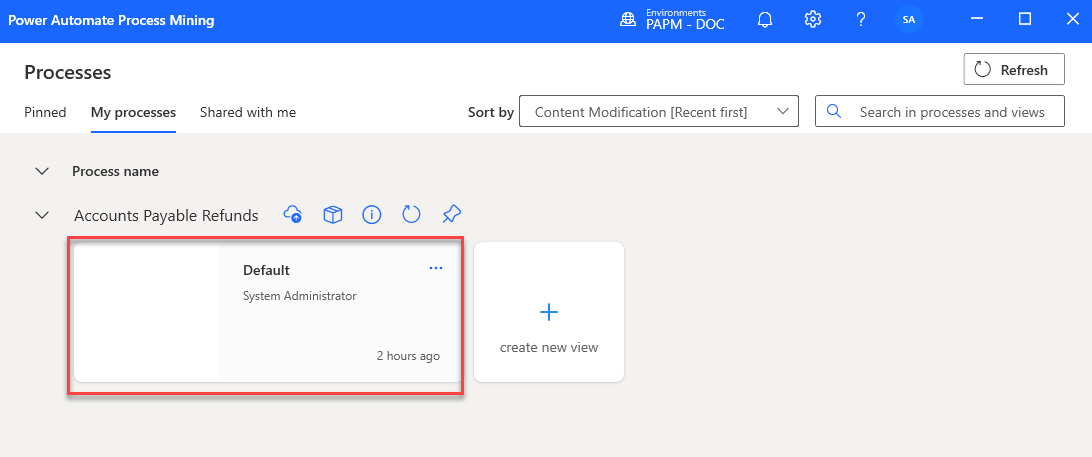
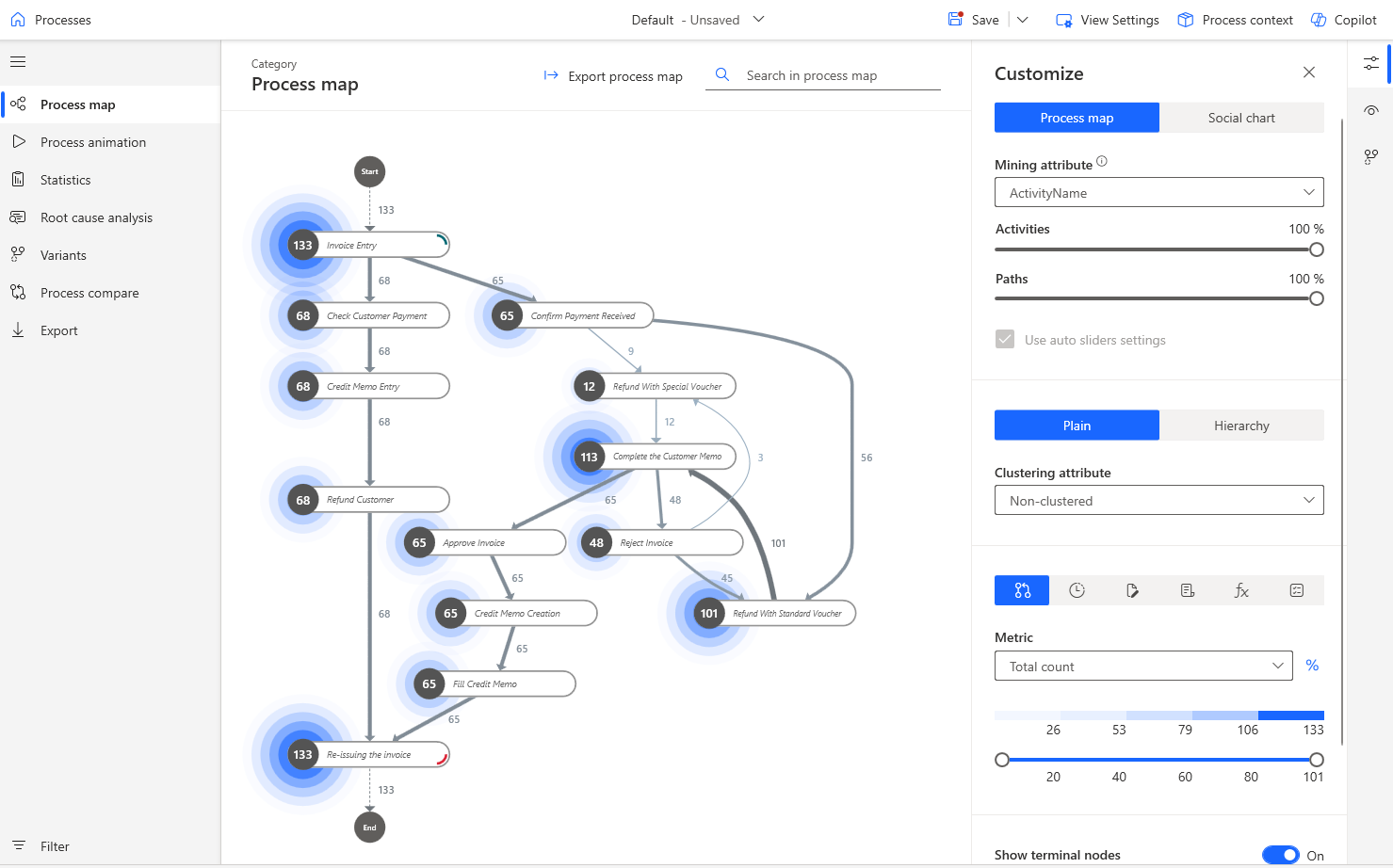
After you complete these steps, you should land on the following screen. Review the process map. It's the same map that you previously viewed on the web.