Note
Access to this page requires authorization. You can try signing in or changing directories.
Access to this page requires authorization. You can try changing directories.
Welcome to GitHub Copilot, your AI companion in Visual Studio!
Copilot helps you code faster and with greater accuracy by suggesting entire lines or blocks of code. Copilot also answers questions and assists you with routine tasks such as writing unit tests, debugging, and profiling. You can use all these features directly in your Visual Studio environment.
In this article, you learn how to use Copilot and make the most of its features in Visual Studio.
Open Copilot
Open Visual Studio (version 17.8 or later). Update to the latest version of Visual Studio to get the most out of Copilot.
Create a new project, open an existing project, or continue without code to open the IDE.
Select the GitHub Copilot badge in the upper-right corner of Visual Studio, and select Open Chat Window.
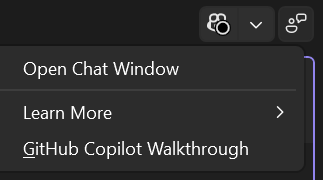
If Copilot isn't installed, select Install Copilot from the dropdown list and follow the installer prompts. For more information, see Manage Copilot installation and state.
In the chat window, enter a prompt to start using Copilot.
If you're not already signed in with a GitHub account, Visual Studio prompts you to sign in. You can also get started with Copilot Free if you don't have a Copilot subscription. Complete the sign-in or sign-up process in your browser, and then return to Visual Studio.
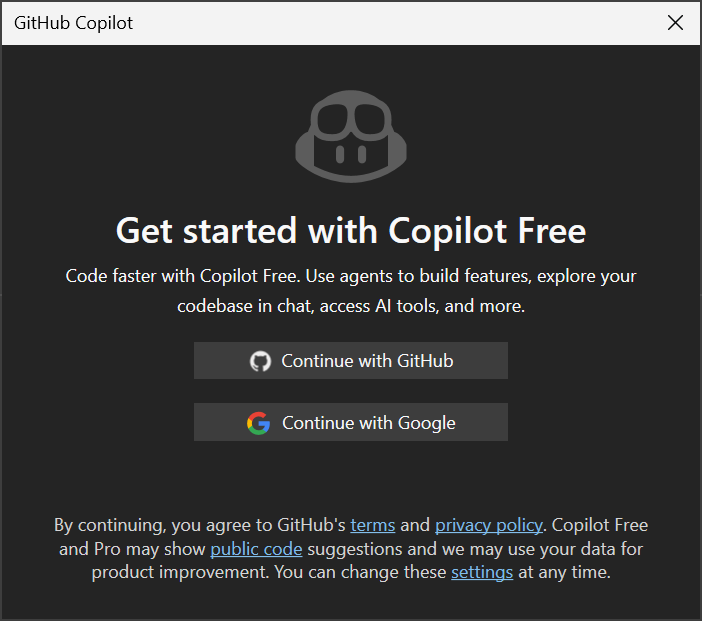
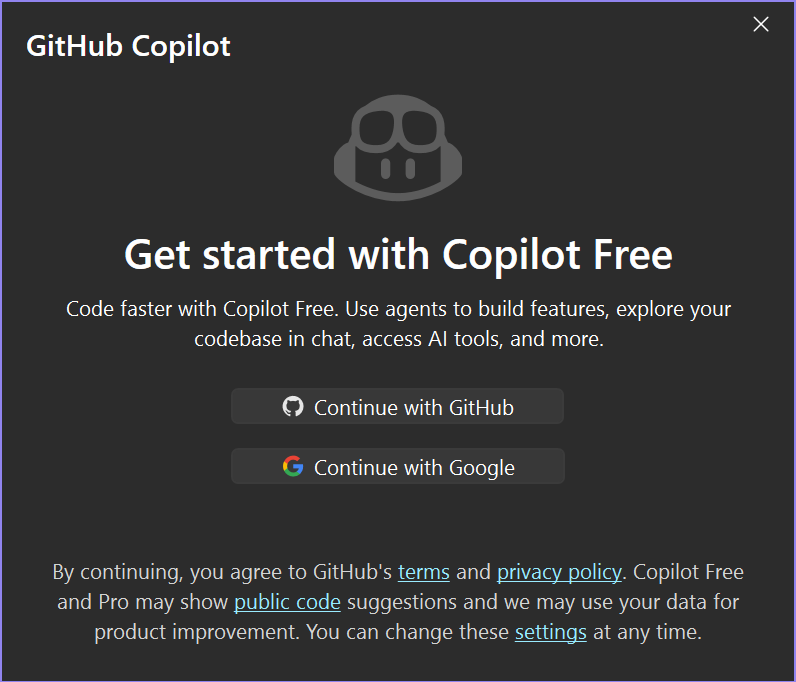
Copilot is now ready to use in Visual Studio.
Start using Copilot
After you sign in, use Copilot in the chat window and throughout the IDE.
Use agent mode and MCP servers: In the chat window, select Ask and switch to Agent to enable agent mode. Use the tools icon to access Model Context Protocol (MCP) servers, configure servers, and choose which tools Copilot can use. For example, to get Copilot assistance with generating targeted code, send "Write unit tests for the methods in this file."
- As part of agent mode workflows, Copilot Chat can connect to cloud agents to run remote coding sessions that create repository issues and pull requests in your connected GitHub repository. You might be prompted to grant repository permissions the first time you start a cloud session, or when more permissions are required.
Use completions and next edit suggestions: As you code, Copilot provides suggestions directly in the editor. Copilot suggests both new code (shown as gray text) and edits to existing code. By default, Visual Studio prioritizes IntelliSense over Copilot inline completions. You can customize keyboard shortcuts for accepting Copilot suggestions (full suggestion, next word, and next line) in Tools > Options > Environment > Keyboard.
Use Copilot actions across Visual Studio: Find Copilot-powered actions and suggestions on the editor context menu, error list, feature search, and other areas of the IDE.
- Use the Debugger Agent workflow from Copilot Chat or issue context. Start from a GitHub or Azure DevOps issue (or a natural-language prompt) to reproduce a problem, generate hypotheses, add instrumentation, analyze telemetry, and apply targeted fixes while validating live runtime behavior.
Tailor Copilot chat to your workflow
Customize Copilot for your project and your development workflow.
Manage context with references: Use the + button to attach more context, such as files or images, or ask Copilot to reference your entire solution.
Access different models: Use the model picker in the prompt window to select AI models, or bring your own model to Copilot. Explore different models for different scenarios, whether it's answering quick questions, writing documentation, or generating multiple-file code edits.
Add custom instructions: Add reusable custom instructions in
.github/copilot-instructions.mdand prompt files in.github/promptsto customize Copilot responses for your coding style or project needs.Create and manage custom agents: In the Copilot Chat window, use the agent picker at the top of the prompt area to create and select custom agents. User-level custom agent definitions are stored in
%USERPROFILE%\.github\agents. These agents retain workspace awareness, tool configuration, model selection, and MCP connections. For more information, see Use built-in and custom agents with GitHub Copilot.
Helpful resources
To review Copilot features at any time, select GitHub Copilot Walkthrough from the GitHub Copilot badge in the upper-right corner of Visual Studio.
Try building a complete app with the Hands-on lab: GitHub Copilot in Visual Studio 2022.