Note
Access to this page requires authorization. You can try signing in or changing directories.
Access to this page requires authorization. You can try changing directories.
APPLIES TO:  Power BI Desktop
Power BI service
Power BI Desktop
Power BI service
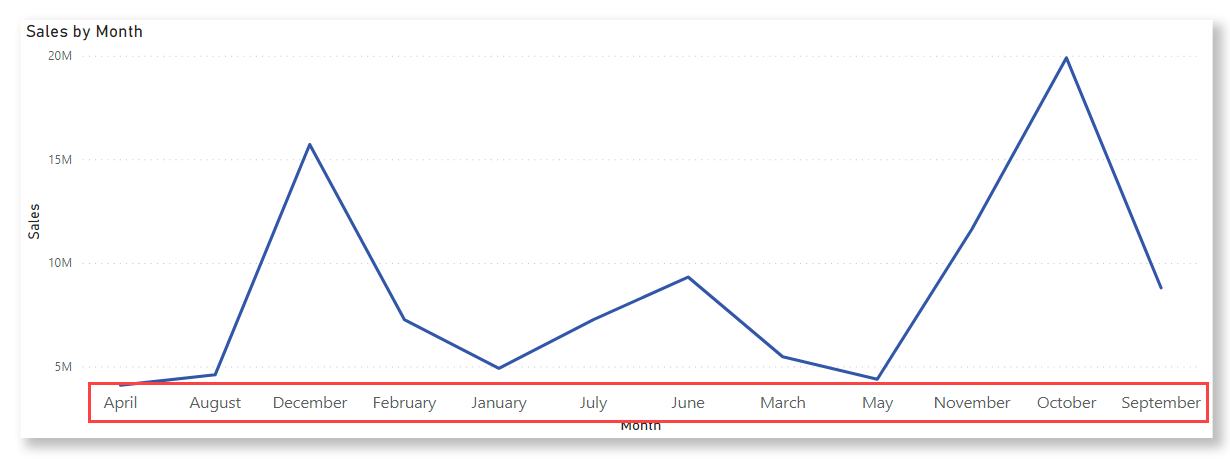
When you edit a report in Power BI, you can choose a column to define the sort order of another column. Here's a common example. You have a Month Name column, and when you add it to a visual, the months are sorted alphabetically: April, August, December, February. However, you want them sorted chronologically. This article shows how to set the sort order of one column by a different column, in Power BI Desktop or in the Power BI service. It also provides troubleshooting guidance for common sort by column errors.
Note
When you're reading a report, you can also change how the values in a visual are sorted. See Change how a chart is sorted in a Power BI report for details.
Set the column to use for sorting
To set a different column for sorting in Power BI Desktop, both columns need to be at the same level of granularity. For example, to sort a column of month names correctly, you need a column that contains a number for each month. The sort order applies to any visual in the report that contains the sorted column. In the following example, the months are sorted alphabetically, but they should be sorted chronologically.
Important
You must be in Report view to access the Column tools tab. If you're in Model view or Table view, switch to Report view first by selecting the Report view icon in the left navigation.
In Report view, select the column that you want to sort, in this case, Month. You can select the column from the Data pane or from a visual on the canvas. Months in the visual are sorted alphabetically. When you select a column, the Column tools tab appears in the ribbon.
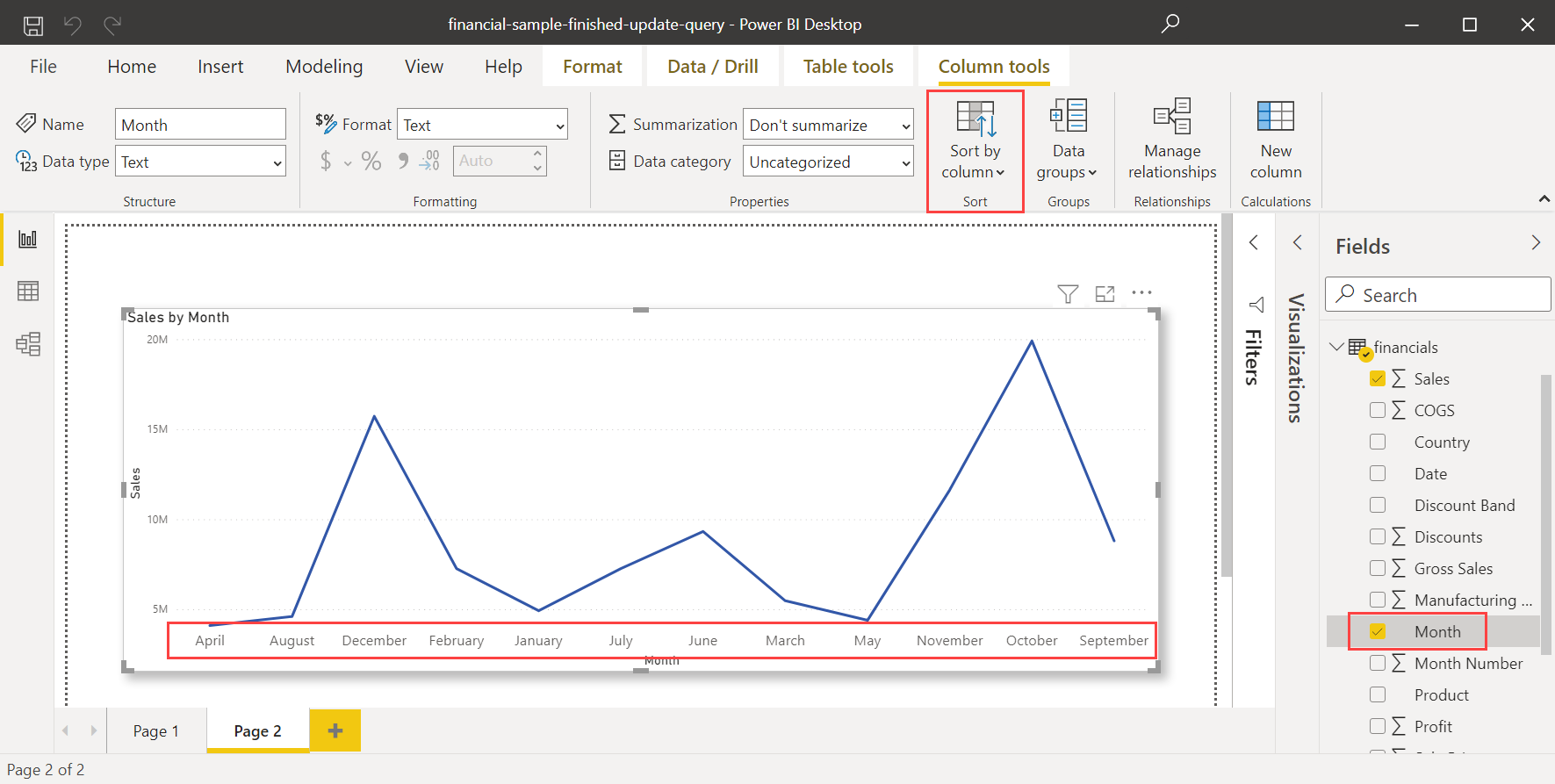
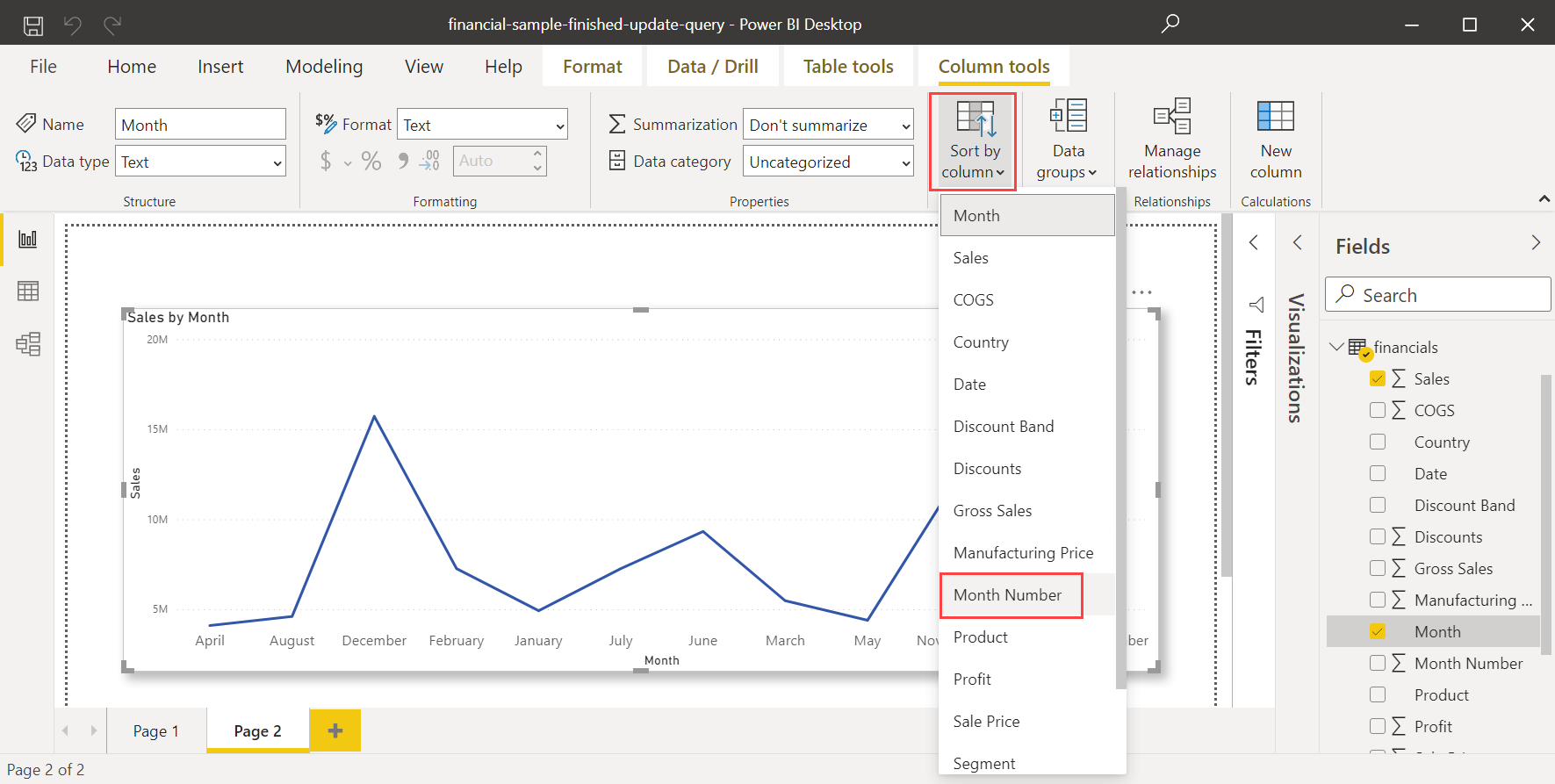
Select Sort by Column, and then select the field you want to sort the other field by, in this case, Month Number.
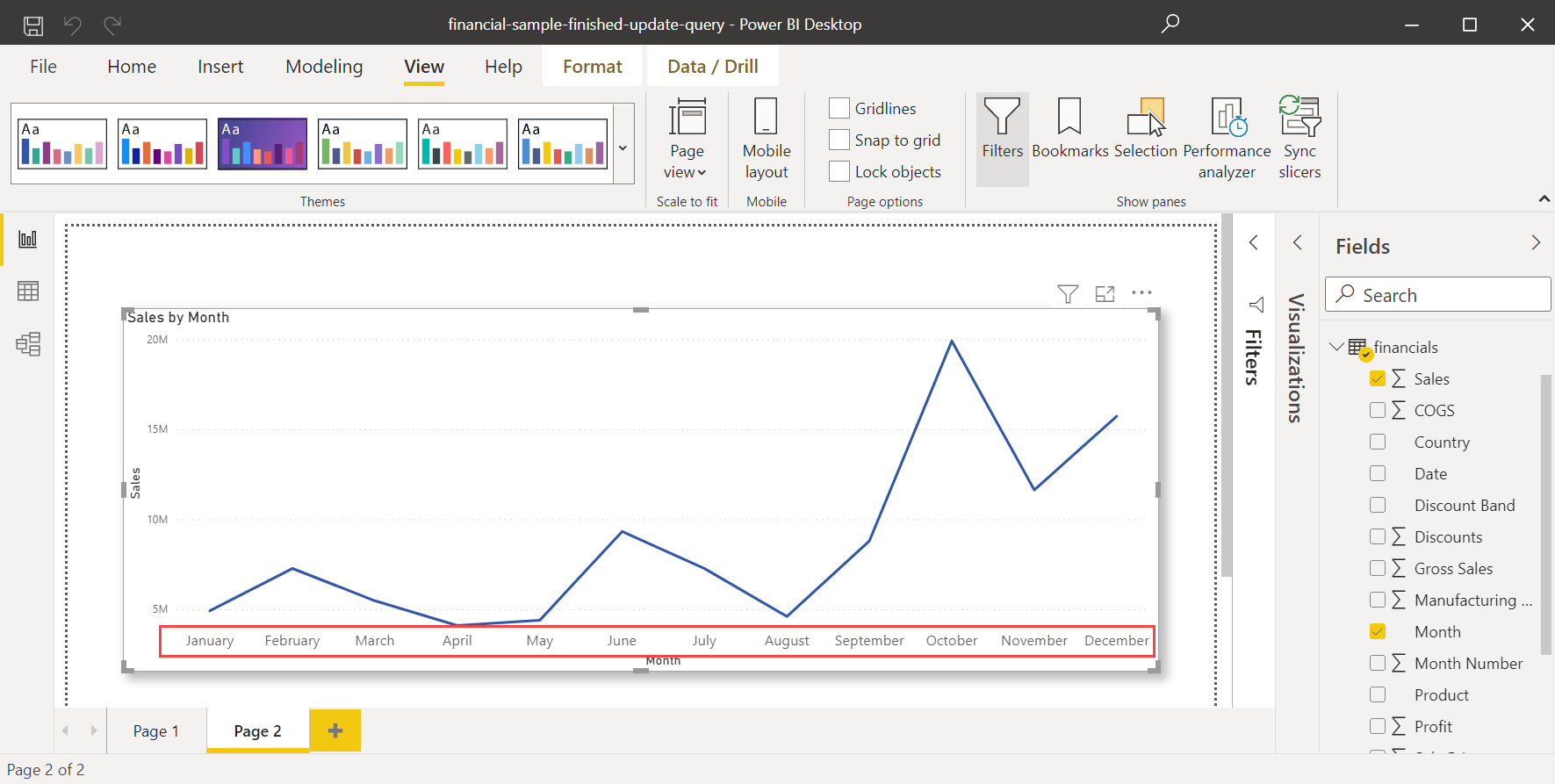
The visual automatically sorts chronologically by the order of months in a year.
Set a different column to sort
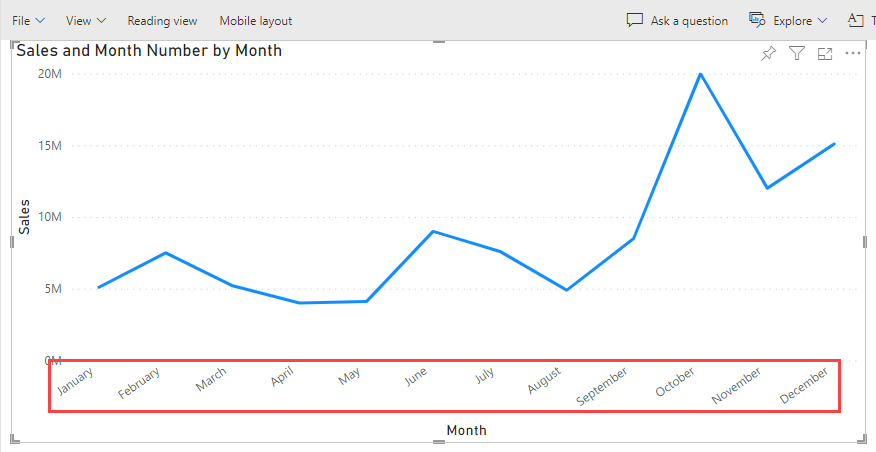
To set a different column to sort by in the Power BI service, both columns need to be at the same level of granularity. For example, to sort a column of month names, you need a column that contains a number for each month. In the following example, the months are sorted alphabetically, but they should be sorted chronologically.
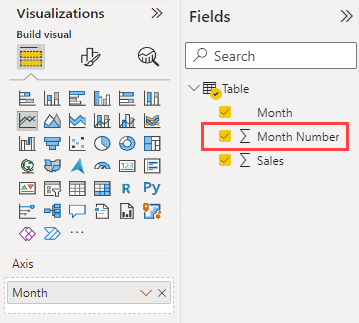
On the canvas, select the visual. Then locate the Month Number field in the Fields pane.
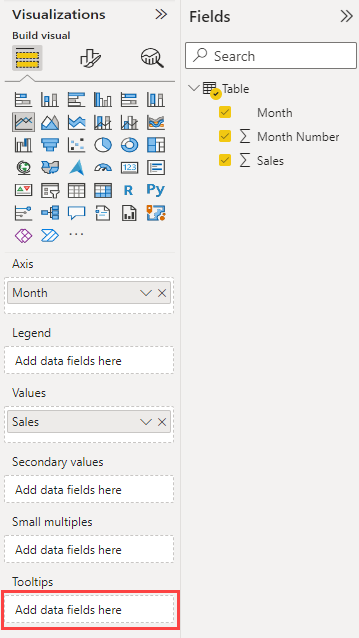
In the Visualizations pane, in the Fields section, locate the Tooltip fields bucket.
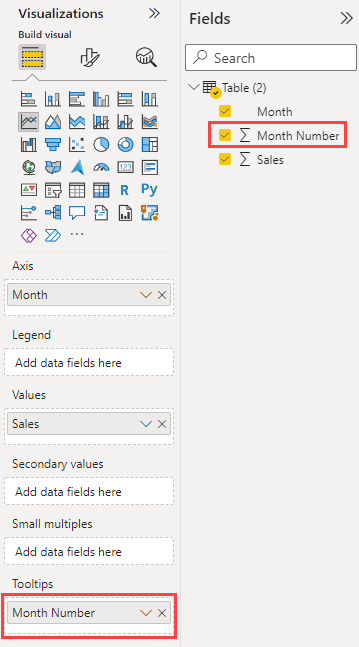
Drag the Month Number field from the Fields pane to the Tooltip fields bucket in the Visualization pane.
In the upper-right corner of the visual, select More options. Select Sort axis, and then select Month Number.
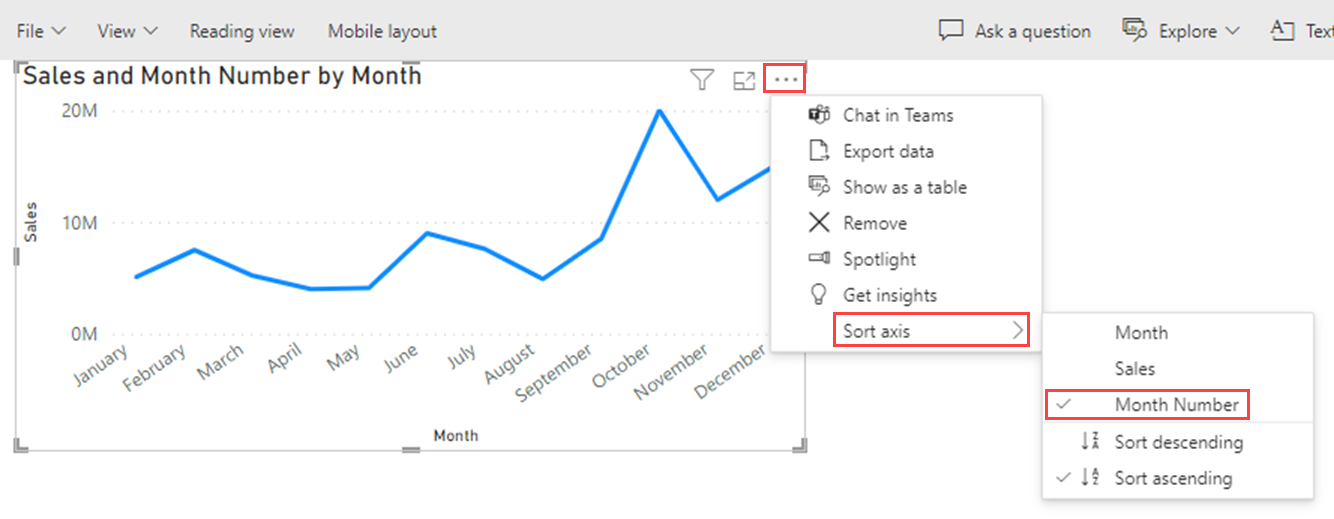
Power BI sorts the visual chronologically by the order of months in a year.
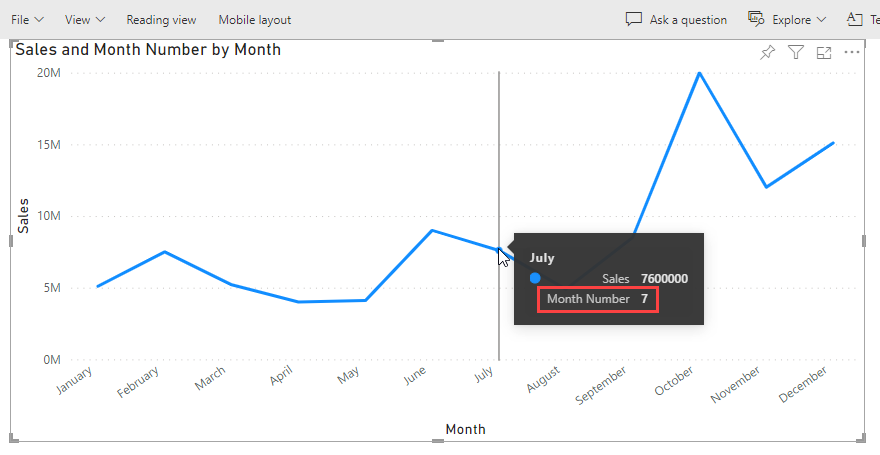
The Month Number is now visible in the visual's default tooltip.
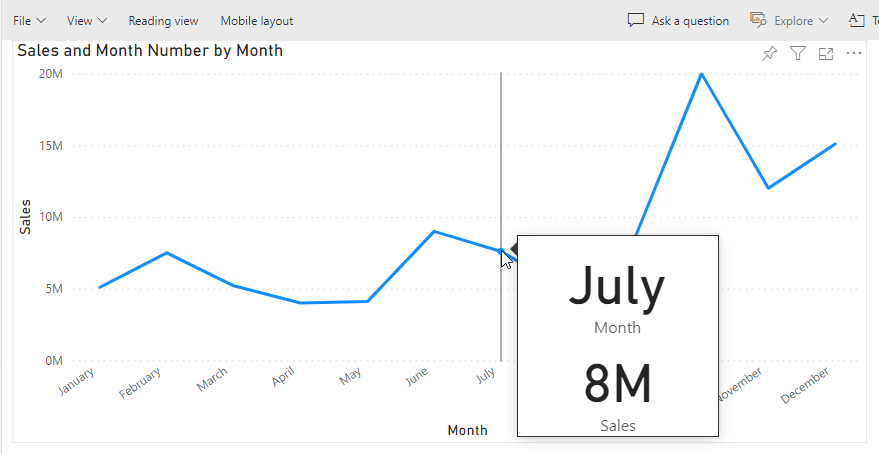
If you don't want the tooltip to contain the Month Number, use a custom tooltip that doesn't include that value. To learn how to create a custom tooltip, see Create tooltips based on report pages in Power BI Desktop.
Troubleshooting sort by column
If you're having trouble setting or using sort by column, review these common problems and solutions.
Sort by column option is disabled or unavailable
Cause: The column you're trying to sort might have dependencies that prevent sorting.
Solution:
- Verify you're in Report view, not Model view or Table view.
- Check that the column isn't already sorted by another column. Remove the existing sort first, then apply the new one.
- If the column is marked as a key column, its sort order is ignored and defaults are used.
"Cannot use this column for sorting" error
Cause: The sort-by column contains duplicate values. Each value in the column you want to sort must have exactly one matching value in the sort-by column.
Solution:
Check for duplicate values in the sort-by column:
- Select the sort-by column in the Data pane.
- Review the column profile in the Column tools tab to check for duplicates.
- Alternatively, in Power Query, use View > Column quality to see if there are duplicates.
Remove or fix duplicates:
- If duplicates exist, you need a different column for sorting. For example, if sorting month names by month number, ensure each month name has only one month number (January = 1, not 1 and 01).
- Use Power Query to create a unique identifier column if needed.
Note
A common scenario is trying to use a numeric rank column that contains duplicate rank values. For example, if multiple products share the same rank (two products both ranked "1"), you can't use that rank column for sorting. The sort-by column must have unique values. Consider creating a unique sequential number instead, or use a different sorting approach for ties.
Sort order doesn't work as expected
Cause: Data type mismatch or text values sorted as numbers.
Solution:
Verify data types match:
- The sort-by column should typically be numeric, date, or text.
- Select the sort-by column and check the Data type in the Column tools tab.
- Common issue: Month numbers stored as text ("1", "2", "3") instead of whole numbers (1, 2, 3).
Convert data types if needed:
- In Power Query, change the column type to the correct data type.
- For example, convert text month numbers to whole numbers by selecting Transform > Data Type > Whole Number.
Sort by column produces unexpected grouping
Cause: The sort-by column has a different granularity than the sorted column.
Solution:
- Both columns must be at the same level of detail. For example:
- To sort Month Name (January, February), use Month Number (1, 2) at the same grain.
- Don't try to sort Month Name by Day Number (different granularity).
- Each unique value in the sorted column must map to exactly one value in the sort-by column.
Sort by column is reset or ignored
Cause: You changed the data model or column properties.
Solution:
- Check if the sort-by column still exists in the model.
- Verify you didn't remove the sort-by column from the data source.
- Reapply the sort by column setting if you refreshed or modified the model.
Considerations
Keep these requirements in mind when using sort by column:
- Both columns must be at the same level of granularity.
- The sort-by column must contain unique values for each value in the sorted column.
- If you mark a column as a key column, its sort order is ignored and defaults are used.
Related content
You might also be interested in the following articles: