Note
Access to this page requires authorization. You can try signing in or changing directories.
Access to this page requires authorization. You can try changing directories.
APPLIES TO:  Power BI Desktop
  Power BI service
The model Options dialog in the Power BI service lets you view and edit modeling settings for the current semantic model. You get greater control over model-level behavior without needing to switch back to Power BI Desktop.
Prerequisites
- Write permission to the semantic model.
Open the model options dialog
Use the following steps to access the model options dialog.
Open a semantic model in Model view in the Power BI service.
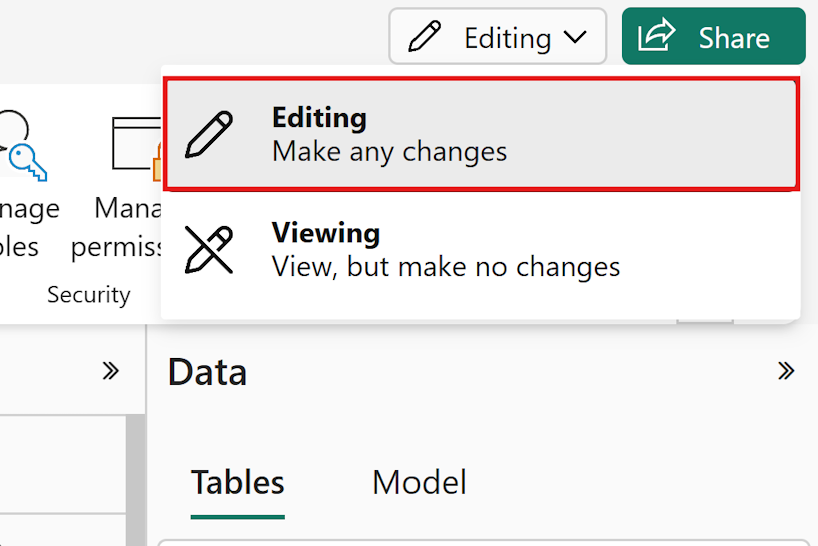
Switch to Editing mode.
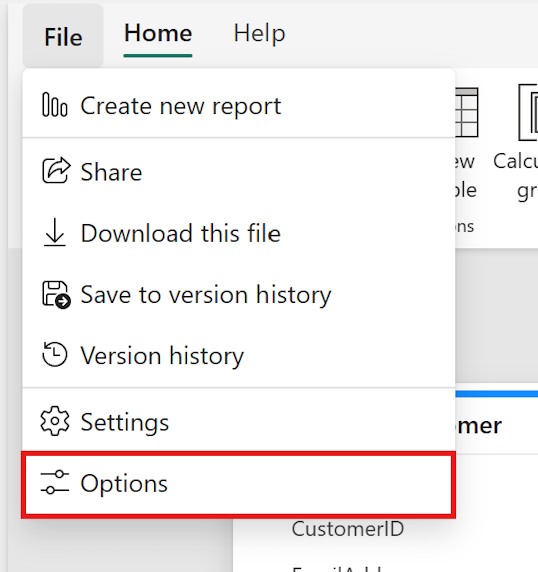
Select File > Options.
Review available model options
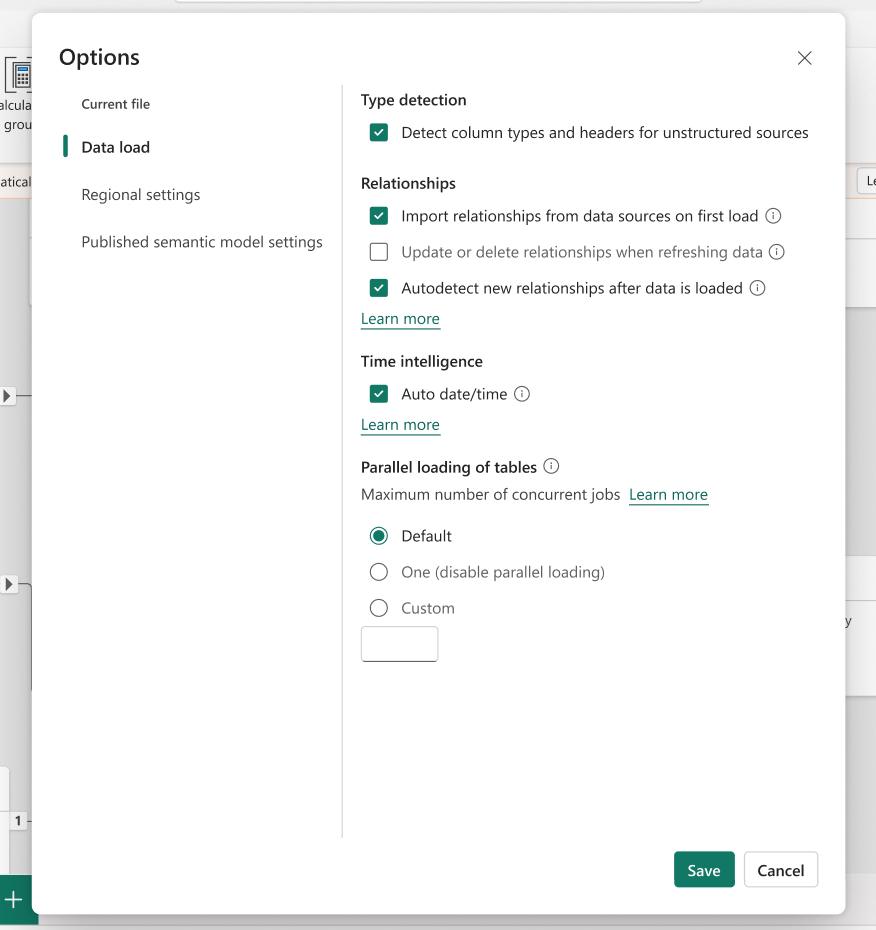
The model Options dialog includes the following settings:
Type detection: Toggle to enable or disable automatic detection of column types and headers for unstructured sources. For more information, see Data type detection.
Relationships: Configure auto-detection behavior for relationships in the model, including importing relationships on first load, updating or deleting relationships on refresh, and autodetecting new relationships after data is loaded. For more information, see Understand model relationships.
Time intelligence: Auto date/time: Toggle to enable or disable automatic creation of hidden date tables. For more information, see Apply auto date/time.
Parallel loading of tables: Set the concurrency mode used when loading tables. Options include
Default,One, andCustomwith a configurable job count. For more information, see Evaluation configuration settings.Regional settings: Locale: Set the locale that determines the regional settings used to interpret numbers, dates, and time in imported text. For more information, see Set the locale for Power BI imports.
DirectQuery connections to this semantic model: Toggle whether other semantic models can connect to this semantic model using DirectQuery. When enabled, this model can't be used as a DirectQuery source. For more information, see Manage DirectQuery connections to a published semantic model.
(DirectQuery only) Maximum connections per data source: Limit how many concurrent DirectQuery connections can be opened to a single data source. For more information, see Maximum number of DQ connections.
Considerations and limitations
- Some settings take effect at different times:
- Type detection, Relationships, Parallel loading of tables, and Regional settings take effect on the next data load or refresh, not immediately.
- Auto date/time and DirectQuery connection restrictions take effect immediately on save.
- Currently, you configure these settings per model. You can't define default settings for new models or update them in bulk on the web.
- The Power BI Desktop configuration settings persist when you publish a model, so the initial values shown in the web dialog reflect the Power BI Desktop configuration. Once you change a setting in the Power BI service, the service values take precedence.
- If you download the model as a
.pbixfile, edit it in Power BI Desktop, and republish it, the Power BI Desktop settings overwrite the service values. Any changes you made in the Power BI service between the download and republish are lost. - Turning off Auto date/time removes hidden date tables that back auto date/time hierarchies. Reports that use those hierarchies show broken-field errors after refresh. To resolve, either re-enable the setting or update the affected reports to use explicit date tables. For more information, see Apply auto date/time in Power BI Desktop.
- A few locales might not display correctly in the web options dialog. While models using these locales continue to function as expected, the locale might appear blank in the options dialog UI. In those cases, if you change the locale in the web experience, you can't revert it there. You must republish the model from Power BI Desktop to restore the original locale.
Troubleshoot model options
If you experience issues with the Model Options dialog, use the following guidance to resolve common problems.
Model options button isn't visible
- Confirm you have write (edit) access to the semantic model. Without write access, you can't access Model View.
- Make sure you're in Model View. The model Options dialog isn't available from the report view, DAX Query view, TMDL view, or the semantic model settings page.
Save operation fails
- Check for an inline error message in the dialog.
- Verify that no concurrent modifications are being made to the model through the XMLA endpoint or other clients.
- If the error persists, close and reopen the model Options dialog to refresh the cached model data, and then try again.