Note
Access to this page requires authorization. You can try signing in or changing directories.
Access to this page requires authorization. You can try changing directories.
This page tells you how to manage Azure Databricks previews in your account or workspace.
Azure Databricks previews overview
Previews provide early access to Databricks features before they are released for General Availability (GA). They let organizations explore new capabilities, give feedback, and prepare for upcoming changes.
Previews can be enabled at two different scopes:
- Account-level previews apply to all workspaces in your account. Account admins manage these settings in the account console.
- Workspace-level previews apply only to a specific workspace. Workspace admins manage these settings in the workspace admin settings page.
Previews have different availability and default states depending on their release type. For a description of each release type, including who can use it, whether it's production-ready, and its default state, see Platform releases.
Important
Private Preview and Beta restrictions and limitations
- A product in either of these preview phases is not intended for use in production and is provided AS-IS consistent with your agreement with Databricks.
- Non-public information about the preview is confidential.
- We may change or discontinue the preview at any time without notice. We may also choose not to make the preview generally commercially available.
- These preview phases are not included in the SLA and do not have formal support. If you have questions or feedback, reach out to your Databricks contact.
Manage account-level previews
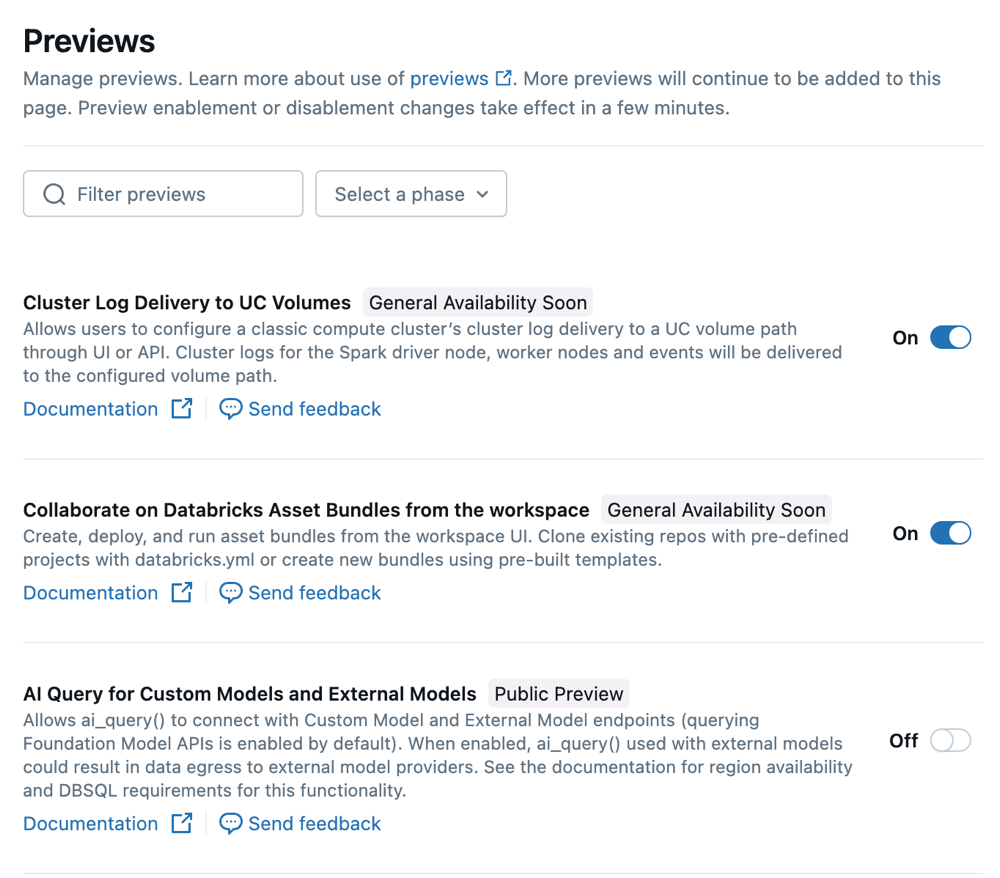
- As an account admin, log in to the account console.
- In the sidebar, click Previews.
- Use toggles
 to enable or disable previews.
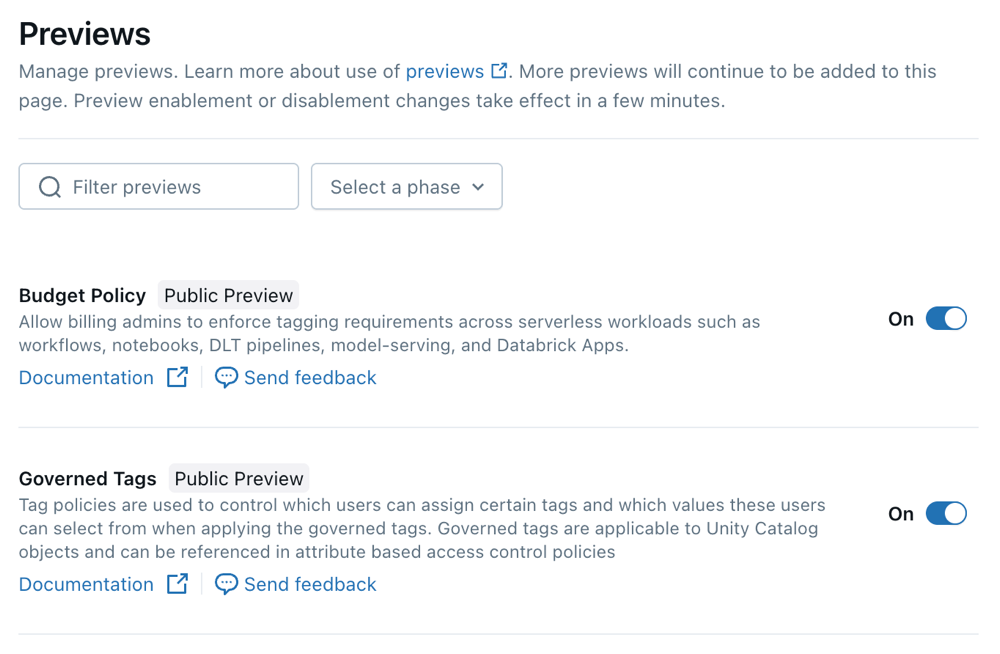
Manage workspace-level previews
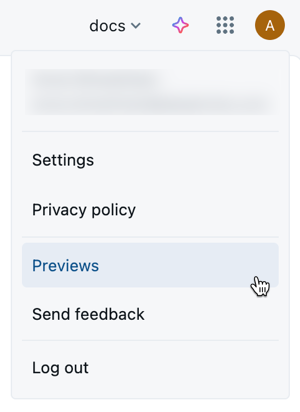
As a workspace admin, click your username in the top bar of the Databricks workspace.
From the menu, select Previews.
Use toggles
to enable or disable previews.