Note
Access to this page requires authorization. You can try signing in or changing directories.
Access to this page requires authorization. You can try changing directories.
Important
Microsoft Entra Backup and Recovery is currently in preview. See the Supplemental Terms of Use for Microsoft Azure Previews for legal terms that apply to Azure features that are in beta, preview, or otherwise not yet released into general availability.
Learn how to review past recovery operations in your tenant by using the Recovery History page in Microsoft Entra Backup and Recovery.
Recovery history includes:
- The final status of the recovery.
- The backup point used for each recovery.
- The start and completion time of the recovery.
- The number of objects and links modified.
Use recovery history for recent operational review and troubleshooting. Recovery history data is retained for up to 5 days after the recovery completion time.
Prerequisites
To view available recovery history in your tenant, you must sign in with at least the Microsoft Entra Backup Reader role.
Review recovery history
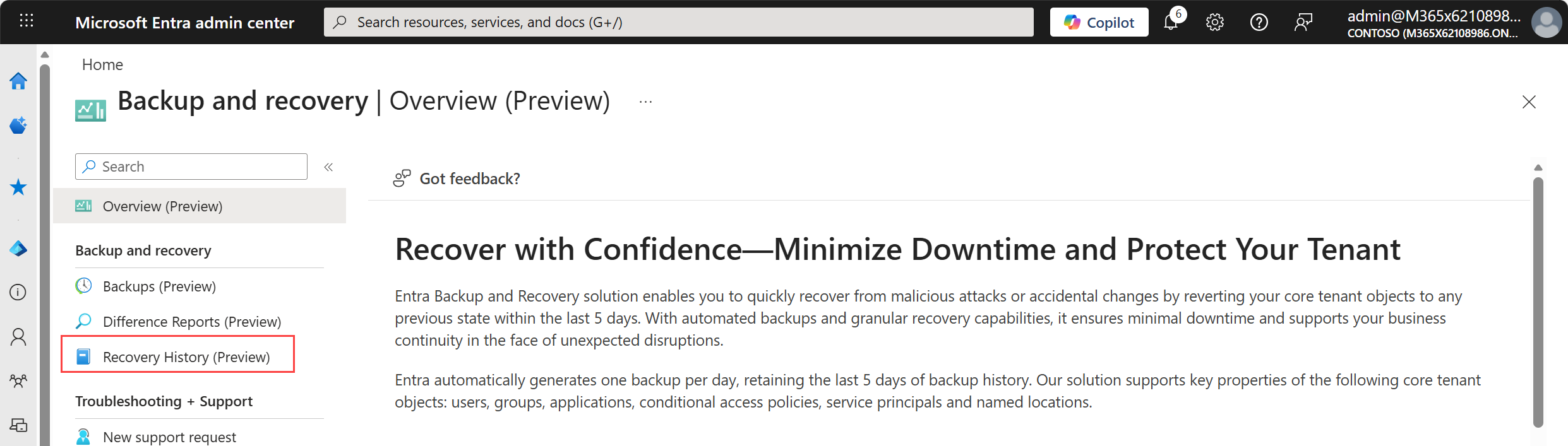
Sign in to the Microsoft Entra admin center as at least a Microsoft Entra Backup Reader.
In the left navigation pane, select Recovery History (Preview) under Backup and recovery.
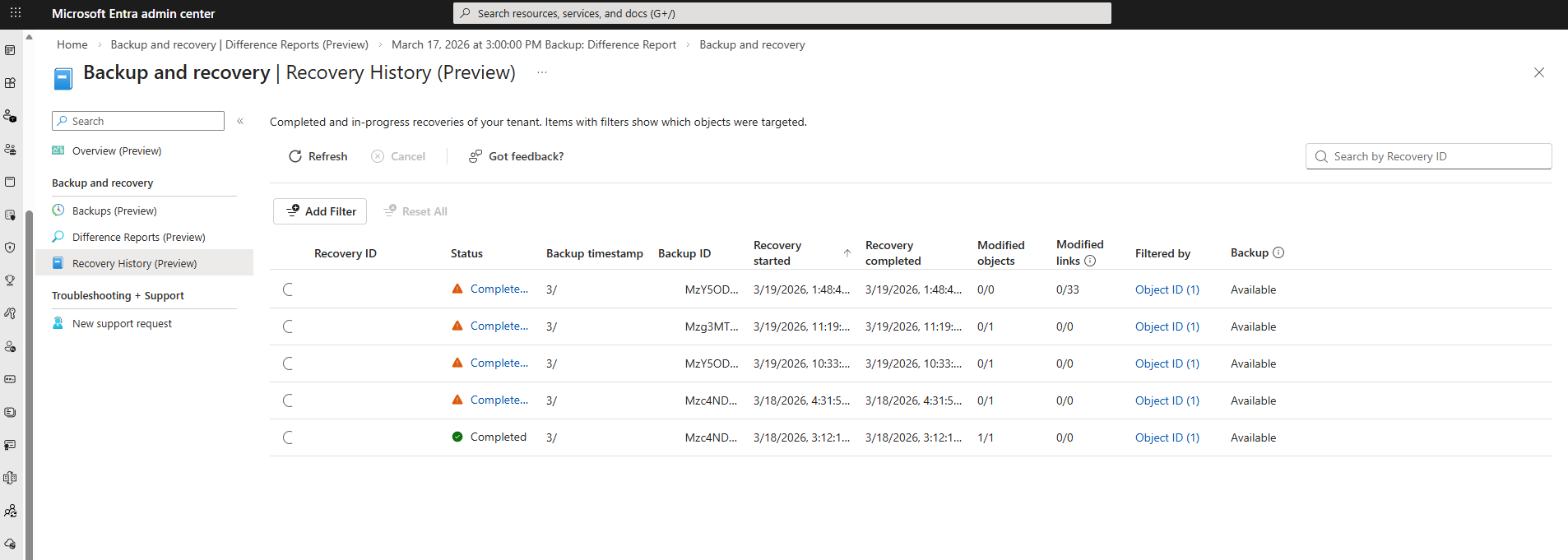
The Recovery History page displays all recent recovery operations in your tenant. From this page:
- View the Recovery ID for each operation.
- Check the Status.
- See the Backup timestamp and Backup ID used.
- Review when the recovery started and completed.
- See how many objects and links the recovery modified.
- Filter or search recovery records to narrow results.
Note
The system automatically removes recovery history 5 days after recovery completes.
Recovery statuses
Recovery operations move through these statuses as the system applies changes to the tenant. These statuses indicate the progress and outcome of the recovery job:
| Status | Description |
|---|---|
| Loading data | The system is loading data from the selected backup to prepare for recovery. If you already used the backup to create a difference report or a prior recovery, this step might finish quickly. |
| In progress | The system is applying recovery actions to restore objects to the backup state. The duration of this step depends on the number and type of changes being applied. |
| Completed | The recovery completed successfully, and the system applied all supported changes. |
| Completed with warnings | The recovery completed, but some changes couldn't be applied. Review the failed changes to understand which objects weren't restored and why. |
| Failed | The recovery couldn't be completed due to an error. The system might not have applied some changes. |
| Canceled | The recovery was canceled before completion. |
Review failed changes
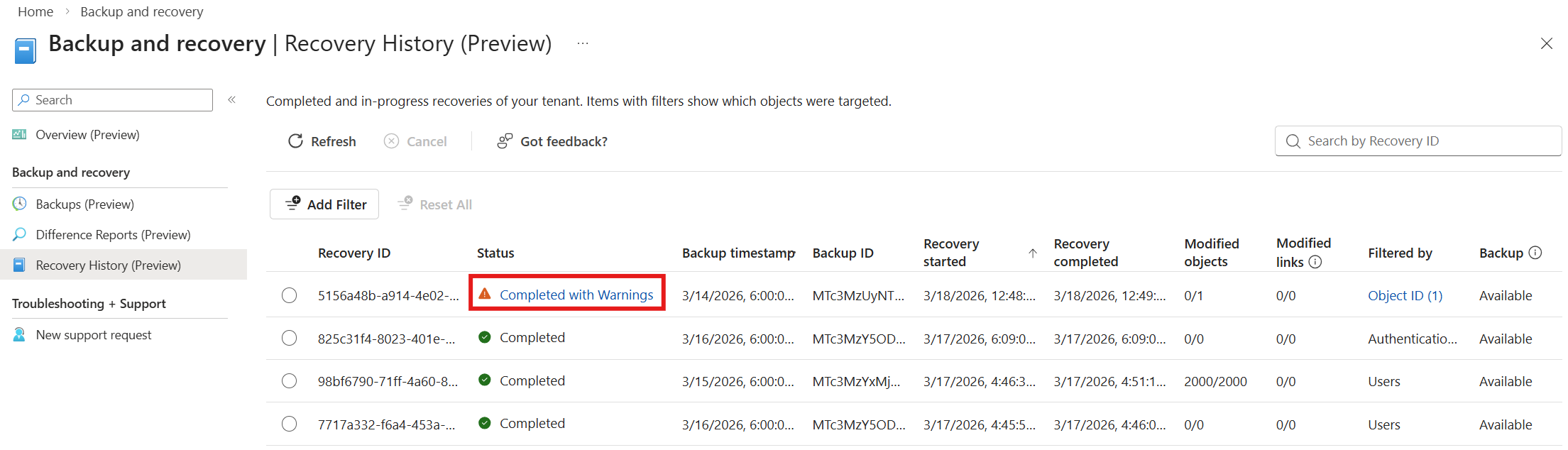
If a recovery operation partially succeeds, the Status column shows Completed with warnings, allowing you to identify objects that weren't recovered. Select Completed with warnings to view the details of the changes that were not recovered.
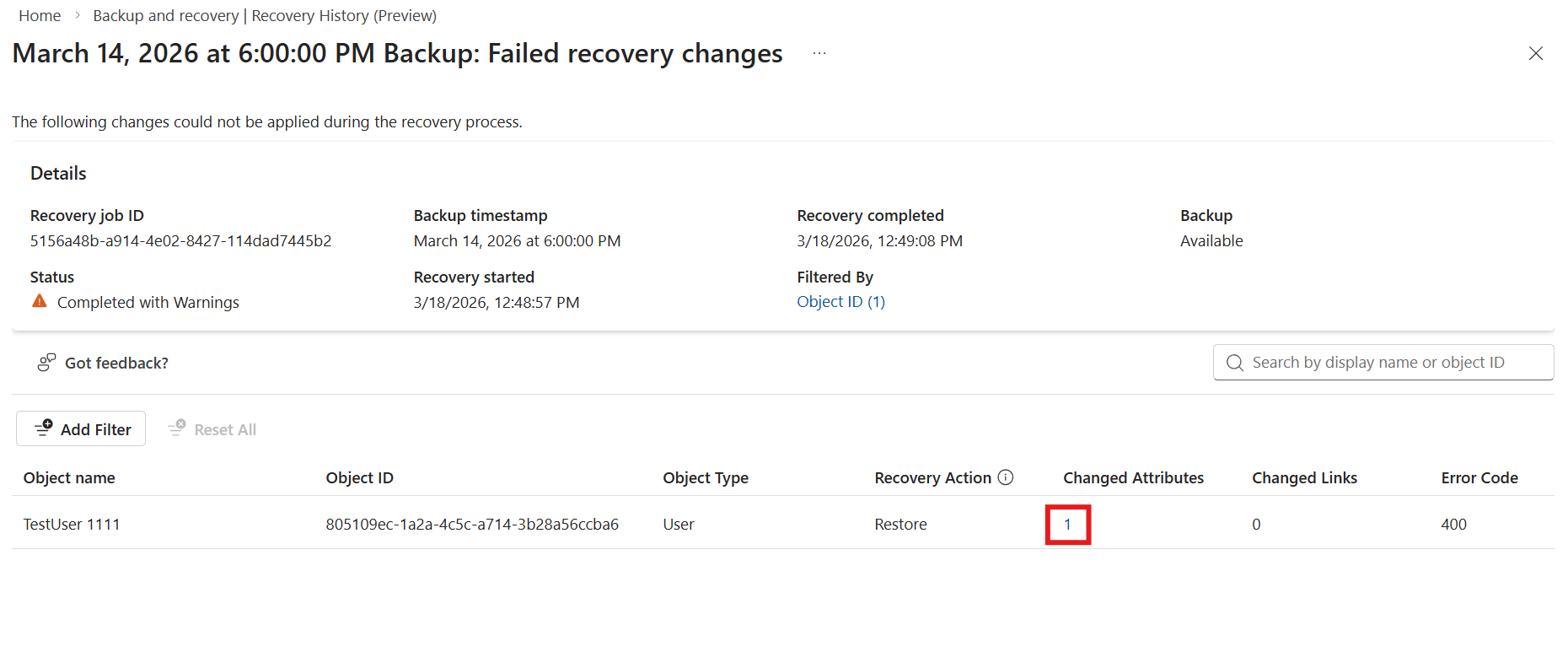
Select Changed Attributes or Changed Links of an object to view the details of the failure.
Value at recovery attempt shows the attribute value at the time the recovery was attempted. Backup value shows the value the recovery service attempted to restore.
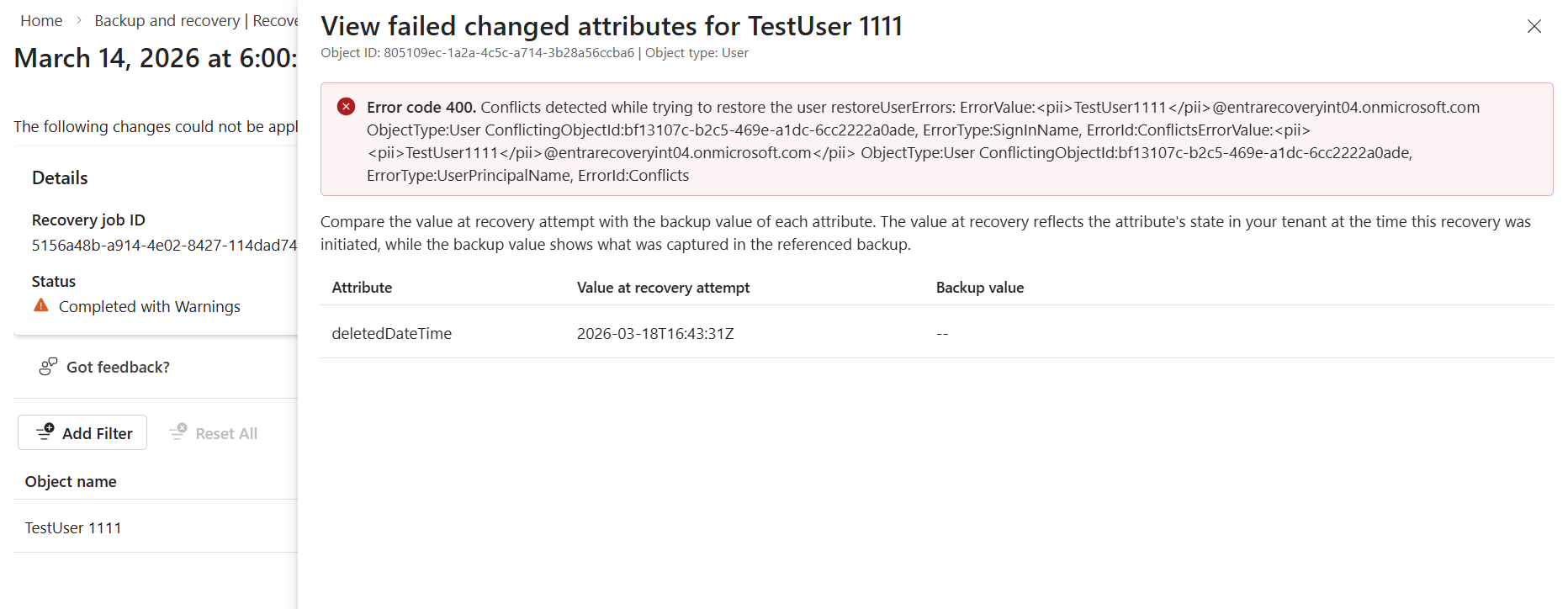
Use failed recovery entries to:
- Identify which recovery operation and object didn't complete successfully.
- Confirm the backup point that was used.
- View failure details that explain why the recovery didn't succeed.
Note
Failed recovery records remain available for 5 days after the recovery completion date.