Note
Access to this page requires authorization. You can try signing in or changing directories.
Access to this page requires authorization. You can try changing directories.
You can nudge users to set up a passkey or Microsoft Authenticator during sign-in. Users go through their regular sign-in, perform multifactor authentication as usual, and then get prompted to set up the targeted authentication method. You can include or exclude users or groups to control who gets nudged, and create targeted campaigns to move users from less secure authentication methods to passkeys or Authenticator.
Registration campaigns support two authentication methods:
- Passkey (FIDO2) — Nudge users to register a passkey, which includes both synced passkeys and device-bound passkeys.
- Microsoft Authenticator — Nudge users to download and set up the Authenticator app for push notifications.
Note
A registration campaign can only target one authentication method at a time. You can't run campaigns for both Microsoft Authenticator and passkeys simultaneously in the same tenant.
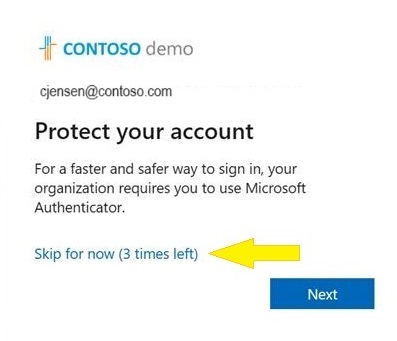
You can also define how many days a user can postpone, or "snooze," the nudge. If a user taps Skip for now to postpone setup, they get nudged again on the next MFA attempt after the snooze duration elapses. You can decide whether the user can snooze indefinitely or up to three times (after which registration is required).
Note
As users go through their regular sign-in, Conditional Access policies that govern security info registration apply before the user is nudged to set up an authentication method. For example, if a Conditional Access policy requires that security info updates can only occur on an internal network, users won't be prompted unless they're on the internal network.
Prerequisites
- If you want to know the number of users who registered each authentication method before you configure the registration campaign, see Authentication methods activity report.
- Your organization must enable Microsoft Entra multifactor authentication. The registration campaign has no license requirements.
- For Authenticator campaigns: Users can't already have the Authenticator app set up for push notifications on their account. Enable users for the Authenticator app in the Authentication methods policy. The Authentication mode must be set to Any or Push. If the mode is set to Passwordless, users aren't eligible for the nudge. For more information, see Enable passwordless sign-in with Microsoft Authenticator.
- For passkey campaigns: The passkey (FIDO2) authentication method must be enabled in the Authentication methods policy. In addition, the Allow self-service setup toggle must be enabled in the passkey (FIDO2) method configuration. For more information, see Enable passkeys.
User experience
Authenticator campaign
When you're targeted for an Authenticator registration campaign, you experience the following flow:
Authenticate using Microsoft Entra multifactor authentication (MFA).
If you're enabled for Authenticator push notifications and don't have it already set up, you get prompted to set up Authenticator to improve your sign-in experience.
Note
Other security features, such as passwordless passkey, self-service password reset, or security defaults, might also prompt you for setup.
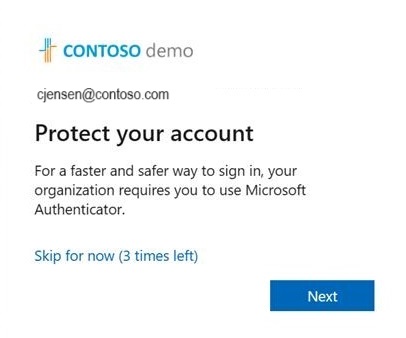
Select Next and step through the Authenticator app setup.
If you don't want to set up the Authenticator app, you can select Skip for now to snooze the prompt for up to 14 days, which can be set by an admin. Users with free and trial subscriptions can snooze the prompt up to three times.
Passkey campaign
When you're targeted for a passkey registration campaign, you experience the following flow:
Authenticate using Microsoft Entra multifactor authentication (MFA).
If passkey is enabled for your account and you haven't already registered a passkey, you get prompted to set up a passkey.
Note
The passkey nudge evaluates whether you have a local passkey for your current device and browser combination. If you already have a local passkey for that experience, you aren't nudged. This means the nudge is per-device/browser, not account-wide. For details about which passkey types satisfy the nudge on each platform, see the passkey nudge evaluation by platform section.
If you don't want to set up a passkey, you can tap Skip for now to snooze the prompt.
If you encounter an error during passkey registration, you see an error screen with a skip option. Skips from the error screen don't count toward your limited skip count, so registration errors don't block your sign-in.
Enable the registration campaign policy using the Microsoft Entra admin center
To enable a registration campaign in the Microsoft Entra admin center, complete the following steps:
Sign in to the Microsoft Entra admin center as at least an Authentication Policy Administrator.
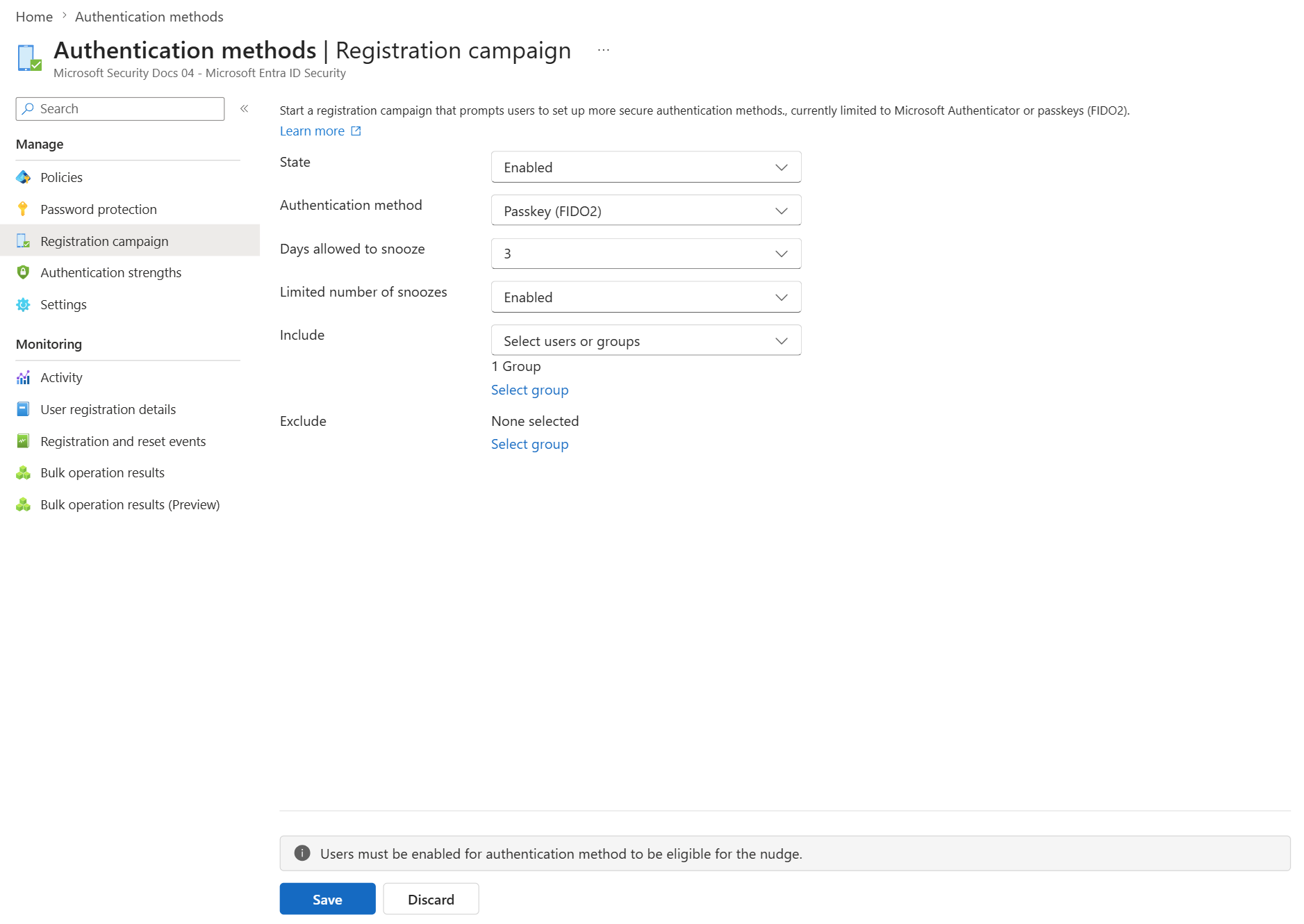
Browse to Entra ID > Authentication methods > Registration campaign and select Edit.
For State:
- Select Enabled to enable the registration campaign for all users. When the state is set to Enabled, you can configure the target authentication method, snooze duration, limited number of snoozes, and include/exclude targets.
- Select Microsoft managed to enable the registration campaign with Microsoft-recommended defaults. When Microsoft managed is selected, the target authentication method, snooze duration, and limited number of snoozes are set automatically and can't be configured. You can still configure include/exclude targets. For more information, see Protecting authentication methods in Microsoft Entra ID.
Note
When the state is set to Microsoft managed, Microsoft determines the optimal campaign settings based on best practices for your tenant. The following changes are incrementally rolled out to tenants:
- Targeted authentication method changes from Microsoft Authenticator to passkeys (FIDO2).
- Days allowed to snooze changes to 1 day. This setting is no longer configurable.
- Limited number of snoozes changes to Disabled (unlimited snoozes). This setting is no longer configurable.
- User targeting changes from voice call or text message users to all multifactor authentication (MFA) capable users.
If your tenant targets specific AAGUIDs in the passkey (FIDO2) policy, the targeted authentication method won't update to passkeys under Microsoft managed mode. You can still switch to Enabled and configure passkey targeting manually. Once the changes take effect, targeted users receive passkey registration nudges during sign-in after they complete multifactor authentication.
If you want passkeys enabled but don't want the registration campaign to target passkeys, you can switch the state to Enabled and target Microsoft Authenticator, or set the state to Disabled. For more information about how Microsoft managed values are set, see Microsoft managed values.
If the registration campaign state is set to Enabled, you can configure the experience for end users by using Limited number of snoozes:
- If Limited number of snoozes is Enabled, users can skip the interrupt prompt 3 times, after which they're forced to register the targeted authentication method.
- If Limited number of snoozes is Disabled, users can snooze an unlimited number of times and avoid registration.
Note
When Limited number of snoozes is enabled, the snooze count is tracked per user and persists across campaign restarts or configuration changes (including targeted method updates). This ensures a consistent and predictable registration experience.
Days allowed to snooze sets the period between two successive interrupt prompts. For example, if it's set to 3 days, users who skipped registration don't get prompted again until after 3 days.
For Authentication method, select the method to target:
- Microsoft Authenticator — Nudge users to set up the Authenticator app.
- Passkey — Nudge users to register a passkey (includes both synced passkeys and device-bound passkeys).
Select any users or groups to exclude from the registration campaign, and then select Save.
Enable the registration campaign policy using Graph Explorer
In addition to using the Microsoft Entra admin center, you can enable the registration campaign policy using Graph Explorer. You must use the Authentication Methods Policy Graph APIs. Those assigned at least the Authentication Policy Administrator role can update the policy.
To configure the policy using Graph Explorer:
Sign in to Graph Explorer and ensure you've consented to the Policy.Read.All and Policy.ReadWrite.AuthenticationMethod permissions.
To open the Permissions panel:

Retrieve the Authentication methods policy:
GET https://graph.microsoft.com/v1.0/policies/authenticationmethodspolicyUpdate the registrationEnforcement and authenticationMethodsRegistrationCampaign section of the policy to enable the nudge on a user or group.
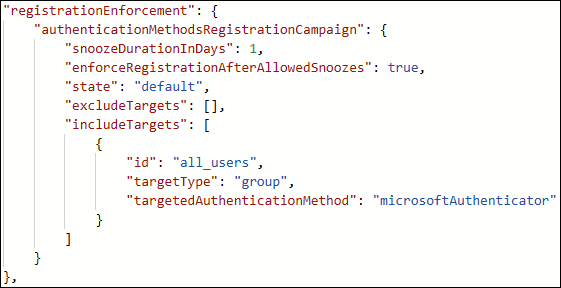
To update the policy, perform a PATCH on the Authentication Methods Policy with only the updated registrationEnforcement section:
PATCH https://graph.microsoft.com/v1.0/policies/authenticationmethodspolicy
The following table lists authenticationMethodsRegistrationCampaign properties.
| Name | Possible values | Description |
|---|---|---|
| snoozeDurationInDays | Range: 0 - 14 | Defines the number of days before the user is nudged again. If the value is 0, the user is nudged during every MFA attempt. Default: 1 day |
| enforceRegistrationAfterAllowedSnoozes | "true" "false" |
Dictates whether a user is required to perform setup after 3 snoozes. If true, user is required to register. If false, user can snooze indefinitely. Default: true |
| state | "enabled" "disabled" "default" |
Allows you to enable or disable the feature. Default value is used when the configuration hasn't been explicitly set and will use Microsoft Entra ID default value for this setting. Change state to enabled (for all users) or disabled as needed. |
| excludeTargets | N/A | Allows you to exclude different users and groups that you want omitted from the feature. If a user is in a group that is excluded and a group that is included, the user will be excluded from the feature. |
| includeTargets | N/A | Allows you to include different users and groups that you want the feature to target. |
The following table lists includeTargets properties.
| Name | Possible values | Description |
|---|---|---|
| targetType | "user" "group" |
The kind of entity targeted. |
| ID | A guid identifier | The ID of the user or group targeted. |
| targetedAuthenticationMethod | "microsoftAuthenticator" "fido2" |
The authentication method that the user is nudged to register. Use "microsoftAuthenticator" to nudge users to set up the Authenticator app, or "fido2" to nudge users to register a passkey. |
The following table lists excludeTargets properties.
| Name | Possible values | Description |
|---|---|---|
| targetType | "user" "group" |
The kind of entity targeted. |
| ID | A string | The ID of the user or group targeted. |
Examples
Here are a few sample JSON bodies you can use to get started.
Include all users and target Authenticator
If you want to include ALL users in your tenant and nudge them to set up Authenticator, update the following JSON example with the relevant GUIDs of your users and groups. Then paste it in Graph Explorer and run
PATCHon the endpoint.{ "registrationEnforcement": { "authenticationMethodsRegistrationCampaign": { "snoozeDurationInDays": 1, "enforceRegistrationAfterAllowedSnoozes": true, "state": "enabled", "excludeTargets": [], "includeTargets": [ { "id": "all_users", "targetType": "group", "targetedAuthenticationMethod": "microsoftAuthenticator" } ] } } }Include all users and target passkey
If you want to include ALL users in your tenant and nudge them to register a passkey, update the following JSON example. Then paste it in Graph Explorer and run
PATCHon the endpoint.{ "registrationEnforcement": { "authenticationMethodsRegistrationCampaign": { "snoozeDurationInDays": 1, "enforceRegistrationAfterAllowedSnoozes": true, "state": "enabled", "excludeTargets": [], "includeTargets": [ { "id": "all_users", "targetType": "group", "targetedAuthenticationMethod": "fido2" } ] } } }Include specific users or groups of users
If you want to include certain users or groups in your tenant, update the following JSON example with the relevant GUIDs of your users and groups. Then paste the JSON in Graph Explorer and run
PATCHon the endpoint.{ "registrationEnforcement": { "authenticationMethodsRegistrationCampaign": { "snoozeDurationInDays": 1, "enforceRegistrationAfterAllowedSnoozes": true, "state": "enabled", "excludeTargets": [], "includeTargets": [ { "id": "*********PLEASE ENTER GUID***********", "targetType": "group", "targetedAuthenticationMethod": "microsoftAuthenticator" }, { "id": "*********PLEASE ENTER GUID***********", "targetType": "user", "targetedAuthenticationMethod": "microsoftAuthenticator" } ] } } }Include and exclude specific users or groups
If you want to include AND exclude certain users or groups in your tenant, update the following JSON example with the relevant GUIDs of your users and groups. Then paste it in Graph Explorer and run
PATCHon the endpoint.{ "registrationEnforcement": { "authenticationMethodsRegistrationCampaign": { "snoozeDurationInDays": 1, "enforceRegistrationAfterAllowedSnoozes": true, "state": "enabled", "excludeTargets": [ { "id": "*********PLEASE ENTER GUID***********", "targetType": "group" }, { "id": "*********PLEASE ENTER GUID***********", "targetType": "user" } ], "includeTargets": [ { "id": "*********PLEASE ENTER GUID***********", "targetType": "group", "targetedAuthenticationMethod": "microsoftAuthenticator" }, { "id": "*********PLEASE ENTER GUID***********", "targetType": "user", "targetedAuthenticationMethod": "microsoftAuthenticator" } ] } } }
Identify user GUIDs for the JSON request body
Sign in to the Microsoft Entra admin center as at least an Authentication Policy Administrator.
In the Manage blade, select Users.
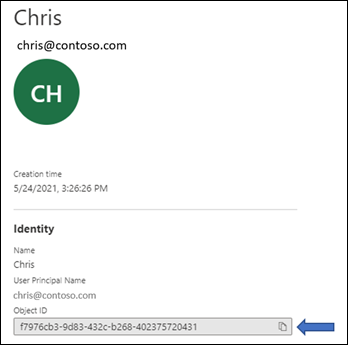
On the Users page, identify the specific user you want to target.
When you select the specific user, you see their Object ID, which is the user's GUID.
Identify group GUIDs for the JSON request body
Sign in to the Microsoft Entra admin center as at least an Authentication Policy Administrator.
In the Manage blade, select Groups.
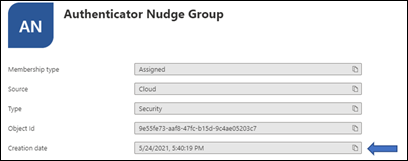
On the Groups page, identify the specific group you want to target.
Select the group to get the Object ID.
Limitations
Important
The passkey nudge is evaluated on a per-user basis under Microsoft managed mode. When a user signs in and is scoped into the registration campaign, their passkey profile is checked for restrictions. If the user's passkey profile has any of the following restrictions, they don't see a nudge upon MFA completion:
- Synced only
- Device-bound only
- Attestation enforced
- AAGUID restrictions
Passkey nudge evaluation by platform
The registration campaign evaluates whether a user has a local passkey for their current device and browser combination. The following table describes which platform passkey types suppress the nudge on each OS and browser combination. A user needs at least one matching passkey type for the nudge to be suppressed on that device and browser.
For example, if a user has a Windows Hello for Business credential and signs in on Windows with Chrome, the nudge is suppressed. But if the same user signs in on a Mac with Chrome, they're nudged because that credential doesn't apply to that platform.
| Credential | Windows + Chrome | Windows + Edge | Windows + Other | Mac + Chrome | Mac + Edge | Mac + Other | iOS | Android |
|---|---|---|---|---|---|---|---|---|
| Windows Hello for Business | ✔️ | ✔️ | ✔️ | — | — | — | — | — |
| Entra passkey on Windows (EPOW) | ✔️ | ✔️ | ✔️ | — | — | — | — | — |
| Google Password Manager | ✔️ | — | — | ✔️ | — | — | — | ✔️ |
| Microsoft Password Manager | — | ✔️ | — | — | ✔️ | — | — | — |
| iCloud Keychain (incl. Managed) | — | — | — | ✔️ | ✔️ | ✔️ | ✔️ | — |
| Mac Platform SSO | — | — | — | ✔️ | ✔️ | ✔️ | — | — |
| Samsung Pass | — | — | — | — | — | — | — | ✔️ |
| Any non-platform provider (such as security keys or authenticator apps) | ✔️ | ✔️ | ✔️ | ✔️ | ✔️ | ✔️ | ✔️ | ✔️ |
Note
Linux: Users aren't nudged. FIDO2 passkeys aren't available on Linux.
Frequently asked questions
Can users be nudged within an application?
Yes. Registration campaigns support embedded browser views in certain applications. The campaign doesn't nudge users in out-of-the-box experiences or in browser views embedded in Windows settings.
Can users be nudged within a single sign-on (SSO) session?
The nudge doesn't trigger if the user is already signed in with SSO.
Can users be nudged on a mobile device?
The registration campaign isn't available on mobile devices.
How long does the campaign run for?
You can enable the campaign for as long as you like. Whenever you want to be done running the campaign, use the admin center or APIs to disable the campaign.
Can each group of users have a different snooze duration?
No. The snooze duration for the prompt is a tenant-wide setting and applies to all groups in scope.
Can users be nudged to set up passwordless phone sign-in?
The registration campaign feature supports nudging users to set up MFA using the Authenticator app or to register a passkey. Passwordless phone sign-in isn't a targeted method for registration campaigns.
Will a user who signs in with a third-party authenticator app see the nudge?
Yes. If a user is enabled for the registration campaign and doesn't have the targeted authentication method set up (Microsoft Authenticator for push notifications, or a passkey), the user is nudged.
Will a user who has Authenticator set up only for TOTP codes see the nudge?
Yes. If a user is enabled for an Authenticator registration campaign and the Authenticator app isn't set up for push notifications, the user is nudged to set up push notification with Authenticator.
Will a user who already has a passkey see the nudge?
The passkey nudge evaluates whether a user has a local passkey for their current device and browser combination. If the user already has a local passkey for that experience, they aren't nudged. This means a user might be nudged on one device but not another. For platform-specific details, see the passkey nudge evaluation by platform section.
Can I run registration campaigns for both Authenticator and passkeys at the same time?
No. A registration campaign can only target one authentication method at a time. You can either target Microsoft Authenticator or passkeys, but not both simultaneously in the same tenant.
If a user just went through MFA registration, are they nudged in the same sign-in session?
No. To provide a good user experience, users won't be nudged to set up the Authenticator in the same session that they registered other authentication methods.
Can I nudge my users to register another authentication method?
Yes. Registration campaigns support nudging users to set up Microsoft Authenticator or to register a passkey (FIDO2). Select the targeted authentication method when you configure the campaign.
Is there a way for me to hide the snooze option and force my users to set up the Authenticator app?
Set the Limited number of snoozes to Enabled such that users can postpone the app setup up to three times, after which setup is required.
Will I be able to nudge my users if I'm not using Microsoft Entra multifactor authentication?
No. The nudge only works for users who are doing MFA using the Microsoft Entra multifactor authentication service.
Will Guest/B2B users in my tenant be nudged?
Yes, if they're included in the registration campaign policy.
What if the user closes the browser?
It's the same as snoozing. If setup is required for a user after they snoozed three times, the user is nudged when they next sign in.
Why don't some users see a nudge when there is a Conditional Access policy for "Register security information"?
A nudge won't appear if a user is in scope for a Conditional Access policy that blocks access to the Register security information page.
Do users see a nudge when there is a terms of use (ToU) screen presented to the user during sign-in?
A nudge won't appear if a user is presented with the terms of use (ToU) screen during sign-in.
Do users see a nudge when Conditional Access custom controls are applicable to the sign-in?
A nudge won't appear if a user is redirected during sign-in due to Conditional Access custom controls settings.
Are there any plans to discontinue SMS and Voice as methods usable for MFA?
No, there are no such plans.