Note
Access to this page requires authorization. You can try signing in or changing directories.
Access to this page requires authorization. You can try changing directories.
APPLIES TO:  Meetings
  Events
The Teams events usage report in the Microsoft Teams admin center provides an activity overview of events created in your organization.
As an admin, you can view usage information, including the event title, event ID, start time, end time, event access type, total number of attendees, recording information, whether RTMP was used, and the names of the organizers, presenters, and co-organizers for each event.
Use the report to gain insight into usage trends and see who in your organization schedules and hosts events.
View the Teams events usage report
- In the left navigation of the Teams admin center, go to Analytics & reports > Usage reports. On the View reports tab, under Report, select Teams events usage reports.
- Under Date range, select a predefined range of 7 days or 28 days, or set a custom range. You can set a range to show data up to 90 days before and after the current date.
- You can choose to show events by participant and their role. To do this:
- Under Search by participant (optional), search for and choose a specific person.
- Under Role of participant, specify whether that person is an organizer or co-organizer, presenter, or attendee.
- Select Run report.
Interpret the report
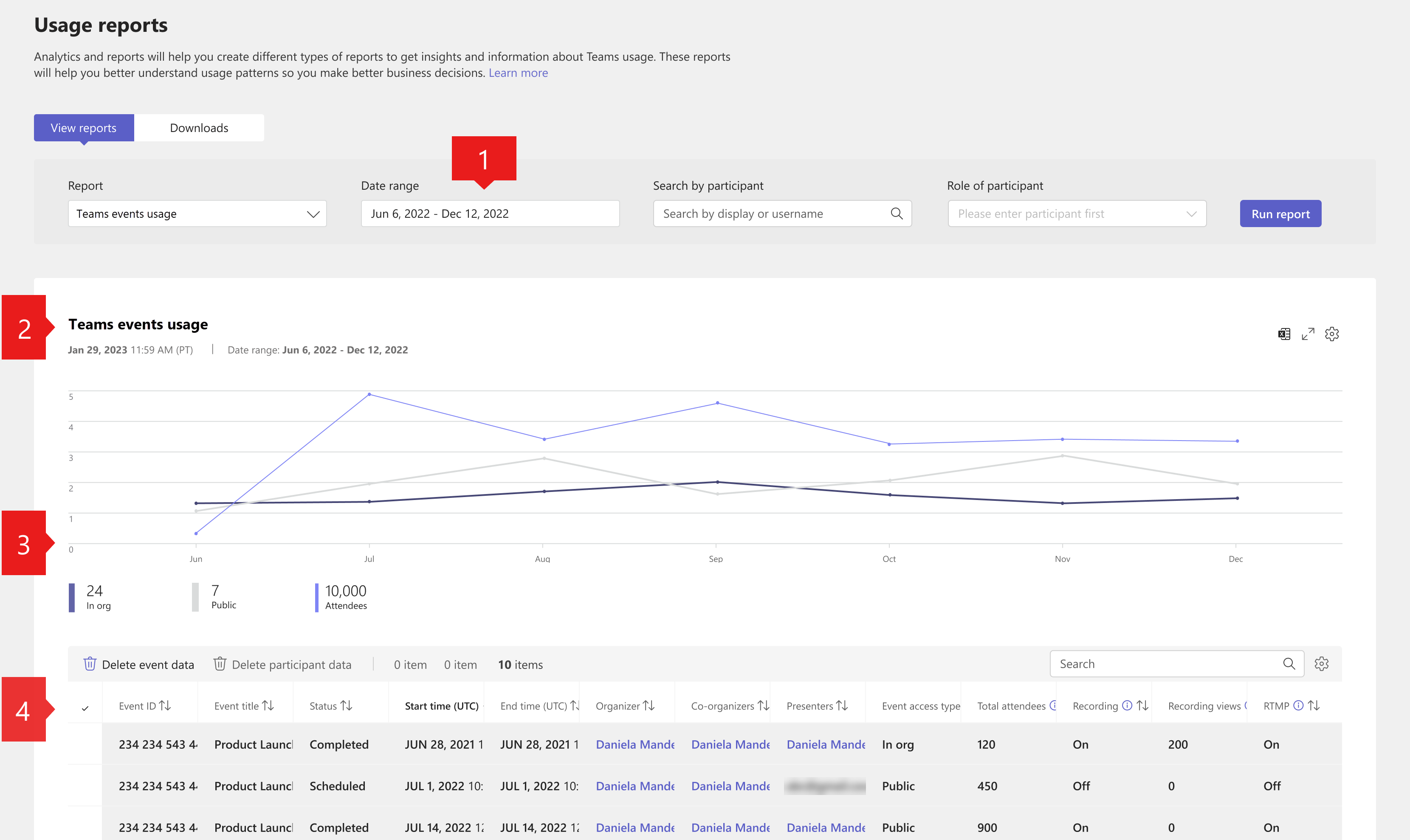
| Callout | Description |
|---|---|
| 1 | Each report has a date for when it's generated. The report reflects near real-time activity when you refresh the page. |
| 2 |
|
| 3 | The table gives you a breakdown of each event.
|
Note
- The report shows up to 100 events that match the current report criteria. To see more events, apply date filters to reduce the list size.
- Visibility of specific report columns—including Recording, Recording Views, Total Attendees, and RTMP—is subject to the following criteria:
- The event must have started.
- There must be a minimum of three participants (that is, participant count ≥ 3).
- The event must run for at least 900 seconds (15 minutes).
- These columns might take up to 28 hours after the event ends to appear in the usage report.